
Quick start
Enable the Llama Upsells app embed and add your first widget app block to get upsells rendering on any Shopify theme.
This guide gets Llama Upsells rendering on a Shopify theme. There are two pieces: a global app embed that loads the app once per page, and one or more app blocks that render individual widgets where you want them. You do both from the theme editor — no theme code changes required.
How the theme app extension works
Llama Upsells ships as a Shopify theme app extension. Instead of pasting Liquid snippets into your theme, the extension exposes pre-built blocks that merchants and developers drop in through the theme editor. Updates ship from the app, so the theme stays clean.
The extension provides two kinds of blocks:
- App embed — a single global block that targets the page
head. It injects the cart and customer context, loads the app runtime, and renders the Llama Cart. You enable it once and it applies to the whole storefront. - App block — a block you place inside a specific template section. The Widget block is the one to start with: it renders a Gift with Purchase or Pre Purchase upsell widget at a chosen spot in the page.
The app embed has to be enabled for widgets to bootstrap correctly, so enable it first.
Both blocks read live storefront context (cart, customer, market, currency) at render time and pass it to the app, so the widgets you place reflect the shopper's real state.
Before you start
You need:
- A Shopify store with the Llama Upsells app installed.
- Access to the store's theme editor (Online Store > Themes).
- At least one campaign created in the app's admin panel if you want a widget to appear automatically. Otherwise, have a Widget ID ready (you'll find it in the admin panel).
Step 1 — Enable the app embed
The app embed is a global block, so it lives under App embeds in the theme editor rather than inside a section.
Open the theme editor
From your Shopify admin, go to Online Store > Themes, find the theme you want, and click Customize.
Open App embeds
In the theme editor's left sidebar, open the App embeds panel (the toggle/plug icon at the bottom of the sidebar).
Turn on the Llama Upsells embed
Find the Llama Upsells app embed in the list and toggle it on, then Save.
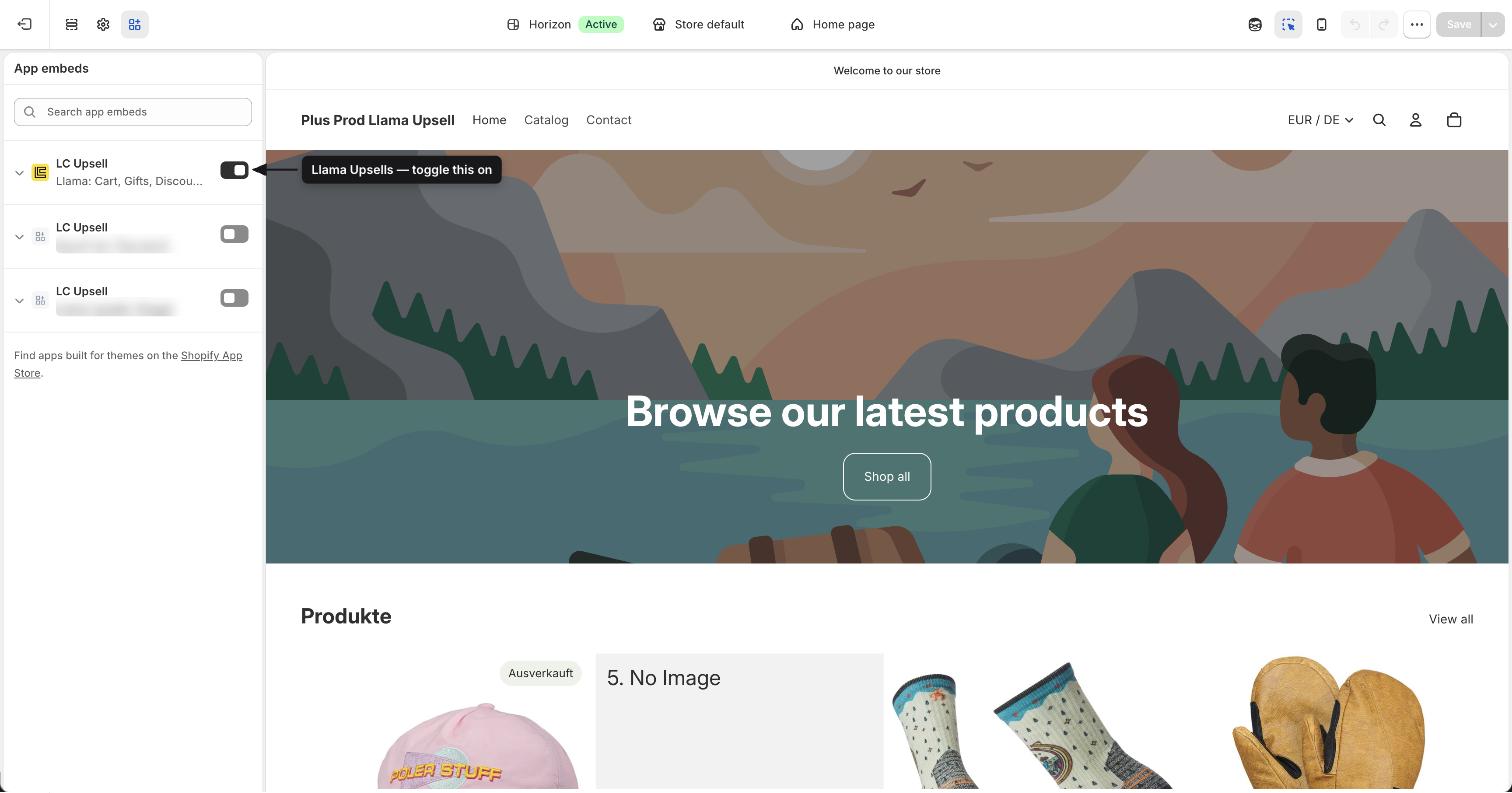
App embed settings
The app embed exposes a Cart Experience Variant setting that controls which cart design renders:
| Option | What it does |
|---|---|
| Published | Shows the published Llama Cart version. |
| Test Version - A / B / C | Renders a specific test variant so you can A/B test conversions. |
| Disable Llama Cart | Turns the Llama Cart off while keeping the embed enabled. |
Leave it on Published unless you're actively testing a variant.
Step 2 — Add the Widget app block
With the embed enabled, add a Widget block to the section where you want the upsell to appear (for example, a product or cart template section).
Pick a section
In the theme editor, navigate to the page and section where the widget should render. Click Add block within that section.
Add the Widget block
Choose the Widget block from the Llama Upsells app under the Apps group.
Set the Widget ID (optional)
In the block settings, enter a Widget ID to render a specific widget. If you leave it blank, the block falls back to the active Gift with Purchase campaign, or the active Pre Purchase campaign if no Gift with Purchase campaign is running.
Save and preview
Click Save, then preview the storefront to confirm the widget renders in place.
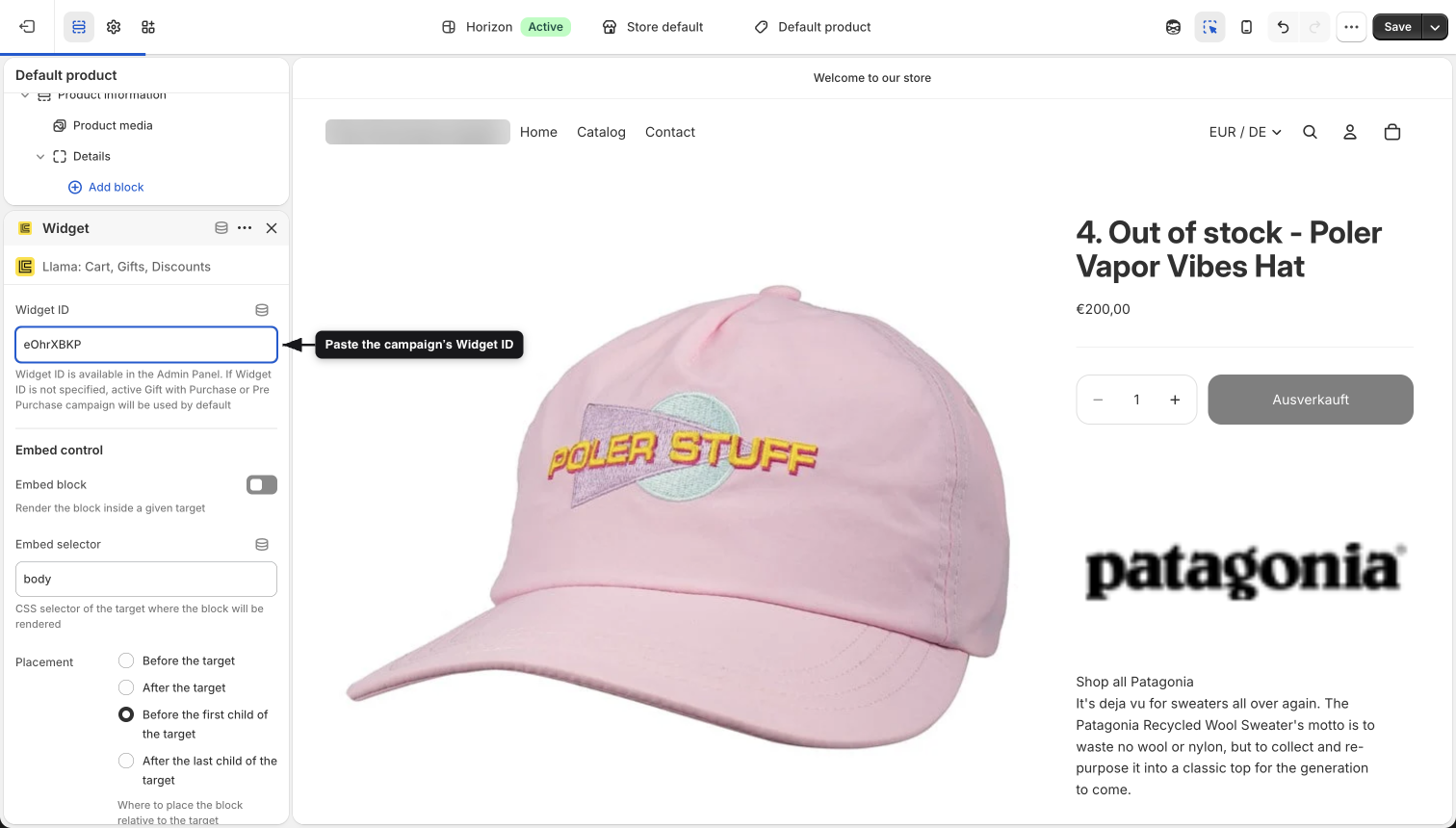
Widget block settings
| Setting | Purpose |
|---|---|
| Widget ID | The ID of the widget to render, available in the admin panel. Leave blank to use the active Gift with Purchase or Pre Purchase campaign by default. |
| Embed block | Render the block inside a target element elsewhere on the page instead of in place. |
| Embed selector | The CSS selector of the target element when Embed block is on (defaults to body). |
| Placement | Where to insert the block relative to the target — before, after, as the first child, or as the last child. |
Use Embed block with an Embed selector when you need the widget rendered into an element that the theme renders dynamically (for example, inside a cart drawer). Leave it off to render the widget directly where you placed the block.
The widget chooses its layout automatically from the campaign's funnel and layout configuration — a Gift with Purchase campaign renders as a slider, collapsible, or list, and a Pre Purchase campaign renders as a slider, list, or scrollable list. You don't pick the layout in the theme editor; it comes from how the campaign is configured in the admin.
If the app's subscription is inactive, widgets do not render even when the block is placed and the embed is on. Make sure the subscription is active before troubleshooting other causes.
Verify it's working
Open the storefront (not just the editor preview) and confirm the widget appears. The app reads request.design_mode, so behavior can differ between the theme editor and the live storefront — always do a final check on the live page.