
Developer troubleshooting
Diagnose and fix common Llama Upsells integration problems — app embed, missing widgets, stale carts, native drawers, and Llama Cart sync.
This page collects the integration problems you are most likely to hit when wiring Llama Upsells into a theme, with the cause and the fix for each. If a widget is missing, the cart won't open, or a programmatic cart change doesn't show up, start here.
Most issues fall into one of two buckets: the shared runtime isn't loaded (the app embed is off), or the app didn't detect a cart change (a custom cart write that bypassed the fetch override). Work top to bottom — the first checks rule out the most common causes.
App embed is not enabled
The app embed is the single, store-wide block that loads the shared runtime every widget and the Llama Cart depend on. If it is off, nothing from Llama Upsells renders — no widgets, no Llama Cart — regardless of which app blocks you have placed.
Symptoms:
- No widgets appear anywhere on the storefront.
- The Llama Cart never opens when the cart icon is clicked.
- The Add to Cart button redirects to another page instead of opening the cart.
Enable it from the theme editor:
Open the theme editor
From your Shopify admin, go to Online Store → Themes, then click Customize on your live theme.
Open App embeds
In the left sidebar, open the App embeds panel and find the LC Upsell app embed.
Toggle it on and save
Switch the LC Upsell app embed on, then click Save to apply the change.
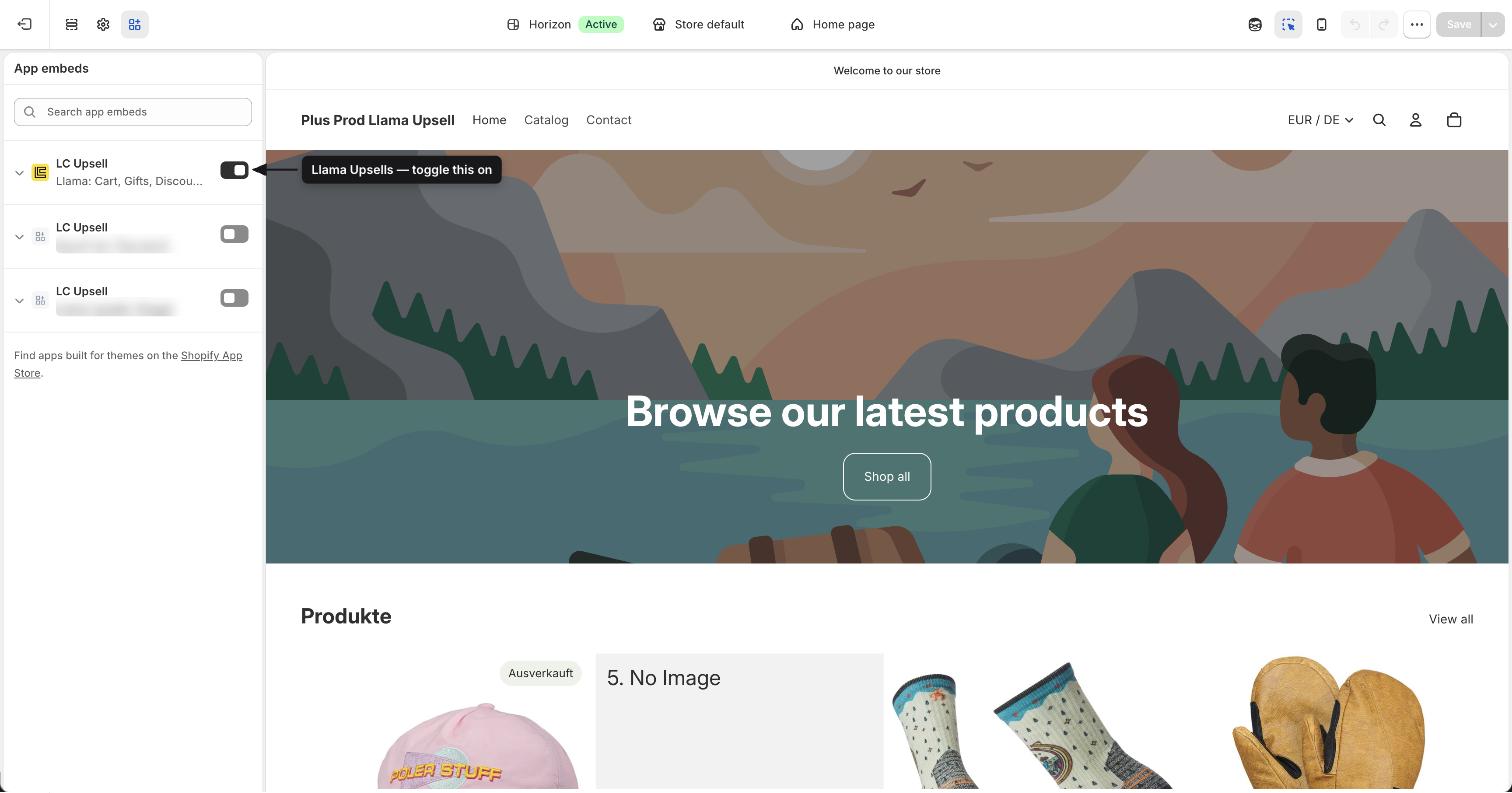
The app embed is global. If you disable it, the shared runtime stops loading and every widget plus the Llama Cart disappears at once. A single missing widget is almost never an app-embed problem — see the next section.
For the full reference on what the app embed loads and its settings, see App embed.
A widget block is not appearing
If the app embed is on (other widgets and the Llama Cart work) but one specific widget is missing, the problem is local to that block, not the runtime.
Check, in order:
- The block is added to the right section. Each widget is an app block you place in a theme section through the editor. Confirm the block exists in the section and template you're viewing.
- A campaign is active and targets this page. A widget block only renders when an active campaign supplies content for it. If no campaign matches the current page or product, the block stays empty.
- Quick View dependencies. If the widget uses Quick View, the app only injects the Quick View library when a widget in the active configuration enables it. A misconfigured campaign can leave the widget without its modal.
A widget that renders in the theme editor preview but not on the live storefront usually points to a campaign that is paused or out of its scheduled window, not a code problem.
See the per-block settings in the App blocks reference to confirm the block is configured correctly.
Widget not refreshing after a programmatic cart change
When you change the cart with your own JavaScript, Llama Upsells widgets don't automatically know the cart changed. The app keeps itself in sync by intercepting cart network requests, but a write that bypasses that interception leaves widgets showing stale state.
How the app detects cart changes
The app overrides window.fetch and XMLHttpRequest.prototype.open and acts only on cart modification requests — a request whose URL contains /cart and uses the POST method. Everything else passes straight through:
const isCartRelatedRequest = url.includes('/cart');
const isCartModifyRequest =
  isCartRelatedRequest && init?.method?.toLowerCase() === 'post';

// For non-cart requests, execute normally
if (!isCartModifyRequest) {
  return nativeFetch(input, init);
}
When a cart-modifying POST succeeds, the app re-reads the cart and dispatches its update events, so widgets re-render. A custom write slips through the cracks when it doesn't match this pattern — for example a non-POST request, a request that doesn't hit a /cart URL, or a cart mutation made before the override was installed.
The fix: dispatch upsell:refresh
After your cart write resolves, fetch the latest cart and dispatch the upsell:refresh event on document, passing that cart in detail.cart, to tell the widgets to re-render:
async function addItemAndRefresh(variantId, quantity = 1) {
  const baseUrl = window.Shopify.routes.root;

  await fetch(`${baseUrl}cart/add.js`, {
    method: 'POST',
    headers: { 'content-type': 'application/json' },
    body: JSON.stringify({ items: [{ id: variantId, quantity }] }),
  });

  // Fetch the updated cart, then hand it to Llama Upsells to re-render.
  const cart = await fetch(`${baseUrl}cart.json`).then((r) => r.json());

  document.dispatchEvent(
    new CustomEvent('upsell:refresh', { detail: { cart } }),
  );
}
Dispatch the event only after the cart write resolves. If you dispatch before the change is committed, the app re-fetches the old cart and widgets show stale state. Always await the AJAX call first.
For the full event contract, including passing the latest cart in detail.cart, see Refreshing widgets.
Verify with cart events
To confirm the app is detecting your cart writes, listen for the cart lifecycle events it emits. If upsell:cart-updated doesn't fire after your write, the override didn't catch it and you need the manual upsell:refresh:
document.addEventListener('upsell:cart-updated', (event) => {
  console.log('Item count:', event.detail.newCart.item_count);
});
See Cart events for every event name and payload.
Native cart drawer not opening or refreshing after add
If you are not using Llama Cart and rely on your theme's own cart drawer, a product can be added successfully while the drawer neither opens nor updates. This shows up as: clicking Add to Cart gives no visible feedback, and the drawer's contents stay unchanged.
Two separate things need to happen — refreshing the drawer's contents, and opening it — and they are configured separately in the app Settings page.
Theme cart drawers rely on AJAX to update their contents without reloading the page.
Enable AJAX
Open the app Settings page, find the AJAX Settings section, and enable the Enable AJAX checkbox. Once saved, the drawer refreshes automatically after a product is added.
Set the drawer selectors
Under AJAX Settings, fill in the Cart Items Container Selector and Cart Footer Selector. These define which parts of the drawer are refreshed when the cart changes. Default selectors are provided and work for many themes.
If the drawer still doesn't refresh, the defaults don't match your theme. Open your storefront, add a product with the native Add to Cart button, open the drawer, and inspect its HTML. Find the container holding the cart items list and the one holding the subtotal/footer, then paste those CSS selectors into the two fields.
Refreshing updates the drawer's contents, but it still has to be opened. Use a callback event to open it automatically after an add.
Enable the callback function
In the app Settings page, scroll to the Events section and enable Enable Callback Function. A code input field appears below it.
Trigger your theme's cart drawer
Most themes open the drawer when the header cart icon is clicked. Because selectors vary by theme, paste a click trigger for the right element into the callback input. Common triggers:
document.querySelector('#cart-icon-bubble')?.click();document.querySelector('.js-drawer-open-cart')?.click();document.querySelector('nav a[href="/cart"]')?.click();If none of the examples work, inspect your theme header, find the clickable element that opens the drawer, copy its selector, and call .click() on it:
document.querySelector('YOUR_SELECTOR_HERE').click();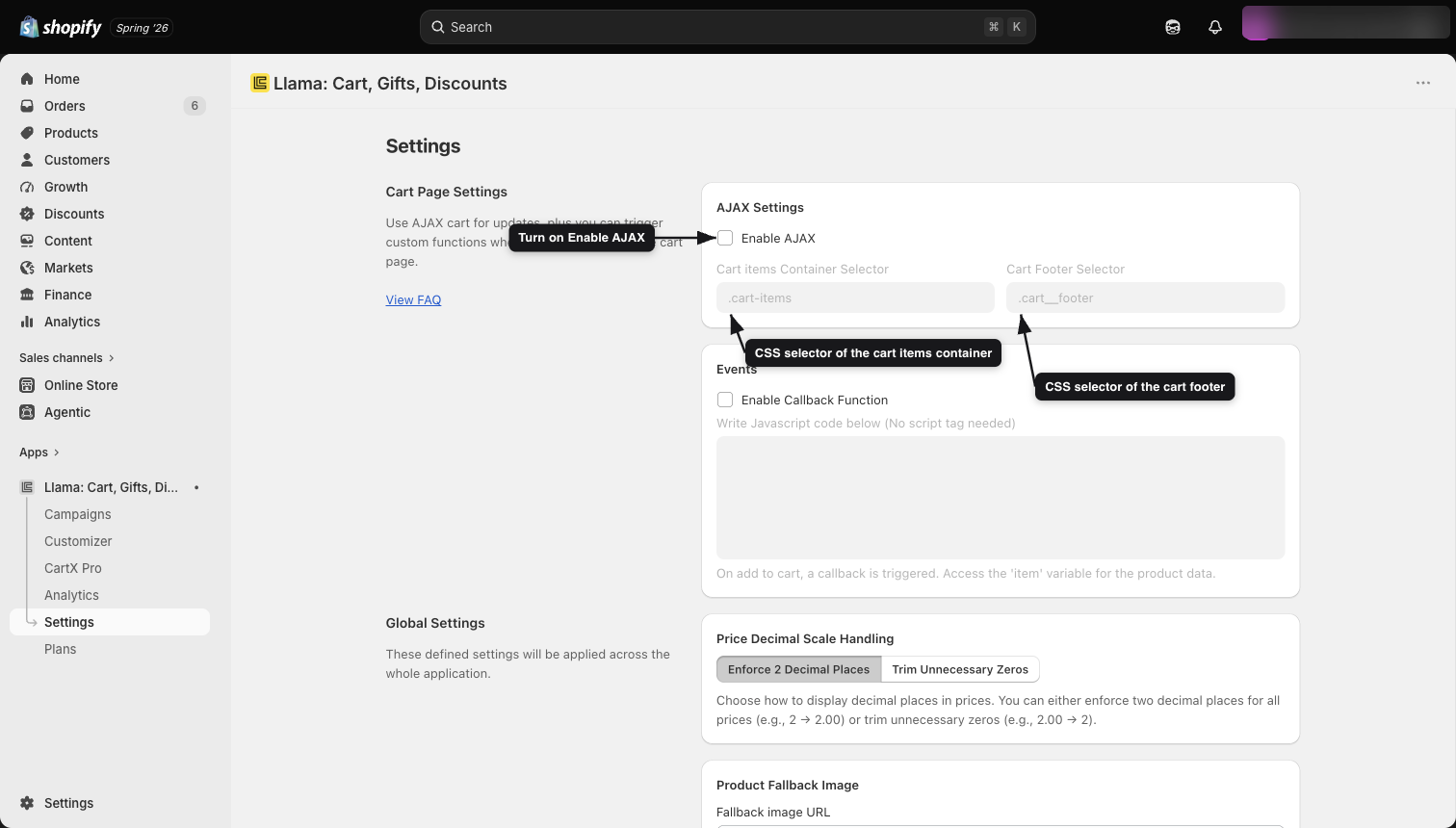
For the deeper explanation of fetch interception and rendering widgets inside a native drawer, see Add widgets to the cart drawer.
Llama Cart not opening or syncing
These issues apply when you are using Llama Cart. Run through the checks in order — each rules out a distinct cause.
The cart fails to open or the Add to Cart button redirects
Two settings have to be right before Llama Cart will open from the cart icon.
Confirm the app embed is on
Llama Cart depends on the app embed. If it's off, enable it first using the App embed is not enabled steps above.
Activate Llama Cart
Go to the Customizer and look for the Activate Llama Cart banner. Click Activate. You can confirm the status in the Published cart section:
Inactive— the cart is disabled.Live— the cart is enabled.
The Add to Cart button opens a page instead of the drawer
If the cart is active but Add to Cart opens a different page instead of the Llama Cart sidebar, the theme's cart type is set to Page. Change it so the cart behaves as a drawer:
Open theme settings
Go to Online Store → Themes → Customize, then open Theme settings → Cart → Cart type.
Choose Drawer or Pop-notification
Select Drawer or Pop-notification, then click Save.
Use the Drawer or Pop-notification cart type with Llama Cart rather than the Page cart type, on both new and old themes.
The cart loads but configurations are missing (version mismatch)
In rare cases the app embed is on and the cart is active, but your Llama Cart configuration doesn't appear on the live theme. This is usually a Cart Experience Variant mismatch in the app embed settings.
Open the app embed settings
Go to Online Store → Themes → Customize, open App embeds, and select the LC Upsell app embed.
Set the variant to Published
Find Cart Experience Variant and set it to Published. This resolves the mismatch by loading your live, published cart configuration.
The Cart Experience Variant also drives A/B testing (Test Version A/B/C) and a Disable Llama Cart option. If the cart is unexpectedly absent, confirm this setting isn't set to Disable Llama Cart. See App embed settings for the full list.
Related references
App embed
What the app embed loads, how to enable it, and the Cart Experience Variant setting.
Refreshing widgets
Dispatch upsell:refresh after a programmatic cart change.
Cart events
Listen for cart lifecycle events to verify the app sees your writes.
Add widgets to the cart drawer
Fetch interception and native drawer setup in depth.