
Targeting by schedule, market & customer tags
Overview of the three campaign-level targeting filters — schedule, markets, and customer tags — with links to the in-depth guides.
Every campaign has three campaign-level targeting filters — schedule, markets, and customer tags — that sit on top of your condition rules. They decide whether a campaign is allowed to run at all for a given shopper, before any cart conditions are checked. Use them to run seasonal promotions, tailor offers by region, or reward specific customer groups.
This page is the overview. Each filter has its own in-depth guide with step-by-step setup, recipes, and troubleshooting — follow the Learn more links in each section below.
How targeting filters work
Targeting filters are different from condition rules. Conditions look at what is in the cart; targeting filters look at when the visit happens, where the shopper is, and who the shopper is. If a campaign fails any targeting filter, it is skipped entirely and the shopper never sees the offer.
The three filters are:
- Date range (schedule) — the campaign only runs between a start and end date and time.
- Markets — the campaign only runs for shoppers in the Shopify markets you select.
- Customer tags — the campaign only runs for logged-in customers who match the tags you choose.
You set these in the campaign editor, alongside your conditions and offer. You can use one filter, all three, or none — a campaign with no targeting filters set simply runs for everyone, everywhere, all the time.
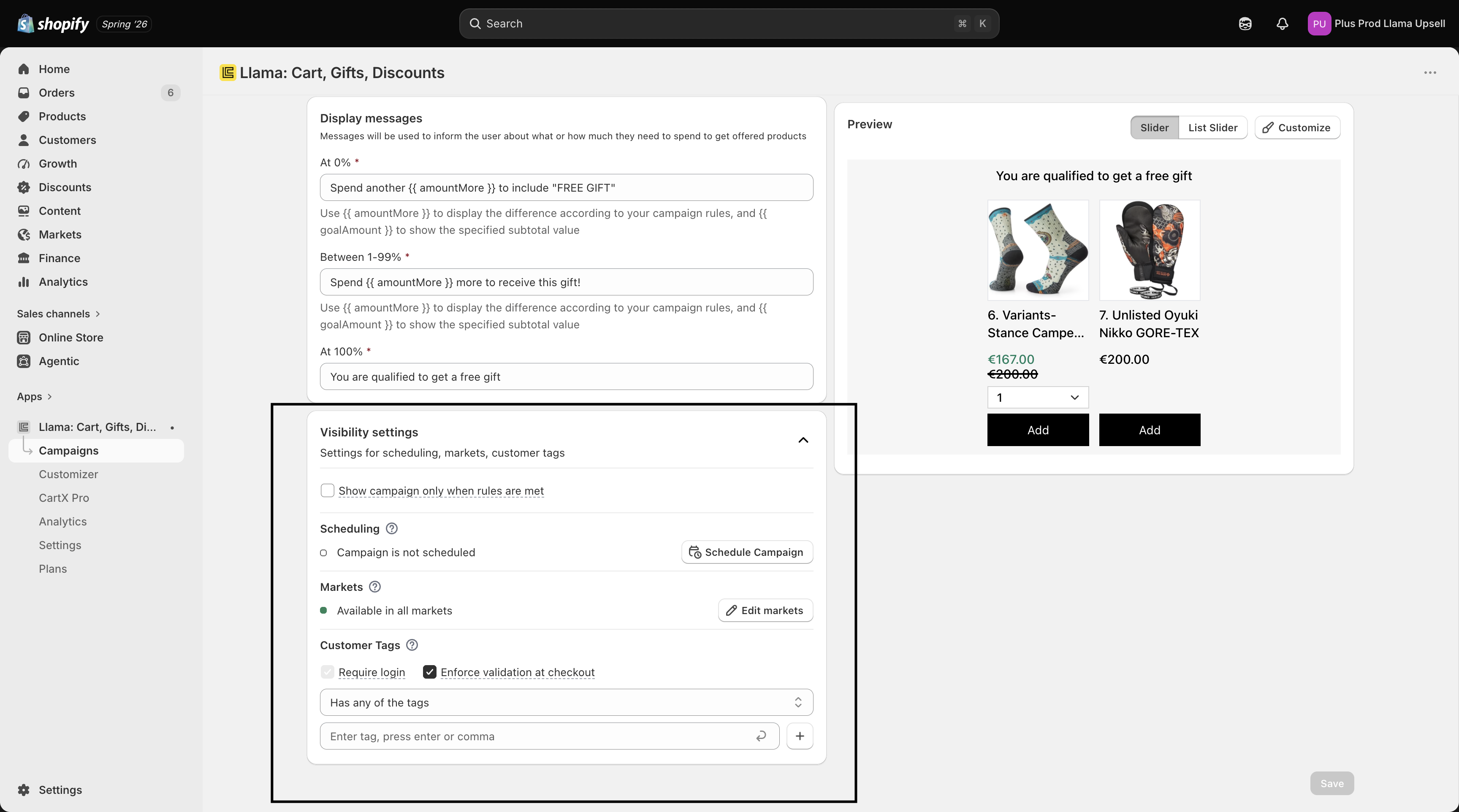
Scheduling a campaign
A date range limits the campaign to a window between a start and end date and time. This is ideal for sales, holiday promotions, and limited-time offers that you want to turn on and off automatically.
- Outside the scheduled window, the campaign is skipped completely — none of its conditions are evaluated, so the offer never appears.
- Once the start time arrives, the campaign begins running on its own. Once the end time passes, it stops on its own. You do not need to manually activate or deactivate it.
The campaign list and dashboard show a red info icon next to a campaign whose schedule is not currently live, with one of these exact messages in the tooltip:
| Schedule state | Health message |
|---|---|
| Start date is in the future | The campaign has not reached its scheduled start date yet. |
| End date is in the past | The scheduled end date for this campaign has passed. |
These warnings are expected for a future or past promotion — they are just a reminder that the campaign is not currently serving offers. See the scheduling guide for how the start/end window is evaluated, how open-ended dates behave, and how to read these warnings.
Targeting by market
Market targeting restricts a campaign to one or more of your Shopify markets, so you can run different offers for different regions.
The market filter has three distinct states, and the difference between "no list" and "an empty list" matters:
| Market setting | Who sees the campaign |
|---|---|
| No market list set (the default) | All markets — everyone |
| A populated list (one or more markets) | Only shoppers in those markets |
| An empty list (a list that exists but contains no markets) | No one |
An empty market list shows the campaign to nobody. If you open the market selector but remove every market, the campaign cannot reach any shopper. The campaign list flags this with a red info icon and the message No markets have been specified. — re-add at least one market, or clear the list entirely to fall back to "all markets."
Targeting by customer tags
Customer tag targeting restricts a campaign to logged-in customers based on the tags on their Shopify customer record. Use it to reward loyal customers, run VIP-only offers, or exclude a particular group.
- You can require that a customer has specific tags, or that they do not have specific tags.
- Tags are only available for logged-in customers. A shopper who is not signed in has no customer tags, so a campaign that requires a tag will not run for them.
- Customer tag targeting is checked before your individual condition rules. If the shopper does not match the tag requirement, the campaign is skipped before any cart conditions are evaluated.
Don't confuse the campaign-level customer-tag filter with the Customer tag condition selector. The campaign-level filter is one of the three targeting filters on this page — it gates the whole campaign before any conditions run, and uses the matchers Has any of the tags / Has all of the tags / Has none of the tags. The Customer tag condition selector is a rule you add inside a condition (with an "is equal to" / "is not equal to" comparison) that is checked alongside your other cart rules. Both read the same logged-in customer tags, but they apply at different stages and offer different matchers. The market & customer-tag guide explains when to use each.
The order filters are evaluated
For each shopper, the app applies the campaign-level filters first, and only checks your cart conditions if all of them pass. The order is:
Date range
If the current date and time are outside the scheduled window, the campaign is skipped. No further checks happen.
Markets
If the shopper's market is not in the campaign's market list, the campaign is skipped. (A campaign with no market list set passes this step for everyone.)
Customer tags
If the shopper does not match the tag requirement, the campaign is skipped.
Condition rules
Finally, your cart condition rules are evaluated. All rule groups must pass (or at least one, depending on your connector setting) for the offer to appear.
Because these filters layer on top of conditions, a shopper has to clear every targeting filter and match your conditions before they ever see the offer.
Tips
Related
Scheduling campaigns by date and time
The deep guide to the date-range filter and schedule health warnings.
Market & customer-tag targeting in depth
Three-state markets, multi-currency, and tag filter vs. selector.
How conditions work
Build the cart rules that decide when an offer fires.
Condition selectors
See every cart and customer data point you can build rules on.
Promo code triggers
Trigger a campaign when a shopper applies a specific discount code.