
Scheduling campaigns by date and time
Use the date-range filter to turn a campaign on and off automatically at an exact start and end time, with no manual toggling.
The schedule (date-range) filter is the campaign-level targeting setting that ties a campaign to a window of time. Set a start, an end, or both, and the campaign turns itself on and off at those exact moments — perfect for flash sales, holiday promotions, and limited-time gifts. This page is a deep guide to scheduling only; markets and customer tags get their own deep guide, and the targeting overview covers all three filters together.
How the schedule window works
A schedule defines a window with a start and an end. The campaign runs only when the current moment falls inside that window — written as the closed interval [start, end]. Outside the window, the campaign is treated as if it were switched off.
Two things make scheduling easy to reason about:
- It auto-activates and auto-deactivates. When the start time arrives, the campaign begins serving on its own. When the end time passes, it stops on its own. There is no button to press at go-live and nothing to turn off afterward. You can configure a sale weeks ahead and walk away.
- Outside the window, the campaign is skipped entirely. The schedule is the very first thing checked for each shopper. If the current time is before the start or after the end, the app stops immediately — none of your cart conditions are evaluated, no products are fetched, and the offer never appears. This makes an out-of-window campaign effectively invisible, no matter what is in the shopper's cart.
Because the schedule is checked before conditions, a scheduled campaign costs nothing when it is dormant. A future or expired promo sitting in your list does not slow anything down or interfere with your other campaigns.
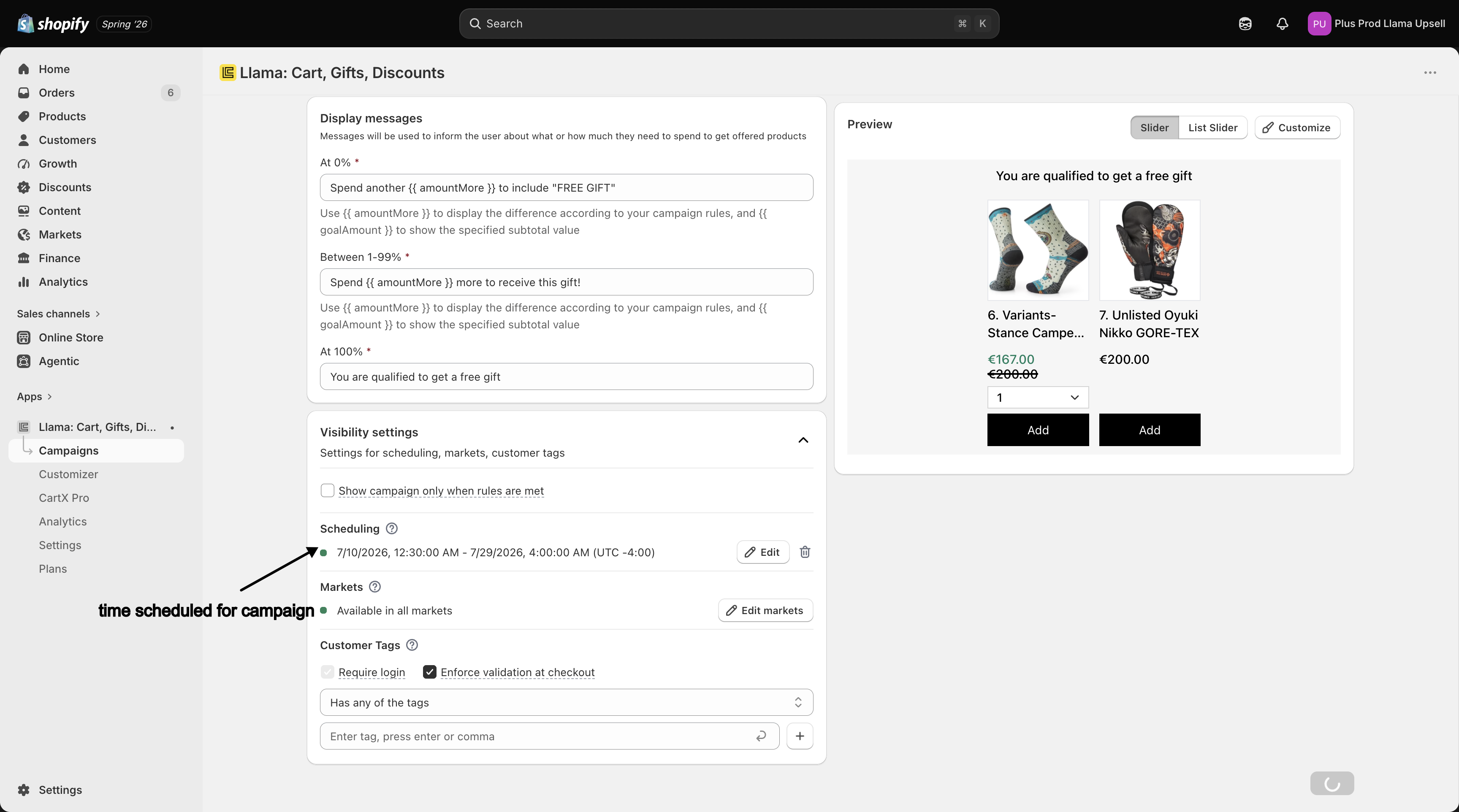
Where to set it
You set the date range in the campaign editor, next to your conditions and offer.
Open the campaign
Go to Campaigns, then open the campaign you want to schedule (or create a new one).
Find the schedule filter
In the campaign's targeting filters — alongside Markets and Customer tags — locate the date range (schedule) filter.
Set a start, an end, or both
Pick a start date and time, an end date and time, or both. Leaving a bound empty creates an open-ended window (see below).
Save
Save the campaign. The schedule takes effect immediately — the campaign will begin serving the moment the start arrives and stop the moment the end passes.
Open-ended windows
You do not have to set both bounds. An empty bound simply means "no limit on that side," and the app treats it as an infinite boundary internally — an empty start behaves like negative infinity, and an empty end behaves like positive infinity.
| What you set | Window behavior | Use it for |
|---|---|---|
| Start and end | Runs only between the two moments. | A sale with a fixed start and finish. |
| Start, no end | Runs forever, from the start onward. | A promo that goes live on a set day and stays on indefinitely. |
| No start, end only | Runs from now until the end. | A campaign that is already live but must stop at a deadline. |
| Neither | Always runs (schedule never blocks it). | An evergreen campaign with no time limit. |
A campaign with no date range set at all passes the schedule check for everyone, at every moment — scheduling never gets in the way unless you opt in by setting a bound.
Timezone behavior
The start and end you enter are interpreted in the time context of the store and the shopper's session, not in UTC and not in your own local browser time if it differs. The practical takeaway for a sale is simple but important: the exact clock moment your campaign flips on depends on how that window resolves at serving time, so a "midnight" start is only as precise as the timezone it is evaluated against.
Do not assume a sale starts at the second you think it does. Before any high-stakes launch, test the exact go-live moment: set the start a couple of minutes in the future, watch the campaign begin serving, and confirm the offer appears when you expect. The same applies to the end — verify the campaign actually stops at your deadline rather than trusting the date alone.
Schedule and campaign status together
A campaign's status (Active/inactive) and its schedule are two independent gates. Both must be open for the offer to serve, and one being open does not override the other.
- A campaign can be Active and still not serve. If the status is Active but the current time is outside the scheduled window, the campaign is skipped — exactly as if it were off. "Active" means "eligible to run"; the schedule decides when that eligibility actually applies. A scheduled-but-Active campaign waiting for its start date will not show anything until the start arrives.
- The window can be open and the campaign still not serve. The reverse is also true: even inside its scheduled window, a campaign will not serve if it is inactive for some other reason — for example it has been deactivated, it is blocked by a plan limit, or it has a health problem that stops it from functioning. An open schedule does not force a campaign on.
In short: schedule says when, status says whether. The offer appears only when both agree. If a campaign is not showing, check both — see statuses and health and why a campaign isn't showing.
Health warnings for schedules
The campaign list flags schedule timing with a warning icon next to the campaign name. This is informational, not an error — it is reminding you that a campaign is not currently serving because of its dates. You will see one of these exact messages:
| Message | What it means |
|---|---|
The campaign has not reached its scheduled start date yet. | The start time is in the future. The campaign is waiting and will begin serving on its own when the start arrives. |
The scheduled end date for this campaign has passed. | The end time is in the past. The campaign has stopped serving on its own. |
| A generic schedule message | The configured dates could not be read or parsed. Re-open the schedule filter and re-enter the start/end. |
For a future or already-finished promo, these warnings are expected and correct — not a sign that something is broken. A holiday GWP you scheduled for next month should show "has not reached its scheduled start date yet" until the day arrives. Treat the generic "couldn't parse the dates" message differently: that one means the schedule is misconfigured and the campaign may not behave as intended, so go fix the dates.
Restrictions can be scheduled too
Scheduling is not limited to upsell offers. Cart restrictions also support a date range, and it behaves exactly the same way: the restriction only enforces its rules while the current time is inside [start, end], auto-activates at the start, and auto-deactivates at the end. Open-ended bounds work the same (start-only runs forever from the start; end-only runs until the end).
This lets you, for example, cap the quantity of a sale item only during the sale, or block a checkout combination just for a promotional period, without remembering to switch anything off afterward. See cart restrictions for how to build one.
Recipes
Troubleshooting
Related
Targeting overview
How schedule, markets, and customer tags work together as campaign-level filters.
Markets & customer tags
The deep guide to targeting by Shopify market and customer tag.
Statuses & health
How Active status and health checks decide whether a campaign serves.
Campaign isn't showing
Step-by-step diagnosis when an offer won't appear.
Cart restrictions
Restrictions support the same date-range scheduling as campaigns.
Market & customer-tag targeting in depth
Master the market and customer-tag campaign filters, including the three-state market behavior, multi-currency, and evaluation order.
Discounts overview
The three discount types in Llama Upsells, how they apply automatically at checkout, and where to set each one up.