
Selector reference (every rule, in depth)
The canonical, selector-by-selector reference for every condition rule — data point, matchers, value format, case-sensitivity, and availability.
This is the canonical reference for every condition selector in Llama Upsell. It documents each of the 22 selectors individually: the exact data point it checks, the precise set of matchers allowed, the exact value format (including the JSON the app stores behind the scenes), how case-sensitivity works, where the rule is available, and a worked example you can copy.
If you just want a fast, grouped overview, read Condition selectors first — it is the short intro and links back here for the full detail. To understand rule groups, AND/OR logic, and the "smart filter" carry-forward, read How conditions work. For the comparison mechanics of each matcher, see Matchers reference.
A rule always has three parts: a selector (what to check), a matcher (how to compare), and a value (what to compare against). This page covers all three for every selector. For how each matcher computes its result — case folding, the exclusive upper bound on "is between", the empty-value rules — see Matchers reference.
How to read each selector
Every entry below lists:
- Data point — whether the rule inspects the cart line items, the cart totals, the page/marketing context, or the customer.
- Matchers — the exact list of comparison operators offered for that selector. No other matcher is available.
- Value format — what you type or pick in the UI, plus the shape the app stores internally (often a JSON string).
- Case-sensitivity — whether text comparison ignores letter case.
- Available in — campaigns, cart restrictions, and whether it works on the storefront, at checkout, or both.
- When to use and Example value — a one-line recipe.
"Available in" matters. Campaign conditions (storefront widgets and post-purchase) run the full engine with all 22 selectors. Cart restrictions and checkout validation run on Shopify's Functions runtime, which supports only a subset. Selectors marked storefront-only below silently do nothing at checkout — see Availability at a glance and Where each rule works.
Product and line-item filters
These selectors look at the individual products in the cart. They filter line items: matching items are carried forward to any smart-filter rule you add after them.
Product
- Data point: Cart line items — specific variants.
- Matchers:
is equal to,equals any. - Value format: A Shopify variant resource picker. You select variants from your catalog; the app stores them internally as a JSON array of variant ID strings, for example
["12345","67890"]. equals anyis a wildcard. Withequals anythere is no value to enter — the rule simply means "any line item is present in the cart." It passes whenever the cart has at least one item (after the condition's own auto-added items are excluded).- Case-sensitivity: Not applicable (IDs are matched exactly).
- Available in: Campaigns and cart restrictions; storefront and checkout.
- When to use: Trigger only when a hand-picked product (or any product at all) is in the cart.
- Example value:
is equal to→ pick "Blue Hoodie / M" from the picker.
Product tag
- Data point: Cart line items — each item's product tags.
- Matchers:
is equal to,ends with,starts with,contains,does not contain,is not empty,is empty. - Value format: A tag string (tag autocomplete in the UI).
- Case-sensitivity: Case-insensitive. The tag and your value are both lowercased before comparison, so
Sale,sale, andSALEare equivalent. - Available in: Campaigns and cart restrictions; storefront and checkout.
- When to use: Target whole groups of products you have tagged (for example
clearance,bundle-eligible). - Example value:
contains→gift.
does not contain and is empty behave specially on tags. With does not contain, an item is excluded if ANY of its tags contains your string — not just if one tag fails. So does not contain: red rejects an item tagged ["dark-red","cotton"] because dark-red contains red. With is empty, the rule matches only line items whose tag list is completely empty (no tags at all). Plan your tagging so a single stray tag does not knock products out of the offer.
Product vendor
- Data point: Cart line items — the product's vendor/brand field.
- Matchers:
is equal to,is not equal to(only these two). - Value format: The vendor name (vendor autocomplete).
- Case-sensitivity: Exact-match string comparison.
- Available in: Campaigns only — storefront-only. Vendor is not evaluated at checkout or in cart restrictions.
- When to use: Show or block offers based on the brand of items in the cart.
- Example value:
is equal to→Acme Co.
Product title
- Data point: Cart line items — the product title.
- Matchers:
is equal to,ends with,starts with,contains,does not contain. There is nois not empty/is emptyfor title. - Value format: Free text field.
- Case-sensitivity:
starts with,ends with,contains, anddoes not containare case-insensitive;is equal tois an exact string comparison. - Available in: Campaigns only — storefront-only.
- When to use: Match products whose names share a pattern (for example titles containing "Pro").
- Example value:
contains→Travel Kit.
Product SKU
- Data point: Cart line items — the variant SKU.
- Matchers:
is equal to,ends with,starts with,contains,does not contain,is not empty,is empty(the full string matcher set). - Value format: Free text field.
- Case-sensitivity: Substring/prefix/suffix matchers are case-insensitive;
is equal tois exact. - Available in: Campaigns and cart restrictions; storefront and checkout.
- When to use: Target product lines by SKU pattern, or require a SKU to be present/missing.
- Example value:
starts with→HOODIE-.
Product type
- Data point: Cart line items — the product type.
- Matchers:
is equal to,ends with,starts with,contains,does not contain,is not empty,is empty(the full string matcher set). - Value format: Product type autocomplete.
- Case-sensitivity: Substring/prefix/suffix matchers are case-insensitive;
is equal tois exact. - Available in: Campaigns and cart restrictions; storefront and checkout.
- When to use: Target a merchandising category like "Apparel" or "Electronics".
- Example value:
is equal to→Apparel.
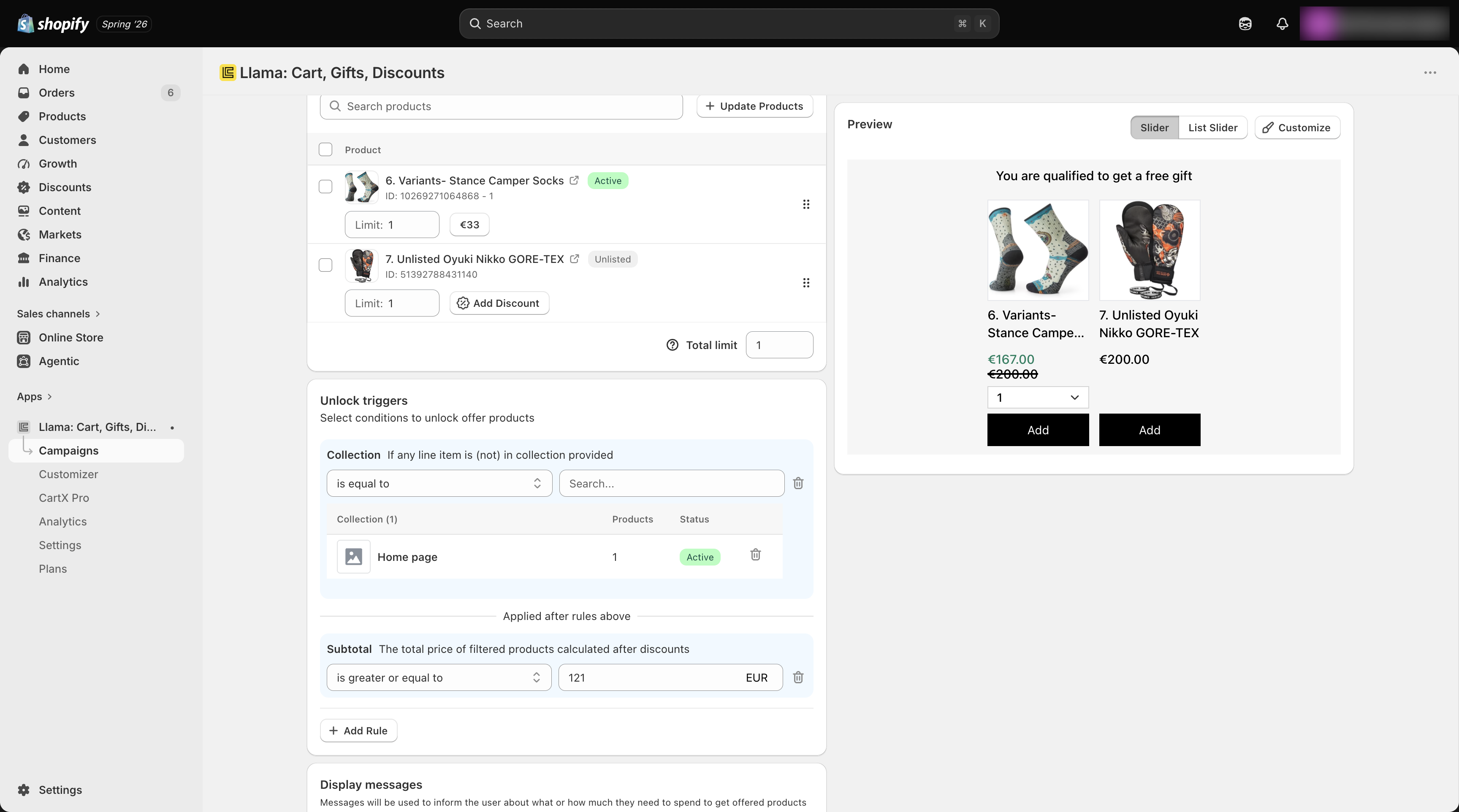
Collection
- Data point: Cart line items — collection membership.
- Matchers:
is equal to(the item is in one of the listed collections),is not equal to(the item is not in any listed collection). - Value format: A collection search; selected collections appear in a table with product count and status. Stored internally as a JSON array of collection ID strings.
- Case-sensitivity: Not applicable (membership is by collection ID).
- Available in: Campaigns only — storefront-only.
- When to use: Target everything in a curated collection without listing variants one by one.
- Example value:
is equal to→ select "Summer 2026".
is not equal to uses inverted logic. The rule starts from "match = true" and flips to false the moment any of your listed collections is found on the item. The practical effect: a line item passes only when it is in none of the listed collections. If you list several collections under is not equal to, an item in any one of them is excluded.
Cart amount selectors
These selectors check the whole cart's money totals. Only one subtotal/total rule belongs in a group at a time.
Cart subtotal
- Data point: Cart total after discounts.
- Matchers:
is equal to,is not equal to,is greater or equal to,is less or equal to,is between. - Value format: A currency amount input. Multi-currency stores can set a per-currency value; the app stores this as a JSON object, for example
{"main":"50","USD":"50","EUR":"45"}. The active market's value is used if present, otherwisemainis converted by the market exchange rate. Theis betweenmatcher shows two fields (minimum and maximum), and the maximum is exclusive. - Available in: Campaigns and cart restrictions; storefront and checkout.
- When to use: Gate an offer on what the shopper will actually pay.
- Example value:
is greater or equal to→50.
Cart total
- Data point: Cart total before discounts (original price).
- Matchers:
is equal to,is not equal to,is greater or equal to,is less or equal to,is between. - Value format: Same multi-currency currency input and JSON shape as Cart subtotal;
is betweenis two fields with an exclusive maximum. - Available in: Campaigns and cart restrictions; storefront and checkout. Not available for Post-Purchase campaigns.
- When to use: Gate on cart value before any discount erodes it.
- Example value:
is between→100and200(matches 100 up to but not including 200).
Empty-cart shortcut. When the cart is empty (or every item was filtered out), Cart subtotal and Cart total are treated as 0. A rule like is greater or equal to 0 or is less or equal to a positive number will therefore pass on an empty cart. Use is greater or equal to a positive threshold if you need at least something in the cart.
Smart-filter (filtered-product) selectors
These are the second layer. They appear only after you add at least one line-item rule, below the Applied after rules above divider, and they operate on the filtered subset of products your line-item rules matched — not the whole cart. This lets you, say, match a collection and then check the combined subtotal or quantity of just those items.
Subtotal
- Data point: Total price of the filtered products, after discounts.
- Matchers:
is equal to,is not equal to,is greater or equal to,is less or equal to,is between. - Value format: Currency input, multi-currency JSON object (same shape as Cart subtotal).
is betweenmaximum is exclusive. - Available in: Campaigns and cart restrictions; storefront and checkout.
- When to use: "Customers spending at least $X on items from this collection."
- Example value:
is greater or equal to→75.
Total
- Data point: Total price of the filtered products, before discounts.
- Matchers:
is equal to,is not equal to,is greater or equal to,is less or equal to,is between. - Value format: Currency input, multi-currency JSON object.
is betweenmaximum is exclusive. - Available in: Campaigns and cart restrictions; storefront and checkout.
- When to use: Same as Subtotal, but measured on original price.
- Example value:
is between→50and150.
Quantity
- Data point: Count of units across the filtered products.
- Matchers:
is equal to,is not equal to,is greater or equal to,is less or equal to. There is nois betweenfor Quantity. - Value format: A numeric value (whole units), stored as a numeric string.
- Available in: Campaigns and cart restrictions; storefront and checkout.
- When to use: "At least N matching items in the cart."
- Example value:
is greater or equal to→2.
Smart-filter rules need a line-item rule above them. With no first-layer filter there is no subset to measure, so these options will not appear. In cart restrictions, if you add product filters (tag, SKU, variant, type) but no smart-filter rule, the system auto-applies an implicit "at least one matching item" check so the restriction still triggers on matching products.
Context and marketing
These selectors read the URL and campaign-tracking context the shopper arrived with, not the cart.
UTM
- Data point: Page/marketing context — UTM parameters from the URL the shopper used to reach your store.
- Matchers:
is equal to,is not equal to,contains,does not contain. - Value format: A parameter dropdown plus a value input, stored as JSON, for example
{"parameter":"utm_source","values":["google"]}. The parameter is one ofutm_source,utm_medium,utm_campaign,utm_term,utm_content. Withcontainsanddoes not containyou can enter multiple values via a tag input. - Case-sensitivity:
contains/does not containare case-insensitive;is equal to/is not equal toare exact. - Available in: Campaigns only — storefront-only.
- When to use: Show a special offer to traffic from a specific source or campaign.
- Example value: parameter
utm_source,contains→google,facebook.
Ref
- Data point: Page/marketing context — the
ref=parameter in the store URL. - Matchers:
is equal to,is not equal to,contains,does not contain,is not empty,is empty(the full set). - Value format: Free text field.
- Case-sensitivity:
contains,does not containare case-insensitive;is equal to/is not equal toare exact. - Available in: Campaigns only — storefront-only.
- When to use: Reward shoppers who arrived via a referral link carrying
ref=. - Example value:
is equal to→partner-blog.
Page URL
- Data point: Page/marketing context — the current page URL.
- Matchers:
containsonly. - Value format: A URL substring (free text).
- Case-sensitivity: Case-insensitive substring match.
- Available in: Campaigns only — storefront-only.
- When to use: Limit a widget to certain pages (for example only the cart page or a landing path).
- Example value:
contains→/products/gift-set.
Attribute selectors
These match Shopify cart and line-item custom attributes (properties). Both a key and a value are required.
Cart attribute
- Data point: Cart-level custom attribute (also called a cart property).
- Matchers:
is equal to,is not equal to. - Value format: Two fields — Key and Value — both required.
- Case-sensitivity: Exact string comparison on the stored value.
- Available in: Campaigns only — storefront-only.
- When to use: Trigger on a flag your theme writes to the cart (for example a gift-wrap toggle).
- Example value: Key
gift_wrap,is equal to, Valueyes.
Line item attribute
- Data point: Custom attribute on an individual line item.
- Matchers:
is equal to,is not equal to. - Value format: Two fields — Key and Value — both required. As a line-item filter, it keeps the line items whose attribute key/value matches.
- Case-sensitivity: Exact string comparison on the stored value.
- Available in: Campaigns and cart restrictions; storefront and checkout.
- When to use: Target items personalized with a property (for example an engraving).
- Example value: Key
engraving,is equal to, ValueHello.
Customer
Customer tag
- Data point: Tags on the logged-in customer's account.
- Matchers:
is equal to,is not equal to. - Value format: A tag string.
- Case-sensitivity: Case-insensitive.
- Available in: Campaigns and cart restrictions; storefront and checkout. Logged-in shoppers only — guests have no customer tags, so the rule cannot match for them.
- When to use: Reserve an offer for VIPs, wholesale accounts, or any tagged segment.
- Example value:
is equal to→vip.
Guests never match Customer tag. If a shopper is not logged in, they carry no customer tags. An is equal to rule will simply never be true for them; use it where you genuinely want to exclude guests, and add a fallback group if guests should still see something.
Location
Specific country
- Data point: The shopper's country.
- Matchers:
is equal to,is not equal to. - Value format: A multi-select of countries, stored internally as a JSON array of ISO country codes, for example
["US","CA"]. - Case-sensitivity: Not applicable (ISO codes).
- Available in: Cart restrictions / checkout (Checkout Upsells). This is one of the checkout-runtime selectors.
- When to use: Restrict or target an offer by destination country.
- Example value:
is equal to→ United States, Canada (["US","CA"]).
Promo code
Promo code
- Data point: The applied Shopify discount code, matched by the app's internal promo-code ID.
- Matchers:
is equal to,starts with. - Value format: A searchable dropdown of your existing Shopify discount codes. Internally the rule stores the app's promo-code ID, not the literal code string — at evaluation time the applied discount code is resolved to that ID and compared.
- Case-sensitivity: Matched by ID, so case does not apply to the stored value.
- Available in: Campaigns — available on Gift with Purchase, Auto-Add, and Checkout Upsells funnels only.
- When to use: Trigger a campaign when a specific discount code is on the cart.
- Example value:
is equal to→ selectWELCOME10from the dropdown.
Promo Code has its own deep guide covering how codes map to triggers, the supported funnels, and gotchas. See Promo code triggers.
Per-SKU quantity (restrictions only)
Per-SKU quantity
- Data point: The quantity of specific SKUs in the cart.
- Matchers:
is greater or equal to,is less or equal to. - Value format: JSON describing the SKUs and the limit, for example
{"skus":["SKU-001"],"quantityLimit":3}. You list one or more SKUs and a single quantity limit that applies to them. - Case-sensitivity: SKUs are matched as configured.
- Available in: Cart restrictions only. It does not appear in campaign conditions.
- When to use: Cap (or require a minimum of) a per-SKU quantity, for example "no more than 3 of SKU-001 per order".
- Example value:
is less or equal towith{"skus":["SKU-001"],"quantityLimit":3}.
Worked recipe: collection spend tier
A common two-layer pattern that uses several of the selectors above:
Add the line-item filter
In the condition builder, add a rule with selector Collection, matcher is equal to, and pick your "Summer 2026" collection. This narrows evaluation to just those line items.
Add the smart-filter check
Below the Applied after rules above divider, add a Subtotal rule (a smart-filter rule), matcher is greater or equal to, value 75. This measures only the filtered Summer items, not the whole cart.
Keep the groups joined with AND
Leave the connector between the two layers as AND — "items are from Summer 2026 and those items total at least $75."
Troubleshooting
Availability at a glance
Campaign conditions (storefront widgets and post-purchase) support every selector. Cart restrictions and Checkout Upsells run on Shopify's Functions runtime and support only the subset marked below. Selectors not in the checkout column are storefront-only and are ignored if added to a restriction.
| Selector | Campaigns | Cart restrictions / checkout |
|---|---|---|
| Product | Yes | Yes |
| Product tag | Yes | Yes |
| Product vendor | Yes | No (storefront-only) |
| Product title | Yes | No (storefront-only) |
| Product SKU | Yes | Yes |
| Product type | Yes | Yes |
| Collection | Yes | No (storefront-only) |
| Cart subtotal | Yes | Yes |
| Cart total | Yes (not Post-Purchase) | Yes |
| Subtotal (smart filter) | Yes | Yes |
| Total (smart filter) | Yes | Yes |
| Quantity (smart filter) | Yes | Yes |
| UTM | Yes | No (storefront-only) |
| Ref | Yes | No (storefront-only) |
| Page URL | Yes | No (storefront-only) |
| Cart attribute | Yes | No (storefront-only) |
| Line item attribute | Yes | Yes |
| Customer tag | Yes | Yes |
| Specific country | — | Yes (checkout) |
| Promo code | Yes (GWP, Auto-Add, Checkout Upsells) | No |
| Per-SKU quantity | — | Yes (restrictions only) |
For the full checkout/restriction story — exactly which selectors each runtime supports and why a restriction can silently ignore a rule — see Where each rule works. For matcher mechanics (case folding, the exclusive is between bound, empty-value handling), see Matchers reference.
Related
Condition selectors (quick intro)
The short, grouped overview that links here for full detail.
Matchers reference
Exactly how each matcher compares — case, ranges, and empty values.
Where each rule works
Storefront vs checkout: which selectors each runtime supports.
How conditions work
Rule groups, AND/OR logic, and smart-filter carry-forward.
Promo code triggers
Use a Shopify discount code to trigger a campaign.
Condition selectors reference
A complete reference of every condition rule available in Llama Upsell campaigns, grouped by category with matchers and value types.
Matchers reference & comparison behavior
Exactly how each of the 12 matchers compares values — case-sensitivity, range bounds, empty-value rules, and the edge cases that explain "why didn't my rule match?".