
Cart restrictions
Block or warn shoppers at the cart and checkout based on cart conditions, with custom error messages and flexible rules.
Cart restrictions let you set rules about what shoppers can and cannot have in their cart. Unlike campaigns, restrictions are not about showing offers — they control what is allowed. When a restriction's rules match, the shopper sees your custom error message and cannot proceed until the cart violation is resolved.
Restrictions are global rules that apply to every cart, independently of any campaign. They run inside Shopify's validation system, so they cannot be bypassed by shoppers who disable JavaScript or use a headless storefront — and they apply even with accelerated checkout buttons like Shop Pay and Apple Pay. For exactly how they behave on those express buttons, see Restrictions & limiters with express checkout.
What you can do with restrictions
Common uses include:
- Require a minimum cart total before checkout is allowed.
- Prevent checkout when incompatible products are in the same cart.
- Block certain customer groups from purchasing specific items.
- Enforce quantity rules across selected product groups — for example, limiting a free sample to one per order.
- Restrict products by country (for example, blocking a specific SKU from shipping to a given country).
How a restriction works
Each restriction is made up of a few parts:
- Title — your internal label for the restriction.
- Rules — the conditions that decide when the restriction fires.
- Action — the error title and error message shown when the rules match, with versions per language. There is no action type to choose: the shopper sees your error message and cannot proceed.
- Error message — the text shown to the shopper when the restriction triggers.
Restrictions are evaluated automatically by Shopify's cart validation system at the stage you choose. No backend calls are made during checkout, so enforcement is fast and reliable.
Where restrictions run
A restriction can be enforced at two places in the buyer journey, and you control each one with its own toggle:
- Run on cart — the restriction is evaluated while the shopper is on the cart, as items are added or quantities change.
- Run at checkout — the restriction is evaluated once the shopper moves into checkout. This covers both the checkout-interaction step (while they fill in details) and the checkout-completion step (when they place the order), so it also catches express buttons that jump straight to completion. Checkout enforcement is on by default.
You can enable one toggle, the other, or both per restriction. If both are off, the restriction never runs anywhere.
A restriction with no rule groups never fires, regardless of these toggles. An empty restriction is treated as having nothing to enforce, so add at least one rule before relying on it.
For the full picture of how the toggles map to buyer-journey steps, the order rules are evaluated in, and how a cart is judged valid or invalid, see Restriction rules, stages & evaluation.
Rule types
Restrictions use the same two-level AND/OR rule group structure as campaign conditions. You can combine multiple rules within a group, and combine multiple groups, to make a restriction as precise as you need.
Filter which products a rule looks at:
- Specific variants — select one or more variants of a product.
- Product tag — match products by a tag (for example,
accessory,premium,winter). - Product type — match by product type (for example, accessory, gift card, home).
- Product SKU — match a product by its SKU.
- Line attribute — match a product using Shopify's
line_itemproperties.
Product rules apply only to the products matched by your product filters above:
- Filtered products subtotal (discounted) — calculated using the discounted price of the filtered products.
- Filtered products total (original price) — calculated without discounts.
- Filtered products quantity — limits the filtered products by quantity.
Rules based on overall cart values and checkout parameters:
- Cart subtotal — the cart amount after discounts.
- Cart total — the cart amount before discounts.
- Specific country — match the shopper's shipping or billing country.
- Per-SKU quantity validation — limit one or more products by SKU directly, without combining SKU with other product filters.
- Customer tag — restrict shoppers based on the tags on their account (for example, only allow an offer for shoppers tagged
subscribed).
Cart restrictions share the same condition rules as campaigns. For the full list of selectors and matchers, see Condition selectors reference.
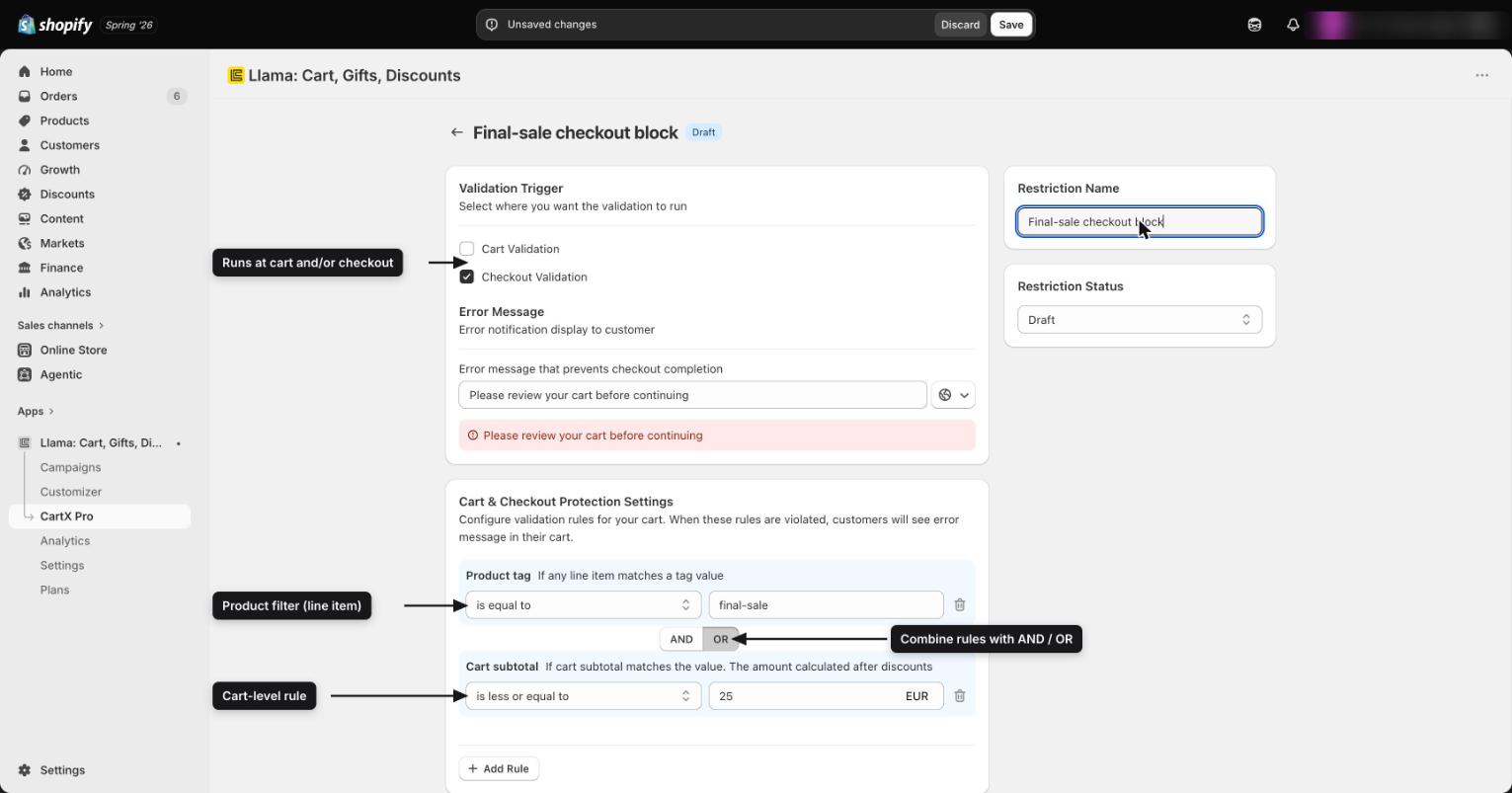
Setting the error message
Each restriction has a customizable error message that the shopper sees when the restriction triggers. You set the message per restriction, and you can create versions for different languages.
The error message body is what shoppers see. The error title field is stored with your restriction but is not currently shown to shoppers at checkout, so put the full explanation in the message body.
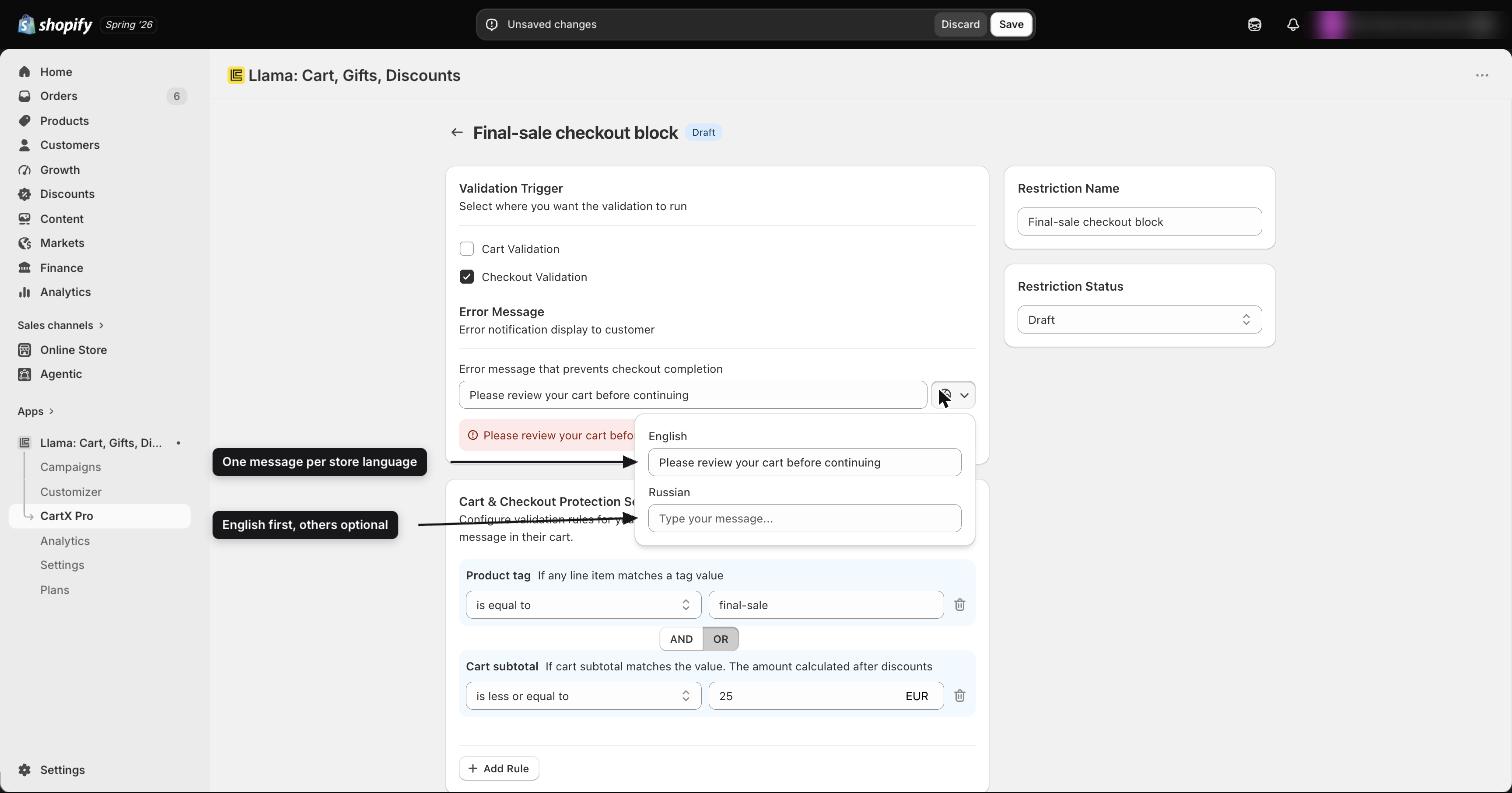
Scheduling
Restrictions support a date range, so you can make a restriction active only during a specific period. Outside that window, the restriction does not fire.
Status
Each restriction has exactly one of two statuses — Active or Draft — and you can switch between them at any time. There is no archived state: a restriction you are not using stays as a Draft.
- Active — the restriction is enforced on the storefront and occupies one validation slot.
- Draft — the restriction is saved but never evaluated, and it does not consume a slot.
When you set an Active restriction back to Draft, its validation slot is released immediately. See Validation slots & plan limits for how slots are counted.
Example setups
Plan limits
The number of restrictions you can keep Active is bounded by two ceilings at once: the app caps Active restrictions at 20, and Shopify allows at most 25 validation rules per store across every app installed. Whichever you hit first stops you from activating more.
Your own per-plan limit usually sits below those ceilings, and Active restrictions share the Shopify ceiling with product limiters and any other validation apps on your store. Because the exact accounting matters once you run several rules, the full reference — per-plan limits, how slots are tallied, and what happens at the limit — lives on one page.
Validation slots & plan limits is the source of truth for restriction and limiter caps. See Settings & billing for the plan comparison.
How restrictions interact with other features
Restrictions are evaluated independently of campaigns, discounts, and the product limiter — which means a restriction can block a cart that one of your own offers just created (for example, a free gift an Auto-Add campaign dropped in). The two sides need to be designed together so you never block a cart you set out to build.
For the full interaction model — restrictions and limiters alongside discounts, Auto-Add and gifts, including how to keep them from fighting each other — see Restrictions & limiters with discounts, auto-add & gifts.
Key takeaways
- Restrictions block shoppers based on cart conditions, enforced inside Shopify's validation system.
- A restriction is either Active or Draft — there is no archived state, and only Active restrictions run.
- Choose where each restriction runs with the Run on cart and Run at checkout toggles; a restriction with no rule groups never fires.
- Combine product, cart, country, and customer rules with AND/OR logic for precise control.
- Set a clear error message — shoppers see the message body, not the title.
- You can keep up to 20 restrictions Active, within Shopify's 25-validation-rule store ceiling.
Related
Restriction rules, stages & evaluation
How a restriction is built, the filters that gate it, and exactly when and where it fires.
Validation slots & plan limits
The 20/25 ceilings, per-plan limits, slot accounting, and what happens at the limit.
Block vs warn & restriction messages
How restrictions enforce, and exactly which message a shopper sees in their language.
Restrictions & limiters with express checkout
How restrictions and limiters enforce on Shop Pay, Apple Pay, Google Pay, and PayPal.
Restrictions & limiters with discounts, auto-add & gifts
How cart-validation rules collide with offers and discounts, and how to design both sides.
Product limiter
Set minimum and maximum quantity caps per product, variant, or SKU.
Cart & checkout settings
Configure global cart and checkout behavior.
Condition selectors reference
Every rule selector and matcher available in restrictions and campaigns.
Promo codes: triggers vs code-based discounts
Untangle the three ways promo codes appear in the app, set up code-based tier and shipping discounts, and read validation errors.
Restriction rules, stages & evaluation
A deep reference for how a single cart restriction is built, the filters that gate it, and exactly when and where it fires.