
Restriction rules, stages & evaluation
A deep reference for how a single cart restriction is built, the filters that gate it, and exactly when and where it fires.
This is the advanced companion to Cart restrictions. The intro covers what restrictions are for; this page is a reference for builders who need to know precisely how a single restriction is assembled, the order in which its parts are evaluated, and the exact buyer-journey moments where it runs. If a restriction is "not firing" or "firing too often," the answer is almost always somewhere on this page.
Anatomy of a restriction
Every restriction is one object with a fixed set of parts. Understanding each part — and that they are evaluated in a specific order — is the key to predictable behavior.
| Part | What it holds | Notes |
|---|---|---|
| Title | Your internal label | Never shown to shoppers; used only in the admin list and search. |
| Status | Active or Draft | Only these two states exist. There is no merchant-facing "archived" status. Only Active restrictions are registered with Shopify and enforced. |
| Rule groups | One or more groups of rules | The actual conditions that decide when the restriction fires. See AND/OR rule-group structure. |
| Action — error title | A per-language map of titles | Stored with the restriction but not currently shown to shoppers at checkout. |
| Action — error message | A per-language map of messages | This is the text the shopper sees. Resolved by the shopper's checkout language, falling back to English. |
| Settings — markets | A list of target markets (or none) | A restriction-level filter applied before rules are evaluated. |
| Settings — customer tags | A value list, a matcher, and a "requires login" flag | A restriction-level filter. See Restriction-level filters. |
| Settings — date window | A start and an end (either can be empty) | A restriction-level schedule. Outside the window the restriction does not fire. |
| Trigger settings | Run on cart and Run at checkout toggles | Decide which buyer-journey stages the restriction is evaluated at. See The two run stages. |
| Validation ID | The Shopify cart-validation slot the restriction occupies | Managed automatically — created when you activate, released when you deactivate. You never edit this. |
The error title and error message are stored as language maps — for example, an English entry plus a French entry. At checkout the extension reads the message in the shopper's checkout language and falls back to the English entry if there is no match. Always fill in at least the English message, because that is the default fallback.
Status: only Active and Draft
A restriction is either Active or Draft — there are only these two states.
- Active — the restriction holds a Shopify cart-validation slot and is enforced on the storefront.
- Draft — the restriction is saved but holds no validation slot and is never enforced. Use Draft while you build.
When you flip a restriction from Active to Draft, its validation slot is released immediately, freeing a slot against both your plan limit and Shopify's platform cap. There is no separate "archived" state for merchants — to stop a restriction, set it to Draft or delete it.
The two run stages in depth
A restriction is only evaluated at the buyer-journey stages you opt into with the two trigger toggles. The extension maps every step in Shopify's buyer journey to one of two stages:
| Trigger toggle | Covers these Shopify buyer-journey steps | When it fires |
|---|---|---|
| Run at checkout | Checkout interaction and checkout completion | When the shopper is in checkout — editing checkout fields, and at the moment they try to place the order. |
| Run on cart | Every other step (add line, update line, the cart page) | When items are added to or changed in the cart, before checkout. |
Internally the extension classifies the current step as a "checkout step" only when it is the checkout-interaction or checkout-completion step; everything else is treated as a "cart step." It then keeps a restriction for evaluation only if the matching toggle is on.
Defaults you should know: checkout validation is on by default for a new restriction, and cart validation is opt-in. So a brand-new restriction enforces at checkout unless you turn that off, and only enforces in the cart if you turn Run on cart on. You can enable either stage, the other, or both, independently per restriction.
Choosing the right stage
Where a restriction should run depends on what you want the shopper to experience. Stopping a violation at the cart catches it earlier; stopping it at checkout guarantees the order cannot complete even through express buttons. Many restrictions want both.
| Goal | Recommended stage | Why |
|---|---|---|
| Minimum order total before the shopper can pay | Run at checkout only | The total is a checkout-gating rule. Blocking it in the cart would nag shoppers who are still shopping toward the minimum. |
| Block an incompatible product combination from ever being ordered | Both (cart and checkout) | Stop the violation early in the cart, and guarantee the order is blocked at checkout even via Shop Pay or Apple Pay. |
| A per-sample cap that should stop the Add to cart click itself | Run on cart | The shopper needs feedback the moment they exceed the cap, at the cart stage — not only when they reach checkout. |
Because enforcement lives inside Shopify's validation infrastructure (not storefront JavaScript), a Run at checkout restriction blocks the order even when the shopper uses an accelerated checkout button such as Shop Pay or Apple Pay. A Run on cart-only restriction does not run at checkout — if you rely on cart-only enforcement, an express button that skips the cart can carry a violating cart straight into checkout. For anything that must never be purchased, keep Run at checkout on.
AND/OR rule-group structure
Restrictions use the same two-level rule structure as campaign conditions:
- Within a group, rules are joined by that group's connector (AND or OR).
- Across groups, the groups are combined with each other.
The restriction is considered "met" (and therefore fires its error) when the rules resolve to true under this two-level logic. Across groups the evaluation is OR-style: if any group is satisfied, the restriction fires. Within a group, the connector decides whether all rules (AND) or at least one rule (OR) must match.
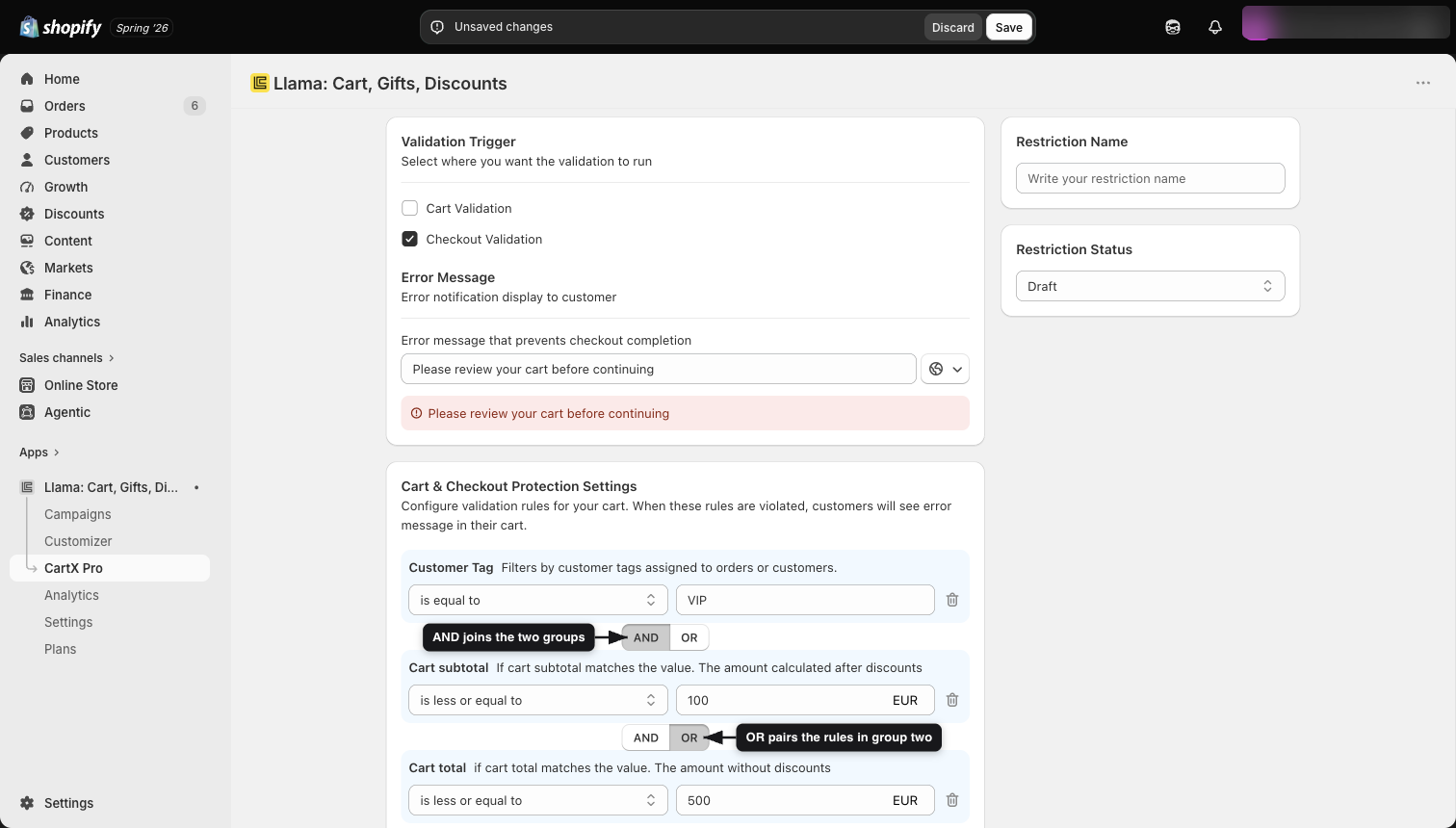
Worked multi-group example
Suppose you want a restriction that fires for a shopper who is VIP AND (has spent over $100 OR has placed more than 5 orders). You model this as two groups:
- Group 1 (the VIP gate): one customer-tag rule, joined by AND.
- Group 2 (the spend-or-orders alternative): two rules joined by OR.
This mirrors the underlying rulesGroups shape:
{
  "rulesGroups": [
    {
      "connector": "AND",
      "rules": [
        { "selector": "CUSTOMER_TAG", "matcher": "EQUALS", "value": "vip" }
      ]
    },
    {
      "connector": "OR",
      "rules": [
        { "selector": "CUSTOMER_SPENT", "matcher": "GREATER_THAN", "value": "100" },
        { "selector": "CUSTOMER_ORDERS_COUNT", "matcher": "GREATER_THAN", "value": "5" }
      ]
    }
  ]
}
In the editor you build this by adding the first rule, then adding a new group for the OR alternatives, choosing the OR connector inside that second group.
The empty-rules edge case
A restriction with zero rule groups never fires. The extension silently skips any restriction whose rule-group list is empty before it does any other work — it is filtered out entirely, generates no error, and behaves as if it did not exist. An individual group that contains no rules is likewise ignored.
A half-built draft does nothing — even after you set it to Active. If you create a restriction, fill in the title and error message, switch it on, but never add a rule group, it will quietly enforce nothing. There is no error shown and no warning at checkout; the cart simply passes. Before relying on a restriction, confirm it has at least one rule group with at least one rule inside it.
Markets, customer tags, and date scheduling
Three restriction-level filters live in Settings and act as gates that decide whether the restriction is even considered for a given cart. They sit outside the rule groups and apply before rule evaluation.
Markets
Scope the restriction to one or more markets, or leave it unset to apply everywhere. When markets are set, the restriction only applies to shoppers in those markets. This is also why amounts are currency-sensitive — see Currency and multi-currency.
Customer tags (and the "requires login" nuance)
The customer-tags filter has three parts: a value list of tags, a matcher (for example, is equal to / is not equal to), and a requires login flag.
A guest (not-logged-in) shopper has no account and therefore no tags. A customer-tag rule cannot match a guest, so a positive tag check (for example, "is tagged vip") will not be satisfied for a guest. Use the requires login flag deliberately: if a tag-based restriction must only apply to identified shoppers, require login; if you intend a "must NOT be tagged" check, be aware a guest has no tags at all, which changes the outcome. Tag comparisons are case-insensitive.
Date-window scheduling
Set a start and end to make the restriction active only during a specific period; either bound can be left empty for an open-ended window. Outside the window the restriction does not fire, even when its status is Active.
Currency and multi-currency
Amount-based rules — cart subtotal, cart total, filtered products subtotal, and filtered products total — are compared using the cart's presentment currency rate. The extension converts your configured value using the active presentment currency at evaluation time so the comparison is made in the shopper's currency.
Always enter amount values in your shop's base currency. The extension applies the presentment rate for you. If you instead type a foreign-currency figure, the rate will be applied on top of it and the threshold will be wrong. For example, set "cart subtotal is greater than 50" in shop currency, and a shopper checking out in another currency is compared against the converted equivalent automatically.
Selector coverage for restrictions
Restrictions draw on the same selector library as campaign conditions, but the set that is meaningful inside a restriction is focused. The table below is the practical coverage map for restrictions. For the matchers and value types of each selector, see the shared Condition selectors reference — this page does not re-document matchers.
| Category | Selectors available in restrictions | Use it to |
|---|---|---|
| Product filters | Specific variants, product tag, product type, product SKU, line attribute | Narrow which line items the product rules below look at. |
| Product / smart-filter rules | Filtered products subtotal (discounted), filtered products total (original price), filtered products quantity | Apply a threshold to only the products matched by your product filters. |
| Cart / checkout rules | Cart subtotal (after discount), cart total (before discount), specific country, per-SKU quantity validation | Check the whole-cart values and the destination country. |
| Customer filter | Customer tag | Restrict based on the tags on the shopper's account. |
Product filters vs. product rules. A product filter on its own only selects line items; the product rule applies the actual test (quantity or amount) to that selection. If you add a product filter but no product rule, the extension supplies an internal quantity check so the filter still has an effect — but for predictable results, pair every product filter with an explicit product rule.
Recipes
Minimum $50 to check out
Require the cart to reach a threshold before the shopper can pay.
- In Settings, leave markets unset (or scope as needed) and confirm the date window is open.
- Add one rule group with a single Cart subtotal rule: is greater than or equal to
50(entered in shop currency). - In Trigger settings, keep Run at checkout on and leave Run on cart off — this is a checkout-gating rule.
- Write an error message such as "Add a little more to reach the $50 minimum order." Set the restriction to Active.
Block a SKU from shipping to Australia
Stop a specific SKU from being ordered to one country, using a per-SKU rule AND a country rule in the same group.
- Add one rule group with the AND connector.
- Add Per-SKU quantity validation for the SKU you want to block (for example, the restricted sample's SKU).
- In the same group, add Specific country and choose Australia.
- Because both rules share the AND connector, the restriction fires only when that SKU is present and the destination is Australia.
- Turn on Run at checkout (the shipping country is known at checkout). Set the restriction to Active.
Restrict an offer to non-subscribed customers
Make a restriction fire for shoppers who are not subscribed.
- Add one rule group with a single Customer tag rule.
- Choose the tag
subscribedand set the matcher to is not equal to. - The restriction fires for shoppers whose account is not tagged
subscribed. - Decide on login handling: a guest has no tags, so review the requires login behavior in Customer tags to confirm the outcome you want. Set the restriction to Active.
Why isn't my restriction firing — quick checklist
Work through these before assuming a bug. Each maps to a section above.
- Is it Active? Draft restrictions hold no validation slot and never enforce.
- Does it have at least one rule group with a rule in it? An empty restriction is silently skipped — see The empty-rules edge case.
- Is the right stage toggled on? A cart-only restriction never runs at checkout, and vice-versa. See The two run stages.
- Is today inside the date window? Outside the scheduled window the restriction does not fire.
- Does the market match? If markets are scoped, shoppers outside them are skipped.
- Is the customer-tag filter blocking a guest? A tag rule can't match a not-logged-in shopper.
- Are amount values in shop currency? Foreign-currency figures get the presentment rate applied on top and miss the threshold.
Still stuck? Browse the troubleshooting guides and confirm the cart actually meets every rule in at least one group.