
Products limiter
Set per-product, per-variant, or per-SKU quantity caps so shoppers can't add more (or fewer) than you allow before checkout.
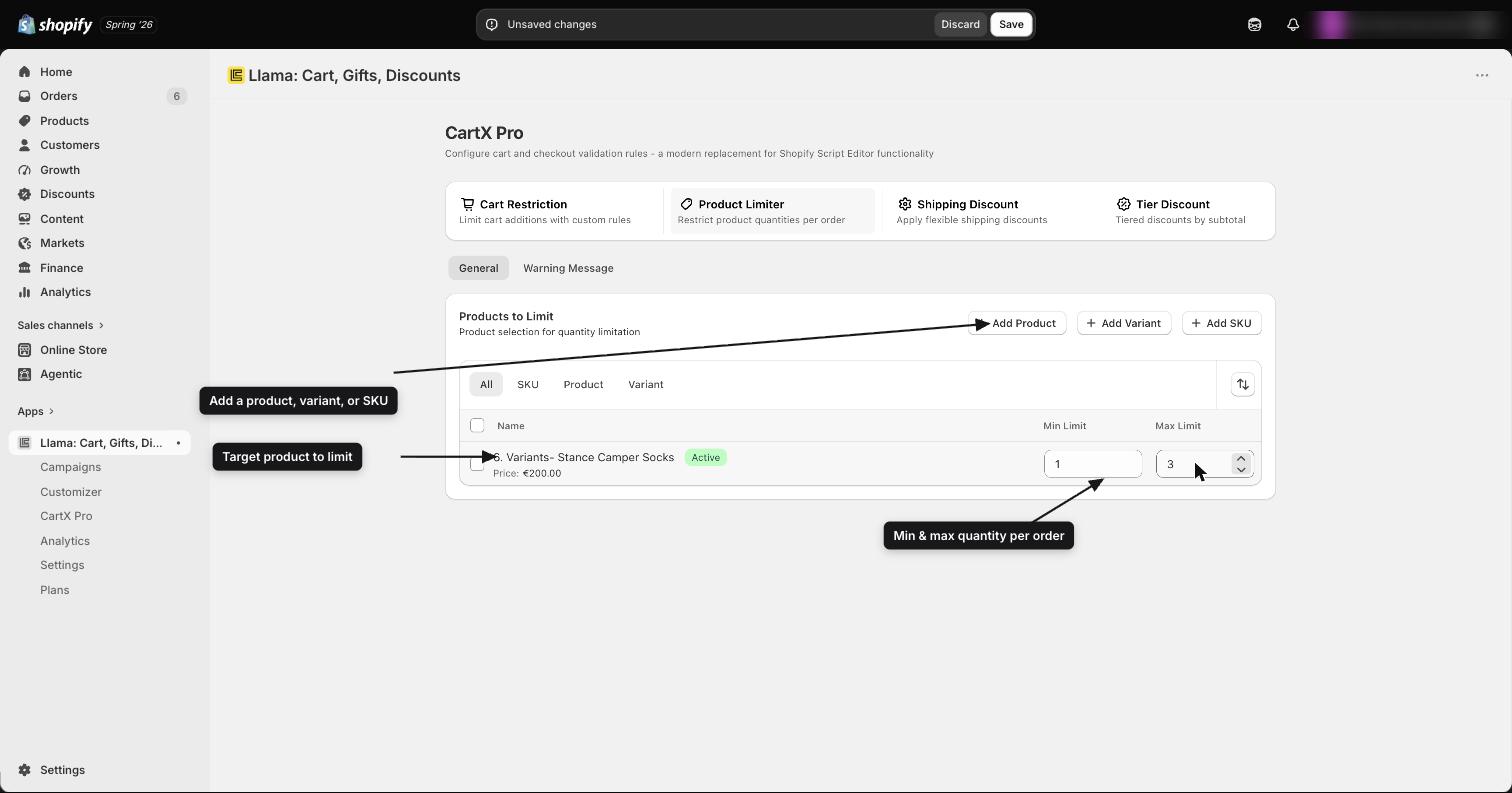
The Products Limiter lets you set a maximum and/or minimum quantity for a specific product, variant, or SKU. When a shopper's cart breaks a limit, checkout is blocked and the message you choose is shown — so you stay in control of how much of a product can be ordered.
For the authoritative placeholder list, the exact grouping rules, and the metafield internals, see Products limiter — advanced.
What you can do with limiters
Each limiter can enforce a maximum, a minimum, or both:
- Maximum limit — the shopper can't have more than N units. Great for limited-edition drops, preventing bulk buying, or enforcing fair-use on sale items.
- Minimum limit — the shopper must have at least N units to check out. Useful for bundle requirements or minimum-order quantities on specific products.
Limits are enforced at checkout. When a cart breaks a limit, Shopify's checkout validation stops the action and shows your error message — nothing is silently changed in the shopper's cart.
Limiter types
A limiter targets an entire product, a single variant, or a SKU. Choose the one that matches how precisely you want to control quantity.
A product limiter applies the same limit to every variant of the product, enforced separately for each variant group — quantities are not combined into a single family total.
The engine groups the shopper's cart lines by product and variant, then checks each variant group against the product limit on its own. So a product limit of 3 does not cap the product at 3 units overall; it caps each variant at 3.
Example: A T-shirt has Small, Medium, and Large variants and a product limit of 3. The shopper can have up to 3 Small, 3 Medium, and 3 Large at the same time — but not more than 3 of any single variant.
A variant limiter applies a limit to one specific variant only. Other variants of the same product aren't affected, and you can set a different limit on each variant.
Example: Sneakers come in Size 8, Size 9, and Size 10. A variant limit of 2 on Size 9 means the shopper can add any quantity of Size 8 and Size 10, but no more than 2 of Size 9.
A SKU limiter applies a limit to every item matching a specific SKU string, no matter which product or variant that SKU belongs to. This is the most precise option and takes priority over variant and product limits when more than one applies to the same cart line.
Priority order
When more than one limiter could apply to the same cart item, the app uses this priority — the highest-priority match wins:
SKU-level limits
Highest priority. If a SKU limit matches a cart line, it overrides any variant or product limit on that item.
Variant-level limits
Applied next, when no SKU limit matches.
Product-level limits
Lowest priority. Used when no SKU or variant limit matches the item.
A product-level limit still applies to each variant individually. So if Sneakers has both a product limit and a variant limit on Size 9, every other size is checked against the product limit while Size 9 uses its own variant limit.
Set minimum and maximum quantities
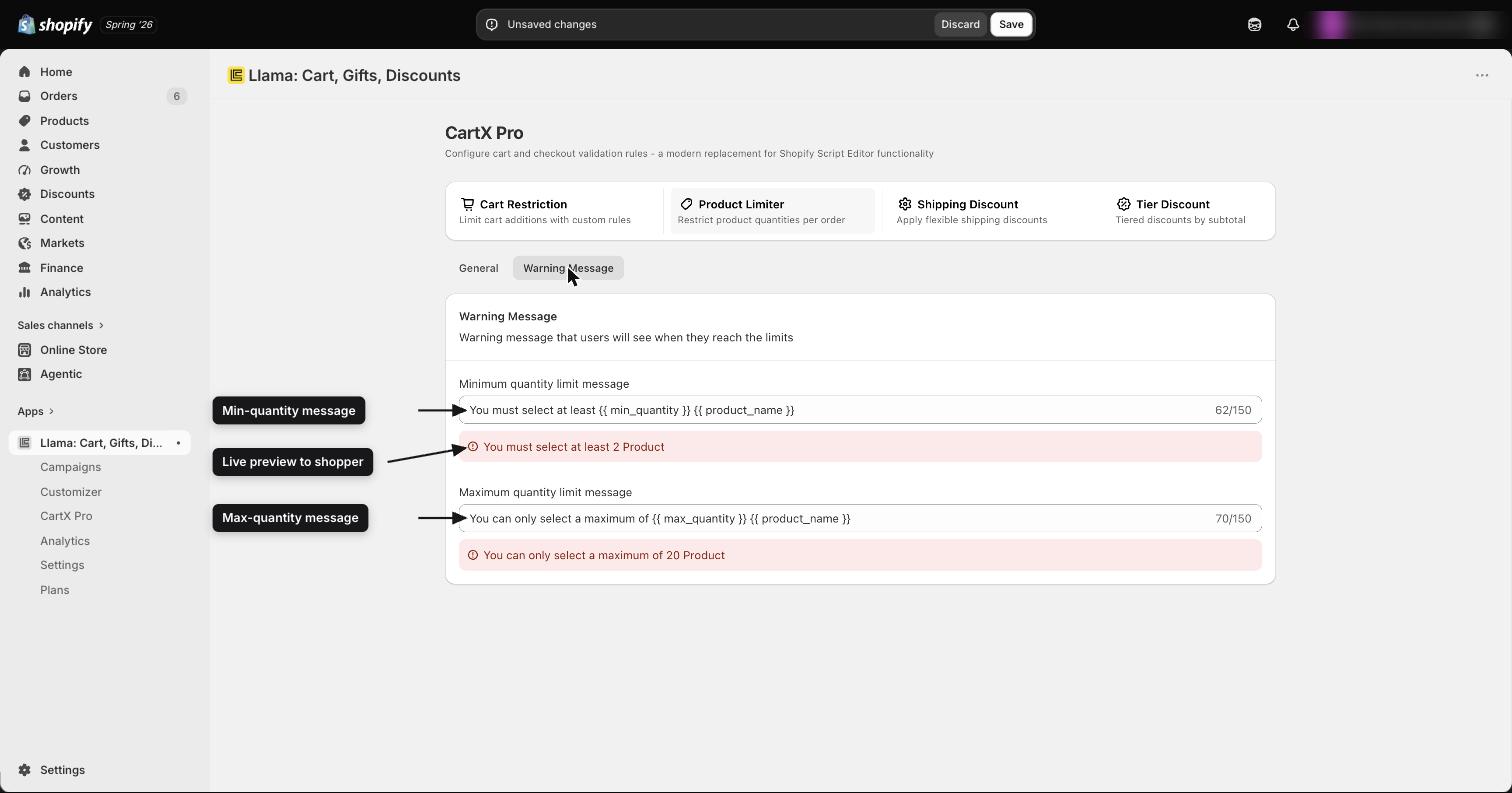
Each limiter can carry a minimum, a maximum, or both. The messages shoppers see for a minimum violation and a maximum violation are configured separately, so you can explain each case clearly.
A limiter that has neither a minimum nor a maximum is ignored entirely — it is never written to your store's checkout rules and never enforced. Always set at least one of the two values, or the limiter does nothing. The same is true for any field you clear: removing both values is the same as removing the limiter.
You can personalize the message text with placeholders. In the message editor you may see them shown with a leading # (for example #{{ min_quantity }}), but the literal token the app substitutes at checkout has no # — it is {{ min_quantity }}. Whitespace inside the braces is allowed, so {{min_quantity}} works too.
| Placeholder | What it shows |
|---|---|
{{ min_quantity }} | The minimum quantity you set |
{{ max_quantity }} | The maximum quantity you set |
{{ product_name }} | The product name (for a variant limiter, the product name plus the variant name) |
The minimum message can use {{ min_quantity }} and {{ product_name }}; the maximum message can use {{ max_quantity }} and {{ product_name }}. If you don't set a custom message, these defaults are shown:
- Minimum:
You must select at least {{ min_quantity }} {{ product_name }} - Maximum:
You can only select a maximum of {{ max_quantity }} {{ product_name }}
For the full, authoritative placeholder reference, see Products limiter — advanced.
Manage your limiters
Limiters live in their own section of the app and are independent of campaigns and restrictions.
- Activate or deactivate each limiter independently. Inactive limiters are saved but not enforced.
- Toggling a limiter's status updates your store's checkout enforcement within seconds, so changes take effect right away.
How limiters work with other features
Limiters run alongside the rest of the app, but they don't coordinate with it automatically — keep these interactions in mind:
All of your limiters share a single Shopify checkout validation. Unlike cart restrictions — which each take their own validation slot — every active limiter is bundled together and enforced through one validation. Adding more limiters never uses up additional Shopify validation slots. How many limiters you can have active at once is governed by your plan, not by Shopify's validation count. See Validation slots & plan limits for the per-plan counts.
- Cart Restrictions — Limiters and restrictions are separate systems. Cart Restrictions use flexible AND/OR rule logic, while limiters are simpler quantity-only caps. For per-SKU quantity enforcement with custom logic, use a restriction with the per-SKU quantity selector instead of a limiter.
- Auto-add campaigns — An auto-add campaign doesn't check limiter rules before adding a product. If it adds a product that's already at its maximum, the shopper will see a validation error at checkout.
- Campaigns — A campaign offer can include products that have active limiters. The limiter won't stop the offer from showing, but it will still block the shopper from adding more than the limit at checkout.
Plan limits
The number of active limiters you can run depends on your plan:
| Plan | Active product limiters |
|---|---|
| Free | 1 |
| Starter | 5 |
| Growth | 10 |
| Pro | 100 |
| Enterprise | Unlimited |
Deactivating a limiter frees up a slot. If you've hit your plan's limit, turn off any limiters you no longer need before adding a new one.
For how these per-plan counts relate to Shopify's checkout validation budget, see Validation slots & plan limits.
Good to know — the 10,000-character limit. All of your active limiters are packed into a single Shopify metafield, and that metafield can hold at most 10,000 characters. With normal use you'll never get close, but if you run a very large number of limiters the packed data can reach that ceiling. When it does, the app stops writing the oversize update, so newly added or edited limiters can silently stop enforcing at checkout even though they look active in the app. If limiters quietly stop working after you add many of them, this is the first thing to check — see Troubleshooting for how to confirm and recover.
For developers
Active limiter configurations are stored in the shop metafield with namespace $app:limiters and key active, in a minified format that groups product-level, variant-level, and SKU-level limits into separate maps. The Products Limiter Shopify Function extension reads this metafield at checkout — no backend calls are made. See the Developer reference for details.
Where to go next
Products limiter — advanced
Authoritative placeholder list, grouping rules, and metafield internals.
Validation slots & plan limits
How limiters and restrictions share Shopify's checkout validation budget.
Cart Restrictions
Block or warn on specific cart combinations with AND/OR rules.
Cart & checkout settings
Configure how your cart and checkout behave.
Troubleshooting
Fix a limiter that silently stopped enforcing or another checkout rule.
Block vs warn & restriction messages
How restrictions enforce at the cart and checkout, and exactly which message a shopper sees in their language.
Products limiter: SKU vs variant vs product caps
How quantity is counted and which cap wins when SKU, variant, and product limiters overlap on the same cart line.