
Block vs warn & restriction messages
How restrictions enforce at the cart and checkout, and exactly which message a shopper sees in their language.
This page is about the part of cart restrictions that confuses merchants most: what the action actually does to a shopper, and which message text they end up seeing. Restrictions do not "warn" softly — when a restriction matches, the shopper is stopped, and the message you write is the only explanation they get. Read this before you publish a restriction so your wording matches the real behavior.
What the action really does
A restriction has a single enforcement behavior. When its rules match a shopper's cart, the app's cart-validation extension attaches a validation error for that restriction, and the shopper is blocked from moving forward. There is no "soft warning that lets them continue anyway" — every matched restriction produces a hard stop at the stage where it runs.
Concretely, the block happens in two places depending on your Run on cart and Run at checkout toggles:
- At the cart stage (Run on cart) — the add or quantity update that would create the violating cart is rejected. The shopper cannot push the cart into the blocked state.
- At checkout (Run at checkout) — the order cannot be completed. The shopper literally cannot pay until the cart no longer violates the rule. Because this runs inside Shopify's validation infrastructure, it holds even for accelerated checkouts like Shop Pay and Apple Pay.
Restrictions hard-block. They do not just warn. A shopper who hits a restriction cannot complete checkout until they fix their cart. Write your message as an instruction the shopper can act on ("Remove the second sample to continue"), not as a passive notice ("Your cart may have an issue").
"Block", "Warning", "Error" — reconciled with current behavior
Some internal and older documentation describes three action types — BLOCK, WARNING, and ERROR — and implies that WARNING and ERROR let the shopper continue while only BLOCK stops them. That distinction does not exist in the current behavior. The live extension treats every matched restriction the same way: it adds a validation error and stops progress. Whatever an action is labeled internally, the shopper experience is a block.
| You may have read | What actually happens today |
|---|---|
BLOCK stops the order | Correct — the shopper is blocked |
WARNING shows a notice but allows checkout | Not true today — the shopper is blocked |
ERROR displays an error but allows checkout | Not true today — the shopper is blocked |
The underlying Shopify validation the app creates carries a blockOnFailure flag, and the app sets it to false. That flag governs only what happens if the validation function itself errors or times out — it's a fail-open vs fail-closed switch, not the switch that decides whether a matched restriction blocks. With blockOnFailure: false, if the function can't run, checkout is allowed through (fail-open) rather than frozen. The blocking of a matched restriction comes from the validation error the function returns, which always stops checkout regardless of this flag. In practice this is the behavior you should plan around: an active restriction that matches will stop the shopper. If you want a rule that does not stop anyone, don't make it a restriction — leave the restriction inactive (draft) until you actually want to enforce it.
Which message the shopper sees
Each restriction stores its message text per language. When the extension builds the error for a matched restriction, it resolves the text in a fixed order:
Try the shopper's language
The extension takes the shopper's checkout language code and looks up your message for that exact code (for example, the fr version for a French-language checkout). If you have written a message for that language, that is what the shopper sees.
Fall back to English when the language is unknown
If the checkout doesn't report a language at all, the extension looks up your English (en) message. This is why English is the safety net: it covers any shopper whose language the checkout can't identify.
Fall back to the built-in default
If no usable message is found, the extension uses a hardcoded default: Please review your cart before continuing. This is a generic, English-only string with no detail about what went wrong.
There is an important subtlety. The fallback to English happens only when the checkout reports no language. If the checkout does report a language (say fr) but you left that language's message empty, the extension does not drop back to English — it goes straight to the generic default Please review your cart before continuing. So an empty French message does not show your English text; it shows the bland default. The fix: fill in a message for every language you sell in, and always fill the English one.
The practical rule:
- Always fill the English message. It covers the "no language" path and is the most common locale.
- Add a version for each locale your store sells in. A locale you sell in but leave blank shows the generic default, not your English copy.
The error title is stored but never shown
A restriction has both an error title and an error message. Only the message is passed through to Shopify's validation and shown to the shopper. The error title is saved with your restriction as configuration, but the checkout extension does not surface it anywhere.
Do not rely on the error title to explain anything to shoppers — they never see it. Put the entire explanation, including what to remove or change, in the error message body.
The message is a cart-level banner, not a line note
The validation error is attached to the cart as a whole, not to a specific line item. That means the shopper sees a single cart- or checkout-level banner — not a highlight or note on the offending product line.
This has a direct effect on how you should write the message: you can't count on the shopper seeing which line is the problem. Name the item and the action in the text itself.
| Don't write | Do write |
|---|---|
| "This item isn't allowed." | "Remove the second free sample to continue — only one per order." |
| "Cart total too low." | "Add $50.00 more to reach the $50 minimum order." |
| "Invalid combination." | "Gift cards can't be purchased with subscription items. Remove one to continue." |
Editing messages per language
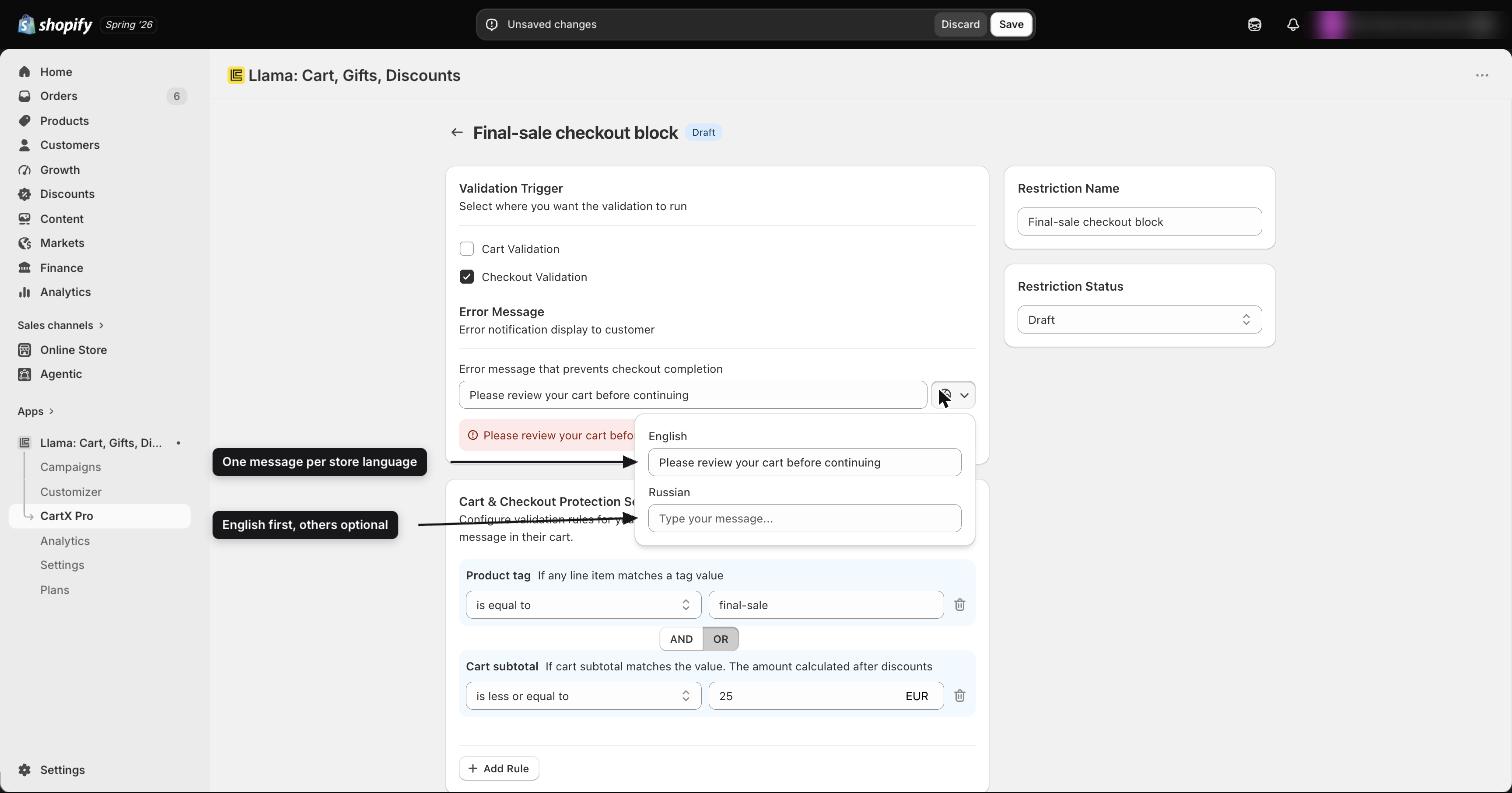
You write restriction messages in the restriction editor, with one message per language.
Open the restriction
Go to the restrictions list and open the restriction you want to edit (or create a new one).
Find the error message field
In the restriction editor, locate the error message section. This is the text shoppers see when the restriction blocks them.
Write the English message first
Fill in the English (en) version. This is your safety net for any shopper whose checkout language isn't identified.
Add a version for each locale you sell in
For every language your store sells in, add a message in that language. A locale you sell in but leave blank will show the generic default instead of your wording.
Save
Save the restriction. Only active restrictions are enforced — a draft restriction won't block anyone or show its message.
How the shopper's language is detected
The extension reads the checkout's localization language and lowercases the ISO code before matching it against your messages. So a checkout running in French resolves to fr, German to de, Brazilian Portuguese to pt-br, and so on. Your message keys need to line up with these lowercased codes for the per-language lookup to hit. If a shopper is browsing in a language you haven't written a message for, they fall through to the default string (see the resolution order above).
Per-restriction message vs the global fallback setting
There are two places a "message that blocks checkout" can come from, and it's easy to mix them up:
- The per-restriction error message — the text you write inside a specific restriction.
- The global "Warning message that blocks checkout progress" — a translatable message in the app's Settings under Global translatable settings, with a version per store locale.
The per-restriction message wins when it's set. The global translatable "Warning message that blocks checkout progress" is the fallback path — it covers cases where a restriction doesn't supply its own usable message. Set the message directly on each restriction whenever you want specific, actionable wording; treat the global one as a store-wide safety net.
Recipes
Edge cases and troubleshooting
A shopper sees Please review your cart before continuing instead of my message. This generic default appears when no usable message is found for the shopper's situation — most often because the locale they're shopping in has an empty message. Fill in a message for that locale (and always fill English). Remember: an empty non-English locale falls through to this default, not to your English text.
A shopper in a language I don't support sees the default. If the checkout language doesn't match any message you've written, the shopper falls through to the built-in default string. There's no automatic translation — add a message for each language you actually sell in, and rely on English for everything else.
My message is very long and looks cut off at checkout. The cart-level banner has limited room and long messages can be truncated by the checkout UI. Keep messages short and lead with the action ("Remove the second sample to continue") so the most important part survives if the text is shortened. Move any longer policy explanation elsewhere — the banner is for the fix, not the full policy.
A quick checklist when a message isn't behaving:
- Is the restriction active? Draft restrictions never block or show a message.
- Did you fill the error message body (not just the error title)? The title is never shown.
- Did you fill English and each locale you sell in? Empty locales fall to the generic default.
- Are you expecting a line-level highlight? There isn't one — the message is a single cart-level banner, so name the item in the text.
Related
Restriction rules, stages & evaluation
A deep reference for how a single cart restriction is built, the filters that gate it, and exactly when and where it fires.
Products limiter
Set per-product, per-variant, or per-SKU quantity caps so shoppers can't add more (or fewer) than you allow before checkout.