
Cart & checkout settings
Configure how the app works with your theme's cart page, set global price and styling rules, and customize checkout error messages.
The app's Settings page brings together everything that controls how the app behaves on your cart page, how prices and styling appear across every widget, and what messages your customers see when something blocks them at checkout. This guide walks through each section and what it controls.
Open your settings
Go to Settings in the sidebar. Settings are grouped into five sections, covering your cart page, global rules, translatable messages, checkout error messages, and a global CSS editor.
Changes don't take effect until you click Save in the sticky save bar at the top of the page. If you leave without saving, your edits are lost.
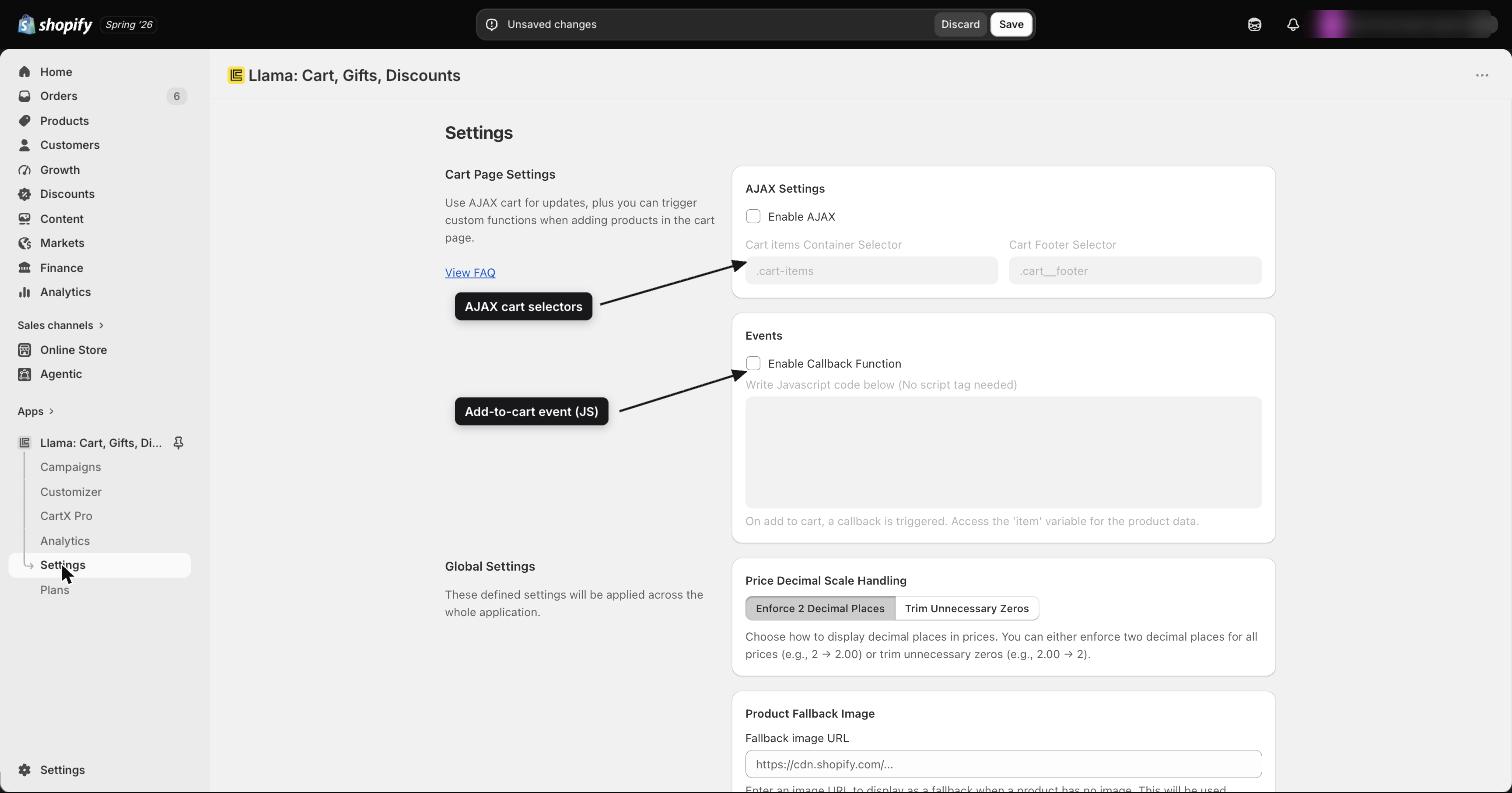
Cart page settings
These settings control how the app interacts with your theme's cart page — for example, whether the cart updates without reloading the page.
| Setting | What it controls |
|---|---|
| Enable AJAX | Turns on AJAX cart mode so cart updates happen without a full page reload. |
| Cart items Container Selector | The CSS selector for the element that wraps your cart items (for example, .cart-items). Required when AJAX is enabled. |
| Cart Footer Selector | The CSS selector for your cart footer element (for example, .cart__footer). Required when AJAX is enabled. |
| Enable Callback Function | Lets you run custom JavaScript whenever a product is added to the cart. |
| Callback JavaScript code | The custom JavaScript to run when a product is added. You don't need a <script> tag, and your code has access to an item variable containing the added product's data. |
The two selector fields are only needed when Enable AJAX is on. They tell the app where your theme renders its cart items and footer so it can update them in place. If you're unsure of the right selectors, the View FAQ link in this section points to further guidance.
Global settings
Global settings apply across every app widget and block.
| Setting | What it controls |
|---|---|
| Price Decimal Scale | Chooses how prices are displayed everywhere the app shows them. Enforce 2 Decimal Places always shows two digits (for example, 2 becomes 2.00), while Trim Unnecessary Zeros removes trailing zeros (for example, 2.00 becomes 2). |
Global translatable settings
This section holds a message that can be translated for each of your shop's locales.
Set the Warning message that blocks checkout progress — the fallback error message a customer sees when a cart restriction stops them from continuing. Because it supports multiple locales, you can write a different version of this message for each language your store sells in, and the shopper sees the version that matches their storefront language.
This message is a fallback, not the primary text. When a restriction blocks a shopper, the app picks the message it shows in this order:
Per-restriction message
The message you typed on the restriction itself (the Error message in that restriction's action), in the shopper's language. This always wins when it exists.
This global translatable message
The Warning message that blocks checkout progress you set here, in the shopper's language. The app falls back to it whenever the restriction has no message for that shopper's locale.
Hardcoded default
If neither of the above has text for the shopper's locale, the app shows its built-in default,
Please review your cart before continuing. You cannot edit this default — set the global message above
so shoppers never see it.
Both the per-restriction message and this global message are per-locale. If you add a new storefront language, write a version of the global message for that locale too — otherwise shoppers in that language fall through to the hardcoded default. For a full walkthrough of how a restriction chooses the exact text a shopper sees, read Block vs warn & restriction messages.
This global message only covers messages produced by cart restrictions. It does not control the discount-code error described in Checkout settings below — that is a separate message from a different extension. Editing this field will never change the discount-code text, and vice versa. See Which message comes from where to tell them apart.
Checkout settings
Checkout settings control the message customers see when a discount code they enter doesn't qualify for one of your upsell campaigns.
| Setting | What it controls | Default |
|---|---|---|
| Invalid Discount Code error message | The message shown when a discount code doesn't qualify for any upsell condition. | Your cart contains invalid items |
This is not the message a cart restriction shows. It is produced by a separate checkout-validation (promo-code / upsell) extension, and it only appears when a shopper's discount code fails an upsell campaign's conditions. Many merchants edit this field expecting to change the text a restriction shows at checkout — it won't. Restriction text is set on the restriction itself or in the global translatable message above. Use the table in Which message comes from where to confirm which field you need.
If you leave this field empty, shoppers see the built-in default, Your cart contains invalid items. The
message is keyed by locale: the app shows the version matching the shopper's storefront language, and
falls back to that same hardcoded default when no version exists for their locale. Write a version for each
language your store sells in.
You can personalize the Invalid Discount Code message with template variables. The app replaces each one with a real value when the message is shown:
| Variable | Replaced with |
|---|---|
###{{ discountCode }} | The code the customer entered. |
###{{ amountMore }} | How much more the customer needs to reach the campaign goal. |
###{{ goalAmount }} | The campaign's subtotal target. |
Which message comes from where
The app shows two different checkout error messages from two different extensions. They look similar to shoppers but are configured in completely separate places. Use this table to find the one you need to edit:
| Shopper sees this when... | Comes from | Where you edit it | Hardcoded default if blank |
|---|---|---|---|
| Their cart breaks a restriction rule (e.g. a blocked product, region, or quantity) | Cart restrictions (restrictions extension) | The Error message on the restriction itself, then the Warning message that blocks checkout progress in Global translatable settings as a fallback | Please review your cart before continuing |
| A discount code they entered doesn't qualify for an upsell campaign | Discount-code / upsell checkout validation (promo-code extension) | The Invalid Discount Code error message in Checkout settings | Your cart contains invalid items |
A quick rule of thumb: if the shopper was stopped because of what's in their cart, the text comes from restrictions. If they were stopped because of a code they typed into the discount box, the text comes from Checkout settings.
Global styles (CSS editor)
The Global Styles section is a full CSS editor — the same VS Code-style editor experience, with syntax errors highlighted in red as you type. Any CSS you write here is applied globally across every app block and widget.
Use this when you want custom styling to apply across your entire store — all campaign widgets, Llama Cart blocks, and checkout elements — rather than styling each one individually.
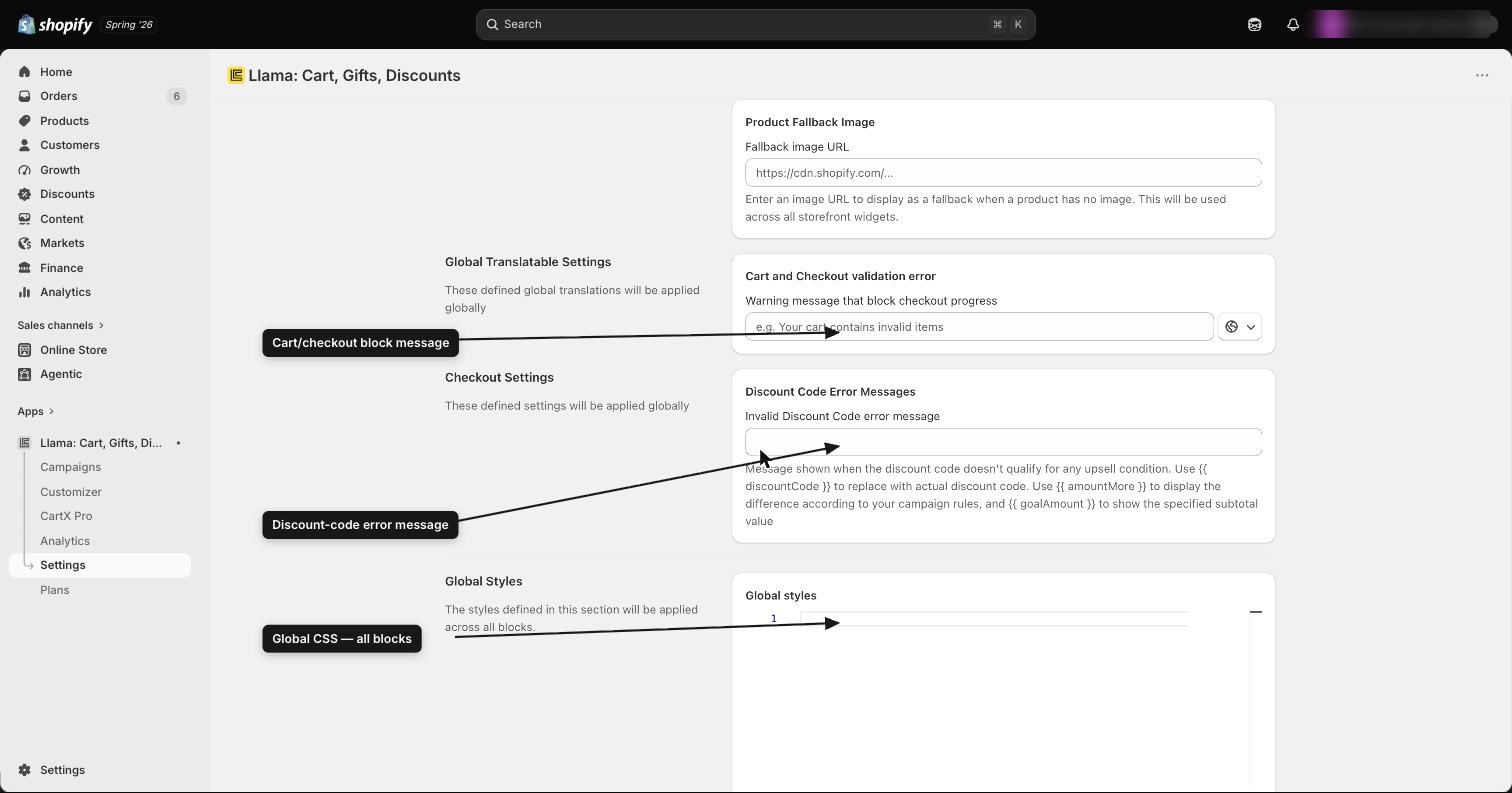
Remember to click Save after editing any section, including the CSS editor. Unsaved changes won't apply to your storefront.
Related
Cart restrictions
Block or warn customers at checkout when their cart breaks a rule you set.
Block vs warn & restriction messages
How a restriction enforces at cart and checkout, and exactly which message a shopper sees in their language.
Widgets and Llama Cart
Customize the Llama Cart drawer and storefront widgets that your global styles apply to.