
Install and enable the app
Add Llama Upsell & Cross-Sell from the Shopify App Store and turn on the app embed so your widgets can appear on your store.
Getting Llama Upsell running takes two quick steps: install the app from the Shopify App Store, then switch on the app embed in your theme so your widgets can show up on your storefront. This page walks you through both, plus the extra setup a few campaign types need.
What happens when you install. Installing registers the app on your store and starts your 7-day free trial — no charge during the trial, and all features are available so you can build and test offers right away. The trial and the rest of the billing lifecycle are covered in Free trial & subscription status. For what happens to your campaigns and data if you ever uninstall and come back, see Install, reinstall, uninstall & your data. This page stays focused on the click-by-click setup.
Install and enable
Install from the Shopify App Store
Install Llama Upsell & Cross-Sell from the Shopify App Store. Once it finishes installing, the app appears in your Shopify Admin under Apps, where you'll manage your campaigns, discounts, and cart.
Enable the app embed in your theme
The app embed is what lets your storefront widgets — Product Recommendations, Gift with Purchase, and Llama Cart — actually render on your store. Turn it on once per theme:
- In Shopify Admin, go to Online Store → Themes.
- Click Customize on your active theme.
- In the theme editor, click App Embeds (the puzzle piece icon in the left sidebar).
- Find LC Upsell and toggle it on.
- Click Save.
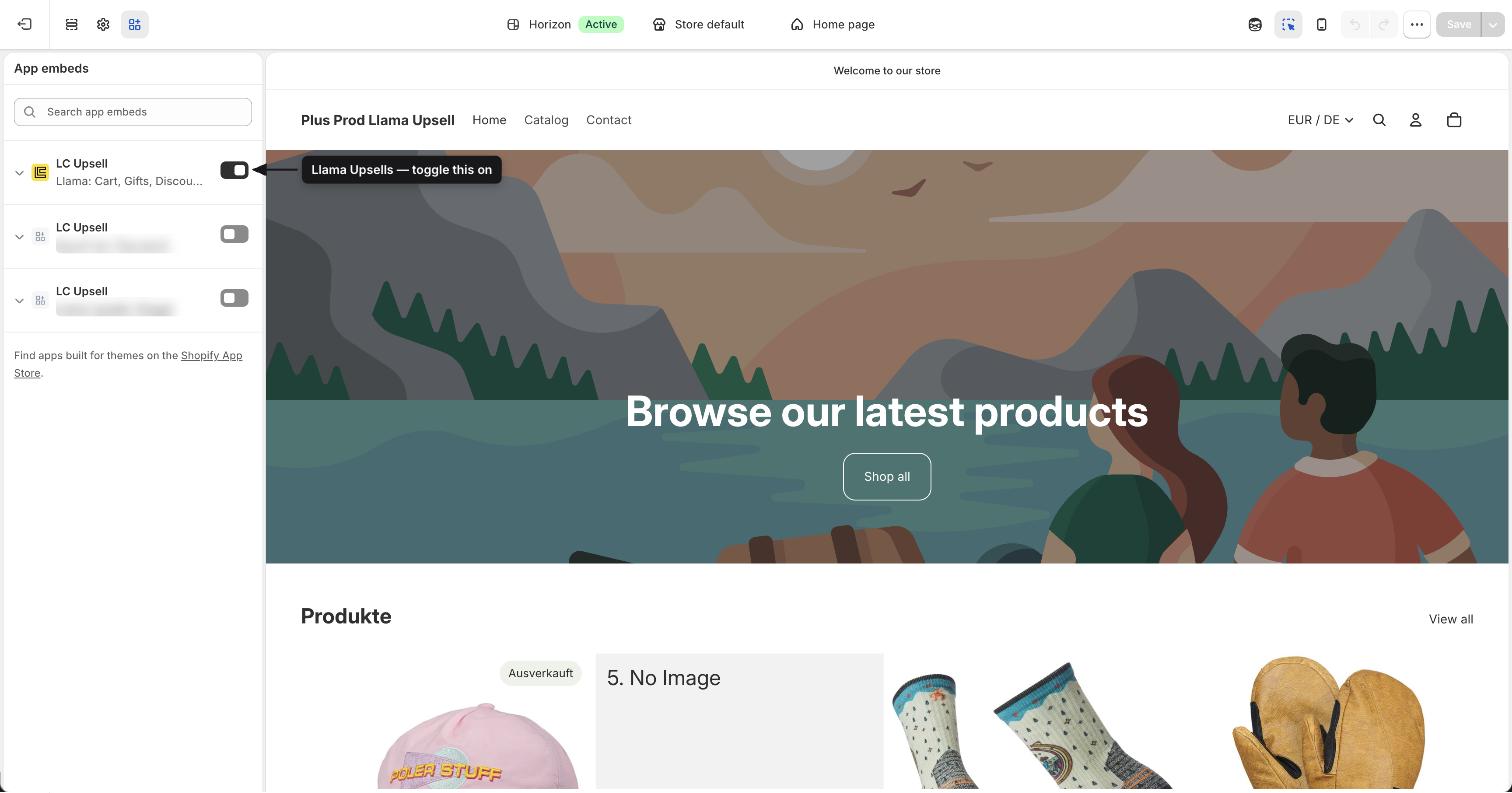
Without the app embed enabled, none of your campaign widgets will appear on your storefront. This is the most common reason a widget doesn't show up.
Connect each campaign to your storefront
Enabling the app embed turns the app on, but each campaign still needs to be pointed at the right place on your store. After you create a campaign, click the Setup Guide button in the campaign editor header to open step-by-step placement instructions.
You'll have two ways to place a campaign widget:
- Connect to Online Store — adds the widget as a block in your Shopify theme editor, so it shows on a page or section of your storefront.
- Connect to Llama Cart — places the widget inside the Llama Cart drawer using the drag-and-drop customizer, with market selection.
The Setup Guide needs to be completed for each campaign so it appears on the correct page.
Optional and campaign-specific setup
Depending on which features you plan to use, you may need a little extra setup.
Turn on Llama Cart
If you want to replace your theme's default cart with the Llama Cart slide-out drawer:
Make sure the app embed is on
Llama Cart relies on the app embed from the steps above. If it isn't active yet, turn it on first.
Toggle Llama Cart on
Go to Customizer in the app sidebar and toggle Llama Cart on.
The Llama Cart toggle is disabled until the app embed is active. If you see a Llama Cart Activation Required banner on the Customizer page, the embed is still off — enable it and come back.
Set up Post-Purchase campaigns
Post-Purchase campaigns show an offer right after checkout, before the thank-you page. Before they can appear, add the post-purchase extension once:
- In Shopify Admin, go to Settings → Checkout.
- Under Post-purchase page, add Llama Upsells.
- Save.
This is a one-time setup — every Post-Purchase campaign uses this same configuration. If the app isn't connected yet, a warning banner appears on the campaign page to remind you.
Set up Checkout Upsells (Shopify Plus)
Checkout Upsell campaigns appear inside the Shopify checkout page and require Shopify Plus:
- Add the Checkout Upsells app block to your checkout template using the Shopify checkout editor.
- For Auto-Add campaigns on Plus stores, go to your checkout settings, allow the app to block checkout, and save your changes.
Reinstalling the app?
If you previously had Llama Upsell installed, uninstalled it, and are now installing again, the click-by-click steps on this page still apply — but a few of them are mandatory the second time around. Uninstalling removes the app's storefront blocks and metafields from your theme, so the on-store pieces don't carry over to a fresh install.
After a reinstall, you must redo the storefront setup. Specifically: re-enable the app embed under Online Store → Themes → Customize → App Embeds for each theme you use, and re-run the Setup Guide for every campaign to put its widget back on the right page. Reinstalling does not restore these automatically. Walk through the full reinstall checklist in Install, reinstall, uninstall & your data.
What's next
Once the app is installed and the embed is on, you're ready to build your first offer.
What is Llama Upsell & Cross-Sell?
See everything the app can do before you dive in.
Add widgets to any page
Place campaign widgets across your storefront.
Free trial & subscription status
Understand the 7-day trial and your billing status.
Install, reinstall & your data
What happens to billing and data when you uninstall or reinstall.
What is Llama Upsell & Cross-Sell?
A friendly overview of what Llama Upsell does and the upsells, discounts, cart features, and analytics you can build with it.
Understanding the Campaigns dashboard
Tour the Campaigns dashboard — what each campaign shows, what the statuses mean, and how to create and edit campaigns.