
Understanding the Campaigns dashboard
Tour the Campaigns dashboard — what each campaign shows, what the statuses mean, and how to create and edit campaigns.
The Campaigns dashboard is your home base in Llama Upsell. It lists every campaign you've created, shows whether each one is live, flags any that need attention, and is where you go to create new offers or edit existing ones.
A campaign is the core building block of the app: it pairs an offer (the products you want to recommend or add to the cart) with conditions (the rules that decide when that offer shows up). When a shopper's cart matches your conditions, the offer fires.
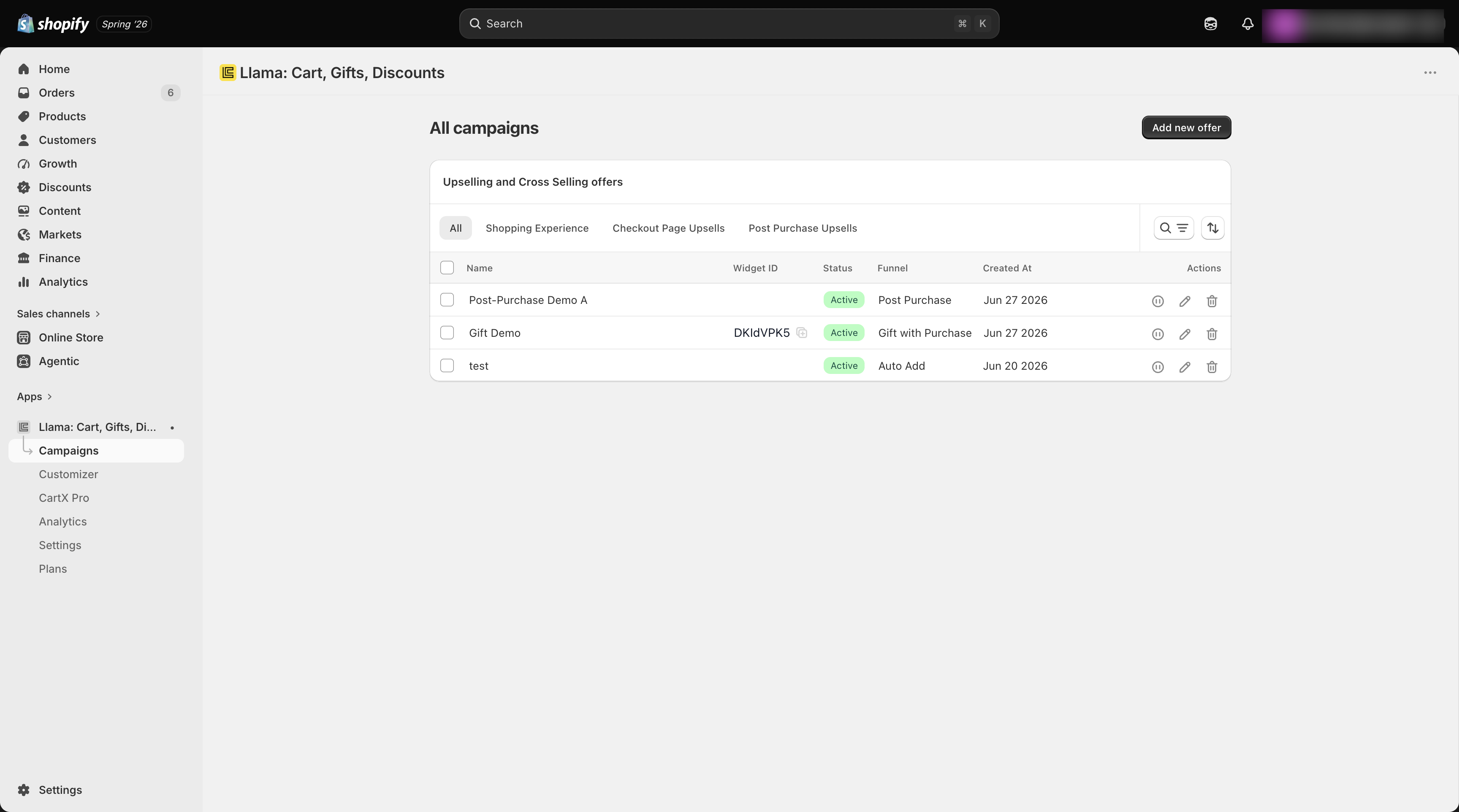
What you see on the dashboard
Each campaign in the list gives you a quick read on what it does and whether it's working:
- Name — the title you gave the campaign.
- Type — which funnel the campaign uses (see the table below).
- Status — whether the campaign is active, inactive, or still a draft.
- Health — a warning icon appears when something might stop the campaign from running correctly.
From the list you can open any campaign to edit it, change its status, or create a brand-new one.
Campaign types
Every campaign belongs to one type, which controls where and how the offer appears.
| Type | Where it appears | What it does |
|---|---|---|
| Pre-purchase (Product Recommendations) | Storefront page (product, cart, or a custom location) | Shows a product recommendation widget before the shopper reaches checkout |
| Auto-Add | Cart (no visible widget) | Automatically adds a product to the cart when conditions are met |
| Gift with Purchase | Storefront widget | Shows a free-gift offer with a progress bar toward a spending threshold |
| Checkout Upsells | Shopify checkout | Displays an offer inline during checkout |
| Post-Purchase | Post-checkout page | Shows an offer after the shopper completes their order |
| Content Unlock | Storefront widget | Reveals a product offer once the cart reaches a spending threshold |
Want the full breakdown of each type, including when to use it? See the Campaigns guides.
Campaign statuses
Every campaign has a status that tells you whether shoppers can see it.
- Active — the campaign is live and shown to shoppers. Active campaigns count toward your plan's active campaign limit.
- Inactive — the campaign is saved but not running. It does not count toward your limit.
- Draft — used while you're first building a campaign in the editor. When you save, a draft resolves to active or inactive.
Only active campaigns are served to shoppers, so a campaign won't appear on your storefront until you set it to active.
If you try to activate a campaign but you've already reached your plan's limit, the campaign is saved as inactive and you'll see a notification. To activate it, deactivate another campaign first or upgrade your plan.
Status and your plan limit
Your plan sets how many campaigns you can keep active at once. Inactive and draft campaigns don't count, so you can build and store as many as you like — you just choose which ones are live.
| Plan | Active campaigns |
|---|---|
| Free | 1 |
| Starter | 5 |
| Growth | 10 |
| Pro | 25 |
| Enterprise | Unlimited |
| Custom | Unlimited |
If you downgrade your plan, the newest campaigns that exceed the new limit are deactivated automatically, newest first. For more on plans and limits, see Plans and billing.
Campaign health warnings
The dashboard checks each active campaign and shows a warning icon next to any that might not be working as expected. A warning means shoppers may not see the offer, so it's worth opening the campaign to fix the issue.
A health warning appears when:
- An offer product is unpublished or sold out.
- A collection the campaign references has been deleted.
- A promo-code trigger points to a disabled discount code.
- No markets are selected (an empty market list shows the campaign to no one).
- The campaign's scheduled window hasn't started yet, or has already ended.
A warning doesn't deactivate the campaign — it stays active but may not display. Open the flagged campaign, fix the underlying issue, and the warning clears on its own.
Create a campaign
Start a new campaign
From the Campaigns dashboard, start a new campaign and choose the type that matches where you want the offer to appear — Pre-purchase, Auto-Add, Gift with Purchase, Checkout Upsells, Post-Purchase, or Content Unlock.
Choose your offer
Pick the products to recommend or add. Offers can come from one of three sources:
- Manual — you select specific product variants.
- Automatic — the app shows Shopify's personalized recommendations based on what's in the cart.
- Collection — the offer draws from a collection you choose.
Set conditions
Add one or more conditions that decide when the offer shows. Conditions are built from cart data — products in the cart, subtotal, customer tags, UTM parameters, applied discount codes, and more — combined with AND/OR logic. See Condition selectors for the full picture.
Schedule and target (optional)
Narrow who sees the campaign and when:
- Date range — only run the campaign between a start and end date.
- Markets — only show it to customers in selected Shopify markets.
- Customer tags — restrict it to logged-in customers with specific tags.
Learn more in Schedule, markets, and customer tags.
Save and activate
Save the campaign. Set it to active to make it live on your storefront, or leave it inactive to keep it ready for later. Remember that active campaigns count toward your plan limit.
Edit a campaign
To change a campaign, open it from the dashboard. You can update its offer products, conditions, schedule, targeting, and any campaign-level settings — then save your changes.
You can also toggle a campaign's status between active and inactive at any time without losing your configuration. Deactivating a campaign removes it from your storefront but keeps everything you set up, so you can switch it back on whenever you like.
Use inactive status as a holding area. Build seasonal or experimental campaigns in advance, keep them inactive, and flip them on the moment you need them.