
Add widgets to any page
Place Llama Upsell widgets on any theme page or template using the Shopify theme editor — product, collection, cart, and custom pages.
You can drop a Llama Upsell widget onto almost any page of your storefront using the Shopify theme editor — no custom Liquid required. This guide covers the two ways to place a widget: adding it to a whole page type (every product, every collection, the cart), and scoping it to specific products with a dedicated template.
The widget is delivered as a theme app extension block named Widget. For the full list of its settings and how it resolves which campaign to show, see the Widget block reference.
Before you start
- You need theme editing access in your Shopify admin.
- The campaign you want to display should already be created in Llama Upsells.
- You should know your campaign's Widget ID if you want to pin the block to one specific campaign (see Get a campaign's Widget ID).
The Widget block works for campaigns that have a Widget ID — Product Recommendation (Pre Purchase) and Gift with Purchase. It cannot be used for Auto Add or Post Purchase Upsell campaigns, which do not expose a Widget ID.
Get a campaign's Widget ID
A Widget ID pins the block to one specific campaign. If you leave it blank, the block automatically falls back to an active Gift with Purchase or Pre Purchase campaign instead — useful when you want "whatever is running right now" to appear in that slot.
Open the campaign
Go to the Campaigns section in your Llama dashboard and open the campaign you want to display.
Copy the Widget ID
Each campaign has a unique Widget ID. Copy it — you'll paste it into the block settings later.
Auto Add and Post Purchase Upsell campaigns do not have a Widget ID, so this method does not apply to them.
Add a widget to a page
Use this approach when you want the widget on an entire page type — for example, on the cart page, on every product page, on a collection page, or on a custom page. The Widget block targets a section, so you add it as an app block inside any section that supports app blocks.
Open the theme editor
In your Shopify admin, go to Online Store → Themes, then click Customize on the theme you want to edit.
Navigate to the page
Use the page selector at the top of the editor to open the page where the widget should appear — the cart, a product page, a collection page, or a custom page.
Add a section or block
Add the Widget app block where you want it:
- To add it as its own section, click Add section and choose Apps, then pick the Llama Upsells Widget.
- To add it inside an existing section, click Add block within that section and choose the Widget app block.
Set the Widget ID
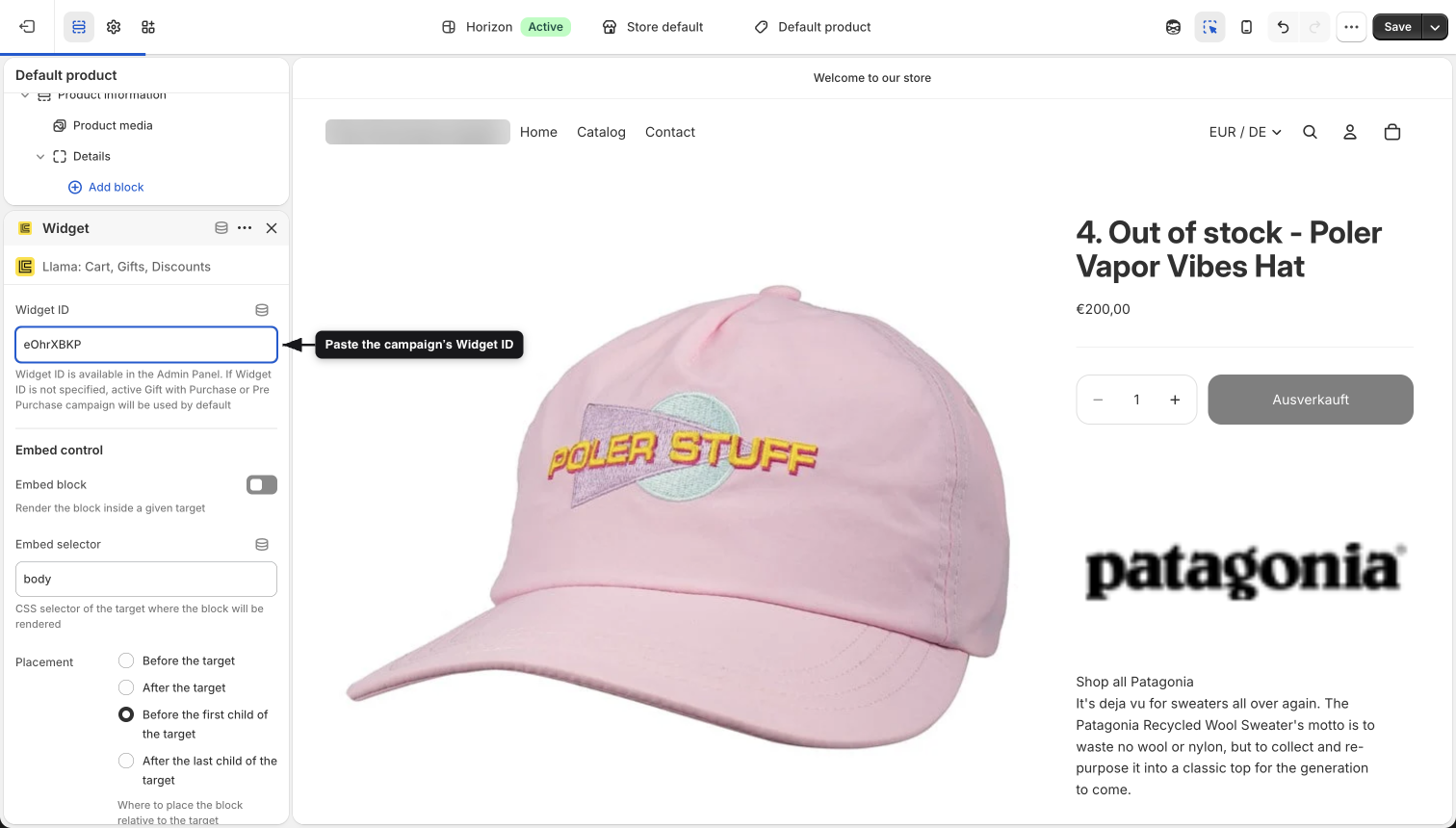
In the block settings panel, paste the Widget ID you copied earlier into the Widget ID field. Leave it blank to fall back to an active Gift with Purchase or Pre Purchase campaign automatically.
Position the widget
Drag and drop the block to position it exactly where you want it on the page — above or below your existing content.
Save and verify
Click Save, then refresh your storefront to confirm the widget displays correctly.
Placement by page type
The same Widget block works across page types. Where you add it determines where shoppers see it:
Open a product page in the theme editor and add the Widget block to a section of the product template. Every product using that template will show the widget. To target only certain products, use a dedicated template instead — see Show a widget on specific products.
Open a collection page in the theme editor and add the Widget block to a section of the collection template to surface recommendations alongside the product grid.
Open the cart page in the theme editor and add the Widget block to display upsell offers in the cart. For the slide-out cart drawer instead of the cart page, see Add widgets to the cart drawer.
Open any other page (such as a custom page template) in the theme editor and add the Widget block to the section where the offer should appear.
Show a widget on specific products
Adding the Widget block to the default product template shows it on every product. To display a campaign on only certain products, create a dedicated product template, add the widget to that template, and assign the template to just the products you choose. No coding is required.
Open the theme editor
In your Shopify admin, go to Online Store → Themes and click Customize (or Edit theme).
Create a new product template
In the theme editor, open the page selector at the top and choose Products. You'll see the list of existing product templates. Click Create template, give it a name (for example, Promotion Template), and click Create template again.
Your new product template is now ready.
Add the Widget block to the new template
With your new product template selected in the page selector, click Add block in the left sidebar, add the Widget app block, and place it in the section where you want it on the product page. Paste your Widget ID into the block settings if you want to pin a specific campaign, then click Save.
Because the widget is added only to this template, it will not show on the default product template.
Assign the template to products
Go to Products in your Shopify admin and open a product where the campaign should appear. In the right sidebar, find the Theme template section, select your new product template, and click Save.
Repeat for additional products
To show the campaign on more products, open each one individually, assign the same new product template, and save. Only the products using the new template will show the widget.
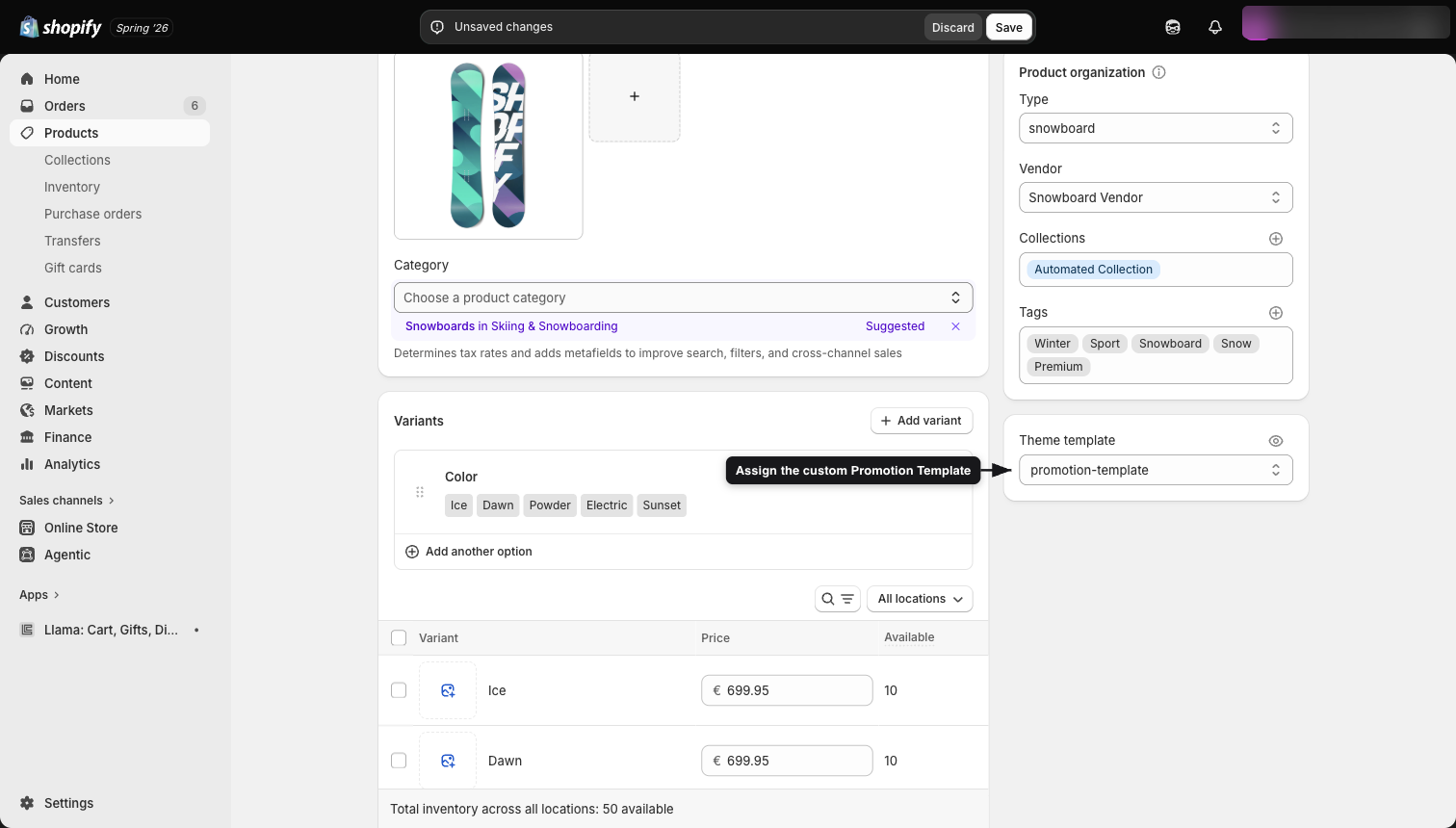
The result: products using the new template show the campaign widget, products using the default template do not, and you keep full control over where campaigns appear.
Embed into a specific element
By default the block renders inline, exactly where you placed it in the section. If you need the widget injected into a different element on the page — for example, next to a theme element the editor won't let you reach directly — enable the block's Embed control settings:
- Embed block — render the widget inside a target element instead of inline.
- Embed selector — the CSS selector of the target element (defaults to
body). - Placement — where to insert the widget relative to that target (before it, after it, before its first child, or after its last child).
These settings only take effect when Embed block is enabled. See the Widget block reference for the exact values and behavior.