
Add-ons in the cart
Add-ons are switch rows in the cart footer for extra products, like shipping protection or a care kit.
Release candidate. This feature is part of rc-3.23.0 and is not in your app yet. Screens may change before release.
Add-ons are switch rows in the cart footer for extra products, like shipping protection or a care kit. The shopper turns the switch on to add the product and off to remove it. You can show an add-on in every cart, or only when certain conditions are met.
Use it to offer a small extra at the end of the cart without a full campaign.
How to use
-
In the app, go to Customizer and click Customize on a version.
-
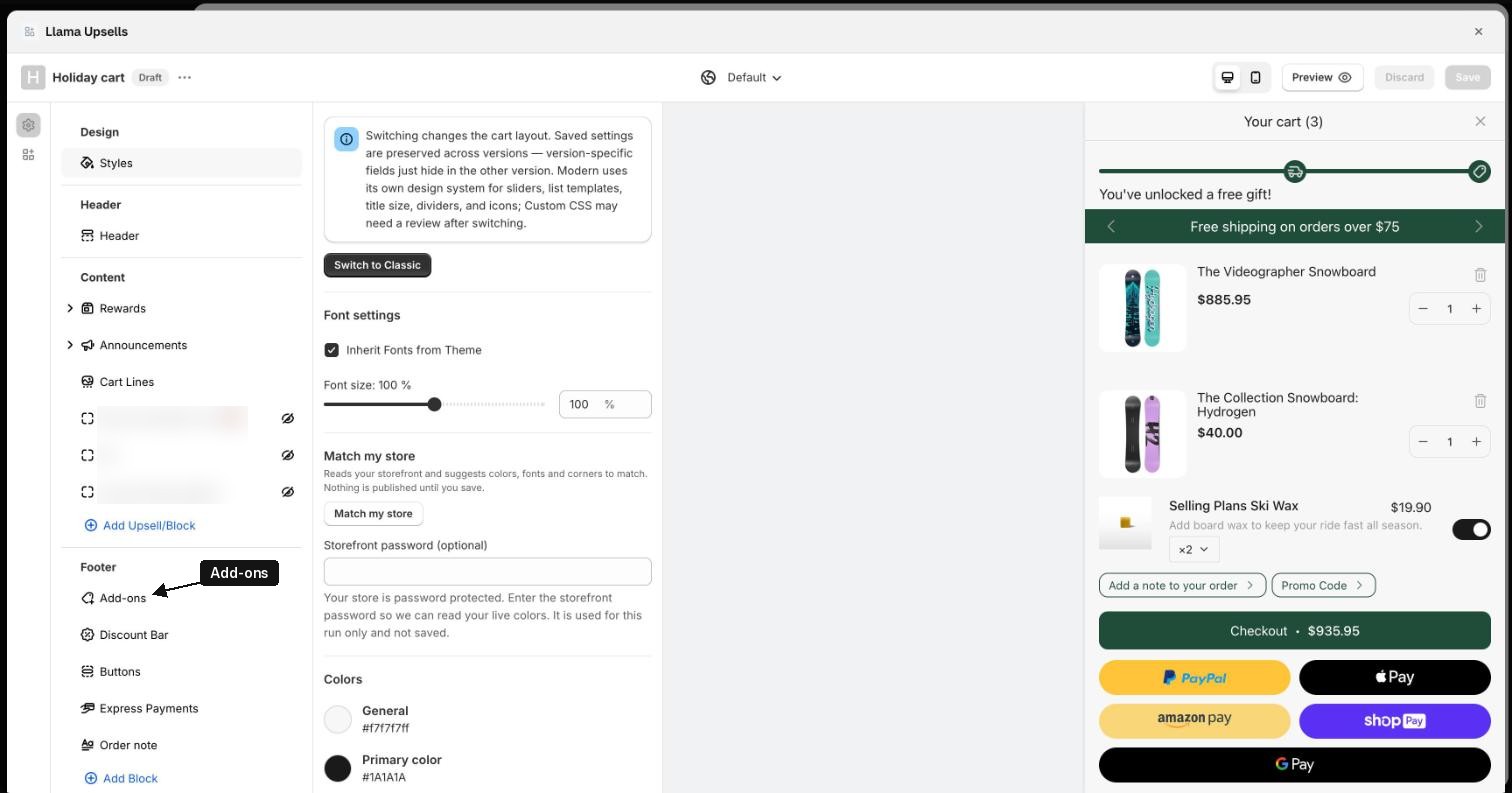
In the left menu, under Footer, find Add-ons. It is hidden by default (crossed-out eye). Click the eye to show it.
-
Click Add-ons to open its settings, then click Add add-on.
-
Fill in the add-on:
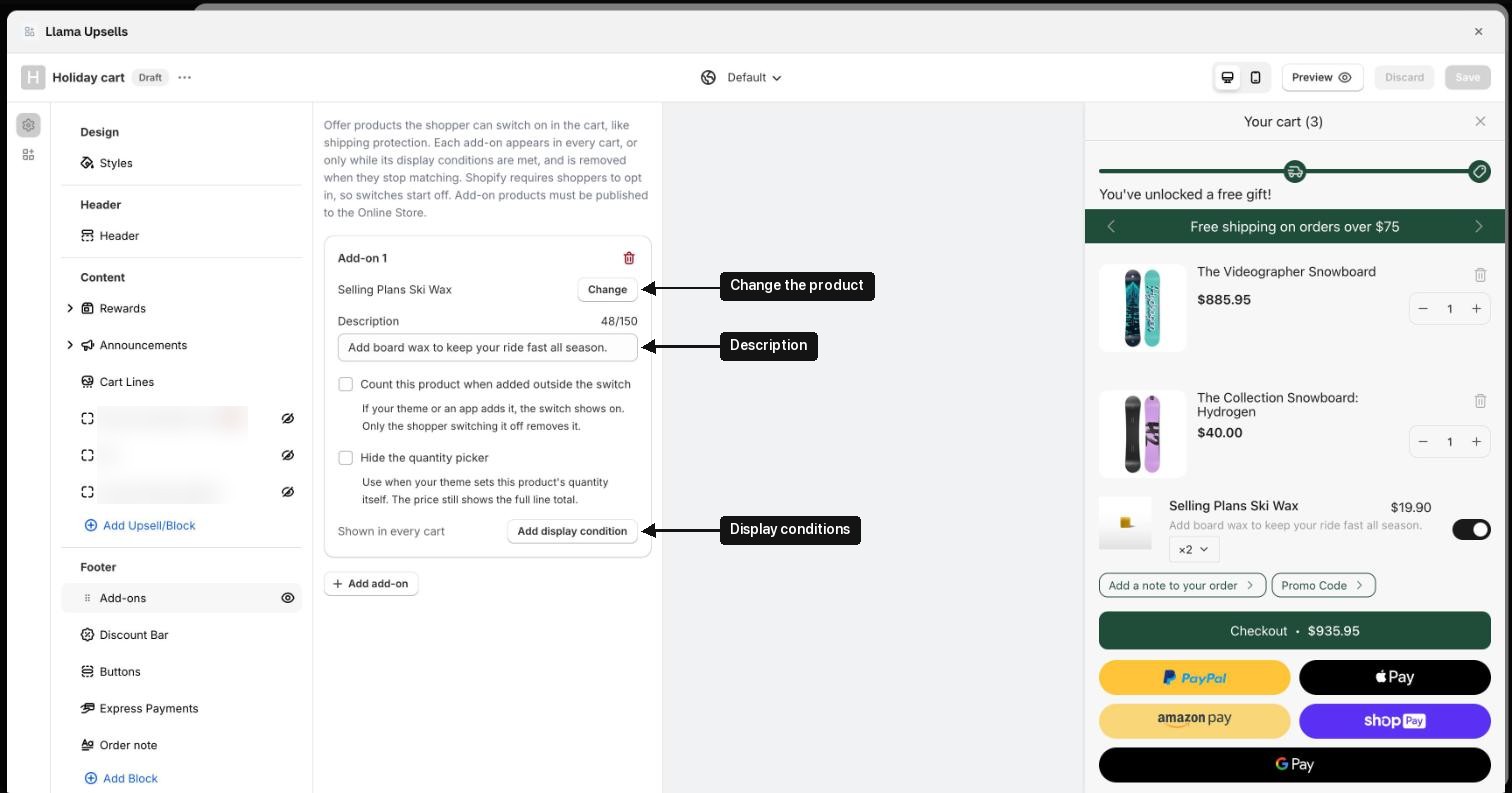
- Select product: pick the product and variant to offer. Use Change to pick another.
- Description: a short line under the product name, up to 150 characters.
- Count this product when added outside the switch: tick this if your theme or another app adds this product. The switch then shows on, and only the shopper switching it off removes it.
- Hide the quantity picker: tick this if your theme sets the quantity itself. The price still shows the full line total.
-
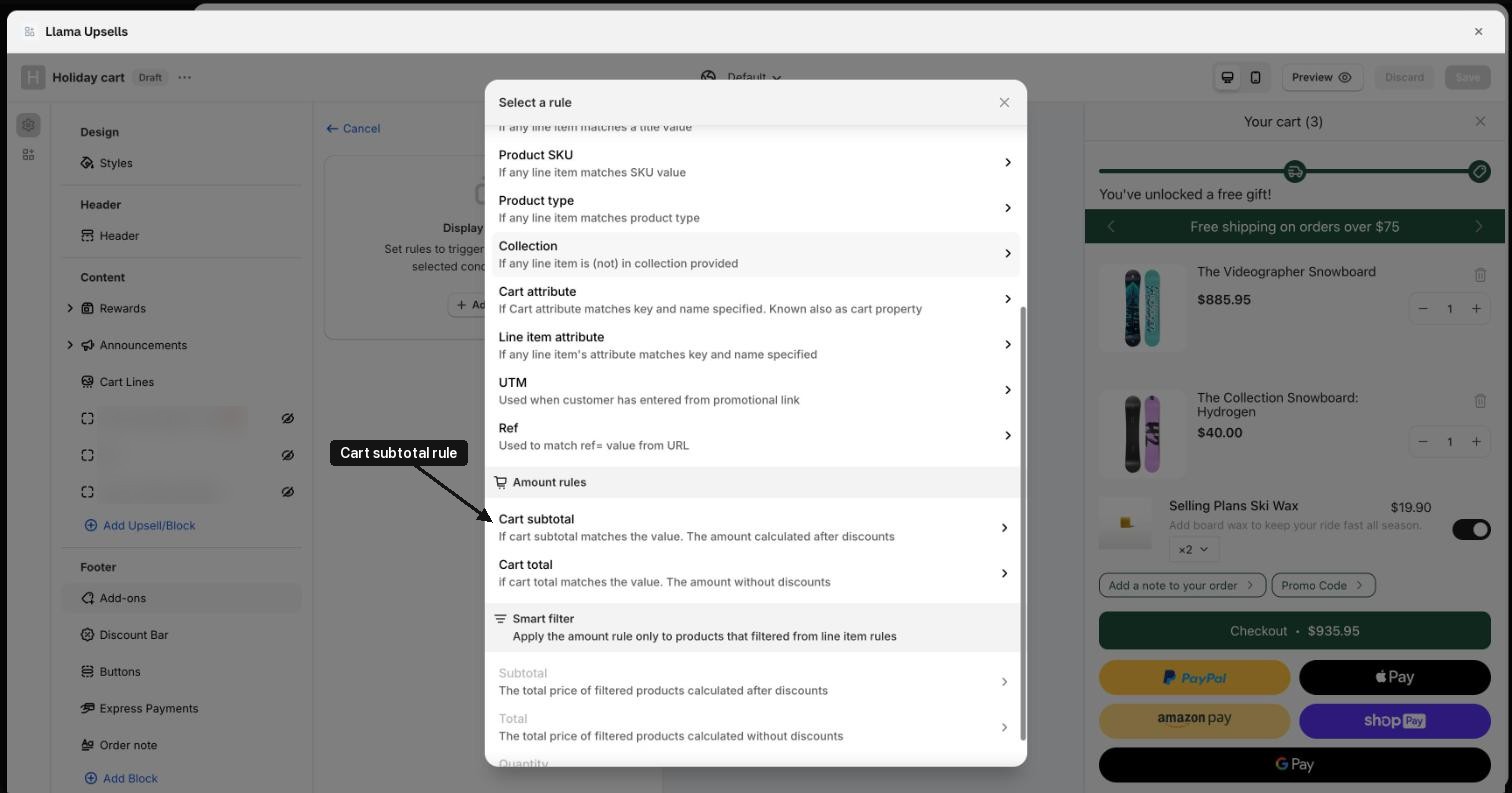
To limit when the add-on shows, click Add display condition, pick a rule (for example Product, Product tag, Collection or Cart subtotal) and click Done. Without conditions, the add-on says Shown in every cart; with conditions, it shows how many, and the button becomes Edit display conditions.
-
The preview on the right shows the add-on row with a placeholder product and price, switched on with two units so you can see the layout of the price and quantity picker. The preview's checkout total doesn't include it.
-
Click Save. Each add-on needs a product before you can save. You can add more add-ons with Add add-on, and remove one with the trash icon.
What shoppers see
- A row with the product image, name, description, price and a switch.
- The switch starts off, unless the product is already in the cart and you ticked Count this product when added outside the switch. Turning it on adds the product to the cart.
- When it's on, a quantity picker shows (unless you hid it), and the price shows the total for that line.
- The add-on line is not shown twice: it is hidden from the item list while its row is visible.
Good to know
- The app never adds an add-on by itself; the shopper has to switch it on. Shopify requires shoppers to opt in to paid extras.
- The add-on product must be published to the Online Store.
- If the conditions stop matching (for example, the product that triggered it is removed), the add-on is removed from the cart. A line added by your theme or another app is kept.
- An add-on doesn't show in an otherwise empty cart.
- Add-on products in the cart don't count toward any add-on's conditions.
- Add-ons are sold at the product's regular price; you can't set a discount on them.
- At checkout, the add-on is a regular line item.
- If you pick several variants, only the first one is offered.
- A sold-out add-on is hidden, unless it is already in the cart, so the shopper can still switch it off.
- Works on both the Classic and Modern cart designs.