
Campaign analytics
Each Gift with Purchase, Product Recommendations and Auto-Add campaign now has its own analytics page.
Coming soon. This feature is not available in the app yet. It is being tested and will be released in a future update, so the screens below may still change.
Each Gift with Purchase, Product Recommendations and Auto-Add campaign now has its own analytics page. It shows how many shoppers saw the offer, clicked it and added it to the cart, plus the sales and orders it brought in. Auto-Add campaigns show the sales and orders only (see Auto-Add campaigns).
Use it to see whether a campaign is working, and to compare one period with the period before it.
How to use
-
In the app, go to Campaigns.
-
Click a campaign's name to open it.
-
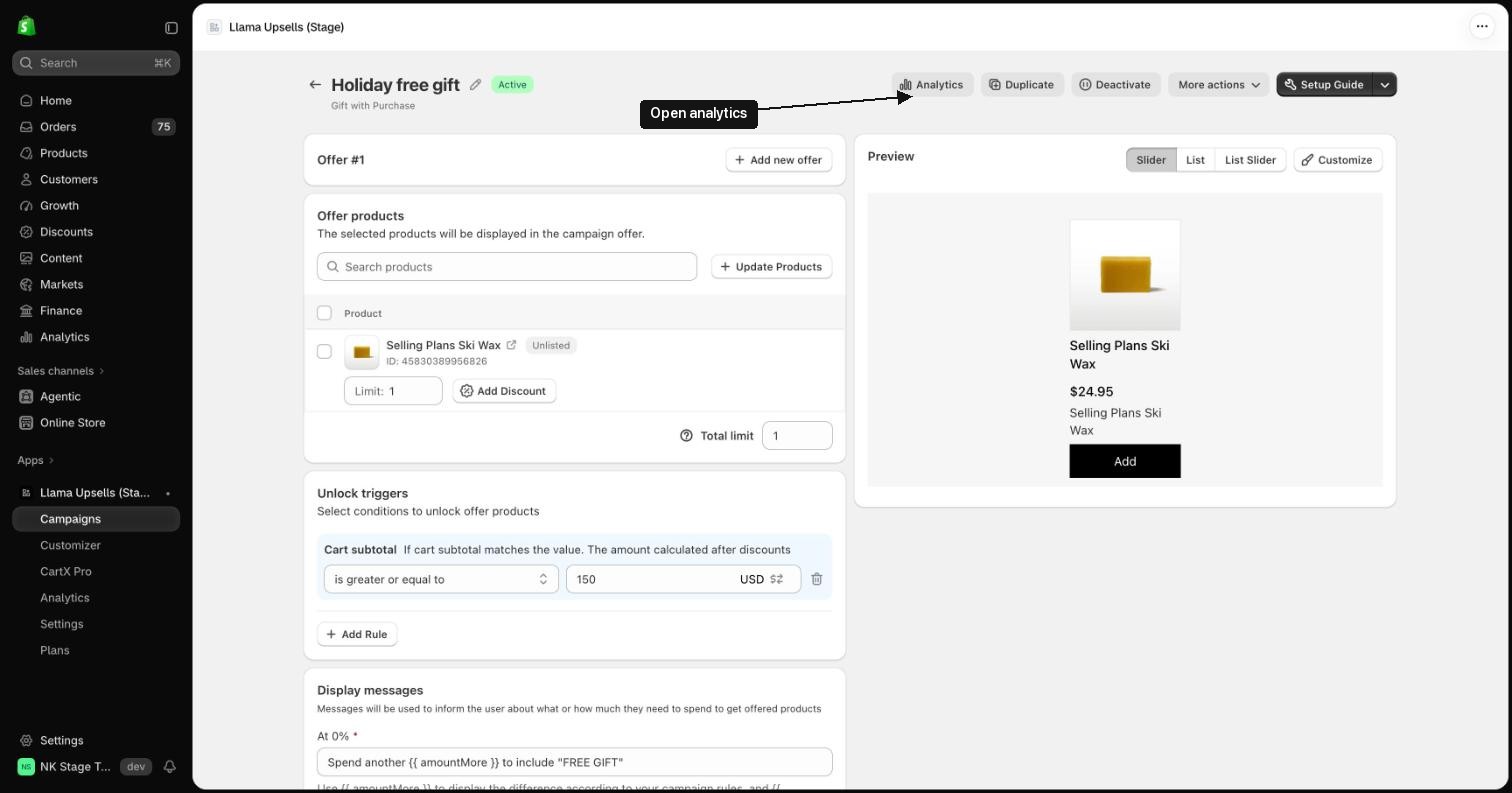
At the top right, click Analytics.
-
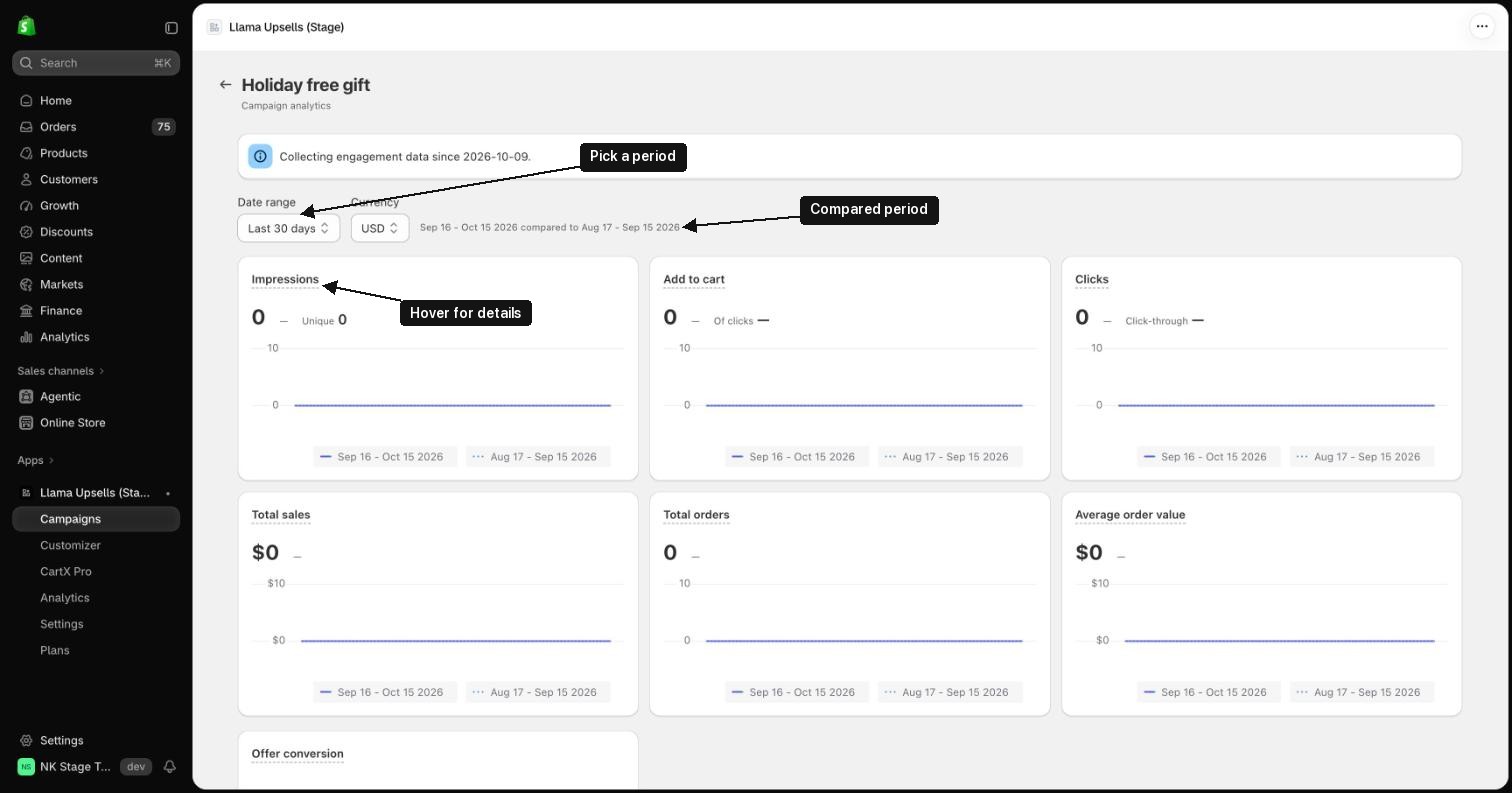
The analytics page opens. The campaign's name is at the top.
-
Pick a Date range: Last 7 days, Last 30 days (the default) or Month to date. Sales are shown in your store's currency.
-
Read the cards. The small text next to the filters shows which period you are comparing against.
-
To go back to the campaign, click the arrow next to the title.
What each card shows
Hover over a card's title to see the same explanation in the app.
- Impressions: how many times the campaign's offer was shown. Unique counts each visitor once per day, so a visitor who comes back on several days is counted once for each day.
- Add to cart: items added to the cart from this campaign. Of clicks is the share of clicks that ended in an add to cart.
- Clicks: clicks on the offer, such as a product tile, quick view or add button. Click-through is clicks divided by impressions.
- Total sales: what shoppers paid for this campaign's offer items, after discounts. It does not include the rest of the order. Free gifts count as $0, so for a Gift with Purchase campaign, look at Total orders and Average order value.
- Total orders: orders that contain at least one of this campaign's products.
- Average order value: the full value of orders that contain this campaign's products, divided by the number of orders.
- Offer conversion: add to carts divided by impressions, i.e. of the times the offer was shown, how often it was added to the cart.
Each card also shows the change against the previous period. A dash (—) means there was nothing to compare against.
Auto-Add campaigns
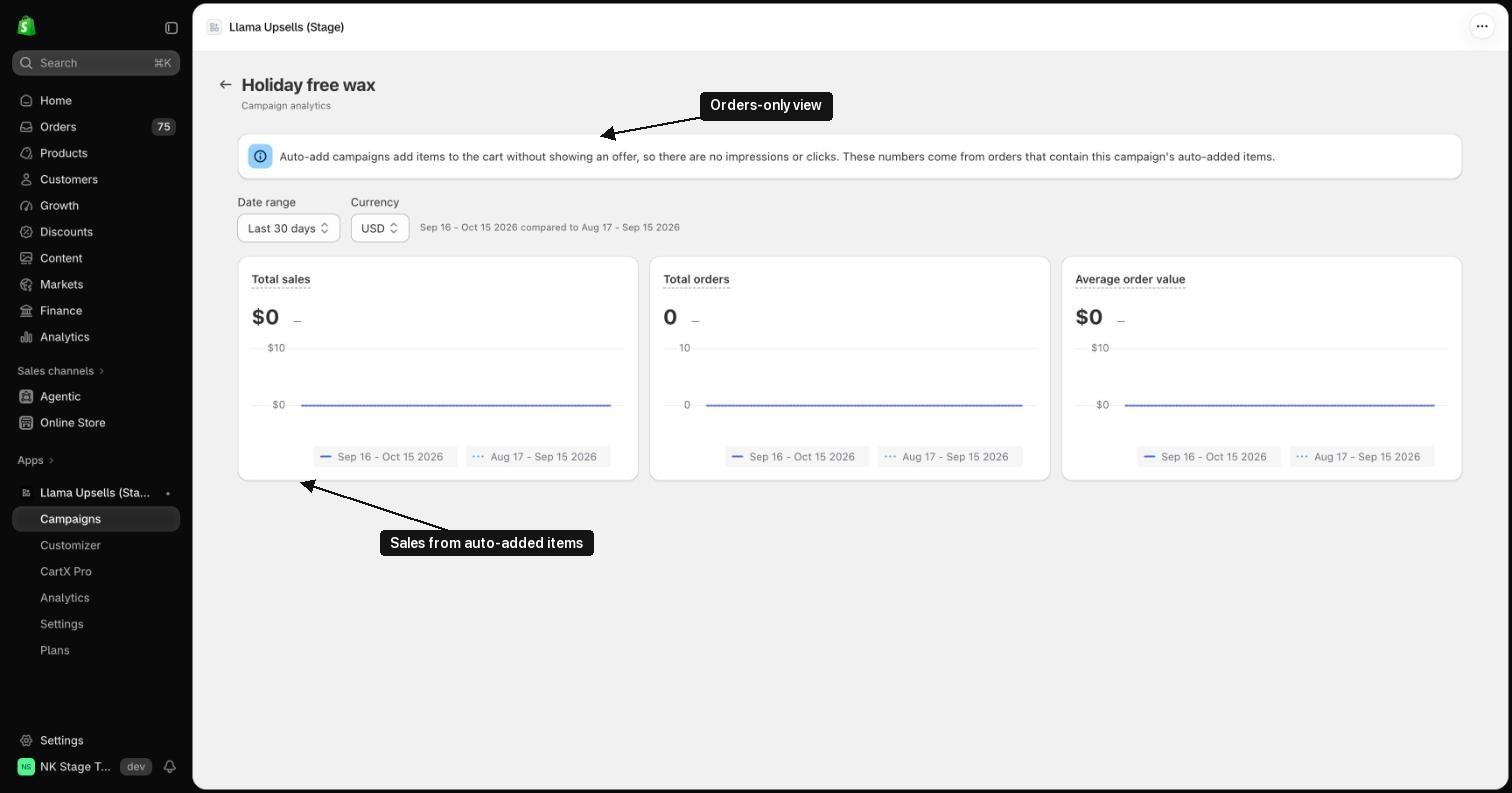
An Auto-Add campaign puts items in the cart by itself, without showing shoppers an offer. There is nothing to see or click, so its page shows only Total sales, Total orders and Average order value. A note at the top explains this.
The numbers come from orders that contain the campaign's auto-added items. They work the same way as for the other campaign types, including the comparison with the previous period.
What you might see
-
Collecting engagement data since (date). The first day the app recorded shopper activity on your store. Numbers before that day are not available.
-
No engagement data yet. The app hasn't recorded any shopper activity on your store yet. Numbers show up once shoppers start seeing your offers. A campaign that nobody has seen yet shows zeros instead.
-
Auto-Add campaigns don't show these two notes, because their numbers come from orders, not from shopper activity.
-
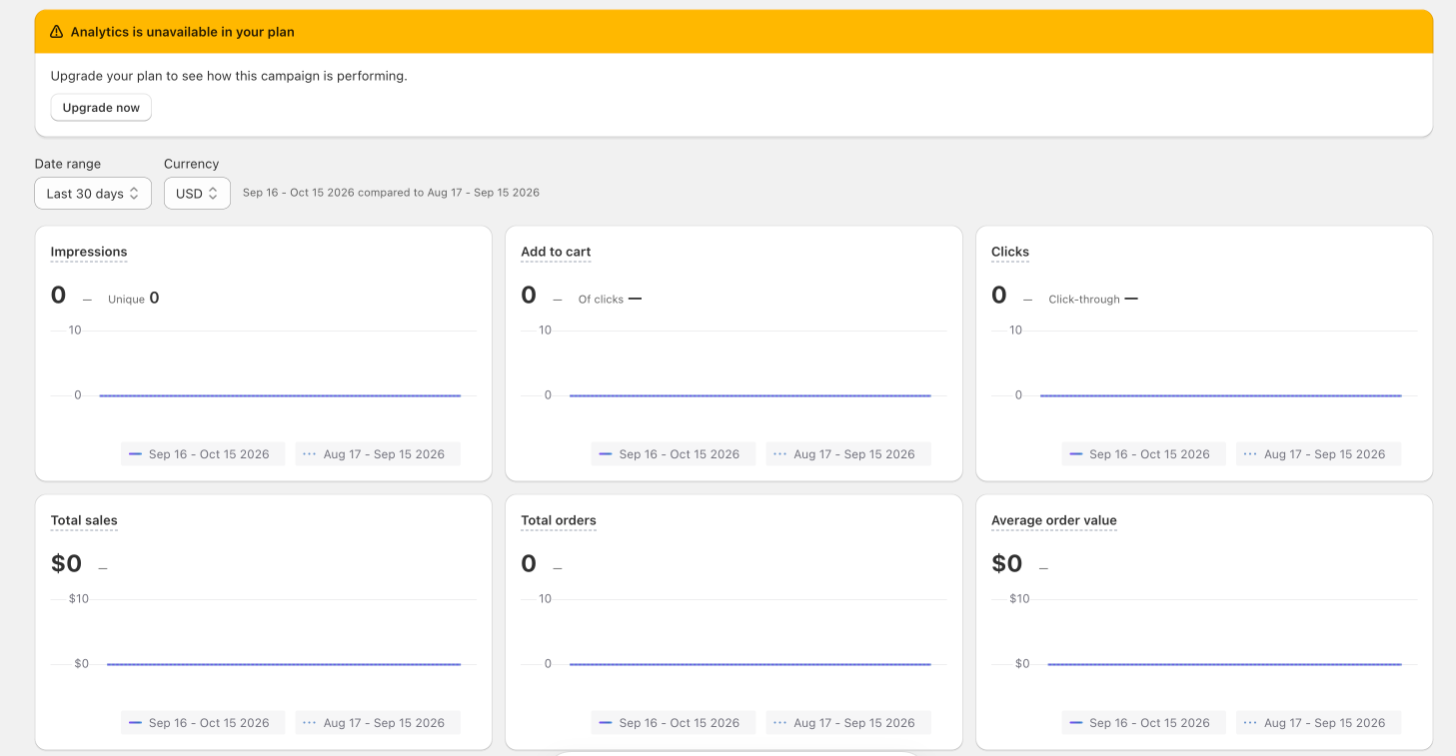
Analytics is unavailable in your plan. The store is on the Free plan. Click Upgrade now to change plan.
Good to know
- Only Gift with Purchase, Product Recommendations and Auto-Add campaigns get this page. For other campaign types, Analytics opens the app's main Analytics page filtered to that campaign.
- The page needs any paid plan. On the Free plan, it shows the Analytics is unavailable in your plan banner instead of the numbers.
- Today is included; reload the page to see the latest numbers. The last point on each chart is a part day. Days are counted in UTC, so totals near midnight can differ slightly from Shopify Analytics.
- Shoppers who turn off analytics cookies are not counted.
- If you have unsaved changes on the campaign, clicking Analytics asks you to save or discard them first.