
Llama Cart A/B testing
Show a draft cart to part of your visitors and your live cart to the rest.
Coming soon. This feature is not available in the app yet. It is being tested and will be released in a future update, so the screens below may still change.
Show a draft cart to part of your visitors and your live cart to the rest. The app counts cart opens, checkout clicks and revenue for each, and you pick the winner.
Use it to find out whether a new cart design sells better before you switch everyone to it.
Before you start
- You need a published cart and at least one draft version. See Unlimited Llama Cart versions.
- Llama Cart and its app embed must be active, or shoppers won't see either cart and no results are collected.
How to use
Start a test
-
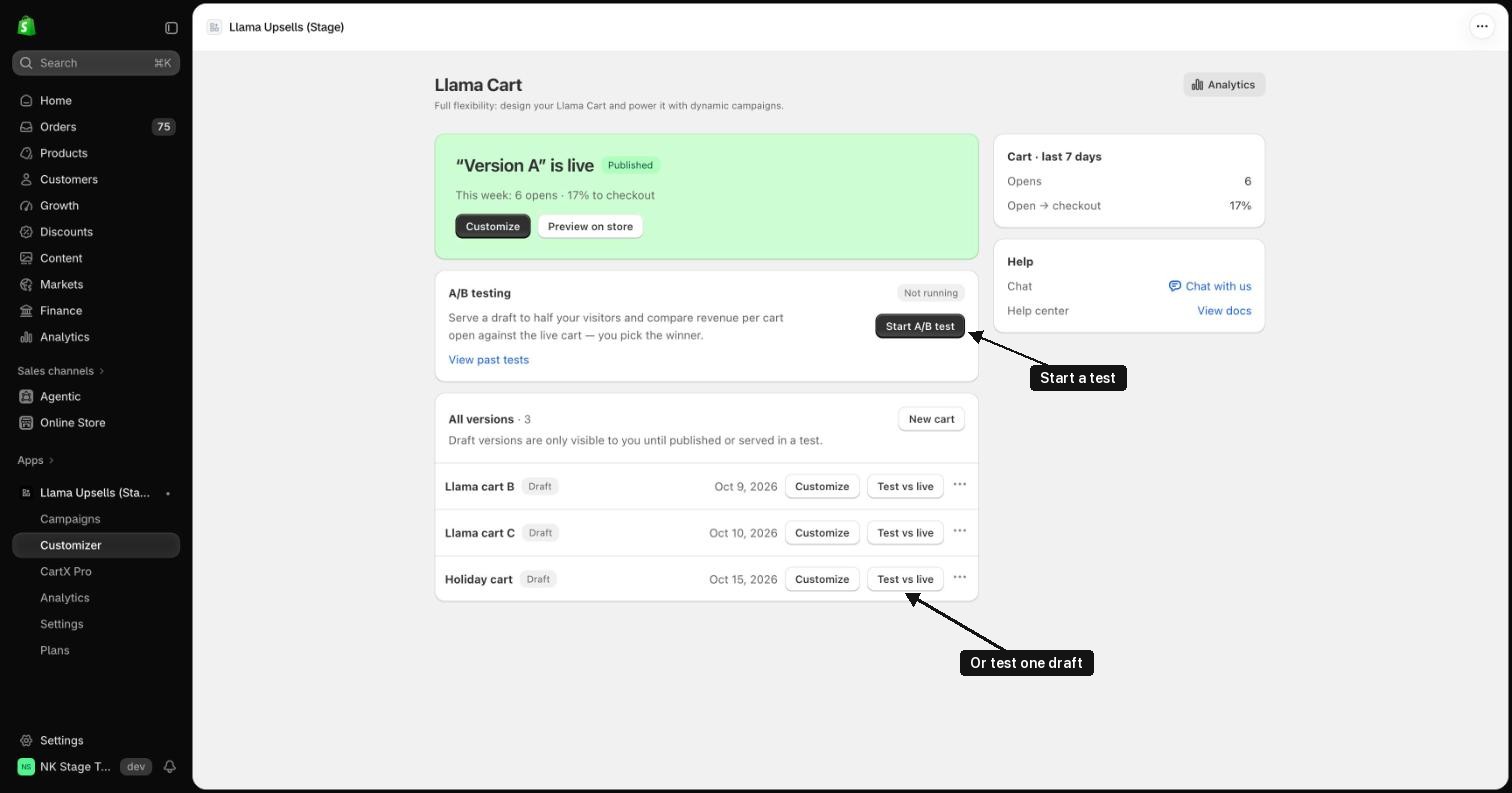
In the app, go to Customizer.
-
On the A/B testing card, click Start A/B test. Or click Test vs live next to a draft.
-
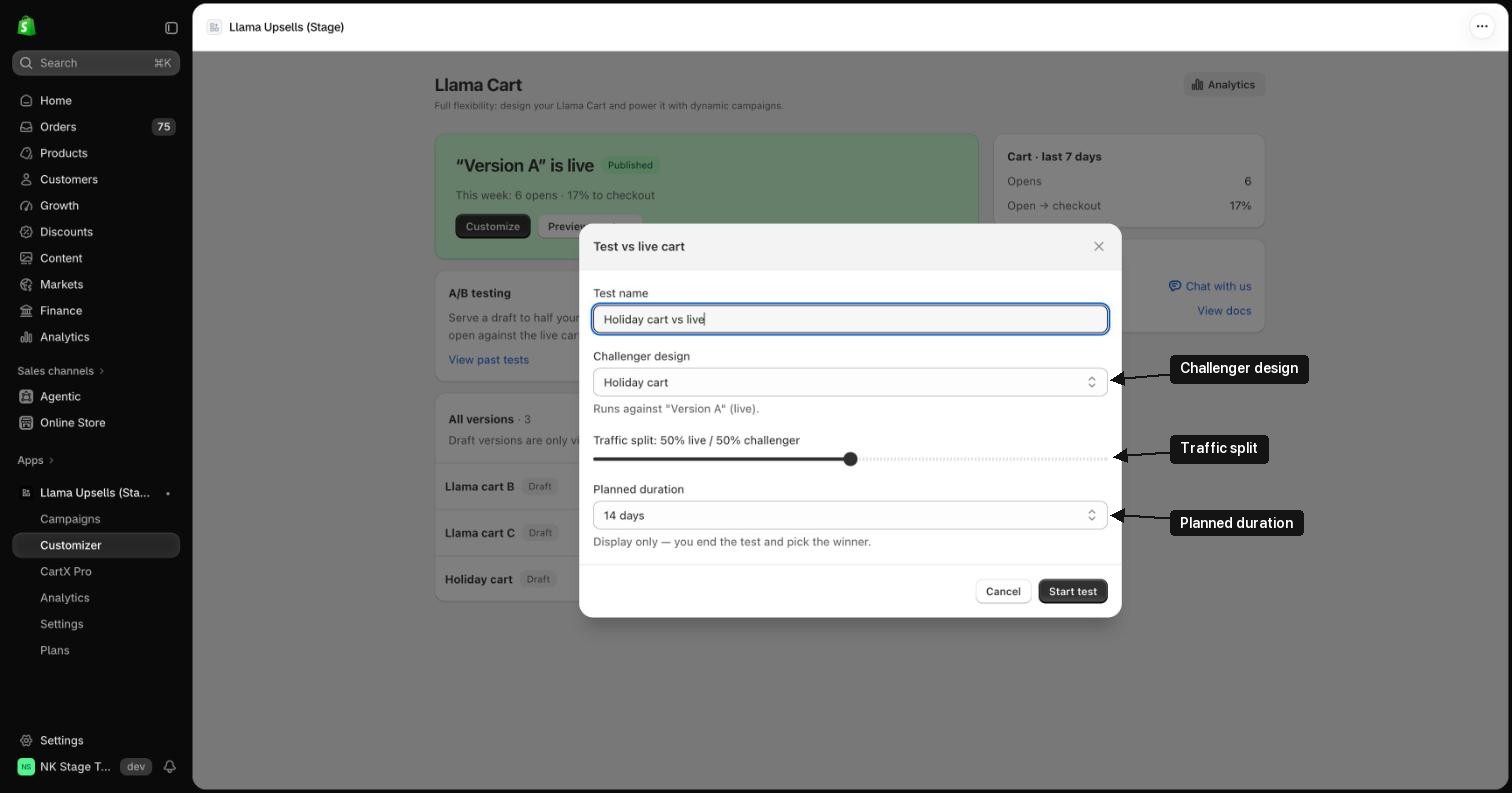
Fill in the dialog:
- Test name: a name for your own reference. It starts as "Cart A/B test".
- Challenger design: the draft you want to test. The test always runs against your published cart.
- Traffic split: how many visitors see the challenger. Moves in steps of 5%, from 5% to 95%. Starts at 50/50.
- Planned duration: 7, 14, 21 or 28 days. This is only a guide; the test does not stop on its own.
-
Click Start test. The test page opens, showing Day 1 of 14 (or your chosen length). Back on the Llama Cart page, the A/B testing card shows the same progress and a View test button.
Watch the results
-
On the A/B testing card, click View test.
-
The test page shows a card for each cart:
- Opens: cart opens for that cart.
- Open → checkout: checkout clicks divided by cart opens.
- Rev / open: order subtotal (in your store currency) from shoppers in that group, divided by cart opens.
-
Once the live cart has revenue, the challenger's card shows how its revenue per open compares, for example +12% rev/open. It is green when the challenger is ahead and red when it is behind. This is a simple comparison, not a statistical significance test.
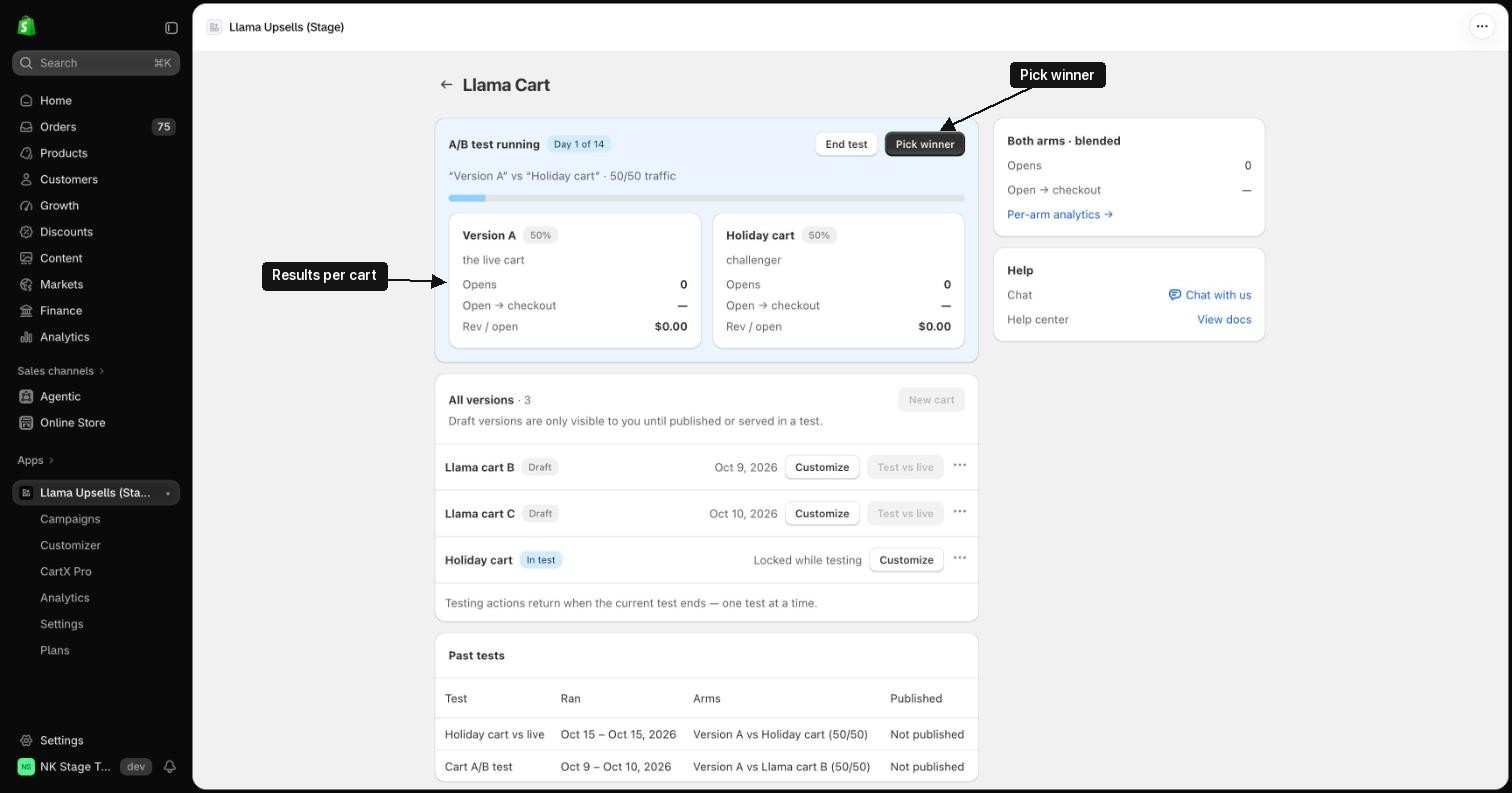
A test that has just started, so all numbers are still zero.
End the test
-
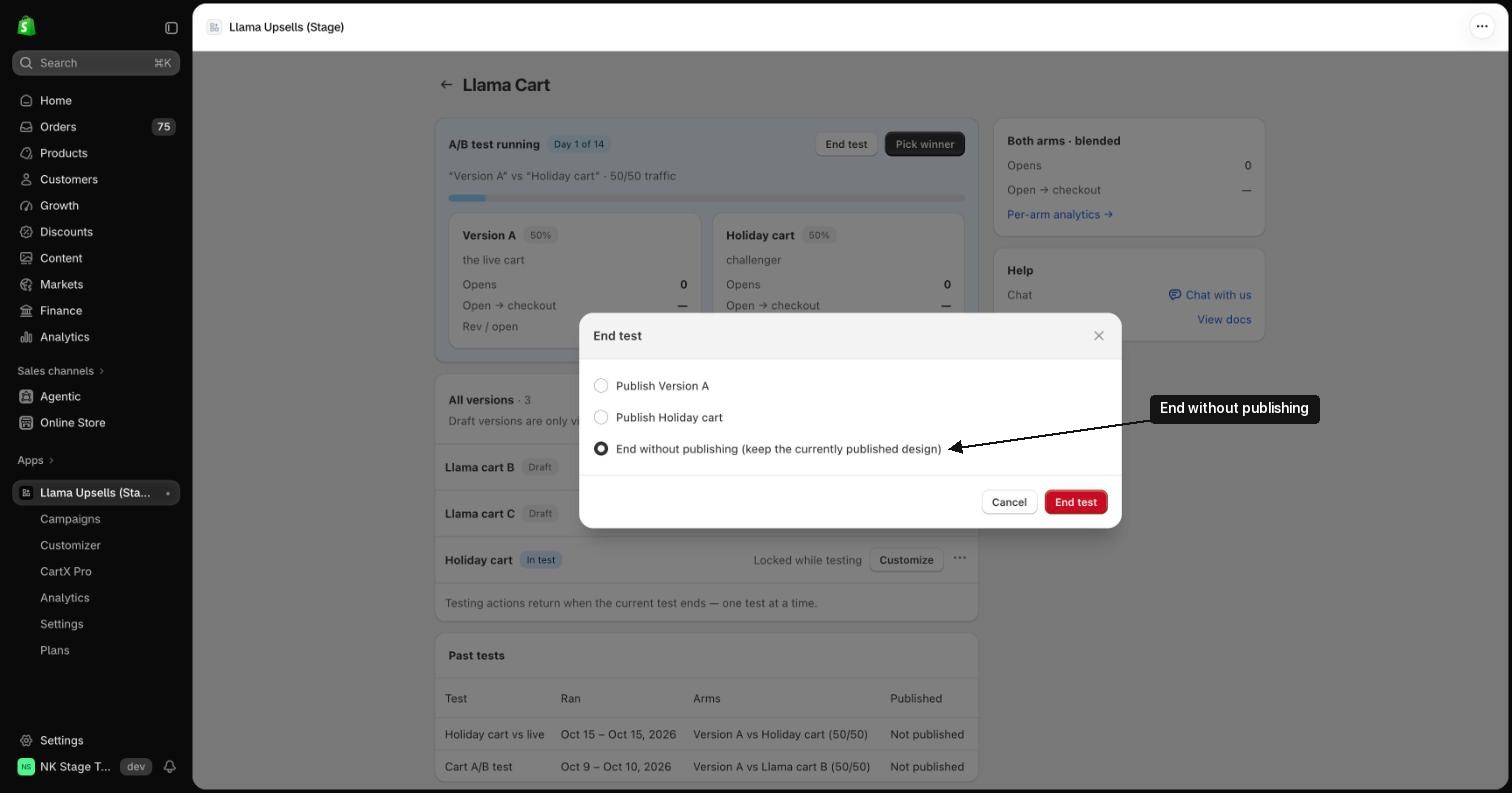
Click Pick winner (or End test, which opens the same choices with End without publishing selected).
-
Choose one:
- Publish + the live cart's name: keep the live cart.
- Publish + the challenger's name: make the challenger the live cart.
- End without publishing (keep the currently published design).
-
Click End test. You go back to the Llama Cart page.
-
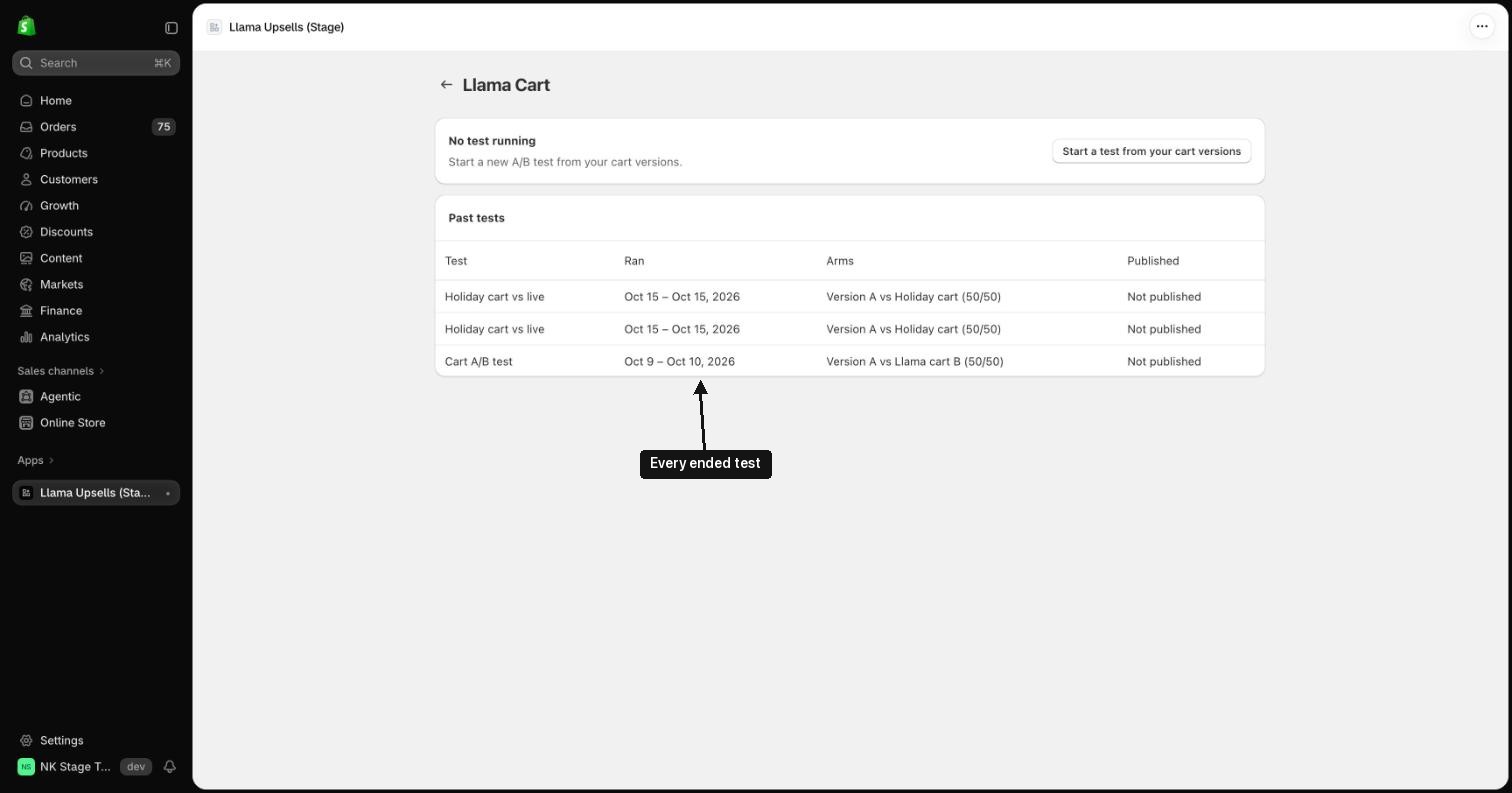
Ended tests are listed under View past tests, with their dates, the two carts and what was published. The list doesn't show the result numbers, so note them before you end a test.
Good to know
- Only one test can run at a time.
- A shopper keeps seeing the same cart on later visits from the same browser and device.
- If you edit a cart that is part of a running test, the change goes live to its test group right away and the results are no longer fair. The editor shows a warning.
- While a test runs, you can't create a new version, start another test or publish a cart. End the test first; the publish dialog reminds you.
- A test's name, split and carts can't be changed after it starts. To change them, end the test and start a new one.
- Pick winner pre-selects the challenger only when its revenue per open is ahead (by at least 1% after rounding). Otherwise the live cart is selected.
- Reached checkout (on the Llama Cart Analytics page) is not part of the test results. The test uses checkout clicks.
- End a test within 90 days. After 90 days the earliest cart opens and checkout clicks drop out of the results while revenue does not, which skews revenue per open.
- The test is available on every plan.