
Match my store
Match my store reads your storefront and suggests colors, fonts, corner style and size for the Llama Cart, so it looks like the rest of your site.
Coming soon. This feature is not available in the app yet. It is being tested and will be released in a future update, so the screens below may still change.
Match my store reads your storefront and suggests colors, fonts, corner style and size for the Llama Cart, so it looks like the rest of your site. You review the suggestions before anything changes, and nothing goes live until you save.
Use it to make the cart look like your theme without setting every color and font by hand.
How to use
-
In the app, go to Customizer and click Customize on a version.
-
In the left menu, under Design, click Styles.
-
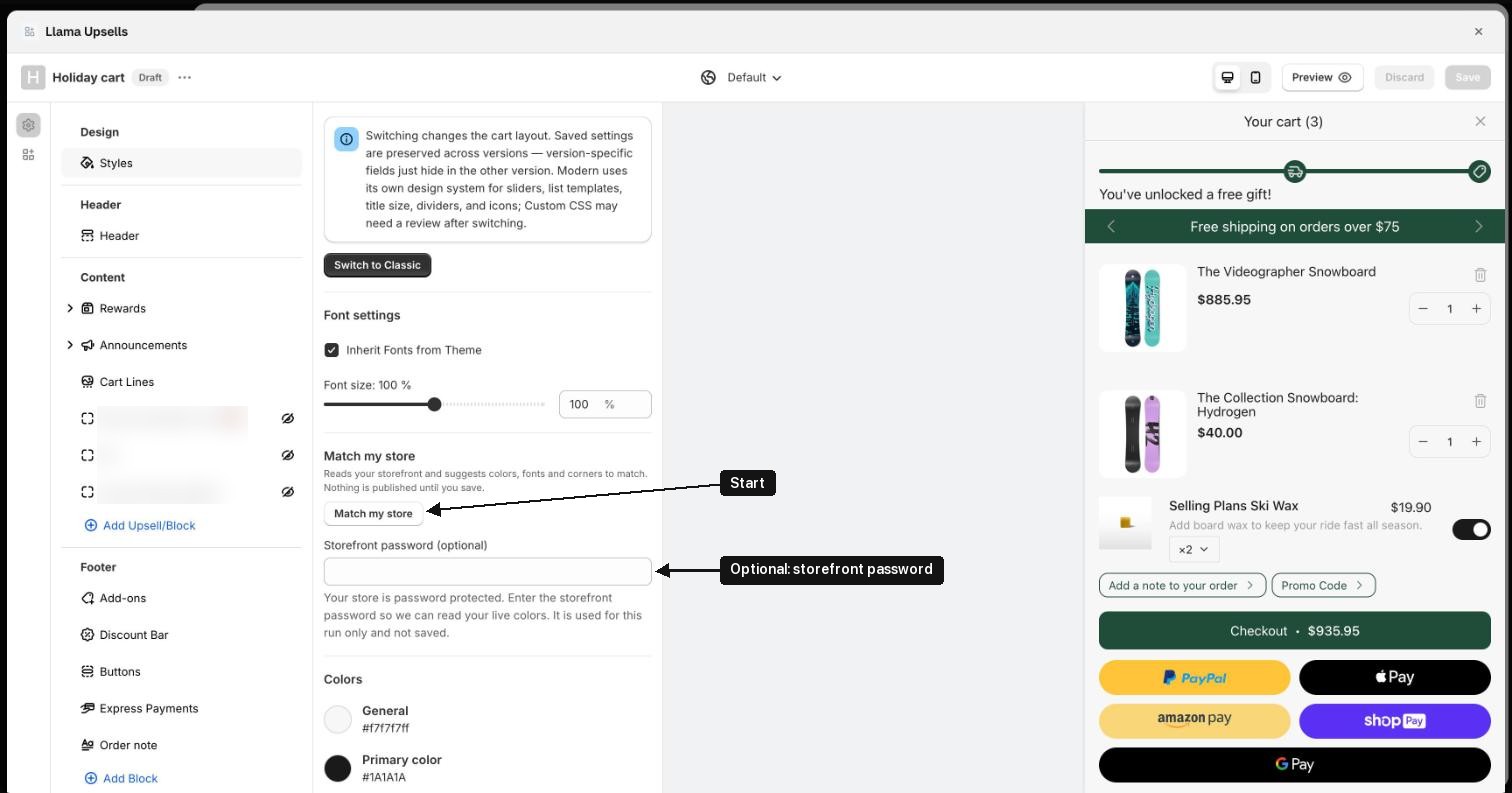
Find Match my store. If your store is password protected, a Storefront password (optional) field shows under the button. Enter the password shoppers use to enter your store (the one in Online Store → Preferences), so it can read your live colors. You can leave it empty.
-
Click the Match my store button.
-
Wait. You see "Reading your storefront — this usually takes under a minute."
-
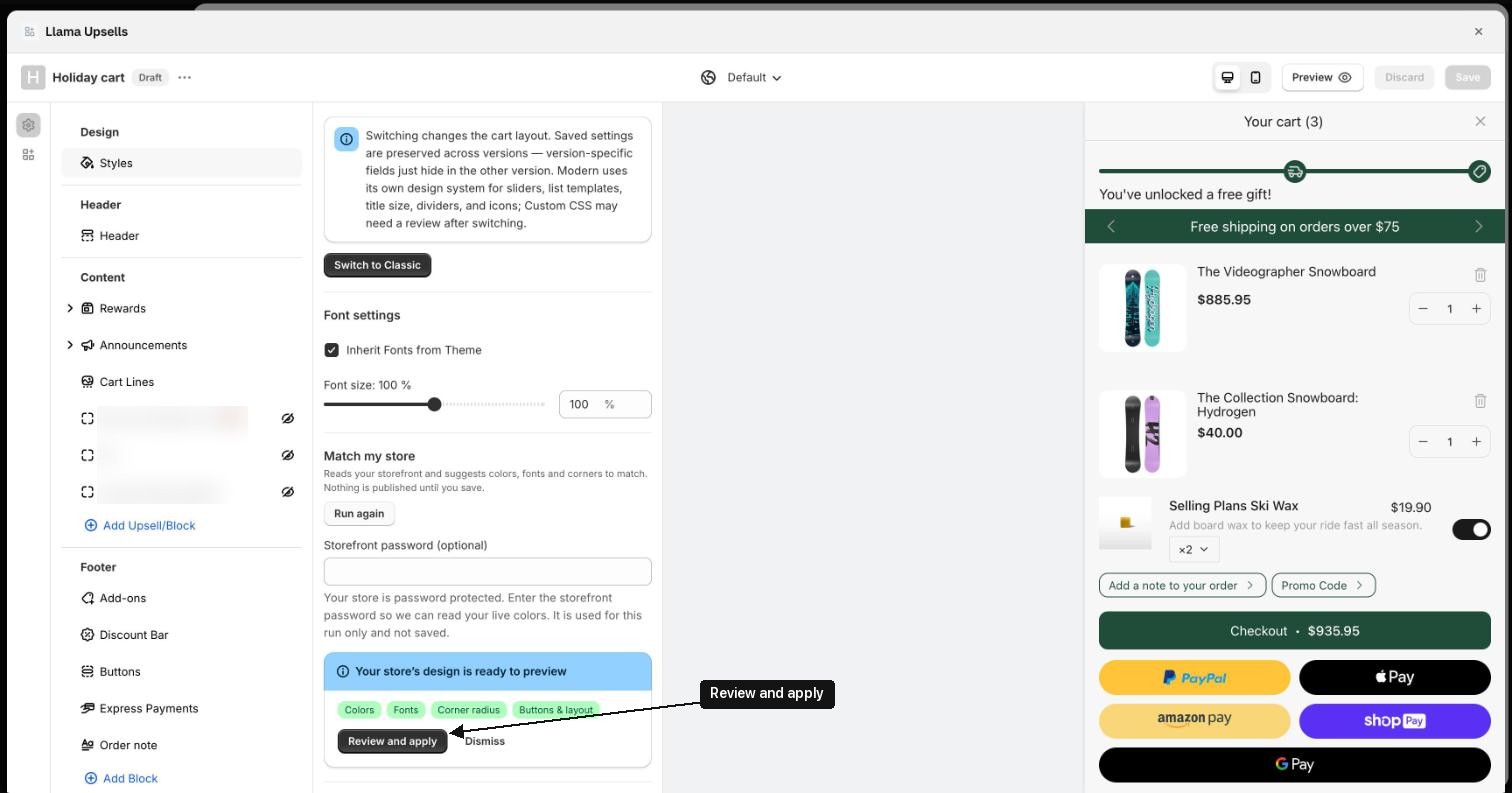
When it's done, a box says Your store’s design is ready to preview, with a badge for each part it matched (Colors, Fonts, Corner radius, Buttons & layout). If it could not load your live storefront, it also says Your storefront is password protected (when you left the password empty) or We could not load your storefront.
-
Click Review and apply. (Or Dismiss to ignore it. Dismissing clears the result; to see it again you need to run it again.)
-
The Review your store’s design window opens:
- At the top, it says what it read (for example your theme settings, your storefront CSS, a screenshot of your storefront).
- Each part has a badge, a confidence number and a short reason, for example "Read directly from your storefront, and the sources agreed."
- Below are the suggested values for each part it matched, and you can change any of them: colors, Corner radius, Cart width, Text size and, when your font is a Google font, Font family. If your font isn't on Google Fonts, the cart is set to use your theme's font instead, so there is no font field to edit.
- View generated CSS shows the Custom CSS that will be applied: the generated block (button styling, heading weight and size, and, for a Google font, an import that loads the font from Google Fonts), followed by any CSS you already had. You can edit it before applying.
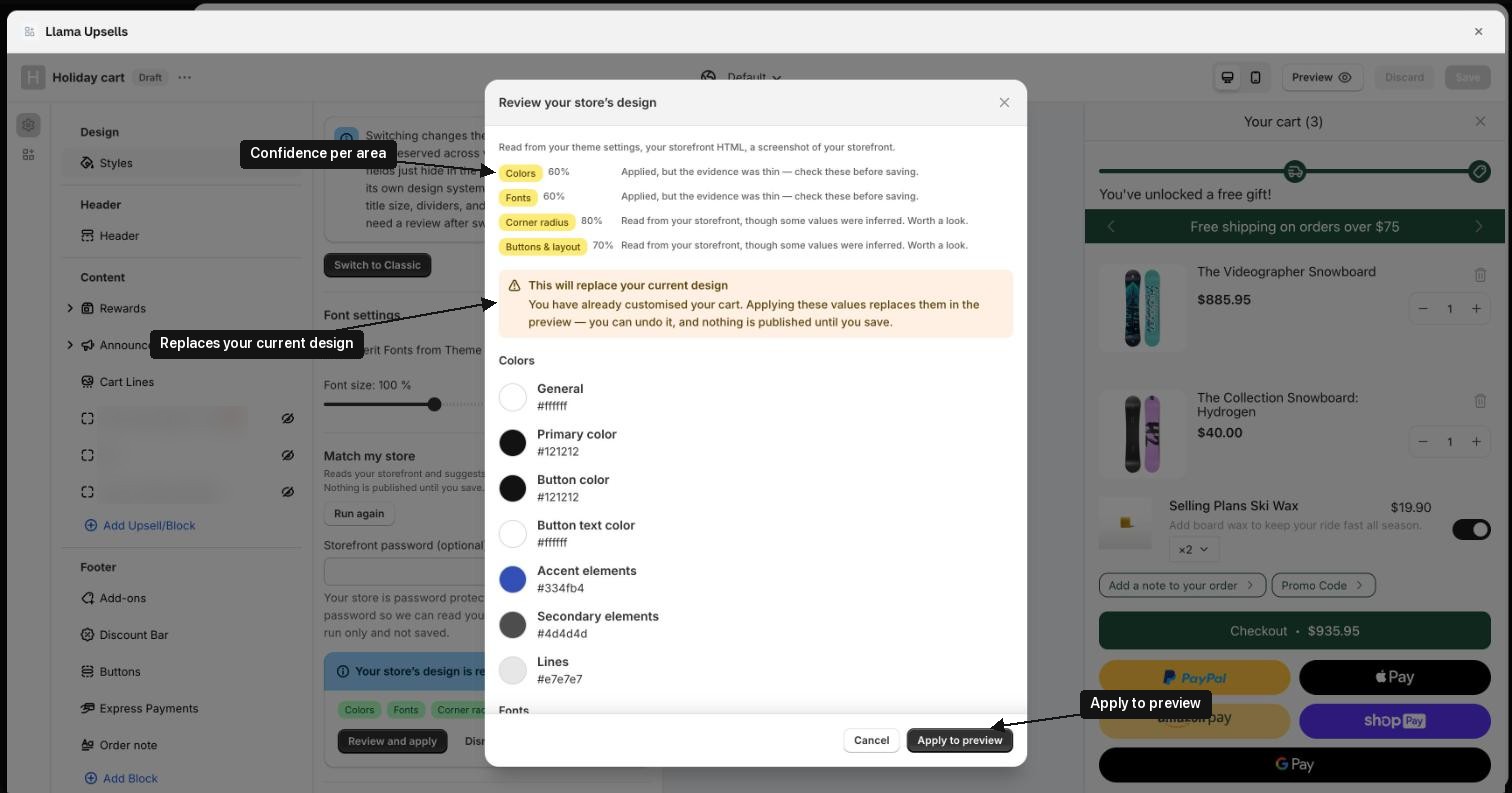
A run on a store that already had a customised cart, so the window warns that applying replaces the current design. -
Click Apply to preview. The cart preview on the right updates.
-
A box says Loaded into your preview. Check the preview.
-
Click Save at the top to keep it, or Undo in that box to go back to what you had before applying (this also undoes edits you made after applying).
Good to know
- Password-protected store: enter your storefront password in the Storefront password (optional) field to match everything, colors included. You don't need to turn the password off. The password is used for that one run only and is not saved, so enter it again each time you run.
- If you leave the password empty, it still matches fonts, corner radius and buttons & layout from your theme settings, but not colors. You'll see Your storefront is password protected.
- If the password is wrong, you'll see We could not match your store with the message "That storefront password didn't work. Check it and run again." Your design is not changed and the run doesn't count toward your limit.
- If you see We could not load your storefront, something other than a password blocked it. Colors are skipped; try again later, and contact support if it keeps happening.
- If it can't be sure about a part, it keeps your current setting for that part and says so.
- If you have already customised the cart, the review window warns This will replace your current design. You can still undo, and nothing goes live until you save.
- On the Classic cart design, some colors only show on the Modern design. They are saved anyway, so switching to Modern later uses them.
- The generated CSS goes into the Custom CSS field. It is replaced the next time you apply a Match my store result, so put your own CSS outside that block.
- If it fails, you'll see We could not match your store. Your design is not changed.
- While a result is showing, the button says Run again.
- It reads your published theme's settings and your store's homepage. If you are designing for an unpublished theme, the suggestions come from your live theme.
- Review and apply the result before leaving the page. The result is not kept if you reload.
- Runs are limited: 1 run in any one-month period on the Free plan, and 10 on paid plans. Runs that fail don't count; runs you dismiss or undo do. When you reach the limit, the app tells you the design sync limit is reached.