
Unlimited Llama Cart versions
You are no longer limited to three cart designs (A, B, C).
Coming soon. This feature is not available in the app yet. It is being tested and will be released in a future update, so the screens below may still change.
You are no longer limited to three cart designs (A, B, C). You can create named cart versions, edit them as drafts, preview them on your store, and publish the one you want shoppers to see.
Use it to prepare a new cart design, for example for a sale, without changing what shoppers see today.
Your existing carts carry over: each keeps its name (or is called Version A, B or C), and the cart that was live stays published.
Published vs draft
- Published: the one version shoppers see. It is shown at the top of the Llama Cart page.
- Draft: every other version. Drafts are only visible to you, unless you use one in an A/B test.
In the editor, the published version is labelled Live (or Inactive if Llama Cart is turned off).
How to use
See your versions
-
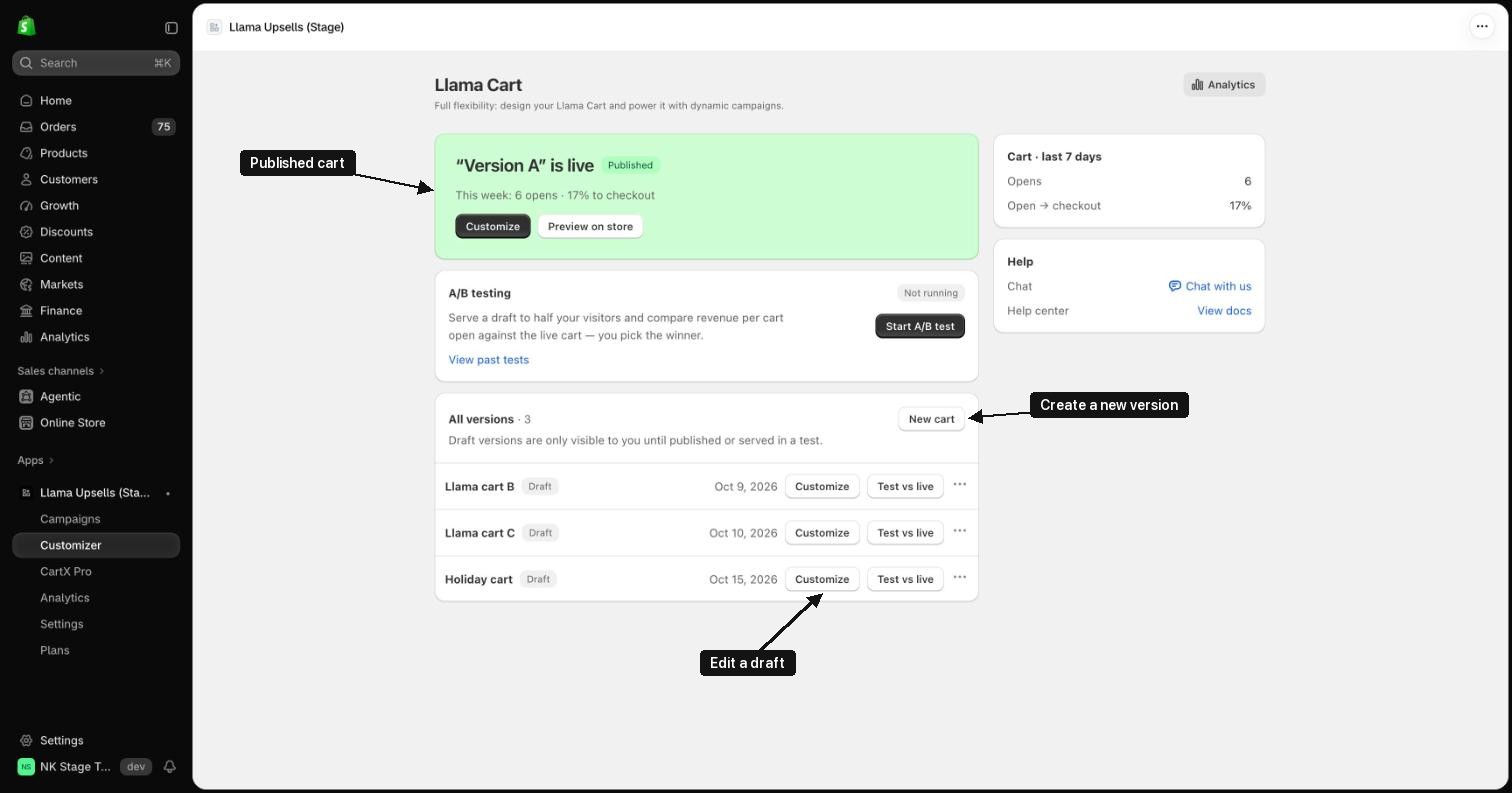
In the app, go to Customizer. This opens the Llama Cart page.
-
The green card at the top shows the live version, with this week's opens and checkout rate.
-
All versions lists your drafts, with the date each one was last saved.
-
If you haven't published a cart yet, the top card says you don't have a published version. Open a draft with Customize and publish it (see below).
Create a version
-
In All versions, click New cart.
-
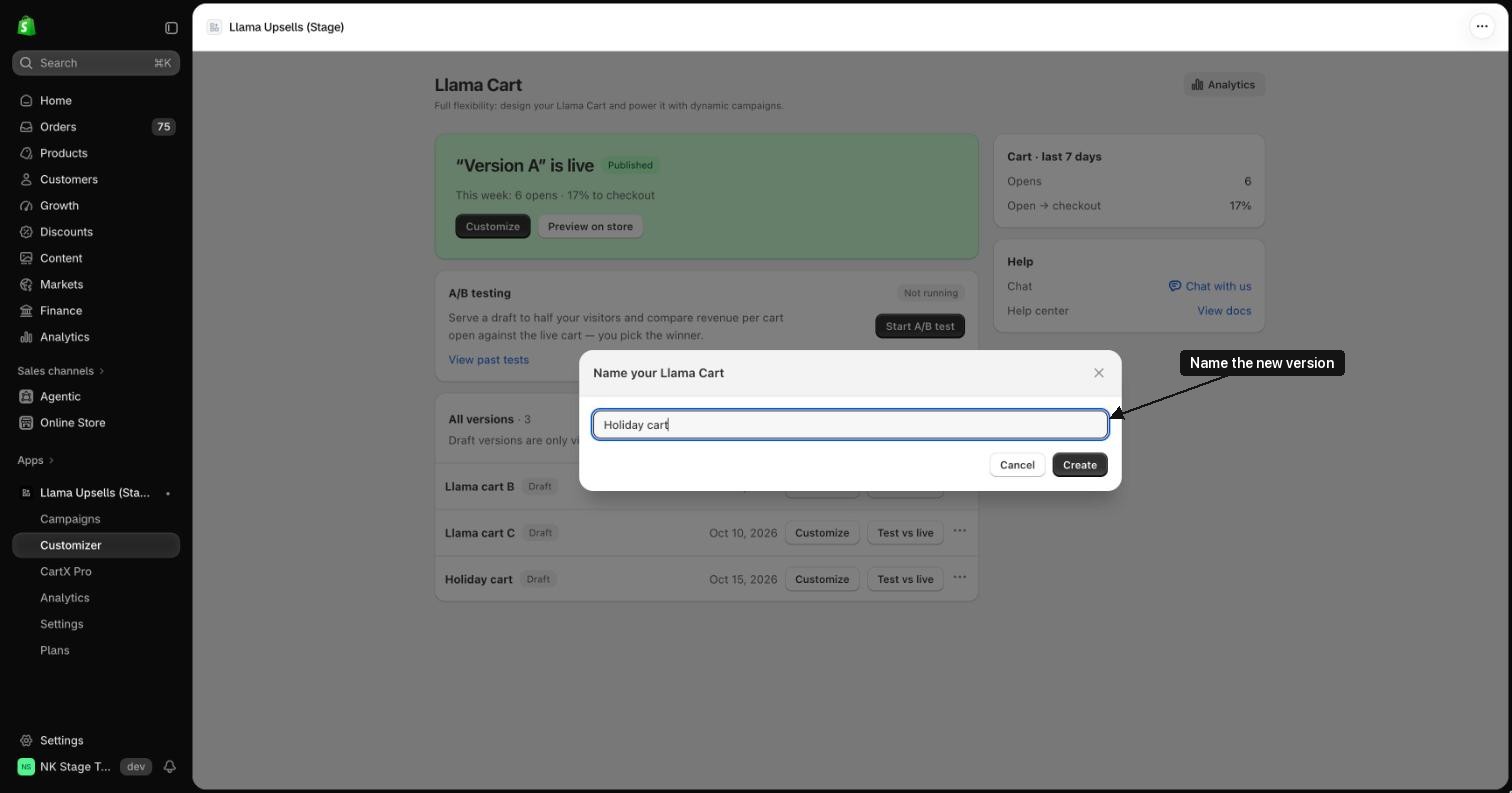
Type a name and click Create.
-
The new version is added as a draft. It starts as a copy of your published cart, or of the default design if you don't have a cart yet. Each version needs a different name.
Edit a version
- Click Customize next to the version (or on the green card for the live version).
- The editor opens. Make your changes and click Save.
- Saving a draft does not change your store, unless that draft is in a running A/B test. Saving the published version updates your store right away.
Preview a version on your store
- On the green card, click Preview on store to see the live version.
- For a draft, open it with Customize, save your changes, then click Preview at the top of the editor. Your store opens in a new tab with that draft in the cart. Only you see it.
Publish a version
-
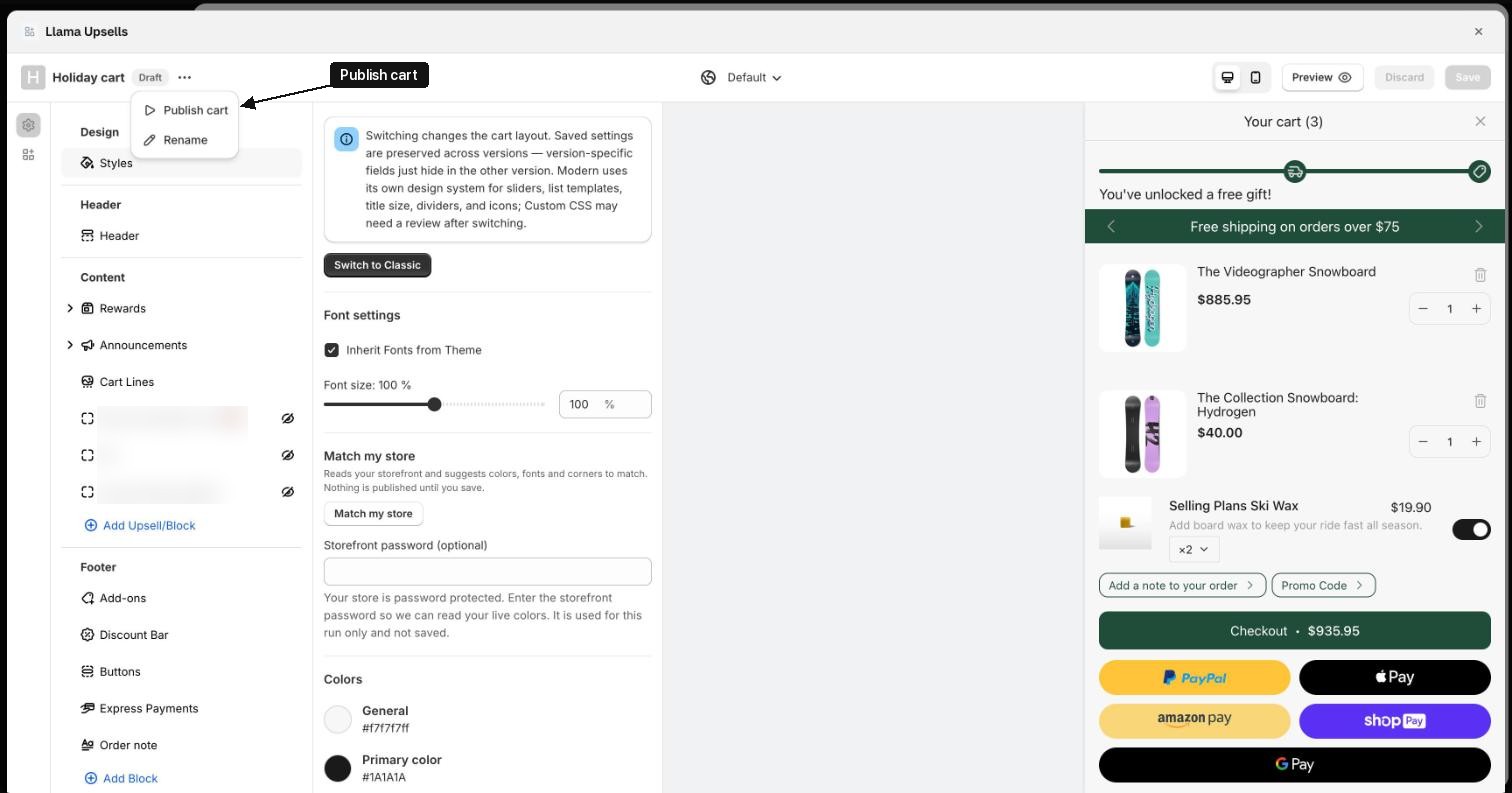
Open the version with Customize.
-
Click the ··· next to the version name and choose Publish cart.
-
Confirm with Publish. The version becomes the live cart and the old one becomes a draft.
Rename, sync or delete
-
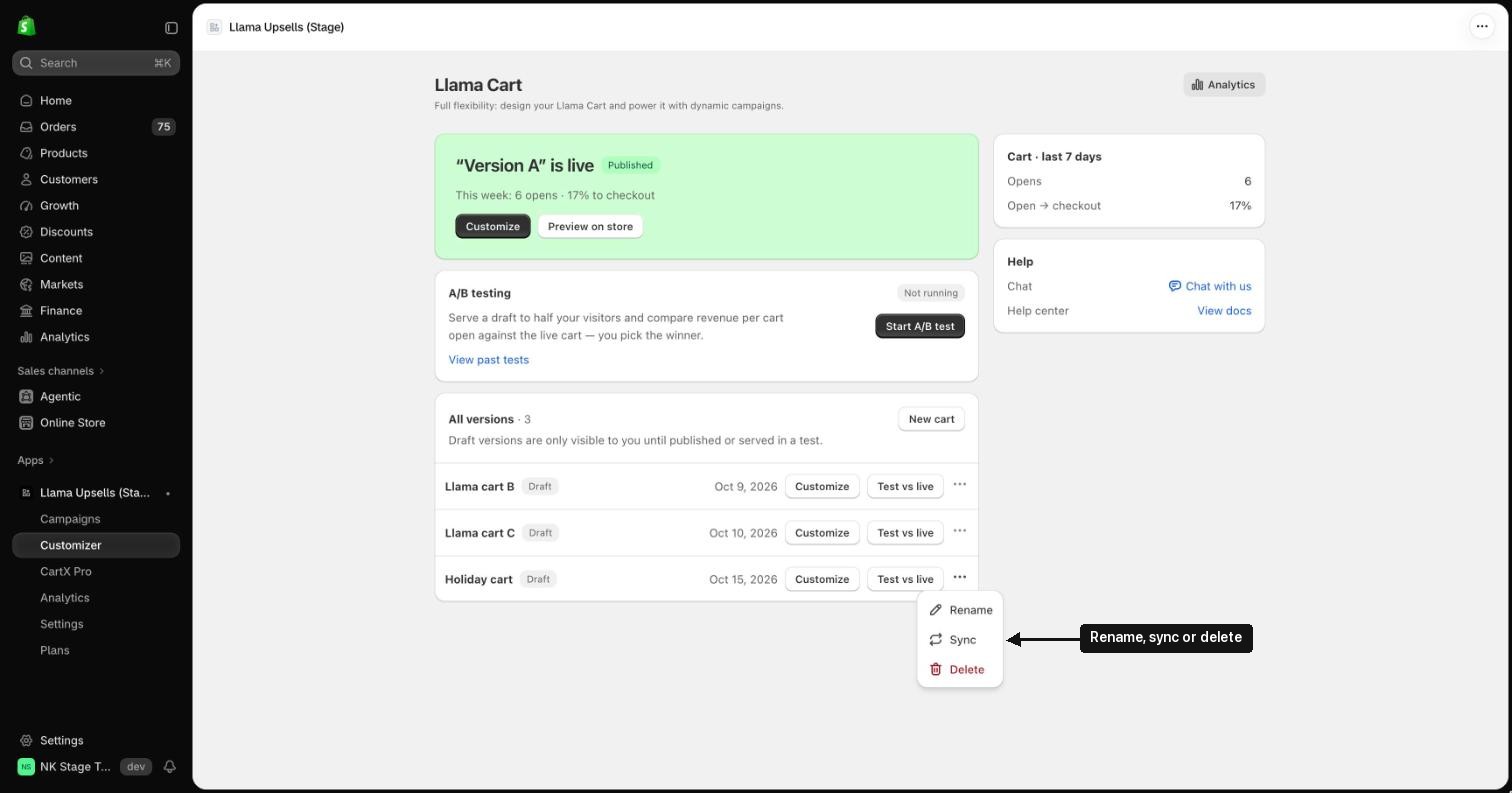
Click ··· at the end of a draft's row.
-
Choose one:
- Rename: give the version a new name.
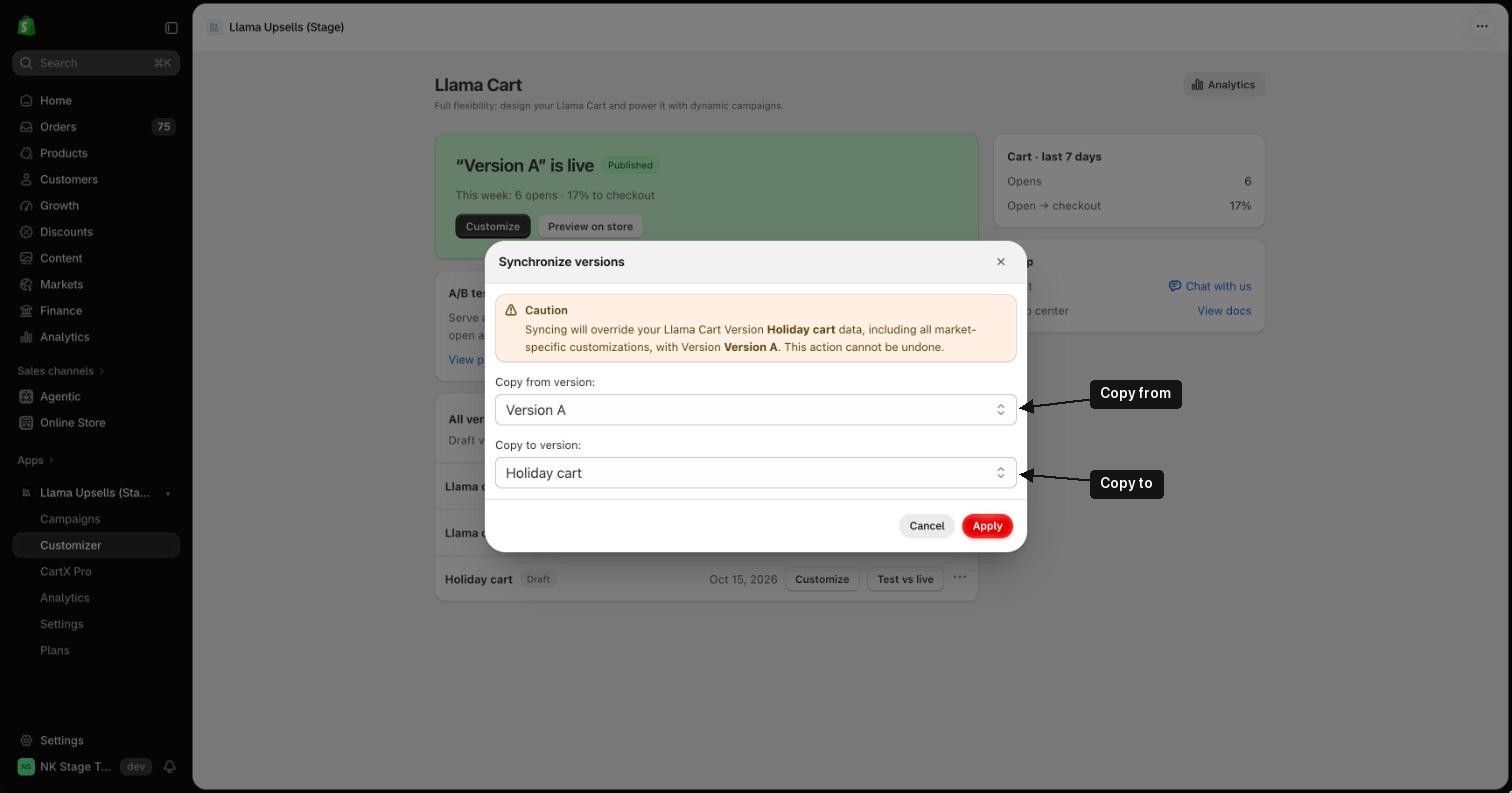
- Sync: copy all settings from one version to another. Pick Copy from version and Copy to version, then click Apply.
- Delete: remove the version. You will be asked to confirm.
Good to know
- Up to 20 versions per store, including the published one. New cart turns off when you reach the limit.
- Sync replaces everything in the target version, including market-specific settings. It cannot be undone. If the target is your published cart, the change is live on your store immediately.
- Delete cannot be undone.
- The published version is not in the All versions list, so it can't be deleted there. Publish another version first.
- While an A/B test is running, New cart and Test vs live are turned off, you can't publish a cart, and versions in the test can't be deleted. The draft in the test shows In test and Locked while testing, but you can still edit it, and edits go live to its test group.
- Preview in the editor is turned off while you have unsaved changes, or when Llama Cart or the app embed is turned off.