
Add widgets to the cart drawer
Render Llama Upsell widgets inside a theme cart drawer and open or refresh the native drawer after a product is added.
This reference shows how to render a Llama Upsell widget inside your theme's existing cart drawer, and how to open and refresh that native drawer after a shopper adds a product from a widget. It covers the fetch interception that the app installs to detect cart changes.
Use this approach when you are not using Llama Cart and instead want recommendations to appear inside your theme's own cart drawer.
If you are using Llama Cart, you do not need any of this — Llama Cart renders widgets and opens itself automatically. This page is for theme-based (native) cart drawers.
How the app detects cart changes
When the Llama Upsell theme block loads, it installs a wrapper around the storefront's cart networking so it can react whenever the cart is modified. Understanding this helps you reason about when widgets refresh and when the drawer is triggered.
The app overrides both window.fetch and XMLHttpRequest.prototype.open. It stores the native implementations first, then replaces them. The override only acts on cart modification requests — a request whose URL contains /cart and uses the POST method. All other requests pass straight through to the native implementation untouched.
const isCartRelatedRequest = url.includes('/cart');
const isCartModifyRequest =
  isCartRelatedRequest && init?.method?.toLowerCase() === 'post';

// For non-cart requests, execute normally
if (!isCartModifyRequest) {
  return nativeFetch(input, init);
}
For a cart modification request, the override:
- Awaits the native request and clones the response so the original is left intact for your theme.
- Parses the cloned JSON and inspects the URL to classify the action —
/cart/add,/cart/change, or/cart/update. - Dispatches custom DOM events describing what changed (items added or removed).
- If the action was an add and the shopper is not on the
/cartpage, fires a drawer-toggle event. - Refreshes cart data and notifies widgets so recommendations re-render.
The override is installed only once. A guard flag (window[APP_HANDLE].isFetchOverwritten) prevents the wrapper from being applied twice if the block is rendered more than once on a page.
Because the override re-uses the native fetch internally, requests it makes itself (such as fetching fresh cart content) do not re-enter the wrapper and cannot cause loops. Any failure inside the wrapper is caught and logged so it never breaks the host theme's add-to-cart flow.
Events the override dispatches
These CustomEvents are dispatched on document as the cart changes. You can listen for them in your own theme code if you need to hook into cart activity.
| Event | When it fires |
|---|---|
upsell:cart-updated | After any cart modification, with the refreshed cart in detail.newCart. |
upsell:storefront-cart-updated | After the Storefront API cart is fetched, with detail.newStorefrontCart. |
lcu:cart:item_added | When items were added to the cart. |
lcu:cart:item_removed | When items were removed from the cart. |
lcu:cart:toggle | Fired with detail: { open: true } to request that the cart drawer open. |
After an add action, the override fetches fresh cart content and dispatches upsell:cart-updated (and then upsell:storefront-cart-updated once the Storefront API call resolves). These are debounced, so several rapid cart calls collapse into a single update.
Render the widget inside the drawer
To place a widget inside your theme's cart drawer, add the Llama Upsell widget block and configure it to embed into the drawer's markup.
Create a campaign and copy its widget ID
Create a campaign with product recommendations in Llama Upsells. After it is created, the app generates a widget ID — copy it for the next step.
Widget IDs are not generated for auto-add or post-purchase campaigns. Use a Product Recommendation or Gift with Purchase campaign.
Open the theme editor
In your Shopify admin, go to your theme, then click Customize to open the theme editor.
Add the widget block
Add a block to the header so it is available site-wide, then:
- Click Apps and select the Llama Upsell widget.
- Paste the copied widget ID into the Widget ID field.
- Click Save.
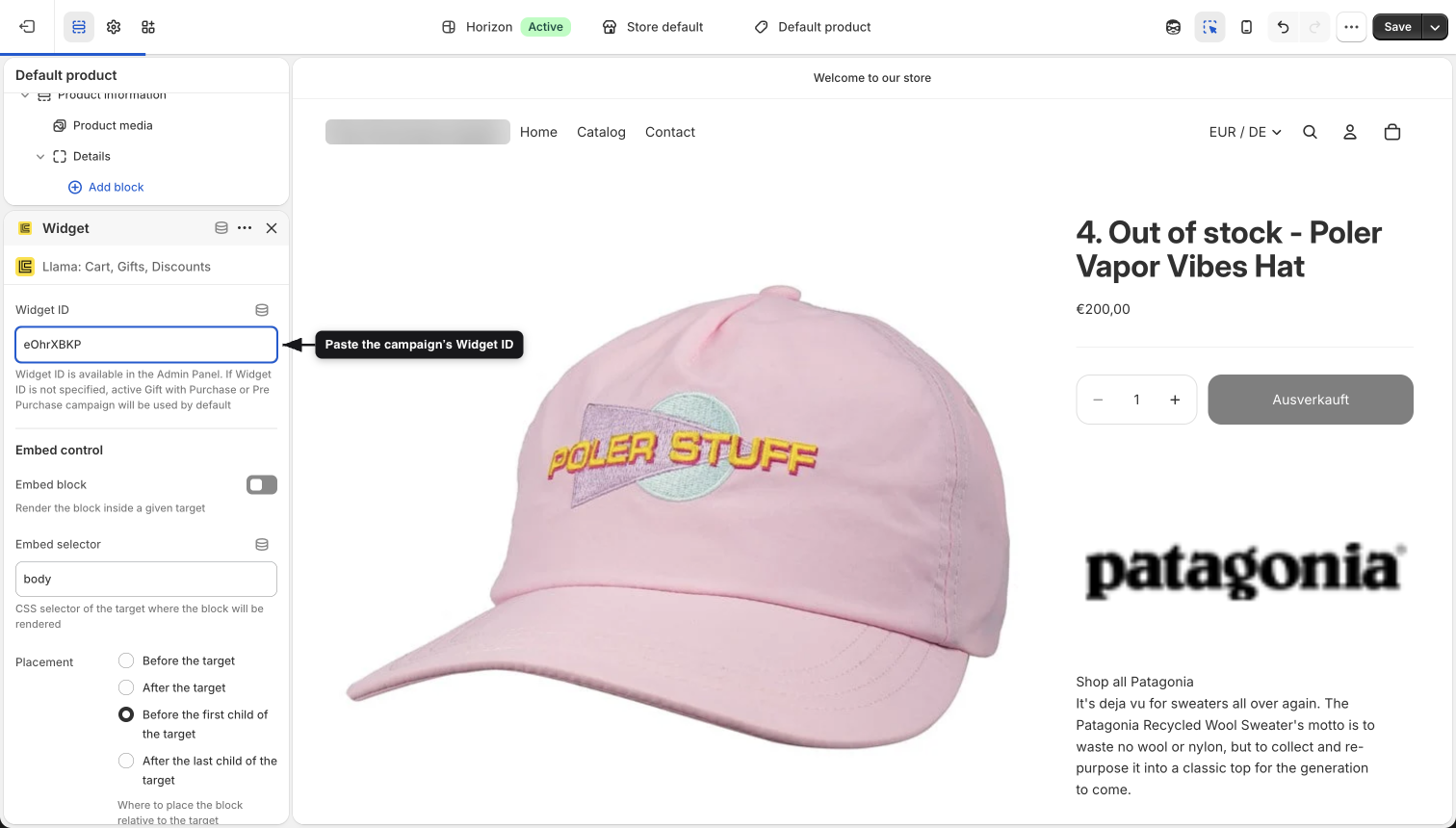
Configure the embed target
By default the block renders where it sits in the theme. To move it into the cart drawer, turn on embedding and point it at the drawer:
- Enable Embed block.
- Use your browser DevTools to find the element in the cart drawer where the widget should appear.
- Enter that element's CSS selector in Embed selector. Prefix a class with a dot (
.cart-drawer__items) and an id with a hash (#CartDrawer). - Choose where the widget is placed relative to that target with the Placement option (before the target, after it, before its first child, or after its last child).
- Click Save.
The Placement option maps to standard DOM insertion positions: Before the target (beforebegin), After the target (afterend), Before the first child (afterbegin), and After the last child (beforeend).
Disable Llama Cart if it is active
If Llama Cart is enabled, disable it so it does not compete with your theme's drawer:
- Go to the Llama Upsells Customizer.
- Open the three-dots menu.
- Deactivate Llama Cart and confirm.
Refresh the native cart drawer
Shopify cart drawers rely on AJAX to update their contents without a full page reload. Enable the app's AJAX settings so the drawer's items and totals re-render after a product is added from a widget.
Enable AJAX
Open the app's Settings page, find the AJAX Settings section, and turn on Enable AJAX. Once saved, the cart drawer refreshes automatically after a product is added.
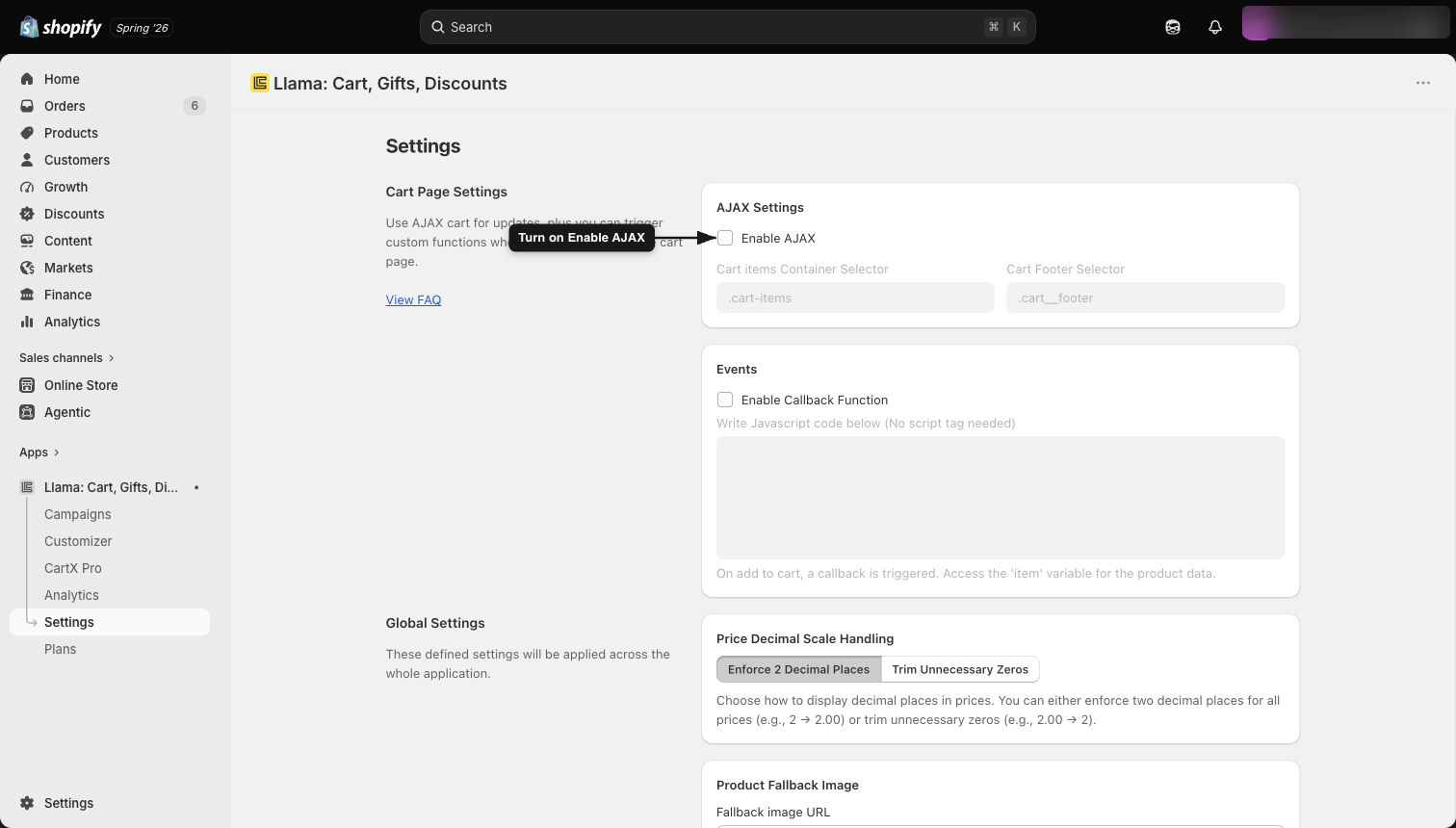
Configure the drawer selectors
Under AJAX Settings there are two selector fields that tell the app which parts of the drawer to refresh:
- Cart Items Container Selector — the element wrapping the line items.
- Cart Footer Selector — the subtotal / footer area, so totals update too.
Default selectors are provided and work for many Shopify themes. Save your changes.
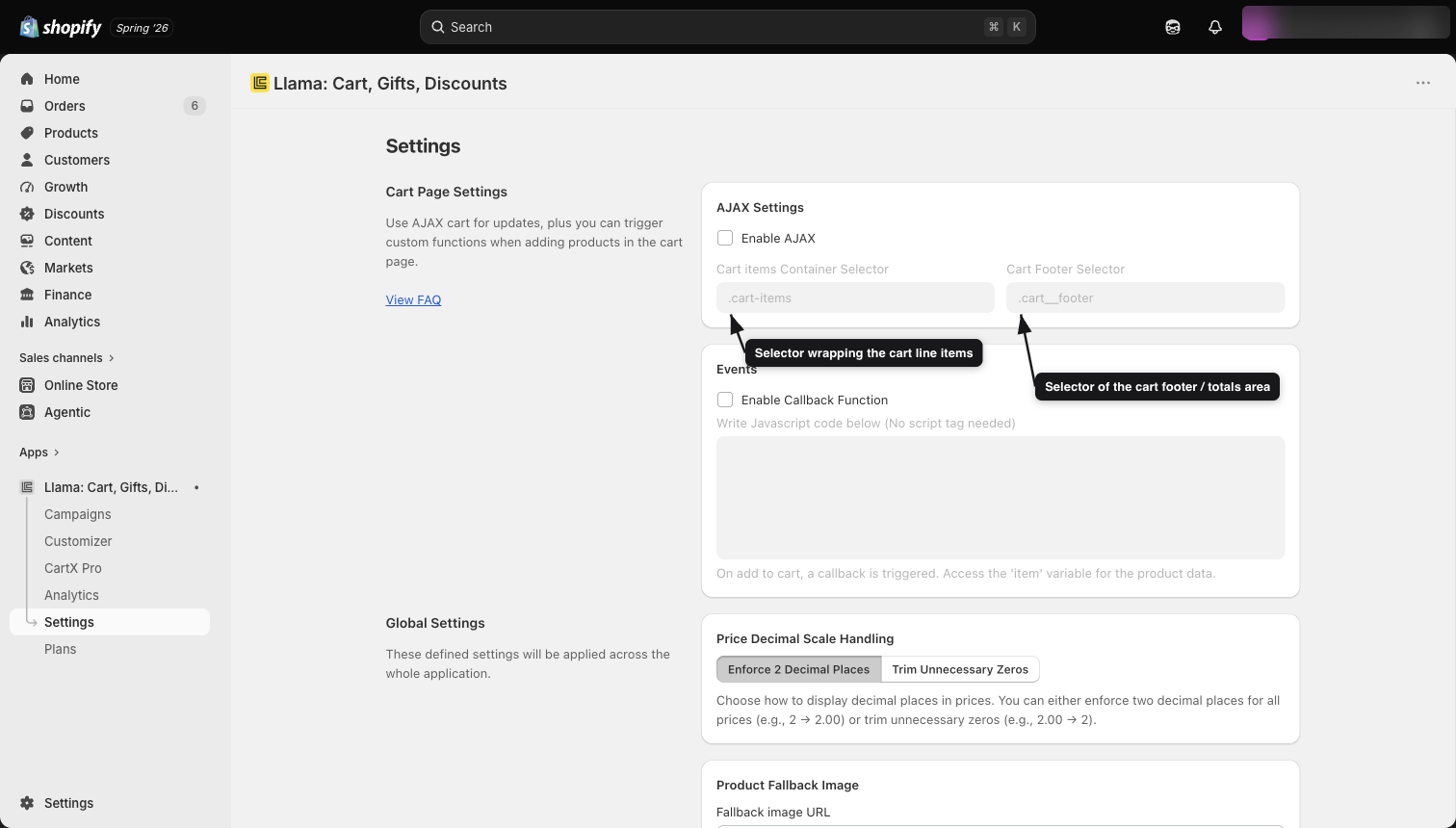
If the drawer does not refresh with the defaults, open your storefront, add a product with the native Add to Cart button, open the drawer, and inspect its HTML. Find the container holding the line items and the container holding the subtotal/footer, then paste those CSS selectors into the two fields.
Open the native cart drawer automatically
Refreshing the drawer updates its contents, but the drawer still has to be opened. After an add action the override dispatches lcu:cart:toggle (and only when the shopper is not already on the /cart page). To turn that into your theme actually opening, use a callback that triggers your theme's own drawer.
Enable the callback function
On the Settings page, scroll to the Events section and enable Enable Callback Function. A code input field appears below it.
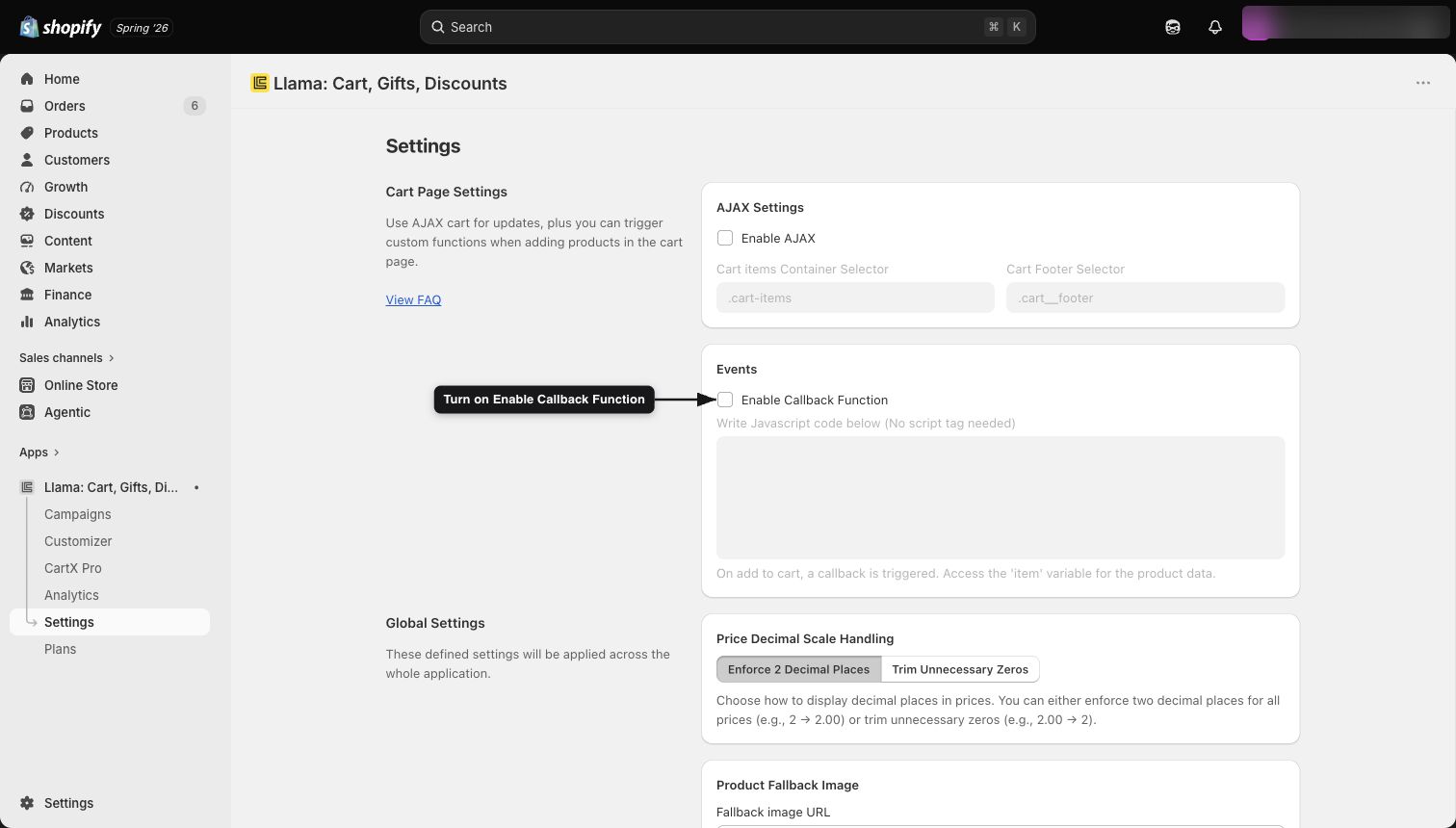
Add code to open the drawer
Most themes open the cart drawer when the header cart icon is clicked, but the selector for that icon varies between themes. Paste one of the common triggers below into the callback input — whichever matches your theme.
document.querySelector('#cart-icon-bubble')?.click();document.querySelector('.js-drawer-open-cart')?.click();document.querySelector('nav a[href="/cart"]')?.click();If none of the examples work
If the drawer still does not open, find your theme's own trigger:
- Inspect the cart icon in your theme header.
- Identify the clickable element that opens the drawer.
- Copy its CSS selector.
- Call
.click()on it from the callback input.
document.querySelector('YOUR_SELECTOR_HERE').click();When you need this setup
Follow this guide when all of the following are true:
- A campaign widget adds products to the cart.
- Clicking Add to Cart shows no visible feedback.
- The cart drawer does not open or update on its own.
- The store uses a theme-based Shopify cart drawer rather than Llama Cart.
After completing the steps above, products added from campaign widgets update the cart drawer, the native drawer opens automatically, and no page reloads are required.
Related
Add widgets to any page
Place Llama Upsell widgets on any theme page or template using the Shopify theme editor — product, collection, cart, and custom pages.
JavaScript events overview
Listen to the storefront DOM CustomEvents the app dispatches to react to cart updates, quick-view actions, and checkout clicks.