
Upsells not showing in Shop Pay
Why upsell blocks may be missing from Shop Pay checkout and how to enable them so offers show in both checkout flows.
If your upsell campaign appears in the regular Shopify checkout but is missing from the Shop Pay checkout, the cause is almost always a single setting. Shop Pay requires an extra option to be turned on before checkout blocks will render. This guide explains why that happens and how to fix it.
Why this happens
Upsell offers in checkout are powered by a Checkout UI Extension block. By default, these blocks may not be included in the Shop Pay checkout flow unless you explicitly enable them for it.
In other words, the block can be working perfectly in standard checkout and still be skipped in Shop Pay, simply because Shop Pay is treated as a separate flow that each block has to opt into.
Turn on the Shop Pay option
To show your upsell in Shop Pay, enable the Shop Pay option in your checkout block settings.
Open your checkout customization
In your Shopify Admin, go to Settings → Checkout and click Customize.
Select the upsell block
Open the relevant Checkout UI Extension (upsell block) in the customization editor.
Enable "Include block in Shop Pay"
In the block's settings, find the option Include block in Shop Pay and turn on the checkbox.
Save your changes
Click Save to apply the setting.
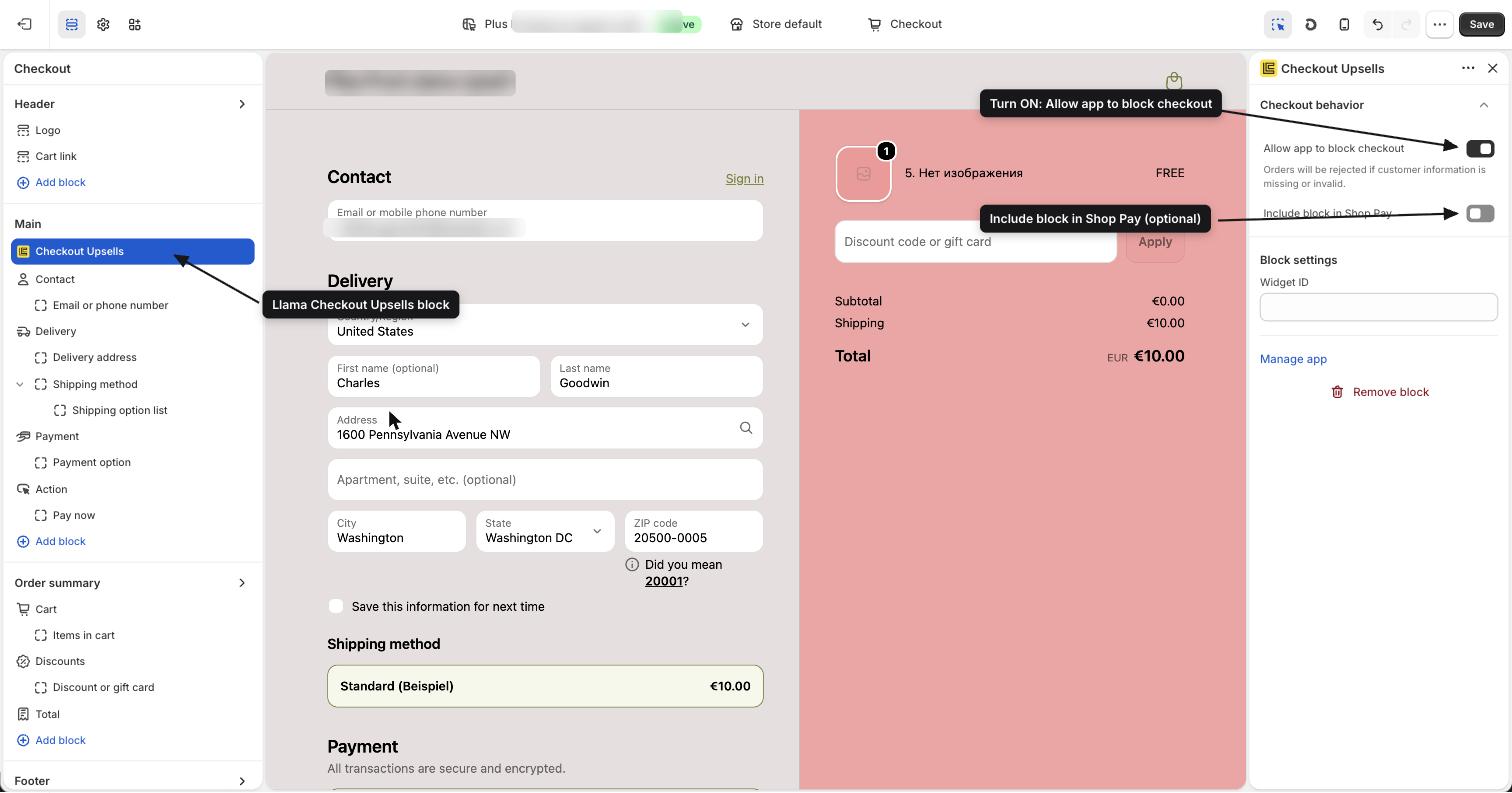
This setting must be enabled per block. If you have more than one upsell block in checkout, repeat these steps for each one you want to appear in Shop Pay.
What you should see
Once the option is enabled, your upsell campaign should render correctly in both:
- Standard Shopify checkout
- Shop Pay checkout
If it still isn't showing
If the upsell is still missing after enabling the setting, check the following:
- Make sure the block is properly added to the checkout layout.
- Confirm the upsell campaign is active.
- Clear your cache or test in an incognito window to rule out a stale view.
If the issue persists, contact support and include:
- Your store URL
- A screenshot of your checkout block settings
- A screenshot of the checkout where the upsell is missing
Other express checkout flows
This page covers only the per-block Include block in Shop Pay opt-in, which controls whether your checkout upsell blocks render inside the Shop Pay checkout. It does not cover the accelerated buttons that shoppers can tap on a product or cart page to skip straight to payment.
Those accelerated buttons — Buy it Now (dynamic checkout), Dynamic Checkout buttons, and wallet buttons like Shop Pay, Apple Pay, Google Pay, and PayPal — bypass the cart entirely and send the shopper directly into checkout. Because the cart is never opened, any offer that lives at the cart stage is skipped.
If your upsell appears in checkout when shoppers go through the cart but vanishes when they use an accelerated button on the product page, you are looking at the express-checkout behavior, not the Shop Pay block setting. See the dedicated guide below.
Accelerated & express checkout
How Buy it Now, Dynamic Checkout, and wallet buttons bypass the cart, and which offers still apply.
Good to know
A few things to keep in mind about Shop Pay checkout:
- Shop Pay checkout behaves slightly differently from standard checkout.
- Not all blocks are included in Shop Pay by default.
- The Include block in Shop Pay setting must be enabled on each block individually.
- Cart-stage widgets — pre-purchase upsells, gift-with-purchase (GWP), and the Llama Cart drawer — are skipped by accelerated and express buttons, because those buttons bypass the cart entirely.