
Campaign not showing on the storefront
A step-by-step checklist to find why your upsell or cross-sell campaign isn't appearing for shoppers and how to fix it.
When a campaign you built doesn't appear on your storefront, the cause is almost always one of a handful of settings. Work through this checklist in order — each step rules out a common reason a campaign stays hidden.
Most "missing campaign" reports come down to the app embed being off, the campaign being inactive, the cart not matching the campaign's conditions, or the widget block not being placed in the theme. Check those four first.
Quick checklist
Run through these before digging deeper. Each one is explained in its own section below.
- The app embed is turned on in your theme.
- The campaign status is Active.
- The shopper's cart actually meets the campaign's conditions.
- The campaign isn't blocked by scheduling, market, or customer-tag targeting.
- For pre-purchase and Gift with Purchase campaigns, the widget block is placed in your theme.
- There are no health warnings on the campaign.
1. Confirm the app embed is on
Storefront widgets and Llama Cart read your campaign configuration from a metafield that the app embed injects into your theme. If the app embed is off, nothing the app provides will render — no widgets, no auto-add, no Llama Cart.
Open your theme editor
Go to Online Store > Themes > Customize.
Find the app embeds panel
From the top-left corner, choose App Embeds and select the LC Upsell app.
Enable LC Upsell
Toggle LC Upsell on, then click Save to apply the change.
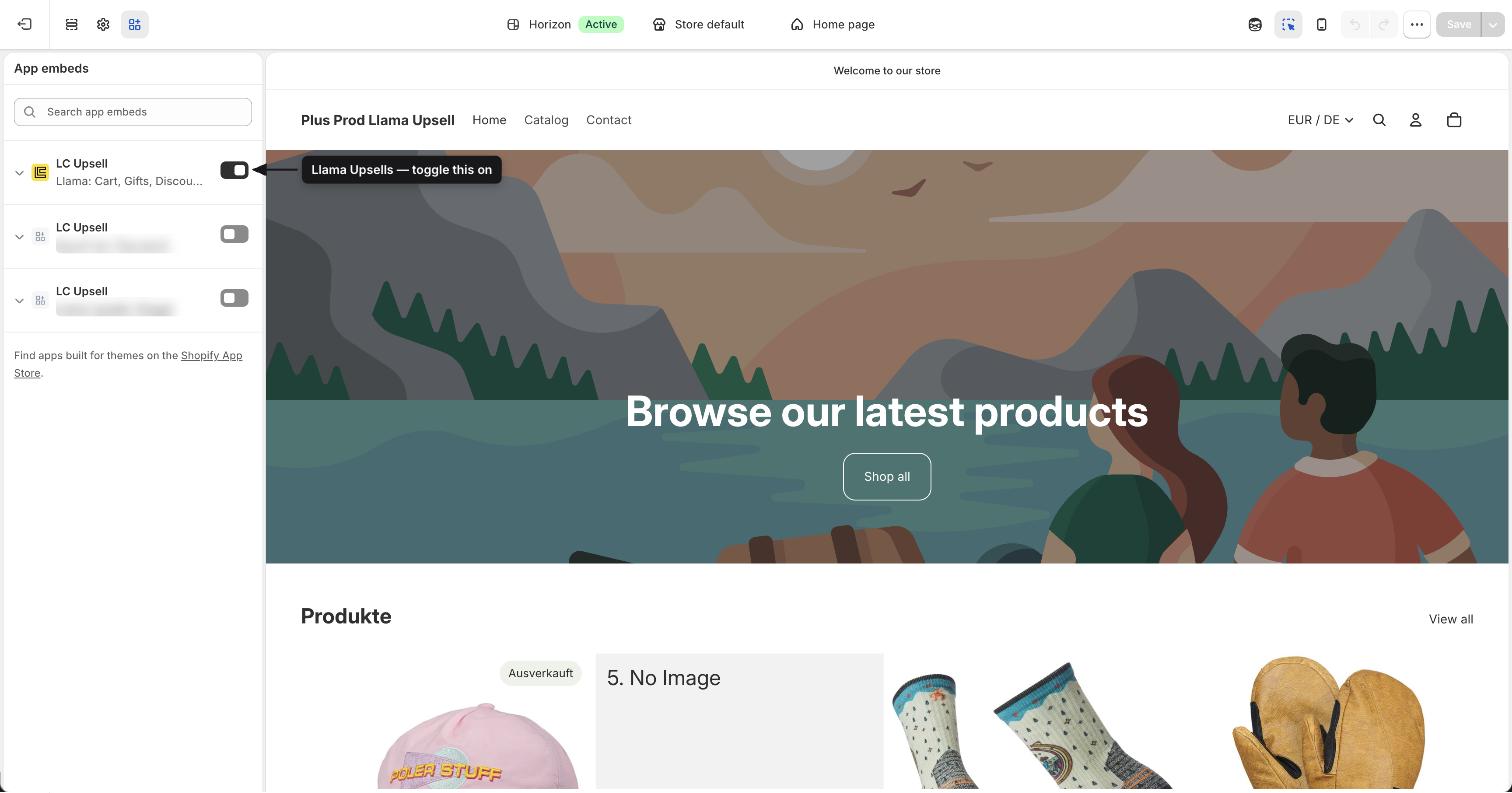
If the app embed is off, even a perfectly configured active campaign will never appear. This is the single most common cause, so confirm it first.
2. Check that the campaign is active
Only active campaigns are served to shoppers. A campaign can be in one of three states:
- Active — live and shown to shoppers. Counts against your plan's active-campaign limit.
- Inactive — saved but not running. Does not count against your limit.
- Draft — used while you're still creating the campaign; it resolves to active or inactive when you save.
Open the campaign list in the app and confirm the campaign shows as Active. If it's inactive, you may have hit your plan's active-campaign limit.
If you try to activate a campaign after reaching your plan's limit, the app saves it as inactive and shows a notification. Likewise, when you downgrade your plan, the newest campaigns over the new limit are deactivated automatically (newest first). Deactivate a campaign you no longer need, or upgrade your plan, to make room.
Plan limits on active campaigns:
| Plan | Active campaigns |
|---|---|
| Free | 1 |
| Starter | 5 |
| Growth | 10 |
| Pro | 25 |
| Enterprise | Unlimited |
3. Make sure the cart meets the conditions
A widget only renders when its campaign's conditions are met. The app re-evaluates conditions against the current cart every time the cart changes — an item is added, removed, or its quantity changes. If the cart doesn't match, the campaign correctly stays hidden.
Walk through your campaign's conditions and confirm a test cart actually satisfies them. Common reasons a cart fails to match:
- Subtotal threshold not reached — for example, a "spend $75" Gift with Purchase won't unlock until the cart subtotal hits the threshold.
- Trigger product not in the cart — a condition that requires a specific product, variant, tag, vendor, type, SKU, or collection won't fire unless a matching item is present.
- Quantity too low — a rule that checks the quantity of specific products needs enough of them in the cart.
- Customer not logged in — conditions based on customer tags only apply to logged-in customers.
- URL or attribute mismatch — conditions on the current page URL, UTM parameters, or cart attributes won't match if those values aren't present.
Conditions use a two-level AND/OR structure: rules within a group are joined by AND or OR, and rule groups are joined by the condition's connector. If a campaign is over-restricted, loosen a rule or switch a connector to OR. See Building conditions for the full breakdown.
Test like a shopper
Build a cart that should trigger the campaign and view your live storefront in an incognito or private window. This avoids cached pages and confirms what real shoppers see. If the campaign appears in incognito but not your normal browser, clear your cache.
4. Rule out targeting and scheduling
Even when conditions match, a campaign won't show if its scheduling or targeting excludes the current visitor or time.
See Schedule, markets & customer tags for more on these settings.
5. Confirm the widget block is placed (pre-purchase and GWP)
Pre-purchase (Product Recommendations) and Gift with Purchase widgets don't appear automatically. You add the app's theme block to a section in your theme editor, and the widget renders in that exact spot when conditions are met. If the block was never added — or was removed — the campaign has nowhere to display.
Open the theme editor
Go to Online Store > Themes > Customize and navigate to the page where you want the offer (product page, cart page, collection page, and so on).
Add the app block
Add the app's campaign block to the section where you want the widget, then attach your campaign to that block.
Save
Click Save, then check your live storefront with a matching cart.
Other campaign types don't need a theme block. Auto-Add adds the product silently with no visible widget. Checkout Upsells and Post-Purchase offers appear in Shopify's native checkout and post-checkout surfaces — you don't edit your theme block for these, so the app-embed and theme-block checks above don't apply. They have their own requirements instead:
- Checkout Upsells require Shopify Plus. The offer renders through a checkout app block that must be placed in your Checkout and accounts editor (Settings > Checkout > Customize). If you're not on Plus, you can't add the block and the campaign can't run at all — there's no fallback surface for it.
- Post-Purchase offers run on Shopify's after-payment page and have their own distinct failure modes that none of the checks above cover: an unsupported payment method (the page is skipped for some payment types), single-slot priority (Shopify shows only one post-purchase offer, so another app or campaign can win the slot), and real-order-only behavior (the page never appears for test orders or draft orders). See Why a Post-Purchase offer didn't appear for the full Post-Purchase checklist.
For pre-purchase and GWP offers inside the cart drawer, place the campaign block inside Llama Cart instead of a theme section.
Theme support notes
- Shadow DOM isolation — every storefront widget renders inside a Shadow DOM container, so your theme's CSS can't change the widget and the widget's styles can't leak into your theme. A widget that looks different from your theme is working as designed, not broken.
- Content Unlock block — the dedicated Content Unlock theme block (
unlock.liquid) is deprecated and only appears in the theme editor for stores set up before an early-2024 migration. If you're setting up a new Content Unlock campaign and don't see the block, contact support for placement help.
6. Resolve any health warnings
The campaign list shows a warning icon next to any active campaign that might not be working correctly. If your campaign has one, open it and fix the flagged issue. Health warnings appear when:
- Offer products are unpublished, sold out, or otherwise unavailable.
- A referenced collection no longer exists.
- A promo code used in a condition is inactive.
- No markets have been assigned (an empty market list shows to no one).
- The campaign's scheduled window hasn't started yet, or has already ended.
A clean campaign with the app embed on, an active status, matching conditions, valid targeting, and a placed widget block will show on your storefront. If you've confirmed all of these and it still doesn't appear, move on to the related guides below or contact support.
Still not showing?
A few situations have their own dedicated guides:
Widget not showing
When a placed widget block still doesn't render on the page.
Campaign not showing in Shop Pay checkout
Enable the 'Include block in Shop Pay' option for checkout upsells.
How conditions work
Understand the rules that decide when a campaign fires.
If you've worked through this checklist and the campaign is still missing, contact support with your store URL, a screenshot of the campaign's settings, and a screenshot of the storefront page where the campaign should appear.
How features interact
What overrides what, the order features are evaluated in, and how campaigns, discounts, restrictions, limiters, and the cart affect each other.
Why a Post-Purchase offer didn't appear
A Post-Purchase-specific checklist for when the after-checkout offer page is skipped, plus accept-time errors and how to test correctly.