
Tier (volume) discounts
Set up buy-more-save-more pricing that rewards shoppers with a bigger discount as their cart subtotal grows.
Tier discounts reward customers who spend more — the more they add to their cart, the bigger the discount they earn. You define spending thresholds, and the discount that applies grows as the cart subtotal climbs into each tier. Like the app's other discount types, tier discounts run through Shopify's own discount system, so qualifying shoppers never need to enter a code.
How tier discounts work
You define one or more tiers. Each tier has a minimum cart subtotal (and, optionally, a maximum subtotal cap) plus the discount that applies once the cart reaches that tier. As the shopper adds more to their cart, they move up through the tiers and unlock a larger reward.
When a cart qualifies for more than one tier, the highest qualifying tier applies.
What "cart subtotal" means: each tier's threshold is compared against the sum of every qualifying cart line's original, pre-discount price — each line's unit price × quantity, before any other discount is applied to it, and excluding tax and shipping. It is not the same as the discounted running total a shopper might see live in their cart, so a tier discount stacking with another discount doesn't shrink the subtotal used to decide which tier applies. A line only counts toward this sum if it isn't tagged under Exclude subtotal tags — see Exclusion toggles on the advanced page.
Here is a typical "spend more, save more" setup:
| Cart subtotal | Discount |
|---|---|
| Under $50 | No discount |
| $50–$99 | 10% off |
| $100+ | 20% off |
In this example, a $120 cart qualifies for the top tier and receives 20% off.
Tier discounts apply automatically at checkout — no code required. You can also set them up as code discounts that the shopper must enter to unlock. This page covers the tier ladder itself; for the deeper options — automatic vs code, exclusion toggles, product and customer eligibility, and per-discount combination settings — see Advanced tier discounts.
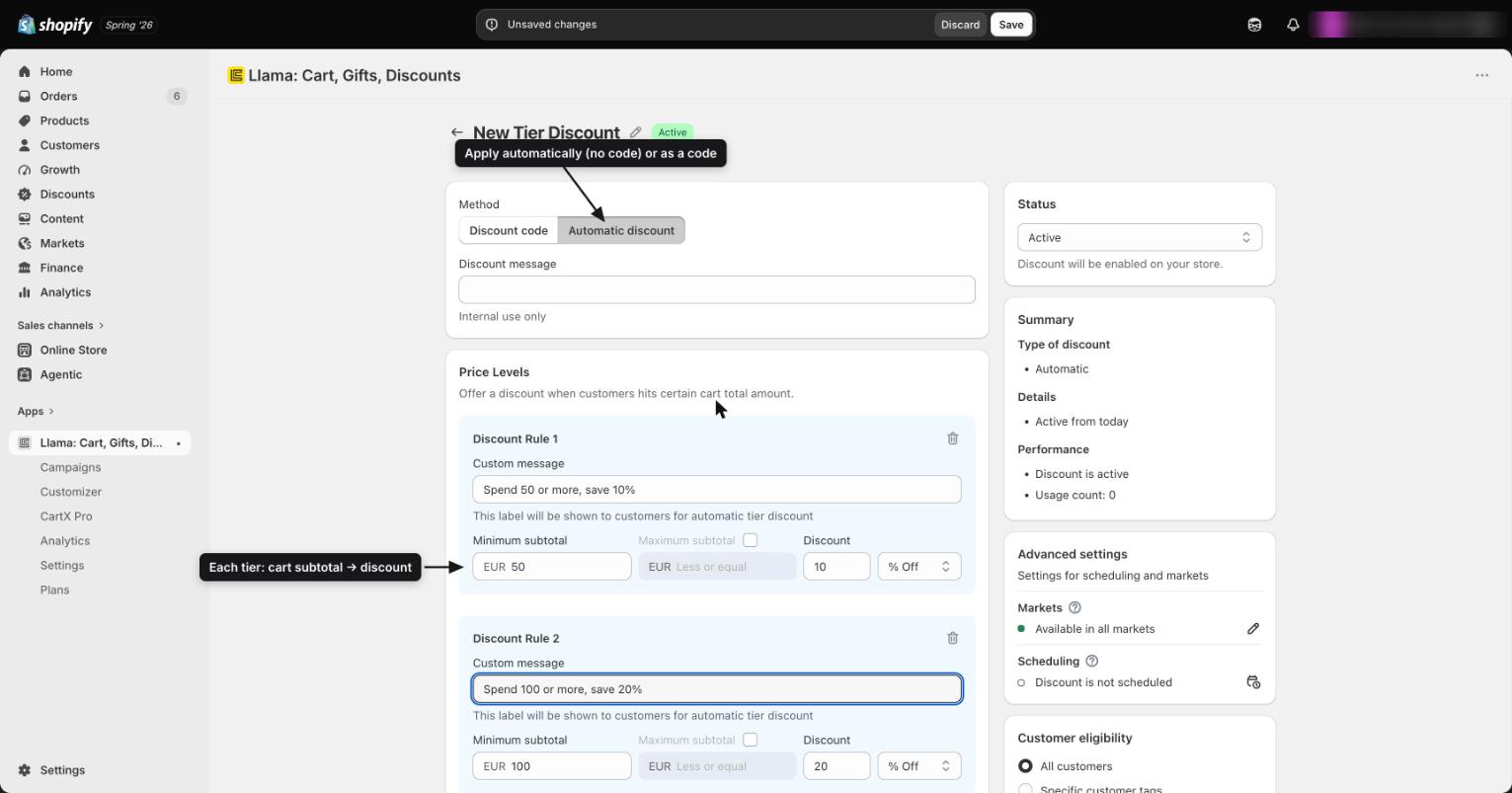
Configuring the tiers
Set the thresholds and discount
For each tier you create, set:
- Minimum cart subtotal — the amount the cart must reach to unlock the tier.
- Maximum subtotal cap (optional) — an upper limit for the tier, so the discount only applies within a subtotal range.
- Discount — a percentage (for example, 10% off) or a fixed amount off.
Add as many tiers as you need to build out your "buy more, save more" ladder.
Choose which products receive the discount
You control how the discount is spread across the qualifying cart:
- All eligible products — the discount applies to every non-excluded item in the cart.
- Highest-priced items — the discount applies only to the most expensive items, up to a number you choose.
- Lowest-priced items — the discount applies only to the least expensive items, up to a number you choose.
When you pick Highest-priced or Lowest-priced, you also set a discounted quantity — the number of qualifying units that actually receive the discount. The reference for these methods and how the discounted quantity is counted lives on the advanced page: see Product eligibility methods.
Exclude specific products
You can exclude specific products by tagging them in Shopify. Tier discounts have two independent exclusion toggles: one that excludes tagged products from the discount (they still count toward the tier but never get discounted) and one that excludes tagged products from the subtotal (they don't count toward reaching a tier). They are configured separately, so you can apply either, both, or neither.
The exact behavior of each toggle, and what happens when a product carries both kinds of tag, is covered on the advanced page: see Exclusion toggles.
Targeting and scheduling
Tier discounts can be narrowed down so they only apply to the right shoppers, regions, and dates:
- Customer tags — restrict eligibility to customers carrying one or more tags. By default a tier discount is open to all customers; switching to tag-based eligibility limits it to matching, logged-in customers. See Customer eligibility by tag for the matching rules and edge cases.
- Markets — target specific Shopify markets.
- Start and end dates — schedule when the discount runs.
Tier discounts respect the customer's currency. When you set fixed-amount tiers, the app stores per-currency amounts and applies the correct value at checkout.
Steps to set up a tier discount
Open the Discounts area
Go to the Discounts area in the app and start a new tier (volume) discount.
Add your tiers
Create each tier with its minimum cart subtotal, an optional maximum cap, and the percentage or fixed-amount discount it unlocks. Add more tiers to build out your "spend more, save more" ladder.
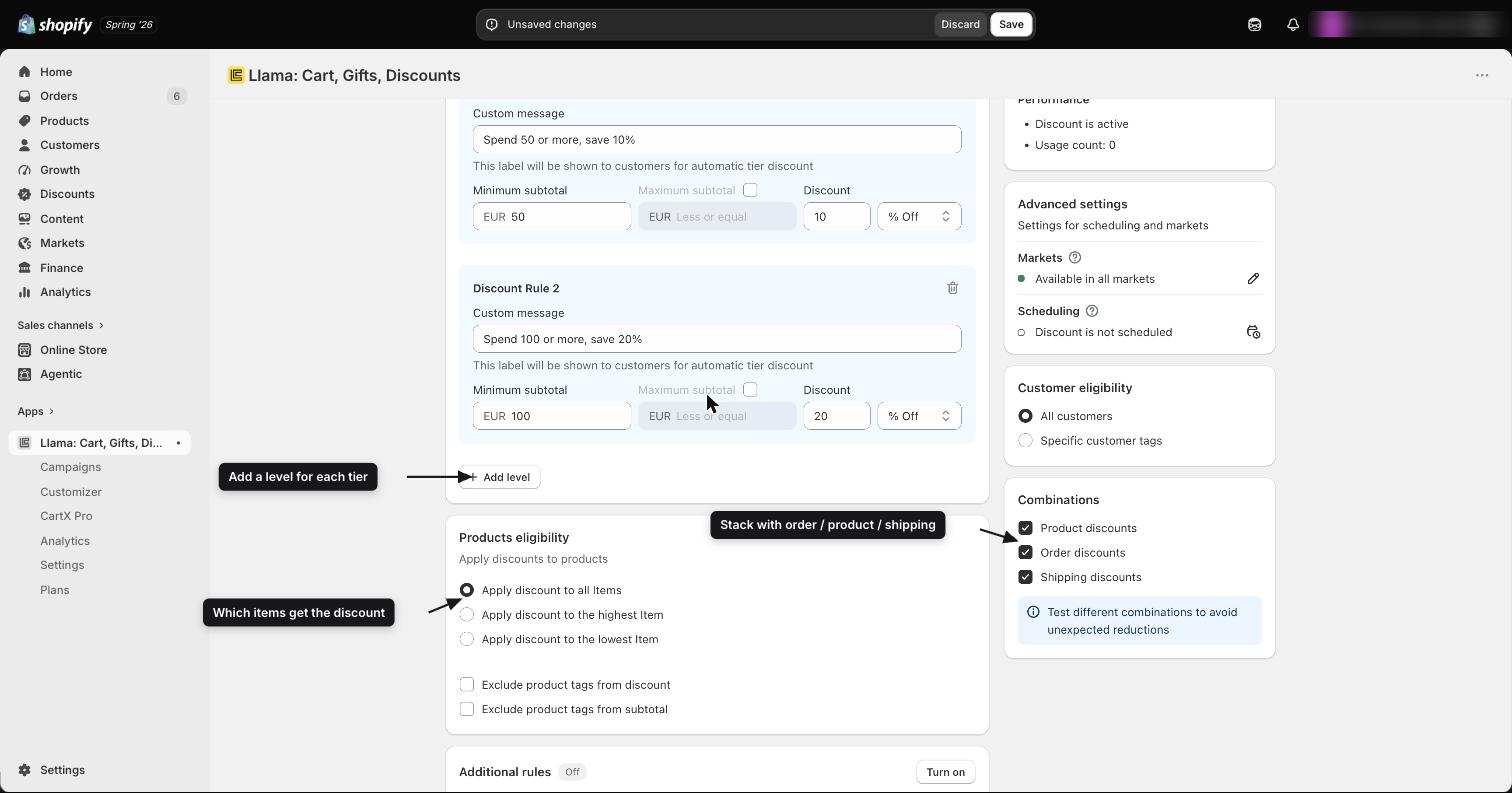
Choose which products get the discount
Decide whether the discount applies to all eligible products, only the highest-priced items, or only the lowest-priced items — and whether it covers the entire cart or only matching products. Tag any products you want to exclude from both the subtotal and the discount.
Set targeting and dates (optional)
Restrict the discount by customer tag, target specific markets, and add start and end dates if you want it to run only for a set period.
Choose automatic or promo-code
Decide whether the discount applies automatically at checkout or requires the shopper to enter a code, then save and activate it.
Switching an existing tier discount between automatic and code recreates the underlying Shopify discount from scratch, which resets its performance history (usage count and total sales). If you depend on those numbers, choose the type before you launch. See Automatic vs code for the full behavior.
How tier discounts interact with Shopify
Tier discounts are created as Shopify discounts and follow Shopify's standard discount combination rules. Each tier discount carries its own combination settings — independent toggles for whether it combines with order discounts, product discounts, and shipping discounts. All three toggles default to on, so a new tier discount combines with every category until you switch a toggle off. These determine whether a tier discount can stack with a discount code or another automatic discount. For how to set the per-discount combination toggles and the resulting stacking behavior, see Combination settings.
Each subscription plan includes a limit on the number of active tier discounts. If you reach the limit, disable an existing tier discount or upgrade your plan before creating a new one. You can see your current usage on the subscription page.
Related guides
Advanced tier discounts
Automatic vs code, the two exclusion toggles, product and customer eligibility, and per-discount combination settings.
Applying discounts
Attach percentage or fixed-amount discounts to the products inside an upsell offer.
Shipping discounts
Offer free or reduced-rate shipping when the cart meets your rules.
Promo code triggers
Gate a campaign or discount behind a specific discount code.
Why an offer discount applies to fewer items than expected
Your offer discount applied — but to fewer items or variants than you expected. Here's the variety cap that does it, by design, and how to tune it.
Tier discounts: eligibility, exclusions & combinations
A field-by-field reference for tier discounts — automatic vs code, eligibility methods, the two exclusion toggles, conditions, and combinations.