
Applying discounts to offer products
Add a fixed or percentage discount to the products you offer in a campaign, including 100% off for a free gift.
When you build a campaign offer, you can attach a discount to each product you're offering. The app handles everything behind the scenes — you choose the type and value, and the discount applies automatically once the campaign's conditions are met.
How offer discounts work
Offer discounts are automatic discounts. When a shopper's cart meets the campaign's conditions, the app creates the discount for you and applies it to the qualifying products. There's no separate "create discount" step, and the shopper doesn't need to enter a code or take any action — the discounted price simply appears in the cart and at checkout.
Because these are automatic discounts, the shopper sees the reduced price as soon as they qualify. Nothing is added silently and no code is required.
Add a discount to an offer product
Add your products to the offer
In the campaign's offer section, add the products you want to offer using the product picker.
Open the discount settings
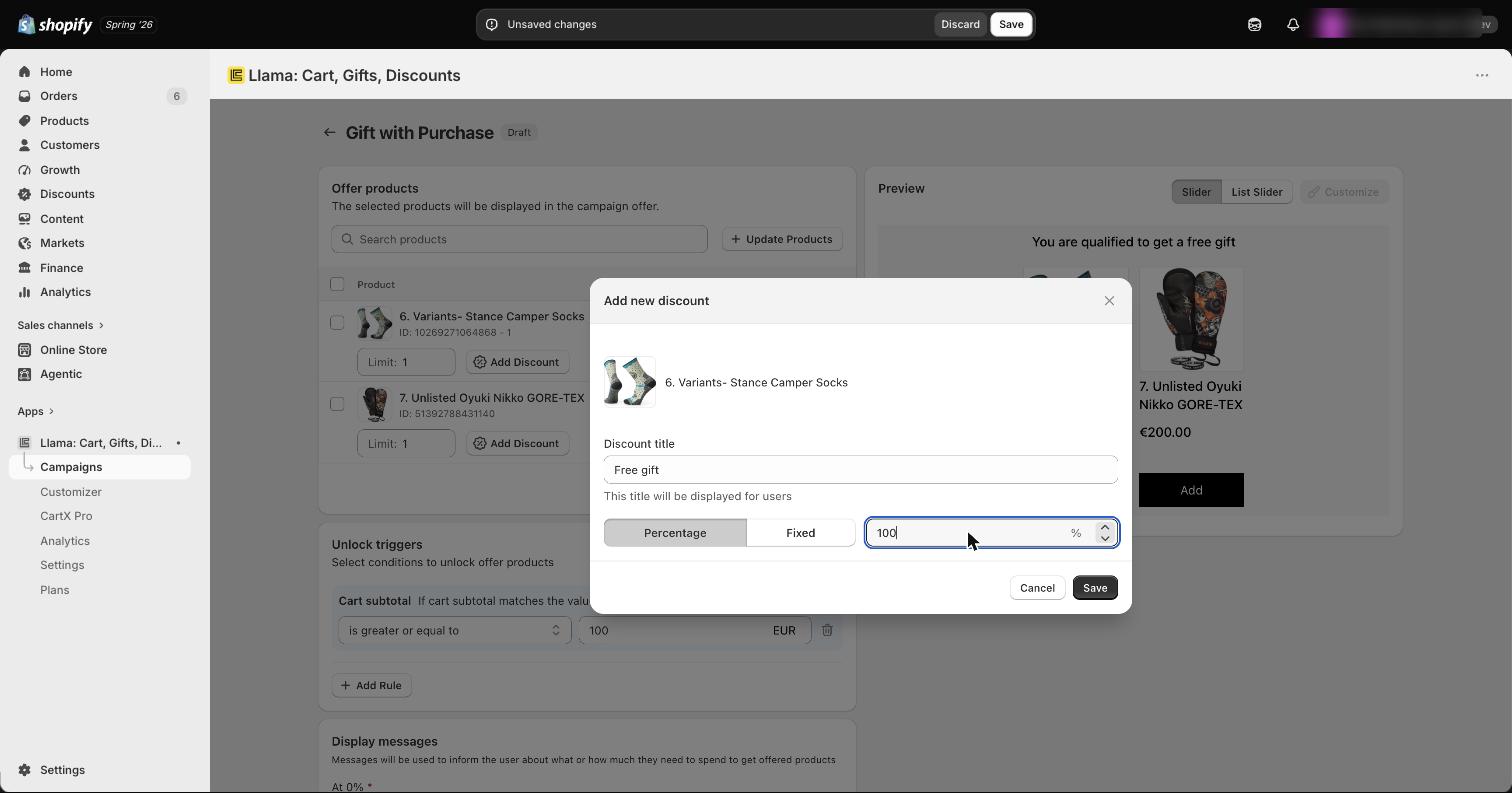
On each product row, click the Discounts popover (the discount icon). The Automatic Discount modal opens.
Choose a discount type and value
Pick the discount type that fits your promotion and enter the value. See Discount value types below for the options.
Save the campaign
Save the campaign to apply the discount. It goes live as soon as the campaign's conditions are met.
Discount value types
Choose the type that matches the deal you want to run:
| Type | How it works | Example |
|---|---|---|
| Fixed | A fixed currency amount off the product, applied per unit (up to the variant's allowed quantity, default 1) | $10 off each unit |
| Percentage | A percentage off the product | 15% off the product |
A Fixed amount applies per discounted unit, up to that variant's allowed quantity (which
defaults to 1). Raise the allowed quantity and the same amount comes off each covered unit — so at
an allowed quantity of 4, a $2.50 fixed amount takes off $10 total. For a side-by-side of every
value format across offer, tier, and shipping discounts, see
Discount value types explained.
To make a product completely free — for example, the gift in a Gift with Purchase campaign — use a Percentage discount set to 100%.
How it shows in the cart and checkout
Once a shopper qualifies, the discounted price applies to the offered products in the cart and carries through to checkout. There's no code to enter — the discount is automatic, so the shopper sees the lower price wherever the offer products appear.
How offer discounts combine with other discounts
Offer discounts (the automatic discounts the app creates) are always set to combine with Shopify's three discount classes — order discounts, product discounts, and shipping discounts — and that behavior is fixed. There's no checkbox to turn it off: every offer discount the app creates is hardcoded to stack with all three.
This is different from tier discounts and shipping discounts, where you can choose which discount classes they combine with. Offer discounts give you no such toggle — they always combine. If you need a discount whose stacking you can control, use a tier or shipping discount instead. For the complete picture of which discounts combine, the order they apply, and the ceilings that govern them, see Discount stacking, limits & conflicts.
Which campaigns support discounts?
Every campaign type that has offer products supports per-product discounts:
Limit how many products get discounted
The Total limit setting is the max products variety (mpv) cap. It controls how many distinct product variants in one cart can receive a discount from a single campaign condition — its job is to stop one condition from discounting an unlimited number of items. It counts variety (how many different variants get discounted), not quantity (how many units of each).
Example: Set Total limit to 3 on a "buy 3, get 20% off" campaign. Even if the shopper adds five different qualifying products, only the first three variants the app encounters in the cart are discounted. The other two stay at full price.
Total limit counts distinct variants, not units. A separate per-variant allowed quantity controls how many units of each discounted variant are covered. So a shopper can have a discount apply to fewer products than you expected (because Total limit was reached) or to fewer units of a single product than you expected (because the allowed quantity was reached). These are two different ceilings. For the full step-by-step of how the discount is matched to cart lines and how to tune each cap, see Why an offer discount applies to fewer items than expected.
Discount status
Each automatic discount the app creates moves through a few states, so you can tell at a glance whether it's working:
- Active — the discount is live and applying to qualifying orders.
- Scheduled — the discount has a start date in the future, so it isn't applying yet.
- Expired — the discount has passed its end date (or was otherwise turned off in Shopify), so it no longer applies.
Platform limits
Keep these limits in mind as you set up discounts across your campaigns:
- There is no fixed app limit on automatic offer discounts — the app packs offers into discount metafield nodes (splitting at ~9,990 characters). The only hard ceiling is Shopify's maximum of 25 automatic discounts per store.
- That Shopify limit is store-wide and shared across all of your apps, not just Llama Upsells.
If your discounts aren't applying, you may have reached Shopify's store-wide cap of 25 automatic discounts. Review your active campaigns and discounts and disable any you no longer need.