
Combining app discounts with Shopify discounts
How to configure Llama Upsells discounts so they coexist with Shopify coupon codes and other apps' automatic discounts.
Llama Upsells discounts and Shopify's own discounts live in the same checkout, so you usually want them to apply together — your free-shipping offer on top of a seasonal coupon, your tier discount alongside another app's promotion. This is the hands-on walkthrough for configuring both sides so that happens. For the underlying limits and the full combinesWith rules, see Discount stacking, limits & conflicts — this page is the "how do I actually set it up in the Shopify admin" companion to that reference.
Two kinds of Shopify discount you'll meet
Every Llama Upsells discount is created behind the scenes as a Shopify automatic discount — there is no code to type, the discount line just appears at checkout once the cart qualifies. But in your Shopify admin you'll run into two different things, and they behave differently when it comes to stacking.
| Kind | How it applies | Counts toward the 25 cap? | Who controls it |
|---|---|---|---|
| Automatic discount | Applies on its own when the cart qualifies — no code | Yes — every automatic discount on the store shares one budget | You, other apps, and Llama Upsells (all of the app's discounts are automatic) |
| Discount code | The shopper types a code at the cart or checkout | No (codes are not part of the 25 automatic-discount cap) | A merchant-created code you set up in Shopify Discounts |
All three Llama Upsells discount types — offer, tier, and shipping — are Shopify automatic discounts behind the scenes. That means they count against Shopify's store-wide ceiling of 25 automatic discounts, which is shared across every app and every automatic discount you create by hand. A discount code the shopper enters does not eat into that 25.
Stacking needs agreement on BOTH sides
This is the rule that trips up almost everyone: a discount's combination setting is a permission, not a guarantee. Shopify only stacks two discounts when both of them allow it. If either side opts out, Shopify keeps one and silently drops the other.
So making an app discount coexist with a Shopify discount is always a two-sided job: set the Shopify discount to allow combining, and make sure the app discount allows it too.
Side 1 — the Shopify discount
Open the discount in Shopify admin
Go to Shopify admin > Discounts and click the discount (or code) you want to combine with a Llama Upsells discount.
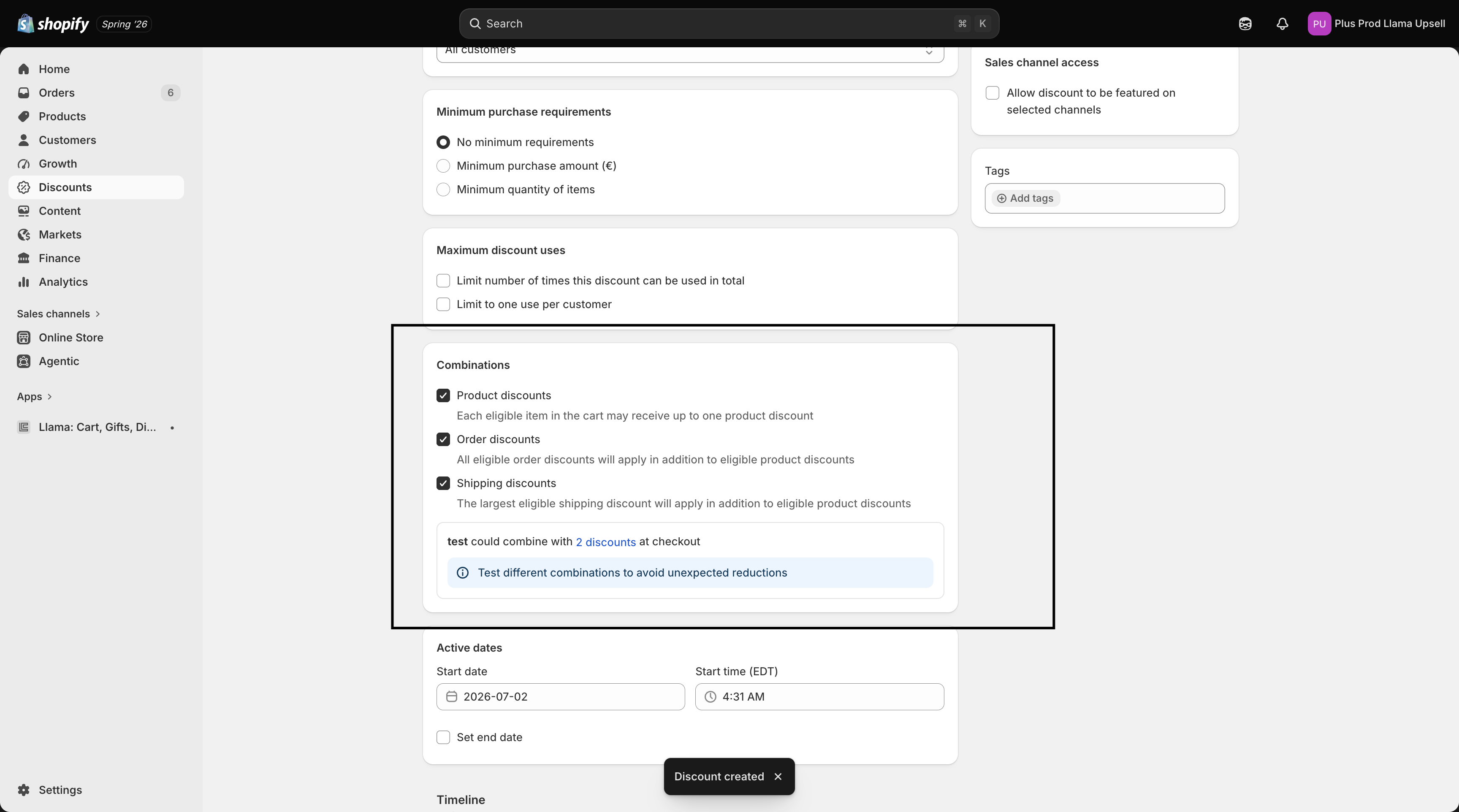
Find the Combinations section
Scroll to the Combinations section of that discount. It lists three checkboxes, one per discount category:
- Product discounts
- Order discounts
- Shipping discounts
Enable the categories you need
Tick the categories that match the Llama Upsells discount you want to stack with. A Llama Upsells offer or tier discount that applies to line items is a product discount; a Llama Upsells shipping discount is a shipping discount. Enable the matching box (or boxes), then Save.
Side 2 — the Llama Upsells discount
Now make sure the app discount allows the combination back. How much control you have depends on the app discount type:
| App discount type | Combine with order | Combine with product | Combine with shipping | Your control | Default |
|---|---|---|---|---|---|
| Offer (the discount on an upsell product) | Yes | Yes | Yes | Always on — no toggle, by design | Always combines (fixed) |
| Tier (volume) | Toggle | Toggle | Toggle | A toggle for all three categories | All three on |
| Shipping | Toggle | Toggle | — | A toggle for order and product (no shipping-with-shipping) | Both off |
Offer discounts are hardcoded to combine with everything, so there's nothing to switch on for them. For tier and shipping discounts, open the discount in the Llama Upsells app and turn on the combine toggle that matches the Shopify discount's category. The defaults point in opposite directions: a new tier discount starts with all three toggles on, so it combines with everything until you opt out, while a new shipping discount starts with both toggles off, so it combines with nothing until you opt in.
If only one side allows the combination, the discounts will not stack — Shopify drops one of them with no error message. The most common cause is forgetting Side 1: the app toggle is on, but the Shopify coupon's Combinations still say "can't combine." Always check both.
Common pairings and how to configure each
These are the four pairings you'll meet most often. The recipe is the same shape every time — set the Shopify side, then the app side.
When Shopify drops one discount
If the two sides don't both allow the combination, Shopify doesn't error — it quietly keeps one discount and drops the other. This is standard Shopify behavior, not a Llama Upsells override, and the app cannot force a dropped discount back in.
Which one survives? Shopify decides using its own precedence — generally it keeps the discount that gives the shopper the better value, and a non-combinable code the shopper entered will win the tie and suppress an automatic discount that conflicts with it. So if a customer applies a coupon set to "can't combine," expect your app discount to disappear for that order.
A code set to cannot be combined in its Shopify Combinations settings will always win and suppress the other discount — even if your Llama Upsells discount's toggle says "yes, combine." Before you assume the app is broken, open the coupon in Shopify admin > Discounts and confirm its Combinations actually allow the app discount's category. This is the single most common reason a "stacked" discount only shows one line.
Promo code as a TRIGGER vs promo code as a DISCOUNT
A "promo code" can mean two completely different things in Llama Upsells, and mixing them up causes a lot of confusion. The difference is whether the code reduces the price or merely decides when an offer appears.
| Promo code as a trigger | Promo code as a discount | |
|---|---|---|
| What it does | Gates when a campaign/offer shows — a campaign condition | Actually reduces the order price |
| Effect on price | None on its own — it's a condition, not a discount | Lowers the total, like any Shopify code |
| Where you set it | A campaign condition using the promo-code selector | A tier or shipping discount configured as a code, or a plain Shopify discount code |
| Learn more | Promo code triggers | Promo codes as discounts |
A trigger code is a campaign condition: when the shopper has a matching code applied, the offer becomes eligible to show — but the code itself does not discount anything. A discount code genuinely reduces the price. And note that Llama Upsells tier and shipping discounts can themselves be code-type: instead of applying automatically, the app creates a real Shopify discount code the shopper must enter to unlock the discount.
If a campaign won't trigger off an applied code, you're in trigger territory — see Promo code triggers. If a tier or shipping discount needs a code to unlock and actually cut the price, you're in discount territory — see Promo codes as discounts.
Discount code validation behaviors
When the storefront checks an applied code (for example, to decide whether a code-based trigger should fire), it validates that code against Shopify and can report one of several states. These are the five you'll meet most often; knowing them helps you read why a code did or didn't take effect.
| State | What it means |
|---|---|
INVALID | The discount code doesn't exist. |
ALREADY_APPLIED | The code is already applied to the order. |
LIMIT_REACHED | The code has exceeded its usage limit. |
INACTIVE | The discount is no longer active. |
REMOVABLE_AT_CHECKOUT | The code can only be removed at checkout. |
These are storefront validation states, not app errors — they describe the code's status in Shopify. This table covers the common cases only; nine states exist in total. For the complete list and what to do about each, see Promo codes as discounts. For how code-based triggers use them, see Promo code triggers.
Troubleshooting
A discount that should be stacking only shows one line, or your app discount isn't applying at all. First confirm both sides allow the combination (the app toggle and the Shopify discount's Combinations section). Then check whether a non-combinable code is suppressing it, and whether your store has hit the 25 automatic-discount cap. For a full diagnostic walkthrough, see Discount not applying.
Discount stacking, limits & conflicts
The full combinesWith rules, the exact ceilings, and why a discount can silently fail to create.
Promo code triggers
Use an applied code as a campaign condition that gates when an offer appears.
Promo codes as discounts
Set up a tier or shipping discount as a code the shopper enters to unlock the price cut.
Discount not applying
Step-by-step diagnosis when an existing discount won't apply at checkout.
Discount stacking, limits & conflicts
The definitive reference for how Llama Upsells discounts combine, the exact ceilings that exist, and why a new discount may silently fail.
Promo codes: triggers vs code-based discounts
Untangle the three ways promo codes appear in the app, set up code-based tier and shipping discounts, and read validation errors.