
Theme compatibility & cart type
Find out whether your theme supports Llama Upsells, how the app grades theme support, and how your cart type changes behavior.
This is the "will it work on my theme?" page. If widgets won't place, the Llama Cart won't open, or adding a product loads a separate page, the answer almost always comes down to your theme — whether it's Online Store 2.0, whether the app block lives in your cart template, and how your cart type is set.
Most theme problems are one of three things:
- Your theme isn't Online Store 2.0 (OS 2.0). Older "vintage" themes can't host the app's widget blocks — see Online Store 2.0 vs vintage themes.
- The app block was never installed in the cart template. The block exists for OS 2.0 themes but has to be placed — see How the app checks your theme and Upsell widget not showing.
- Your theme's cart type is set to Page. Adding a product redirects to the full
/cartpage and the Llama Cart drawer can't open — see Cart type: Drawer vs Page vs Pop-up and Page redirection issues.
Online Store 2.0 vs vintage themes
The app's storefront widgets — the Product Recommendation slider and list, Gift with Purchase, and the Llama Cart cart block — are delivered as theme app extension blocks. App blocks require an Online Store 2.0 (OS 2.0) theme: one that uses JSON templates (for example templates/cart.json) so you can drop app blocks into sections from the theme editor.
The app evaluates every non-demo theme on your store and grades each one with a support level:
| Support level | What it means | Can host widget blocks? |
|---|---|---|
| Full | The theme fully supports OS 2.0 app blocks. | Yes |
| Partial | The theme supports OS 2.0 app blocks with some limitations. | Yes |
| Not supported | The theme lacks OS 2.0 support (a vintage/legacy theme with no JSON templates). | No |
Only the main (published) theme with full or partial support is treated as your "supported main theme." A theme that scores not supported can't host any app block, and unpublished themes — however well they score — are never the supported main theme.
Vintage / legacy themes fall to "not supported." A theme without JSON templates can't host widget blocks, so you won't be able to place the Product Recommendation, Gift with Purchase, or Llama Cart blocks through the theme editor.
The app embed still loads on a vintage theme, so embed-only features keep working: auto-add campaigns, discount-code sync, and the Llama Cart itself (as long as your cart type allows it). What you lose is the ability to position widget blocks via the editor.
Fix: upgrade to an OS 2.0 theme (any current Shopify theme such as Dawn or Horizon is OS 2.0), or contact support for manual placement on your existing theme.
How the app checks your theme
The admin onboarding/setup flow runs two checks and surfaces the result in the app's setup guide.
Check 1 — theme support status
The app fetches every theme on your store, filters out demo themes, and grades each remaining theme as full, partial, or not supported (see the table above). It then identifies the supported main theme: the published (main) theme that scores full or partial. If no published theme qualifies, there is no supported main theme and you'll be prompted to upgrade.
Check 2 — app block installed in the cart template
For the supported main theme, the app reads templates/cart.json and looks for a section of type apps whose block references the app's handle, shopify://apps/lc-upsell-and-cross-sell. The combined result is one of three states:
| Status | What the app found | What it means for you |
|---|---|---|
| Installed | An apps-type section in cart.json references shopify://apps/lc-upsell-and-cross-sell. | The Llama Cart cart block is placed. Nothing to do. |
| Not installed | The theme is supported, but no app block was found in the cart template. | Add the Llama Cart cart block in the theme editor (see Switching themes for the placement checklist). |
| Not supported | There is no supported main theme (the published theme lacks OS 2.0). | Upgrade to an OS 2.0 theme, or contact support for manual placement. |
Where this shows up: the app's setup guide (and any "finish setup" banner) reflects these states. A Not installed result is the prompt that walks you through adding the block; a Not supported result points you to upgrading your theme.
Demo themes are skipped
Demo and development themes are excluded from theme evaluation, because you can't publish a storefront with a demo theme. The app only ever grades and reports on themes you could actually go live with.
If you're testing on a demo theme, the setup status you see still reflects your published main theme, not the demo you're previewing. A demo theme that has the app block placed won't flip the status to Installed — install the block on the theme you've actually published.
Cart type: Drawer vs Page vs Pop-up
Your theme's Cart type decides what happens when a shopper clicks the cart icon or adds a product. It's a theme setting, not an app setting — the app cannot override it, so this is the one piece you have to get right yourself.
| Cart type | Effect when a product is added | Recommended? |
|---|---|---|
| Drawer | Slides a cart panel in from the side. Llama Cart can take over this drawer and open in its place. | Recommended |
| Pop-up notification | Shows a small cart pop-up overlay. Works with Llama Cart. | Recommended |
| Page | Navigates the shopper to the full /cart page. The Llama Cart drawer cannot open — there's no drawer to take over. | Not recommended |
Change your cart type
Open the theme customizer
In your Shopify admin, go to Online Store > Themes, then click Customize on your published theme.
Open the cart setting
Go to Theme settings (the gear icon at the bottom of the left sidebar) > Cart > Cart type.
Choose Drawer or Pop-up notification
Select Drawer or Pop-up notification. Do not choose Page.
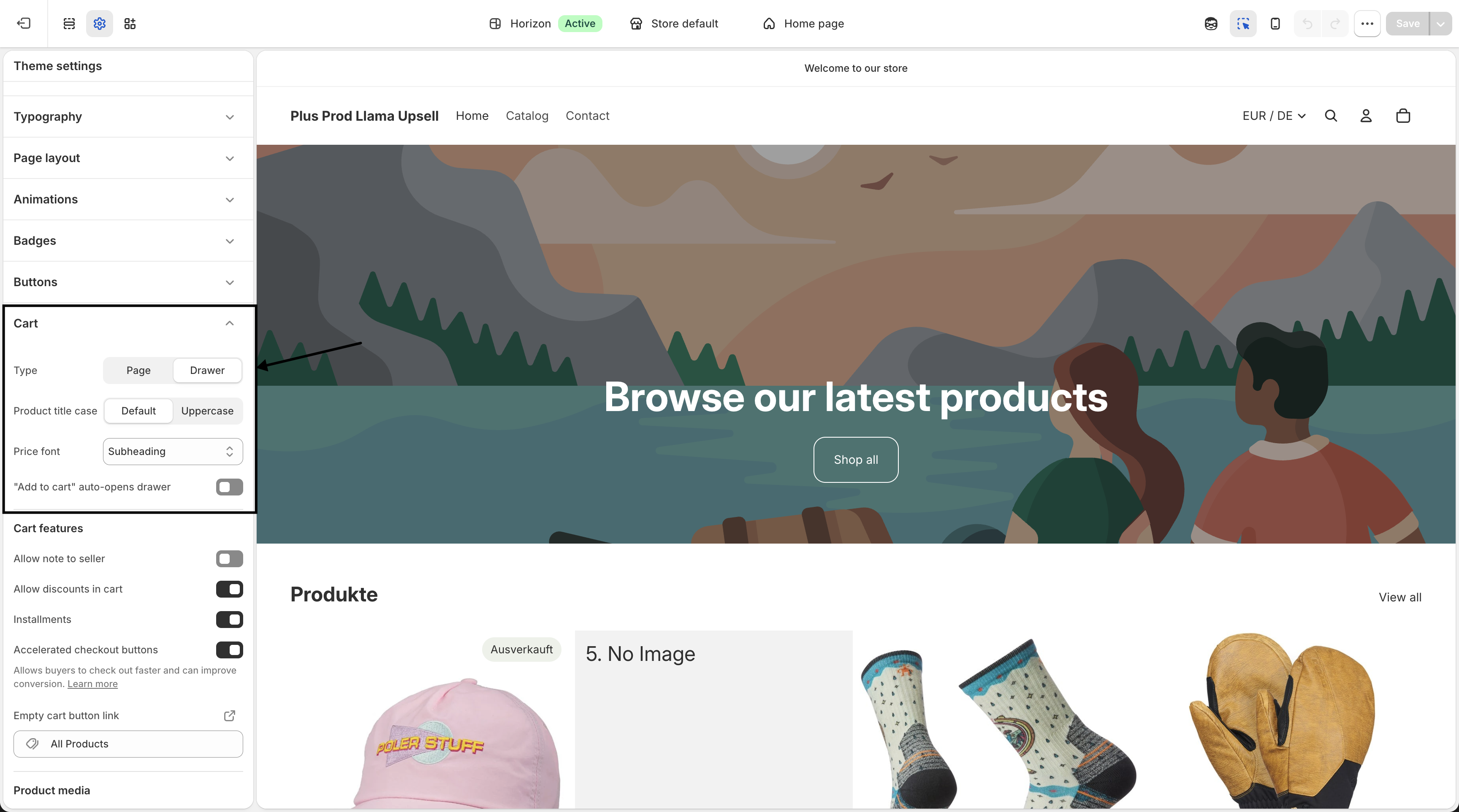
Save and test
Click Save, reload your storefront, and add a product to confirm the cart opens in place instead of loading the /cart page.
If adding a product still loads a separate page after this change, your cart type wasn't the only issue — confirm the app embed is on and the Llama Cart is active. The full diagnosis is in Page redirection issues.
Switching themes
App-level configuration is per theme. When you publish a new theme — a redesign, a fresh template, or even duplicating and republishing — none of the following carries over automatically:
- The app embed
- Your placed widget blocks (Product Recommendation, Gift with Purchase, Unlock)
- The Llama Cart cart block and its activation
- Your cart type setting
Widgets gone after a redesign? A new theme almost always means the app embed is off and your blocks are unplaced. Run this checklist on the newly published theme before anything else.
After publishing a new theme, re-do each step:
Re-enable the app embed
In the theme editor for the new theme, open App embeds, switch the LC Upsell app embed on, and Save. Without this, nothing from the app renders.
Re-place your widget blocks
Open each campaign's Setup Guide and re-connect its widget to the new theme (or to the Llama Cart). Blocks placed on the old theme don't move over.
Re-add the Llama Cart cart block
Add the Llama Cart cart block to the new theme's cart template so the app block check reports Installed.
Re-check the cart type
Confirm Theme settings > Cart > Cart type is Drawer or Pop-up notification on the new theme — a fresh theme often defaults to a cart type you didn't intend.
Cart Experience Variant mismatch
If the Llama Cart loads but your configuration is missing — the cart appears but your styling and content don't — the cause is usually the app embed's Cart Experience Variant setting.
This setting selects which cart design the app embed loads. It can be pointed at a test version (used for A/B testing) or at Disable Llama Cart. If your live, published configuration isn't showing, set it to Published.
Open the app embed settings
Go to Online Store > Themes > Customize, open App embeds, and select the LC Upsell app embed.
Set the variant to Published
Find Cart Experience Variant and set it to Published, then Save. This loads your live, published cart configuration.
For the full list of variant options — including the test versions and the Disable Llama Cart value — see App embed settings.
Quick reference
Match the symptom to the likely theme cause and its fix.
| Symptom | Likely theme cause | Fix |
|---|---|---|
| No widget blocks available in the theme editor | Theme isn't OS 2.0 (not supported) | Upgrade to an OS 2.0 theme, or contact support for manual placement |
| Setup guide shows Not installed | Supported theme, but the app block isn't in the cart template | Add the Llama Cart cart block to the cart template |
Adding a product loads a separate /cart page | Cart type is set to Page | Set cart type to Drawer or Pop-up notification |
| Widgets gone after a theme redesign | New theme — app embed off, blocks unplaced | Re-enable the app embed and re-place blocks (checklist) |
| Llama Cart opens but customizations are missing | Cart Experience Variant set to a test version or Disable | Set the variant to Published |
| Setup status doesn't reflect the block you placed | Block was placed on a demo theme, not the published one | Place the block on your published main theme |
Related
Page redirection issues
Fix Add to Cart loading a separate /cart page instead of opening the Llama Cart drawer.
Upsell widget not showing
Why a widget might not render and how to get it back, including app embed and placement.
Theme cart type & compatibility
Run the built-in 5-point Llama Cart compatibility check and resolve conflicts.
Upsells not showing in Shop Pay
Enable checkout upsell blocks so offers show in the Shop Pay flow.
App embed
What the app embed loads, how to enable it, and the Cart Experience Variant setting.