
Upsell widget not showing
Why a pre-purchase or gift-with-purchase widget might not render on your storefront, and how to get it showing again.
If you created a campaign but its widget isn't appearing on your storefront, the cause is almost always one of a handful of settings. Work through the checks below in order — they go from the most common fix to the least, so you'll usually solve it in the first step or two.
This page covers storefront widgets — the Product Recommendation slider/list and Gift with Purchase widgets that show on your store's pages and inside the Llama Cart. If your offer is missing from the Shop Pay checkout, see Upsell not showing in Shop Pay checkout instead.
Quick checklist
Before digging in, confirm all of these are true. Each one is explained in detail further down.
- The app embed is enabled in your theme.
- The campaign's widget has been placed on your storefront (or in the Llama Cart).
- The campaign status is Active.
- The campaign's conditions match the cart you're testing with.
- The campaign's targeting (markets, customer tags, schedule) includes the shopper you're testing as.
- The offer products are available and published.
1. Make sure the app embed is enabled
The app embed is the single most important setting. It's the global block that loads your campaign data onto the storefront — without it, no widget can render at all. Enable it once per theme:
Open your theme editor
In Shopify Admin, go to Online Store → Themes, then click Customize on your active theme.
Open App Embeds
In the theme editor, click App Embeds (the puzzle piece icon in the left sidebar).
Toggle Llama Upsells on
Find Llama Upsells in the list and toggle it on, then click Save.
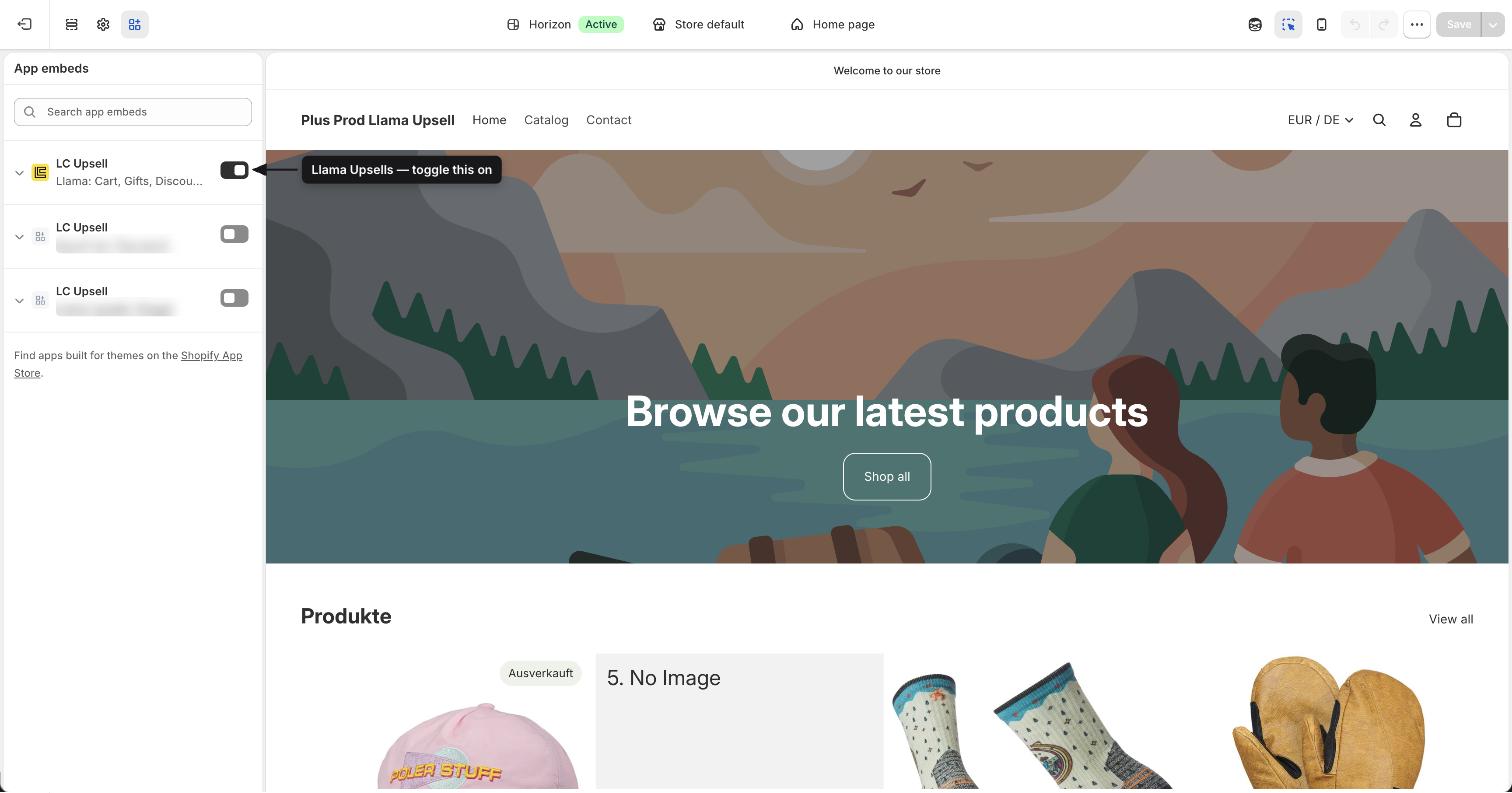
If you switched to a new theme recently, the app embed has to be enabled again on that theme — it doesn't carry over automatically.
2. Confirm the widget is placed on the page
Enabling the app embed turns the app on, but each campaign still needs to be pointed at the right spot. A campaign won't appear until you've placed its widget. In the campaign editor, use the Setup Guide button to do this — you have two options:
- Connect to Online Store — adds the widget as a block in your Shopify theme editor so it shows on a chosen page or section.
- Connect to Llama Cart — places the widget inside the Llama Cart slide-out drawer.
The Setup Guide needs to be completed for each campaign so the widget lands on the correct page. If you placed the block but still don't see it, double-check you saved the theme after adding it, and that you're viewing the same page (or section) where you placed it.
3. Check that the campaign is Active
Only Active campaigns run on your storefront. A campaign that's saved but set to Inactive is stored but never shown to shoppers.
If the campaign is inactive, open it and set its status to Active.
Each plan allows a limited number of active campaigns. If you try to activate a campaign and you've already hit your plan's limit, it's saved as Inactive instead and you'll see a notification. Deactivate a campaign you no longer need, or upgrade your plan, to free up a slot.
4. Make sure the conditions match your test cart
A campaign's widget only appears when its conditions are met. If you're testing with a cart that doesn't satisfy the rules, the widget correctly stays hidden.
Conditions can check things like:
- Specific products, tags, vendor, type, or collection in the cart
- Cart subtotal or original price thresholds
- Customer tags (for logged-in customers)
- The current page URL
- Shipping or billing country
Open the campaign and review its conditions, then set up a test cart that satisfies them. For example, if the rule is "subtotal is at least $50," add enough to the cart to cross that threshold before expecting the widget.
5. Review the campaign's targeting
Even with matching conditions, targeting filters can keep a widget from showing to a particular shopper:
- Markets — a campaign with no markets configured shows to all markets, but a campaign with an empty market list shows to no one. If you intended it for everyone, make sure markets aren't accidentally restricted to none.
- Customer tags — if the campaign is limited to customers with (or without) specific tags, it won't appear for shoppers who don't match.
- Date range — if the campaign has a start or end date, it only appears within that window.
For a full walkthrough of these filters, see Schedule, markets, and customer tags.
6. Confirm the offer products are available
A widget has nothing to display if its offer products can't be shown. Open the campaign and check the campaign health indicator — the campaign list shows a warning icon next to any active campaign that might not be working. Common issues it flags include:
- Offer products are unavailable or unpublished.
- A referenced collection no longer exists.
- A promo code used in a condition is inactive.
- No markets have been assigned.
- The campaign's scheduled window hasn't started yet, or has already ended.
Fix whatever the warning points to — for instance, publish the offer product to your Online Store sales channel, or pick a collection that still exists.
Gift with Purchase is the exception for unlisted gifts. Pre-purchase widgets can only show products that are listed and searchable on your storefront. Gift with Purchase widgets work differently: unlisted gift products render by default, even though they're hidden from search and product listings. You don't need to make a gift product listed or searchable for it to appear in the widget — publishing it to your Online Store sales channel is enough.
If your whole Gift with Purchase widget is missing, keep working through this page. But if the widget shows up and only a specific gift product is missing from it, that's a different problem — usually an unlisted gift being hidden by the Hide unlisted products setting, or an out-of-stock or unpublished gift. See Gift product not showing for the fix.
7. Re-sync the campaign
If the campaign is active, placed, and its conditions match but the widget still won't render, the campaign data may not have synced to your storefront. You can trigger a manual re-sync from the campaign list, which republishes the campaign to your store.
After re-syncing, give it a moment, then reload your storefront and check again.
8. Clear cache and test cleanly
Caching can make an old version of your page stick around. To rule it out:
- Reload the storefront page where the widget should appear.
- Test in an incognito/private window so you're seeing a fresh, uncached version.
Most "widget not showing" cases are resolved by enabling the app embed (step 1) or placing the widget (step 2). If you've worked through every step and the widget still won't appear, contact support with your store URL and a screenshot of the page where the widget is missing.
Related
Campaign not showing
Broader troubleshooting when an entire campaign isn't reaching shoppers.
Gift product not showing
A single gift is missing from a Gift with Purchase widget that otherwise renders.
Install and enable the app
Set up the app embed and connect campaigns to your storefront.
Schedule, markets & customer tags
How targeting filters decide who sees a campaign.
Shop Pay checkout
Fix an upsell that's missing from the Shop Pay checkout.
Why a Post-Purchase offer didn't appear
A Post-Purchase-specific checklist for when the after-checkout offer page is skipped, plus accept-time errors and how to test correctly.
A gift product isn't showing in the GWP widget
The Gift with Purchase widget renders, but one specific gift product is missing or the gift list looks short — find the filter or status hiding it.