
Upgrading & downgrading your plan
A step-by-step guide to changing your Llama Upsell plan and every side effect — limits, fees, auto-deactivation, and storefront sync.
Changing your Llama Upsell plan is quick, but a plan change touches more than the price on your invoice. It moves your feature limits, changes your per-order fee, and — on a downgrade — can switch some campaigns off automatically. This page walks through exactly how to change plans and what happens afterward, so there are no surprises. For a higher-level comparison of every plan, see Plans & billing.
How to change plans
Plan changes happen on the subscription page inside the app and are confirmed through Shopify's own billing approval screen — there is no separate checkout or payment method to manage.
Open the subscription page
In the app, go to the subscription page. You'll see every available plan with its price, its feature limits, and a highlight on your current plan.
Choose your new plan
Pick the plan you want to move to and select it. Upgrading and downgrading both start the same way — the app builds a new recurring charge that matches the plan you chose.
Approve the charge on Shopify
You're sent to Shopify's approval screen, where Shopify shows you the new recurring monthly charge for the plan. Review it and approve (or decline to cancel the change). Because billing runs through Shopify, the new charge appears on your normal Shopify invoice.
The change syncs back to the app
After you approve, Shopify notifies the app through the APP_SUBSCRIPTIONS_UPDATE event. The app records your new plan and recalculates your limits. Once that sync lands, your new plan is fully in effect.
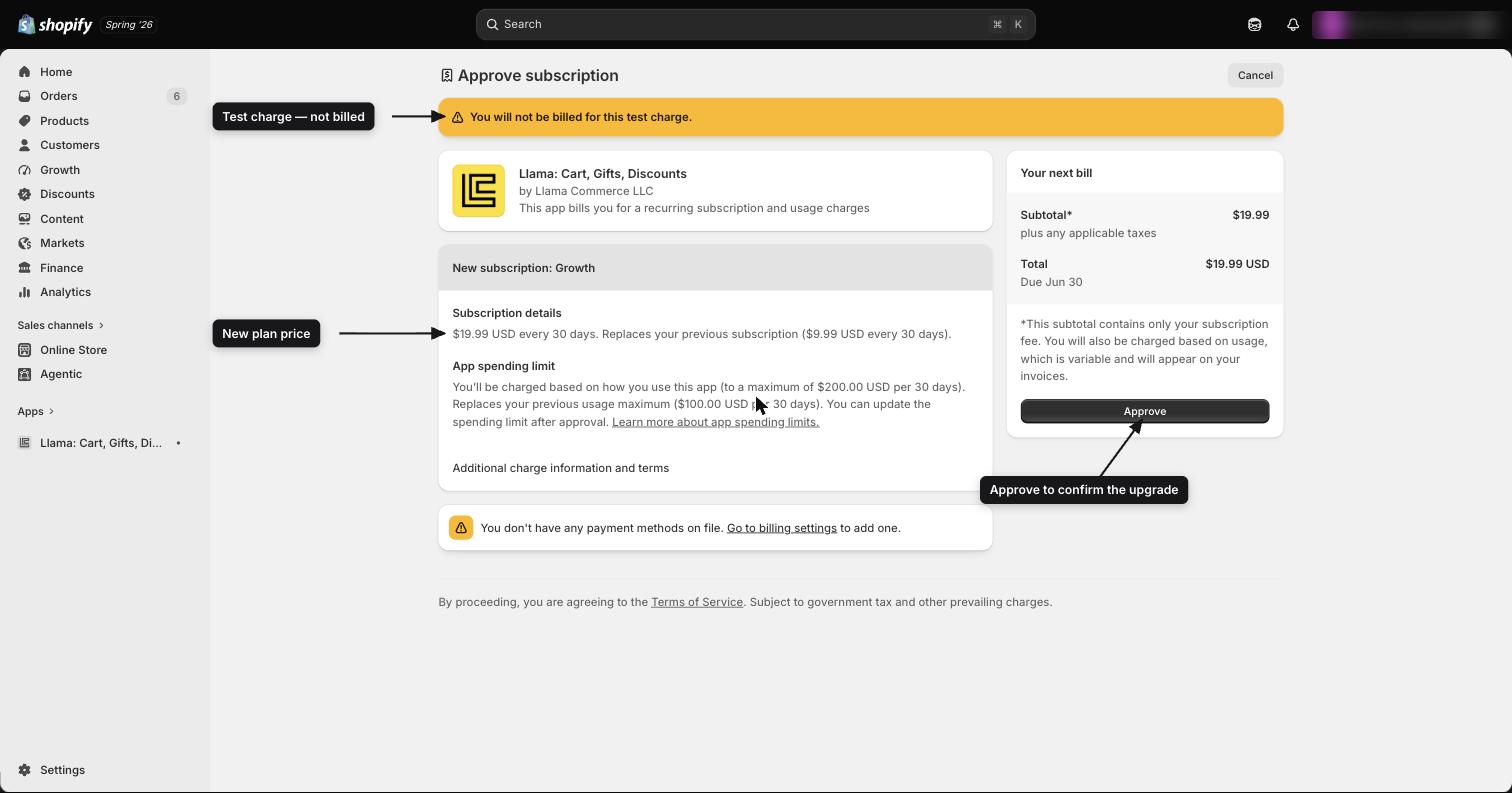
The plan becomes active only after you approve the charge and the update syncs back. If you start a change but don't approve it on Shopify, your old plan stays in place and nothing changes.
What changes when you upgrade
Upgrading is the simple direction: everything gets bigger or cheaper, and nothing is switched off. As soon as the change syncs back, all of the following take effect immediately.
| What changes | Effect of upgrading |
|---|---|
| Feature limits | All caps rise at once — more active campaigns, restrictions, product limiters, and discounts. |
| Included orders | Your monthly included-order allotment increases (for example, Growth's 2,000 to Enterprise's 25,000). |
| Per-order fee | The fee drops on every higher tier — for example, Growth's $0.015 falls to Pro's $0.01. |
| Monthly usage cap | The capped amount rises (for example, Growth's $200 to Pro's $500), so more usage can accrue before charges stop. |
Reactivating what was switched off
If campaigns (or other items) were saved as inactive because they exceeded your old plan's limits, the higher limits mean you can turn them back on right away — no need to recreate anything. Open the item and set it to active.
Because the per-order fee shrinks on higher tiers, the best plan often depends on your order volume, not just on how many campaigns you want to run. A higher plan's lower fee can offset its higher monthly price. See Plans & billing for the full fee breakdown.
Recipe: upgrade to unlock saved work
You're on Growth (10 active campaigns) and have 4 extra campaigns sitting inactive because you hit the cap. You upgrade to Pro (25 active campaigns):
- Approve the new charge on Shopify.
- Wait a moment for the change to sync.
- Open each inactive campaign and switch it to Active — you now have room for all 14, plus 11 more.
What changes when you downgrade
Downgrading lowers your limits, and the app has to bring your active items back within the new caps. This is where the important details live — read this section carefully before downgrading.
How campaign auto-deactivation works
When your new plan's campaign limit is lower than the number of campaigns you currently have active, the app automatically deactivates the newest campaigns first. It sorts your active campaigns by creation date (most recent first) and switches them off one by one until your active count fits the new limit. Your oldest campaigns are the ones that stay active.
You don't get to choose which campaigns are kept when this happens automatically — the app always keeps the oldest and switches off the most recent. If specific campaigns matter more to you, deactivate the ones you don't want first, so you're already within the new limit before you downgrade. See the safe-downgrade checklist below.
Worked example
You have 12 active campaigns and you downgrade from Growth (10 active campaigns) to Free (1 active campaign):
- The new limit is 1, so 11 campaigns must be switched off.
- The app sorts your 12 active campaigns newest-first and deactivates the 11 most recently created ones.
- The single oldest campaign stays active.
The same logic applies to any downgrade: only as many as needed are deactivated, and always the newest ones.
The important asymmetry: only campaigns auto-deactivate
This is the part merchants miss most often. Only campaigns are auto-deactivated on a downgrade. Your other features are not touched, even if you now exceed their new, lower limits.
| Feature | Auto-deactivated on downgrade? |
|---|---|
| Campaigns | Yes — newest first, down to the new limit. |
| Cart restrictions | No |
| Product limiters | No |
| Shipping discounts | No |
| Tier discounts | No |
Cart restrictions, product limiters, shipping discounts, and tier discounts stay active after a downgrade even if you're now over the new limit for that category. The app won't remove them for you — but until you manually bring each category within its new limit, you can't create any new items in that category. You must disable or delete the extras yourself before you'll be able to add new ones.
For example, if you drop from Growth (10 cart restrictions) to Starter (5), all 10 of your restrictions keep running, but you won't be able to create restriction number 11 — or even replace one — until you disable or delete enough to get back to 5 or fewer. The same applies to product limiters, shipping discounts, and tier discounts. See Validation slots & plan limits for how restriction and limiter slots are counted.
Nothing is deleted
A downgrade never deletes anything. Campaigns the app switches off are preserved exactly as they were — their triggers, conditions, offers, and design customizations all stay intact. They simply stop serving on your storefront and stop counting toward your limit. If you upgrade again later, you can reactivate them with a single switch and they pick up right where they left off.
The same is true for the restrictions, limiters, and discounts you trim by hand — disabling an item keeps it saved. Deleting one removes it permanently, so prefer disable over delete if you might want it back after a future upgrade.
Storefront sync timing (edge case)
There's one timing detail worth knowing. When the app bulk-deactivates campaigns on a downgrade, that bulk action does not, by itself, re-sync your storefront metafields. The storefront sync happens as part of the subscribe flow, so there can be a brief window where a just-deactivated campaign is still referenced on your storefront.
If a campaign that was auto-deactivated by a downgrade still appears on your storefront after a few minutes, trigger a manual sync to push the current state to your theme. See Campaign statuses, limits & health for the sync button and how to confirm a campaign is fully synced.
Billing and proration
Shopify handles proration of the recurring charge. When you change plans mid-cycle, Shopify adjusts the recurring monthly fee according to its own billing rules — you don't calculate anything yourself.
Proration applies to the recurring monthly fee. Any per-order (usage) charges already accrued during the current billing cycle still apply — changing plans doesn't refund or erase usage you've already run up this cycle. A lower per-order fee from an upgrade applies to orders going forward, not retroactively.
Changing plans during the free trial
Every new installation includes a 7-day free trial. You can change plans during the trial, and the same approval flow applies — you'll still confirm the recurring charge on Shopify's screen so the new plan is ready to bill when the trial ends. Switching plans during the trial lets you set up and test campaigns on the limits you actually intend to pay for.
Recipe: safely downgrade without losing the wrong campaigns
Because auto-deactivation always keeps your oldest campaigns and switches off the newest — and because restrictions, limiters, and discounts are never trimmed for you — the safest approach is to get everything within the new caps yourself, first, and only then change the plan.
Compare your usage to the new plan's limits
On the subscription page, note the target plan's caps for campaigns, cart restrictions, product limiters, shipping discounts, and tier discounts. Compare each against how many you currently have active.
Decide which campaigns to keep active
If you'll be over the new campaign limit, manually deactivate the campaigns you're willing to pause — including any recent ones you actually want to keep, so they don't get auto-switched-off ahead of older ones you care less about. Get your active campaign count down to the new limit.
Trim restrictions, limiters, and discounts by hand
For every other category that will exceed the new plan's cap, disable or delete the extras until each category is within its new limit. The app won't do this for you, and leaving extras in place blocks you from creating new items in that category later.
Change the plan and approve the charge
Now start the plan change on the subscription page and approve the new recurring charge on Shopify. Since you're already within every limit, the downgrade has nothing left to auto-deactivate.
Confirm the storefront synced
Give it a moment, then check that no paused campaigns still appear on your storefront. If one lingers, trigger a manual sync.
Troubleshooting
Related guides
Plans & billing
Compare every plan, its limits, and how monthly fees and per-order fees work.
Campaign statuses, limits & health
What Active and Inactive mean, plan-limit behavior, and how to run a manual sync.
Validation slots & plan limits
How cart restriction and product limiter slots are counted against your plan.
App settings
Configure cart integration, global widget styles, and checkout messages.
Free trial & subscription status
Understand the 7-day free trial, the billing lifecycle, and every subscription status you can see in Llama Upsell.
Plan comparison: limits, prices & per-order fees
A complete side-by-side reference for the current Llama Upsell plans — prices, included orders, per-order fees, usage caps, and every feature limit.