
App settings
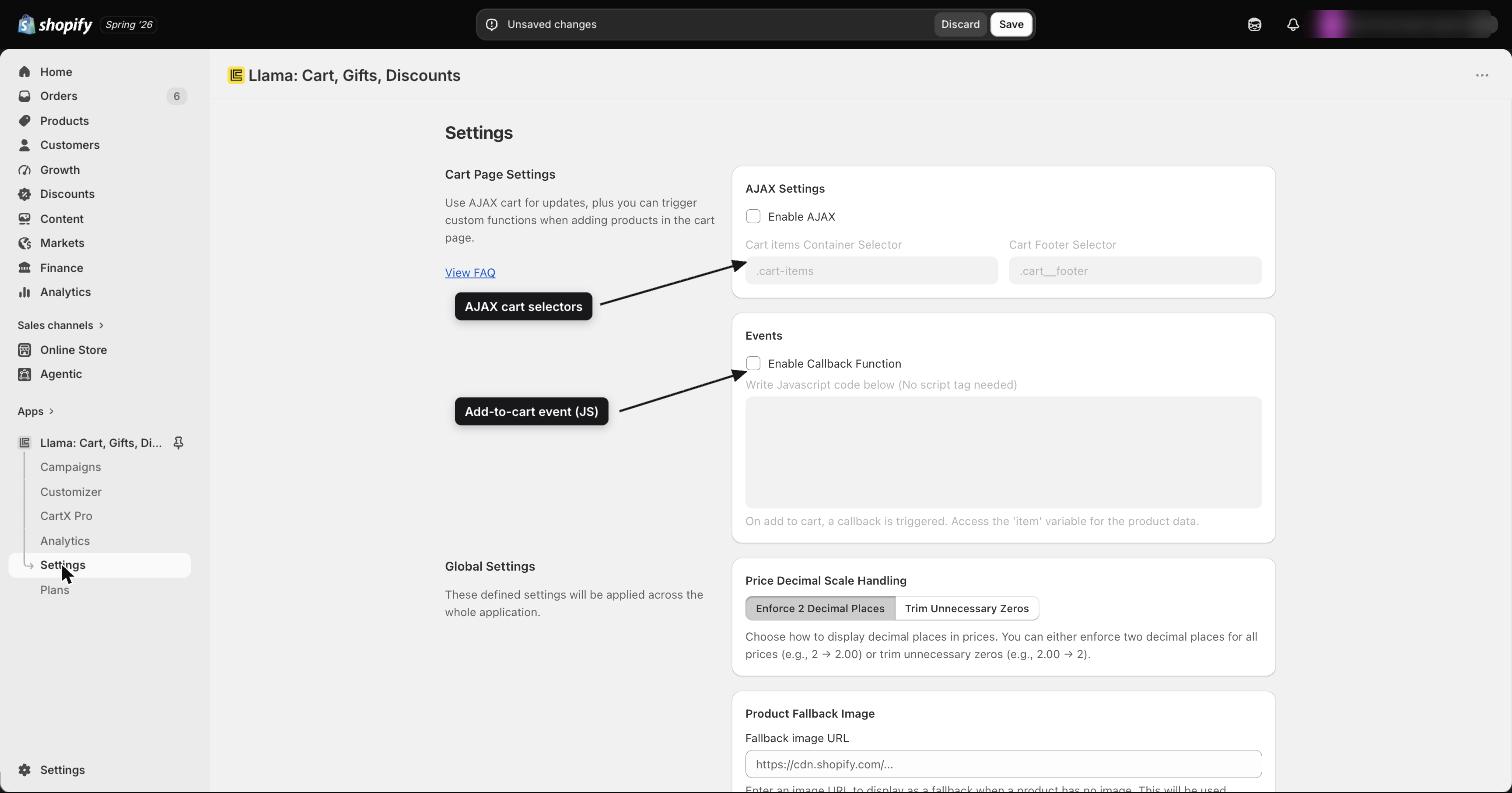
The app's Settings page and what each section controls, including global price formatting, a store-wide error message, and a global CSS editor.
The app's Settings page is where you configure how the app behaves across your entire store — not on a single campaign, but everywhere at once. This guide gives you the full picture of the page and focuses on the global, app-level settings. For the cart-page and checkout-message specifics, it links across to the dedicated cart & checkout guide.
Open your settings
Go to Settings in the sidebar. The page is organized into five sections that move from the most theme-specific (your cart page) to the most store-wide (global styles):
- Cart page — how the app works with your theme's cart page.
- Global — store-wide price formatting.
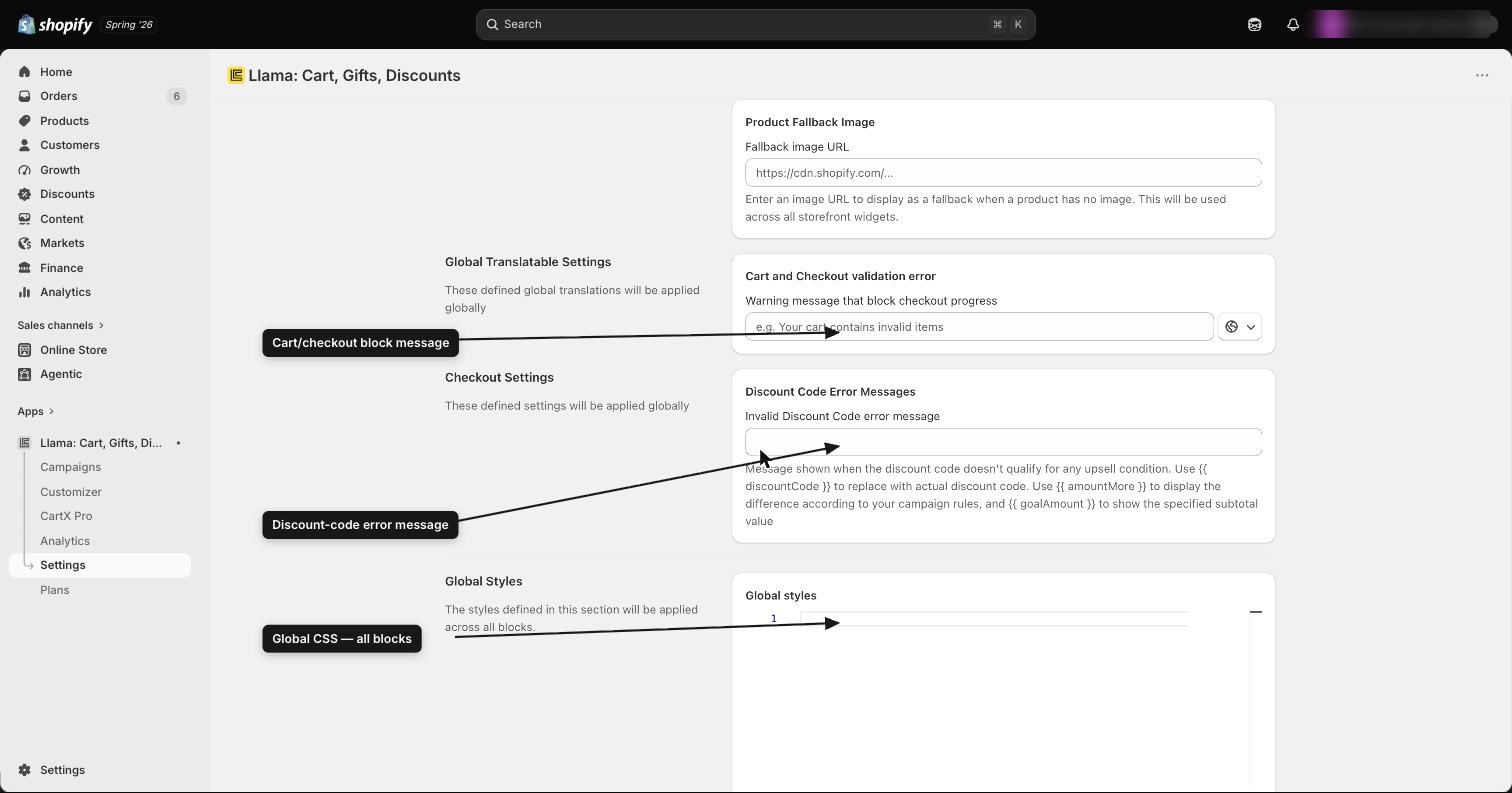
- Global translatable — a fallback error message you can translate per locale (one of only two app-level translatable messages).
- Checkout — the message shown for an invalid discount code at checkout (the second app-level translatable message).
- Global styles — a CSS editor applied across every app widget and block.
Changes don't take effect until you click Save in the sticky save bar at the top of the page. This applies to every section, including the CSS editor. If you leave without saving, your edits are lost.
Global settings
Global settings apply across every app widget and block, so they're the fastest way to make your store feel consistent everywhere the app appears.
Price decimal scale
Price Decimal Scale controls how prices are displayed everywhere the app shows them. Pick the style that matches the rest of your store:
- Enforce 2 Decimal Places always shows two digits — for example,
2becomes2.00. - Trim Unnecessary Zeros removes trailing zeros — for example,
2.00becomes2.
Because this is a global setting, your choice applies to every campaign widget, every Llama Cart block, and anywhere else the app prints a price.
Global translatable settings
This section holds a single message that you can translate for each of your shop's locales.
Set the Warning message that blocks checkout progress — the fallback error message a customer sees when a cart restriction or checkout validation stops them from continuing. Because it supports multiple locales, you can write a different version of this message for each language your store sells in, and the customer sees the version that matches their language.
This is the global fallback. An individual cart restriction can also carry its own error message — see Cart restrictions for how restriction-level messages work.
Translatable settings vs Translate & Adapt
It's easy to mix up the two kinds of "translation" that touch this app, because they live in completely different places. Knowing which is which saves you a lot of confusion when a string isn't showing up in the right language.
There are exactly two messages you translate inside the app itself, by typing a separate version for each of your shop's locales:
- The Global translatable warning message above (the fallback that blocks checkout progress).
- The Invalid Discount Code message in the Checkout section, shown when a discount code doesn't qualify for any upsell.
Both of these are short, app-level system messages. You edit each locale's text directly on the Settings page, and the customer sees the version that matches their language.
Everything else your shoppers read — Llama Cart drawer text, campaign widget titles and labels, gift-with-purchase wording, post-purchase copy, and other storefront strings — is not edited on the Settings page. That text is localized through Shopify's Translate & Adapt app, where the app syncs its translatable content as metafields for you to translate per language and per market. You never type those translations into Llama Upsells.
| What you're translating | Where you edit it | Scope |
|---|---|---|
| Global translatable warning message | Settings → Global translatable, per locale | App-level checkout-blocking message |
| Invalid Discount Code message | Settings → Checkout, per locale | App-level checkout discount error |
| Storefront widget & cart text | Shopify Translate & Adapt (metafields) | Every shopper-facing string in widgets, Llama Cart, GWP, post-purchase, checkout |
If a storefront label, cart string, or widget title is showing in the wrong language, editing the Settings page won't fix it — those two boxes only control the two app-level messages above. Storefront text is fixed in Translate & Adapt. Likewise, translating the warning or discount message inside Translate & Adapt won't help — those two are edited per locale here on the Settings page.
Translate widget & cart text per locale and market
Localize every shopper-facing string — Llama Cart, widgets, GWP, post-purchase, checkout — with Translate & Adapt, per language and per market.
Global styles (CSS editor)
The Global Styles section is a full CSS editor — a VS Code-style editor with syntax errors highlighted in red as you type. Any CSS you write here is applied globally across every app block and widget.
Reach for this when you want custom styling to apply across your entire store — all campaign widgets, Llama Cart blocks, and checkout elements — rather than styling each one individually.
/* Example: make every app "Add to cart" button match your brand */
.lcu__button {
  background-color: #1a1a1a;
  border-radius: 8px;
}
Remember to click Save after editing the CSS, just like every other section. Unsaved changes won't apply to your storefront.
Syntax errors are highlighted, but they don't block Save
The red highlighting is a hint, not a gate. The editor marks syntax errors in red as you type, but those red marks do not stop you from saving — the app saves whatever you typed, broken rule and all.
On the storefront, invalid CSS is simply ignored. The browser drops the broken declaration with no error message for the shopper, so a rule with a typo just silently has no effect. If a style "isn't applying" and the rest of your CSS works, look for a syntax error — a missing ;, an unbalanced { or }, or a misspelled property — in or just before that rule.
A red highlight is your only warning. Because Save always succeeds, get into the habit of scanning for red before you save, then checking the storefront to confirm the rule landed.
Custom CSS
The two places to write CSS, how widget style isolation shapes your selectors, and copy-paste recipes — plus why invalid CSS is silently ignored.
Cart page and checkout settings
The remaining two sections are specific to your theme's cart page and to checkout messaging, and they're documented in full on the cart & checkout settings page:
- Cart page — turn on AJAX cart updates, point the app at your theme's cart selectors, and run a custom callback when a product is added to the cart.
- Checkout — set the Invalid Discount Code error message shown when a code doesn't qualify for any upsell, including the template variables you can use to personalize it. As noted under Translatable settings vs Translate & Adapt, this message is one of the two strings you translate per locale inside the app.
Cart & checkout settings
Configure AJAX cart behavior, theme selectors, the add-to-cart callback, and checkout error messages in detail.
App embed must be on before Llama Cart can be enabled
The Llama Cart drawer has a hard dependency that trips up a lot of merchants: the app embed must be turned on in your Shopify theme first. Until the embed is active, the Llama Cart toggle stays disabled and you'll see a Llama Cart Activation Required banner — you simply can't switch the cart on.
Turn on the app embed in your theme
In your Shopify admin, open the theme editor for your published theme and enable the Llama Upsells app embed block, then save. The app checks your theme's settings to confirm the embed is active.
Toggle Llama Cart on
With the embed active, switch Llama Cart ON from the Customizer page. The toggle is locked until the embed is enabled, so complete the first step before you try this one.
If the Llama Cart toggle is greyed out, the app embed isn't on yet. Turn the embed on in the theme editor first — toggling Llama Cart is impossible while the embed is off, and the Llama Cart Activation Required banner is the app telling you exactly that.
Llama Cart versions & customization
Turn on the app embed, enable Llama Cart, run A/B/C version tests, and style the cart per market.
Key takeaways
- Open everything from Settings in the sidebar, and click Save in the sticky bar to apply changes.
- Price Decimal Scale sets how prices look everywhere the app shows them.
- Only two messages are translated per locale inside the app — the Global translatable warning and the Checkout Invalid Discount Code message. All storefront widget and cart text is translated in Shopify's Translate & Adapt app instead.
- The Llama Cart can't be toggled on until the app embed is enabled in your theme; a Llama Cart Activation Required banner means the embed is still off.
- Global Styles lets you apply custom CSS across all app widgets and blocks at once. Syntax errors show in red but don't block Save, and invalid CSS is silently ignored on the storefront.
- Cart-page and checkout-message settings live in the same page but are documented on the cart & checkout guide.
Related
Cart & checkout settings
The cart page and checkout sections of the Settings page, in detail.
Translate widget & cart text
Localize storefront strings with Translate & Adapt, per language and market.
Custom CSS
Both CSS surfaces, selectors, recipes, and why invalid CSS is silently ignored.
Llama Cart versions & customization
Enable the app embed and Llama Cart, then run version tests and per-market styling.
Cart restrictions
Block or warn customers at checkout when their cart breaks a rule you set.
Widgets and Llama Cart
Customize the Llama Cart drawer and widgets that your global styles apply to.