
Translate widget & cart text per locale and market
Localize every shopper-facing Llama Upsells string — Llama Cart, widgets, GWP, post-purchase, checkout — per language and per market with Translate & Adapt.
Every piece of text your shoppers see from Llama Upsells ships in English and is localized through Shopify's Translate & Adapt app — you never edit the app itself. This is the hands-on, "how do I actually do it" walkthrough, including the per-market decisions that catch most merchants out. For the exhaustive list of every translatable key, see the Translating content developer reference; this guide is about the workflow.
What gets translated and how
All shopper-facing app text — Llama Cart labels, storefront widget copy, gift-with-purchase progress messages, post-purchase copy, and checkout upsell labels — is written in English by default. To present it in another language, you translate the storefront strings through Shopify's translation layer rather than changing anything inside Llama Upsells.
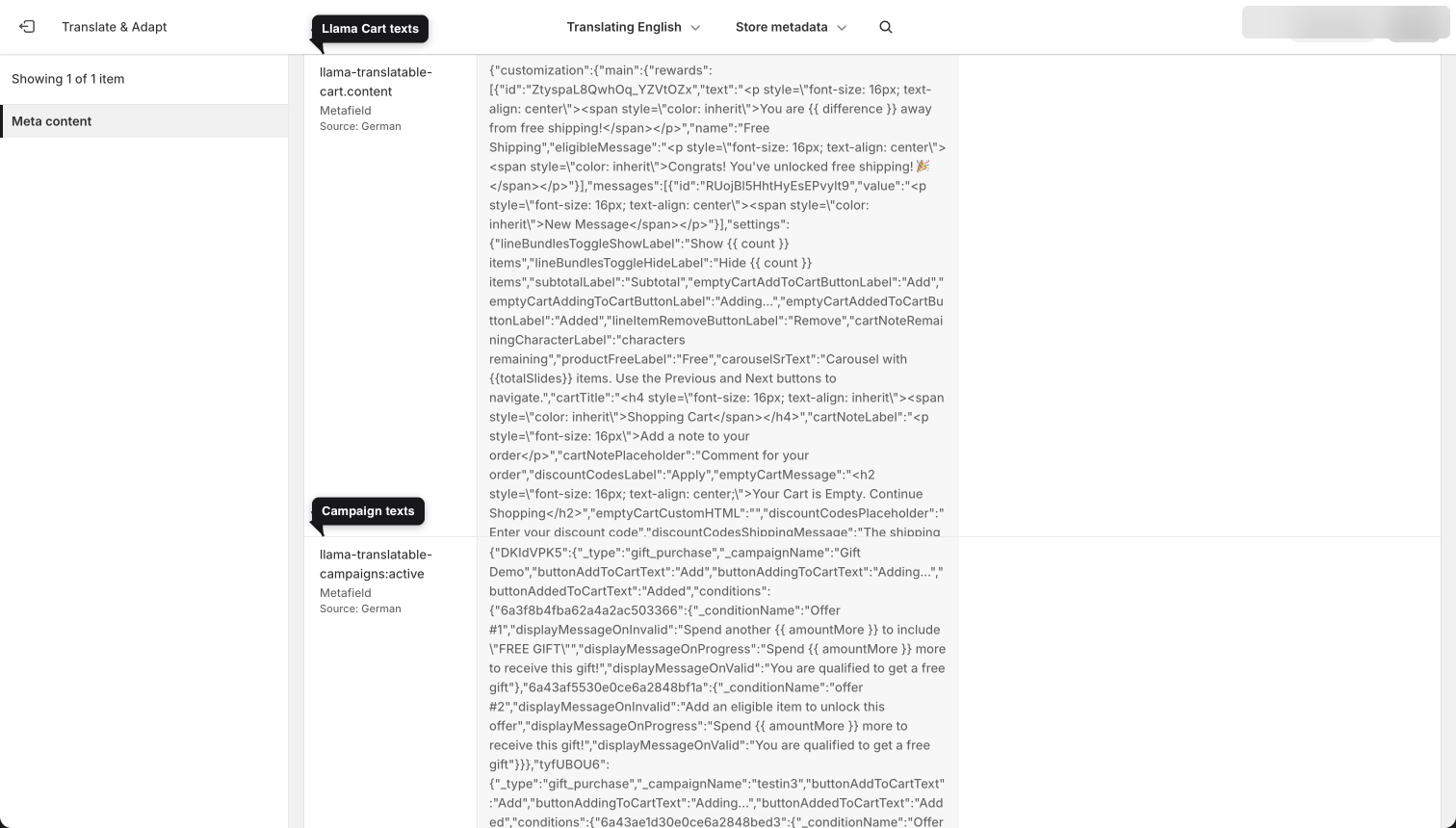
Llama Upsells does this by exposing two store metafields under Store metadata in Translate & Adapt. Both hold their content as JSON:
| Metafield | Holds | Translates |
|---|---|---|
llama-translatable-cart.content | Llama Cart JSON | The Llama Cart drawer (title, labels, discount-code messages, empty cart, rewards, custom blocks) |
llama-translatable-campaigns.active | Online Store widgets JSON | Storefront widgets, gift-with-purchase, post-purchase, and checkout upsell text |
You don't assemble this JSON by hand. When you save the Customizer, Llama Cart auto-aggregates every translatable string across all three Llama Cart versions and across all your markets into llama-translatable-cart.content, and campaign widget text into llama-translatable-campaigns.active. Your job is to translate the values that are already there.
Each translatable string lives under a named key (for example cartTitle or buttonAddToCartText). You translate the value and leave the key untouched.
Prerequisites
Install Translate & Adapt
Install the Translate & Adapt app from the Shopify App Store. This is Shopify's own translation app and the only place you localize Llama Upsells text.
Add your target languages
In Translate & Adapt, add the languages you want to sell in so they're available to translate into. A language must exist here before you can localize any strings against it.
Save the Customizer at least once
Open the Llama Cart Customizer (and any campaign you want localized) and save it. Saving is what populates the two metafields with the current English source strings — without a save there may be nothing to copy.
Step-by-step: translate the Llama metafields
Open Translate & Adapt and pick the language you want to localize.
Choose a language
Under Localized content, choose a language — for example, French.
Open Store metadata
Scroll to the Store metadata section. This is where store-level metafields, including the two Llama Upsells metafields, appear.
Find the two Llama metafields
Locate the metafield for the area you want to translate:
llama-translatable-cart.content— the Llama Cart drawerllama-translatable-campaigns.active— Online Store widgets, GWP, post-purchase, and checkout upsells
Copy the source JSON
Copy the full English content of the metafield. The accepted format is JSON, so copy the whole blob — braces, brackets, and all.
Translate values only
Translate each string value into your target language. Use the keys (such as cartNotePlaceholder, discountCodesLabel, or productFreeLabel) only to identify which piece of text you're translating. Never change a key.
Paste under the target language
Paste the translated JSON into the region under the language you're translating into, then save in Translate & Adapt.
Translate Across Markets vs Adapt for a specific Market
Before you paste a translation, Translate & Adapt asks you to pick a scope. This is the most important per-market decision, and it determines where your wording shows up.
| Option | What it does | Use it when |
|---|---|---|
| Translate Across Markets | Applies one translation everywhere that language is used, in every market. | You want the same French (or German, etc.) copy in every region that speaks it. |
| Adapt for a specific Market | Overrides the wording for a single market only, on top of the across-markets translation. | You want different copy for one region — for example a different promo wording for the EU vs the US, or fr-CA vs fr-FR phrasing. |
You can set up both: a base "Translate Across Markets" version that covers everyone, plus market-specific adaptations only where you need them.
Text-per-market and styling-per-market are two separate steps. The Translate & Adapt scope above controls the wording shoppers read. The Llama Cart's own appearance per market (colors, layout) is set on the Customizer's market selector — see Versions and per-market styling. Adapting the wording for fr-CA does not change how the cart looks in that market, and vice versa.
Recipe: same language, different promo wording per region
You sell to both the US and the EU in English and want a different free-gift line for each:
Set the base translation
For English, choose Translate Across Markets and translate displayMessageOnProgress to your default wording — for example "Spend more to unlock your free gift!"
Adapt the EU market
Switch the scope to Adapt for a specific Market, pick your EU market, and override only displayMessageOnProgress with the EU-specific line. Every other string still falls back to the across-markets version.
Rules that prevent breakage
The JSON is read at render time, so a malformed blob or a missing key can break how the storefront draws the cart or a widget. Follow these rules every time.
Translate values only — never keys. Renaming or deleting a key (for example changing cartTitle to titreDuPanier) removes the string Llama Upsells looks up, which can break storefront rendering for that area. Keep every key exactly as it appears in the source.
- Keep the JSON structure intact. Don't remove braces, brackets, or commas, and don't drop entries. Translate the values inside the existing structure.
- Preserve placeholders and variables. Strings such as
timerMessagecontain a{timer}placeholder, and others use Liquid-style tokens like{{ percentage }}. These are substituted at render time — translate the surrounding words but leave the token verbatim. - Preserve escaped quotes. Values like the free-gift message contain escaped quotes —
Spend another to include \"FREE GIFT\". Keep the backslash-escaped quotes exactly so the JSON stays valid. - Preserve HTML. The empty-cart custom block (
emptyCartCustomHTML) and rich-text/custom HTML blocks contain markup. Translate the visible text only and leave tags, attributes, and structure unchanged.
What's where — a quick orientation
This is an orientation map, not the full dictionary. For every key and its default English value, see the Translating content reference.
| Area | Metafield | Representative strings |
|---|---|---|
| Llama Cart drawer | llama-translatable-cart.content | cartTitle, subtotalLabel, checkoutButtonLabel, the discount-code messages (invalidDiscountCodeMessage, alreadyAppliedDiscountCodeMessage, limitReachedDiscountCodeMessage), empty cart (emptyCartMessage, emptyCartCustomHTML), reward eligibleMessage, and your rich-text / custom HTML blocks |
| Storefront widgets | llama-translatable-campaigns.active | title, button states (buttonAddToCartText, buttonAddingToCartText, buttonAddedToCartText), selectOptionsLabel, quickViewLabel |
| Gift with purchase | llama-translatable-campaigns.active | displayMessageOnProgress, displayMessageOnValid, displayMessageOnInvalid |
| Post-purchase | llama-translatable-campaigns.active | mainTitle, mainDescription, downsellTitle, downsellDescription, buyButtonText, skipButtonText, timerMessage |
| Checkout upsells | llama-translatable-campaigns.active | title, buttonAddToCartText, buttonAddedToCartText, selectOptionsLabel, removeButtonText |
The non-metafield fallback messages
A couple of checkout-related messages are not in these two metafields. They live in the app's own Settings page and are translated there, per locale:
| Message | Where to set it | Notes |
|---|---|---|
| Warning message that blocks checkout progress | Settings → Global translatable section | The store-wide fallback error shown when a cart restriction or checkout validation stops a shopper. You can write a different version for each locale your store sells in. |
| Invalid Discount Code error message | Settings → Checkout section | The message shown when a discount code doesn't qualify for any upsell. Supports template variables. |
See App settings and Cart & checkout settings for how these two work. Translate them in the app, not in Translate & Adapt.
Edge and complex cases
Verify your translations
Publish and switch context
Make sure the language is published in Translate & Adapt and the market is active. Then switch your storefront's language and market — for example via the store's language/country selector — to the locale you translated.
Check the cart
Open the Llama Cart and confirm the title, subtotal label, button labels, discount-code messages, and any reward or empty-cart text are localized.
Check the widgets and GWP
Open a page with a widget and a gift-with-purchase offer and confirm the headline, button states, and the progress / valid / invalid messages read in the target language.
Check the checkout flow
Trigger a checkout upsell and, if relevant, a blocked-checkout warning or an invalid discount code, and confirm those strings are localized too. Remember the warning and invalid-code messages come from the app's Settings, not the metafields.
Translating content (reference)
The complete dictionary of every translatable key and its default English value.
Versions and per-market styling
Style the Llama Cart per market — separate from translating its text.
App settings
Set and translate the global checkout-blocking warning message per locale.
Cart & checkout settings
Configure the invalid discount code message shown at checkout.
Install, reinstall, uninstall & your data
What happens to billing, campaigns, and your data when you install, uninstall, or reinstall the app — and what to do to come back.
Analytics overview
See how much revenue your campaigns generate — sales, sold offers, conversion rate, and the orders your offers helped create.