
Theme cart type & compatibility
Set your theme cart type to Drawer or Pop-up, run the built-in 5-point compatibility check, and fix conflicts so Llama Cart opens reliably.
Llama Cart is a slide-out drawer that takes the place of your theme's built-in cart. For it to open instead of your theme's old cart, two things have to line up: your theme's cart type must be a drawer-style cart (not a full cart page), and no other app or custom code can be fighting it for control of the cart. This guide explains why the cart type matters, walks you through the built-in compatibility check, and gives you a fix for every failure.
This page is the troubleshooting companion to Llama Cart versions & customization, which covers enabling and styling the cart. Start there if you haven't turned the cart on yet.
Why cart type matters
Llama Cart replaces your theme's slide-out cart. When a shopper clicks the cart icon or adds a product, Llama Cart needs to intercept that action and open the drawer. Most modern themes expose a setting called Cart type that decides what happens when an item is added to the cart:
| Cart type | What the theme does | Works with Llama Cart? |
|---|---|---|
| Drawer | Slides a cart panel in from the side | Yes — Llama Cart opens in its place |
| Pop-up / Pop-notification | Shows a small cart pop-up overlay | Yes — Llama Cart opens in its place |
| Page | Sends the shopper to the full /cart page | No — the storefront redirects to /cart instead of opening the drawer |
If your cart type is set to Page, adding a product navigates the shopper away to the /cart page and the drawer never opens. That is the single most common reason "adding a product doesn't open Llama Cart."
Set your cart type to Drawer or Pop-up (sometimes labeled "Pop-notification"), never Page. With Page, the storefront redirects to /cart instead of opening Llama Cart, and the drawer appears to be broken even though it is enabled correctly.
Where to change it
Open your theme editor
In Shopify admin go to Online Store > Themes, find your live theme, and click Customize.
Find the cart setting
Open Theme settings (the gear icon at the bottom of the left sidebar), then open the Cart section and look for Cart type.
Choose Drawer or Pop-up
Select Drawer or Pop-up / Pop-notification. Do not select Page.
Save
Click Save to apply the change, then reload your storefront and test.
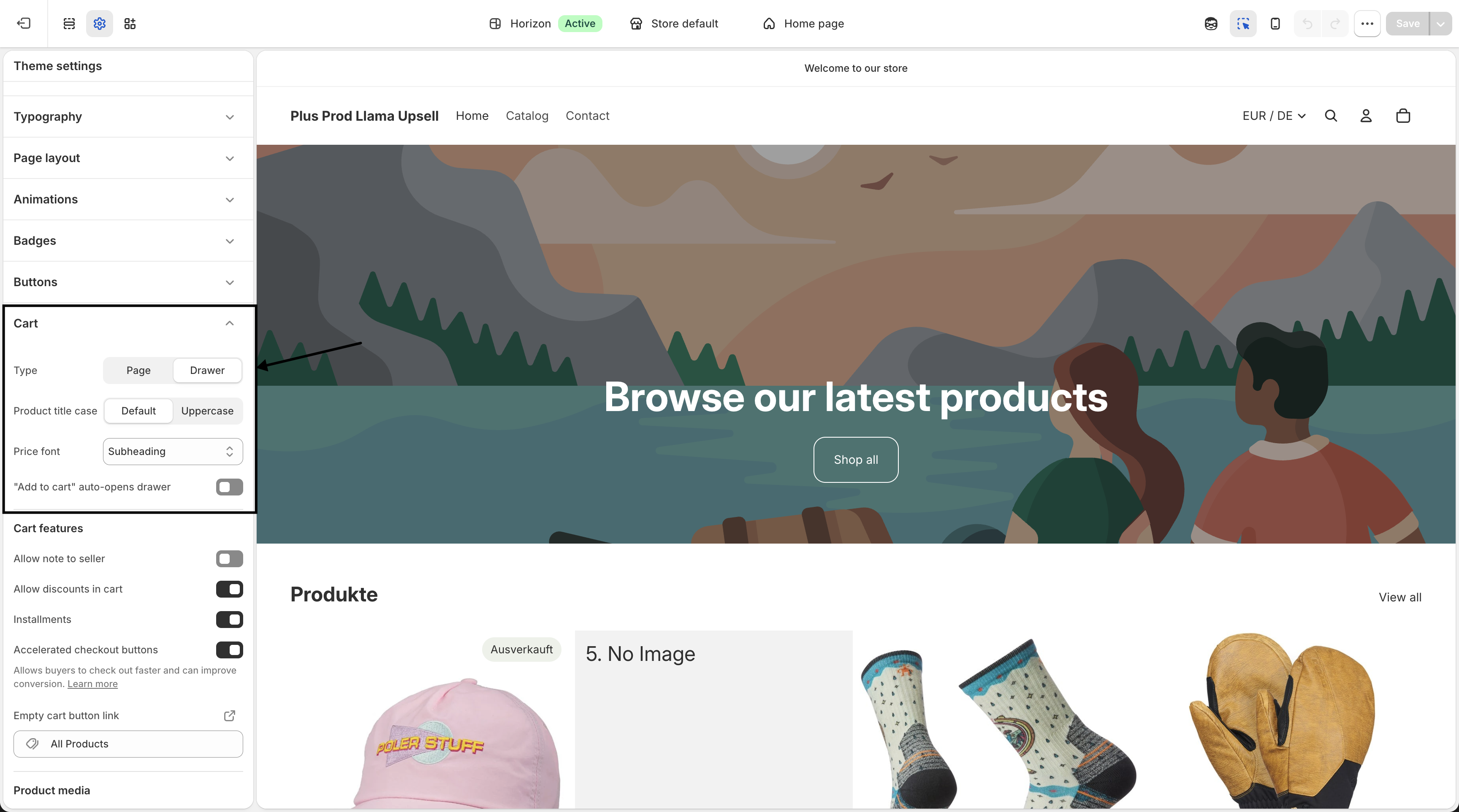
We recommend the Drawer or Pop-up cart type for Llama Cart on both new (Online Store 2.0) and older (vintage) themes. Where to find the exact setting can differ slightly by theme — see the recipe for Dawn and Horizon below.
Two-step enable recap
Before any compatibility testing, the cart has to be live. Enabling Llama Cart takes two steps, covered in full on the versions & customization page:
- Turn on the app embed in the theme editor — under App embeds, enable LC Upsell and click Save.
- Toggle Llama Cart on from the Customizer page. The toggle stays disabled until the embed is active.
You can confirm the cart's state from the Published cart section in the app:
| Status | Meaning |
|---|---|
Inactive | Cart is disabled |
Live | Cart is enabled |
The app embed and the cart type are two separate switches. The embed makes the cart's code available to your theme; the cart type decides whether the theme lets the drawer open at all. You need both correct — an enabled cart with a Page cart type will still redirect to /cart.
Preview mode
Before publishing changes to live shoppers, test the cart in preview mode. Preview mode renders Llama Cart on your storefront for you only, without affecting what live shoppers see, so you can run the checklist below safely.
Open preview mode by adding the preview query parameter to your shop domain:
https://your-store.myshopify.com/?llama-cart-preview-mode=1The app also surfaces a ready-made Preview link and an Open preview mode button in the compatibility step, so you don't have to build the URL by hand. Open that link on both desktop and a real mobile device while you work through the checklist.
Preview mode is the right way to verify a fix without going live. Make your cart-type and app changes, open the preview link, confirm every checklist item passes, and only then publish.
The 5-point compatibility checklist
The app's in-product guide asks you to answer Yes or No to five questions while testing in preview mode. You must answer all five before the step is marked complete. Each one targets a specific failure mode; the recommended fix is listed with each.
1. Clicking the cart icon opens Llama Cart
Click the cart icon in your storefront header. Llama Cart should open and close as expected.
If No: Make sure no other cart-drawer app is active, since a second drawer app can intercept the click before Llama Cart does. If no other app is the cause, check your theme code for conflicts.
2. Adding a product opens Llama Cart without redirecting to the cart page
Add any product to the cart. Llama Cart should open in place — the shopper should not be sent to the /cart page.
If No: Your theme's cart type is almost certainly set to Page. Change it to Drawer or Pop-up (see above), then re-test. If it still redirects, confirm compatibility with third-party apps, especially steps 4 and 5 below.
3. Only Llama Cart opens — the native or other drawer is not also triggered
Add a product and watch closely. Exactly one drawer should appear. If you see Llama Cart and your theme's old drawer (or another app's drawer) open together, that's a conflict.
If No: Another cart drawer is being triggered alongside Llama Cart. Disable other cart-drawer apps and re-test. This "double drawer" symptom is almost always a second app or theme code still listening for add-to-cart events.
4. The Checkout button proceeds to checkout
Open Llama Cart and click Checkout. It should take the shopper to the Shopify checkout.
If No: Themes with a custom checkout flow can break this button. Temporarily disable third-party apps to isolate the cause, then test again with each one re-enabled. Custom-checkout themes are the usual culprit.
5. Works on mobile
Open the preview link on a real mobile device and repeat the tests above. Llama Cart should open, close, and check out on mobile just as it does on desktop.
If No: Mobile issues are hard to reproduce remotely. Contact Llama Cart support with specific details — a screen recording of the problem on the device is highly appreciated and speeds up diagnosis.
Answering No to any item in the app reveals a Recommended solutions panel with the matching fix. The sections below expand on those fixes.
Recommended solutions per failure
This table maps each checklist failure to the fix the app recommends, so you can jump straight to the right action.
| Checklist item that failed | Recommended solution |
|---|---|
| 1. Cart icon doesn't open Llama Cart | Ensure no other cart-drawer apps are active; check your theme code for conflicts |
| 2. Adding a product redirects to the cart page | Set cart type to Drawer or Pop-up (not Page); confirm third-party app compatibility (esp. items 4 and 5) |
| 3. A native or extra drawer is also triggered | Temporarily disable other apps that override default cart behavior to isolate the conflict |
| 4. Checkout button doesn't proceed | Temporarily disable third-party apps to test; custom-checkout themes commonly break this button |
| 3 & 4 (drawer not opening at all) | Make sure your theme or app is listening for the correct cart events (for example, cart:updated); check the browser console for JavaScript errors |
| 5. Mobile issues | Contact support with details and a screen recording |
A few notes on these fixes:
- Conflicting cart-drawer apps. Any other app that also renders a slide-out cart competes for the same click and add-to-cart events. Keep only one cart-drawer app active.
- Theme code issues. Heavily customized or older themes can include hard-coded cart behavior that intercepts events before Llama Cart sees them.
- Cart type must be drawer or pop-up, not page. This is the fix for the redirect-to-
/cartsymptom. - Third-party apps overriding cart behavior. Disable them one at a time to find which one is responsible, paying special attention to checkout and mobile behavior.
- Listening for the correct cart events. The drawer relies on standard cart events such as
cart:updated. Themes or apps that use non-standard add-to-cart handlers may never fire the event Llama Cart waits for. - Console JavaScript errors. Open your browser's developer console on the storefront. A script error elsewhere on the page can stop the drawer from opening.
- Mobile reports need a recording. Because mobile behavior depends on the device, browser, and theme, support needs a screen recording to reproduce and fix it.
Third-party conflicts
Most compatibility problems come from another app or a piece of custom code competing with Llama Cart for control of the cart. The usual suspects:
- Multiple cart-drawer apps — two slide-out carts both trying to open (causes the "double drawer" in checklist item 3).
- Custom add-to-cart handlers — theme scripts or apps that hijack the add-to-cart action and don't emit the standard cart events.
- Sticky-cart apps — persistent floating cart bars that re-open their own drawer.
How to isolate by disabling one at a time
List your cart-related apps
Note every installed app that touches the cart: cart drawers, sticky carts, quick-view or "buy now" apps, and bundle or subscription apps.
Disable one app and test
Turn off a single app, then open the preview link and re-run the five checklist items. Change only one thing at a time so you know which app caused any change.
Found the conflict?
If the checklist passes after disabling an app, that app is the conflict. Decide whether to keep it disabled, or contact that app's support (and Llama support) about coexisting.
Re-enable and repeat
If nothing changed, re-enable the app and move on to the next one. Repeat until every checklist item passes.
Disable one app at a time and re-test after each change. Turning several off at once tells you the conflict is gone but not which app caused it — and you'll have to start over to find out.
Edge cases
Example recipes
Recipe A: switch a Dawn or Horizon theme from page to drawer
Open Theme settings
Go to Online Store > Themes, click Customize on your Dawn or Horizon theme, then open Theme settings > Cart.
Change the cart type
Set Cart type from Page to Drawer (or Pop-up / Pop-notification).
Save and test
Click Save, open your store with the preview link, add a product, and confirm Llama Cart slides in instead of loading the /cart page.
Recipe B: diagnose "adding a product redirects to /cart"
Check the cart type first
This is almost always a Page cart type. Set it to Drawer or Pop-up and re-test before anything else.
Confirm the cart is live
Make sure the app embed is on and the Published cart status reads Live, not Inactive.
Rule out apps
If it still redirects, a third-party app may be overriding cart behavior. Disable other cart apps one at a time and re-test, focusing on the checkout and mobile checks.
Recipe C: isolate a conflicting cart app
Reproduce the symptom
Open the preview link and confirm the failure — for example, two drawers opening at once, or the checkout button not working.
Disable one cart app
Turn off a single cart-drawer, sticky-cart, or quick-view app.
Re-run the checklist
Re-test all five items. If they pass, you found the conflict. If not, re-enable that app and try the next one.
Troubleshooting quick reference
A/B test the Llama Cart with Rollouts
Run a real split test of two Llama Cart designs by pinning cart versions to different themes and splitting live traffic with Shopify Rollouts.
Customizing widget appearance
Use the visual customizer to set colors, layout, text, and button labels for your upsell and gift-with-purchase widgets — no code required.