
Product Recommendations (Pre-Purchase)
Create and configure a pre-purchase Product Recommendations campaign to show product offers on your storefront.
A Product Recommendations campaign (also called a Pre-Purchase campaign) shows a product offer widget on your storefront while customers are still shopping. When their cart matches the conditions you set, the widget appears and invites them to add more to their order.
What it does
A Product Recommendations campaign displays a product widget on your storefront when your cart conditions are met. The widget can appear on any page — your homepage, a product detail page, the cart page, or inside the Llama Cart drawer. Because the offer shows up before checkout, it's ideal for cross-selling complementary products, suggesting alternatives, or upselling based on what's already in the cart.
In the app, this campaign type is labeled Product Recommendations.
Create a campaign
Open the campaign builder
Go to Campaigns and click Add new offer, then select Product Recommendations.
Configure the offer
In the Offer section, choose what products to show. See Offer types below for your three options.
Add display conditions
Use Display Conditions to control when the widget appears — for example, only when the cart contains a specific product or passes a subtotal threshold.
Set visibility (optional)
Expand Visibility settings to limit the campaign by schedule, market, or customer tag.
Save and name it
Click Save, then name your campaign in the modal that appears.
Place the widget
Click Setup Guide to add the widget to your storefront. See Place the widget below.
Offer types
Every Product Recommendations campaign uses one of three offer types. Pick the one that matches how much control you want over which products appear.
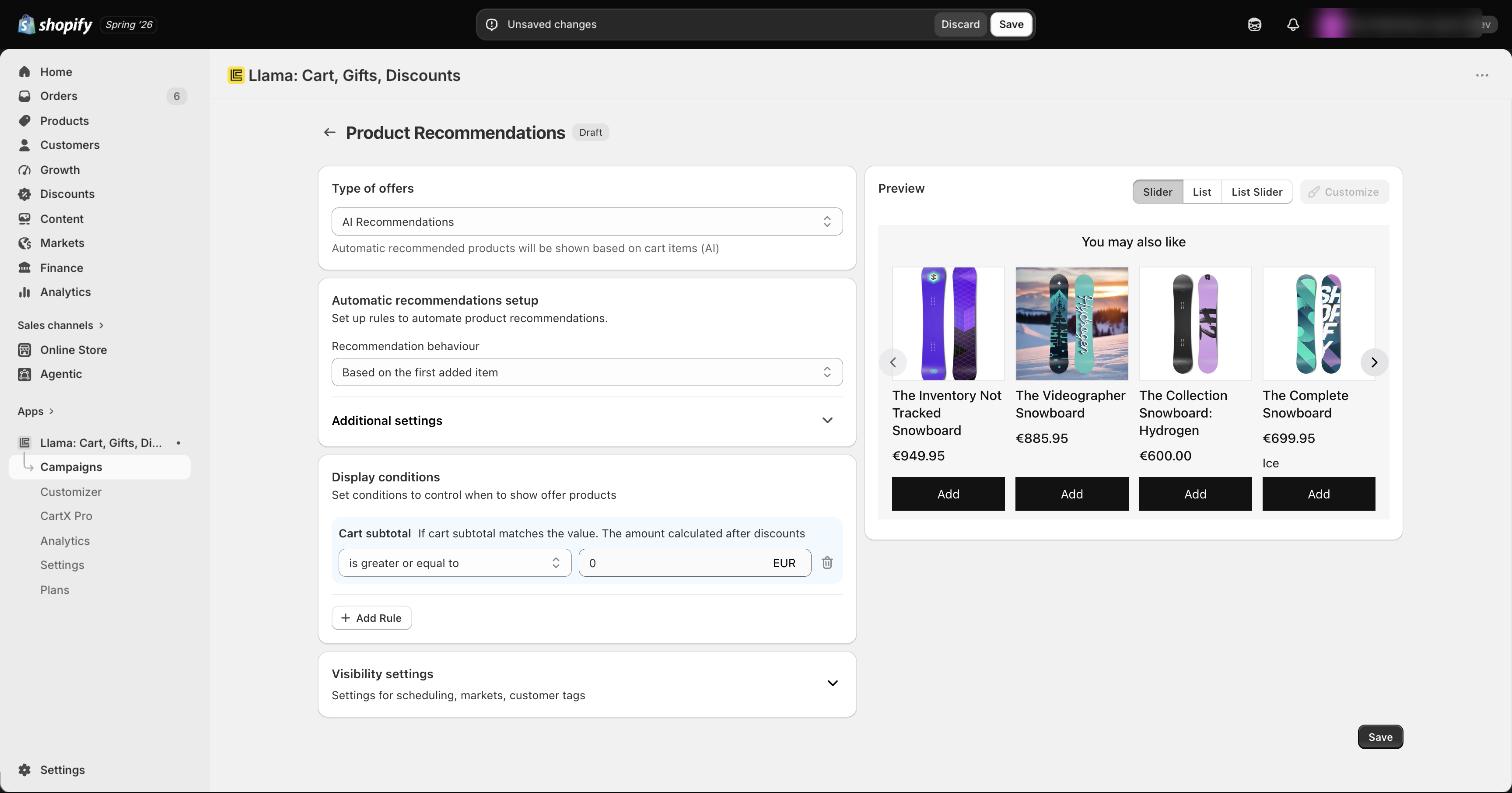
AI Recommendations automatically suggests related products based on what's in the customer's cart. Despite the name, there's no separate AI/ML model behind it — it calls Shopify's built-in product-recommendation engine, which returns products Shopify considers related to the item you base the recommendation on. Configure:
- Recommendation behaviour — pick which cart item Shopify bases the related-product lookup on: the cart's first added item, last added item, lowest value item, or highest value item.
- Max quantity — how many products to show, from 1 to 10.
- Hide by tags — exclude products that carry specific tags. Matchers include is equal to, is not equal to, contains, does not contain, starts with, and ends with.
- Sort order — Price highest to lowest, Price lowest to highest, A–Z, Z–A, or Random.
Hand-pick exactly which products to show. Click Add Products to open the Shopify product picker.
Each product row has its own settings:
- Limit — the maximum quantity a customer can add.
- Discount — an optional percentage or fixed-amount discount applied to that product.
Recommend products from a single collection. Choose the collection, then set the sort order:
- Best selling
- Highest price
- Lowest price
- Newest
- Oldest
- Manually
Display conditions
Display conditions are the rules that decide when your widget appears. For example:
- Show when the cart contains Product X.
- Show when the cart subtotal is over $50.
You can combine multiple rules to target precise situations. For the full list of available rules and how they're evaluated, see the Condition selectors reference.
Visibility settings
Expand the Visibility settings card to restrict who sees the campaign and when. All of these are optional.
- Schedule — set a start and end date and time so the campaign only runs during a chosen window.
- Markets — limit the campaign to specific Shopify Markets. Leave this blank to show it in all markets.
- Customer Tags — show the campaign only to customers with matching tags. Matchers include Contains, Equals, and Does Not Contain. You can also require login and enforce validation.
Customize the widget
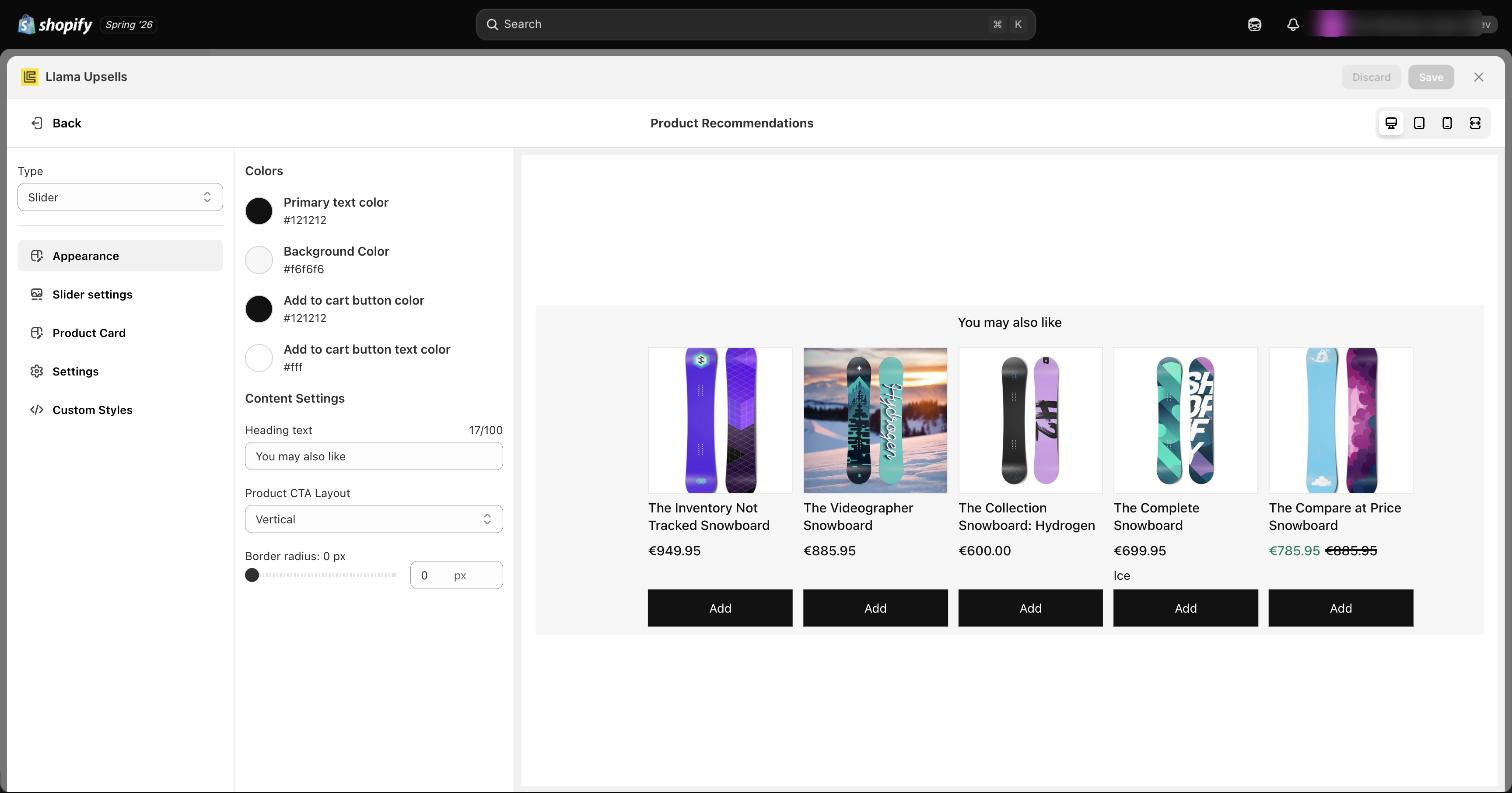
After saving, click Customize in the right column to control how the widget looks on your storefront.
| Setting | Options |
|---|---|
| Layout | Slider, List, or List Slider (List Slider is for small containers only) |
| Primary text color | Default #121212 |
| Background color | Default #f6f6f6 |
| Add to cart button | Set the button color and its text color |
| Heading text | The title above the products (default: "You may also like") |
| Product CTA layout | Vertical or Horizontal cards |
| Border radius | 0–20 px |
| Slider settings | Slides per view for each device breakpoint (1–10, in steps of 0.5), plus autoplay, arrows, and bullets |
Place the widget
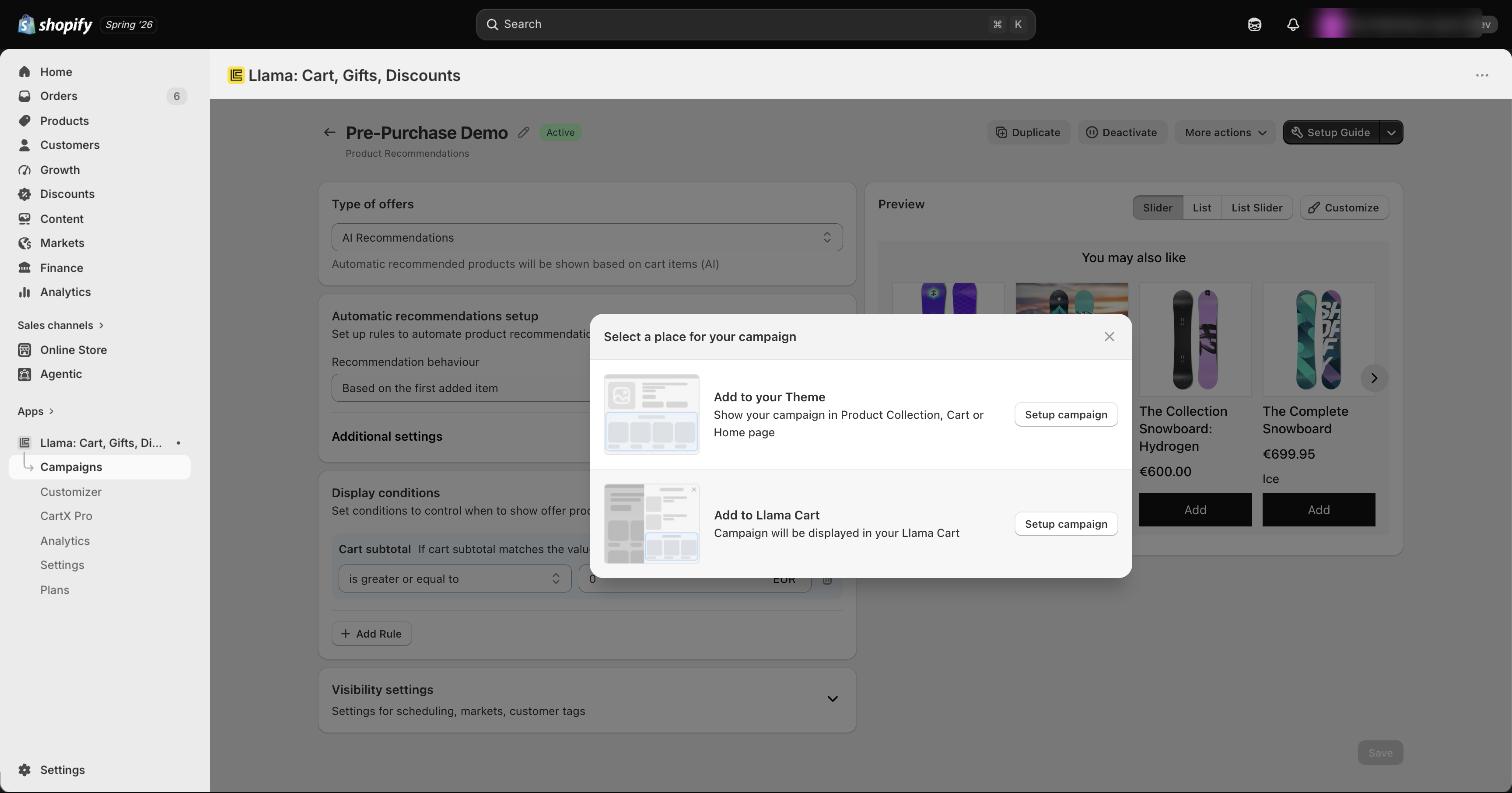
A Product Recommendations campaign only shows once you connect its widget to your storefront. Click Setup Guide to choose where it appears.
Connect to Online Store
Add the widget block to a theme section using the Shopify theme editor.
Connect to Llama Cart
Place the widget inside the Llama Cart drawer, with market selection.
Want the widget on just one product page? Use the Display Conditions to target a specific product, then place the widget on that product page from the Setup Guide.