
Checkout Upsells (Shopify Plus)
Show product offers directly inside the Shopify checkout page. Requires Shopify Plus, and learn how to configure it.
A Checkout Upsells campaign shows inline product offers directly inside the Shopify checkout page — while the customer is entering their payment and shipping details. It is a high-converting placement for last-minute, impulse add-ons right before the order is placed.
Checkout Upsells require a Shopify Plus subscription (development stores also qualify). On non-Plus stores, the Checkout Upsells card appears on the campaign template screen with a yellow Shopify Plus badge, and the Create button is disabled with the tooltip "This campaign is only available for Shopify Plus stores." See Which Shopify plan you need for the alternatives.
For a deeper look at how the in-checkout widget behaves live — display modes, variety limits, customization, Shop Pay, and edge cases — see Checkout Upsells in depth.
Which Shopify plan you need
Checkout Upsells are only available on Shopify Plus. The app reads your store's plan directly from Shopify (the shopifyPlus flag on your plan), so there is nothing to toggle on your side — eligibility is decided automatically.
- Shopify Plus stores can create Checkout Upsells campaigns.
- Development stores also qualify, even though they are not paid Plus subscriptions, so you can build and test the campaign before going live.
- All other plans (Basic, Shopify, Advanced) cannot create this campaign type.
What you see on a non-Plus store
If your store is not on Plus, the Checkout Upsells campaign type is visibly locked rather than hidden, so you can still see what it offers:
- On the campaign template screen, the Checkout Upsells card shows a yellow Shopify Plus badge.
- The card's Create button is disabled.
- Hovering the disabled button shows the tooltip: "This campaign is only available for Shopify Plus stores."
Not on Plus but want a post-checkout offer? Use Post-Purchase instead. Post-Purchase upsells do not require Shopify Plus — they render on Shopify's native post-checkout surface, which is available on every plan. You get a one-click upsell (and optional downsell) right after the order is placed, with no theme edits. See Post-Purchase.
Plus vs non-Plus at a glance
| Feature | Minimum plan |
|---|---|
| Checkout Upsells (in-checkout offers) | Shopify Plus |
| Post-Purchase (post-checkout one-click offers) | Any plan |
Requirements
Before you create a Checkout Upsells campaign, make sure you have:
- A Shopify Plus subscription (or a development store).
- The Llama Upsells app block added to your checkout template.
Showing offers in Shop Pay: Shop Pay is a separate checkout flow that each block must opt into. If your offers appear in standard checkout but not in Shop Pay, turn on the per-block Include block in Shop Pay toggle for the Checkout Upsells block. See Checkout Upsells in depth for the full behavior.
How to create a Checkout Upsells campaign
The campaign has two steps: choose the products to offer, then decide when the offer appears.
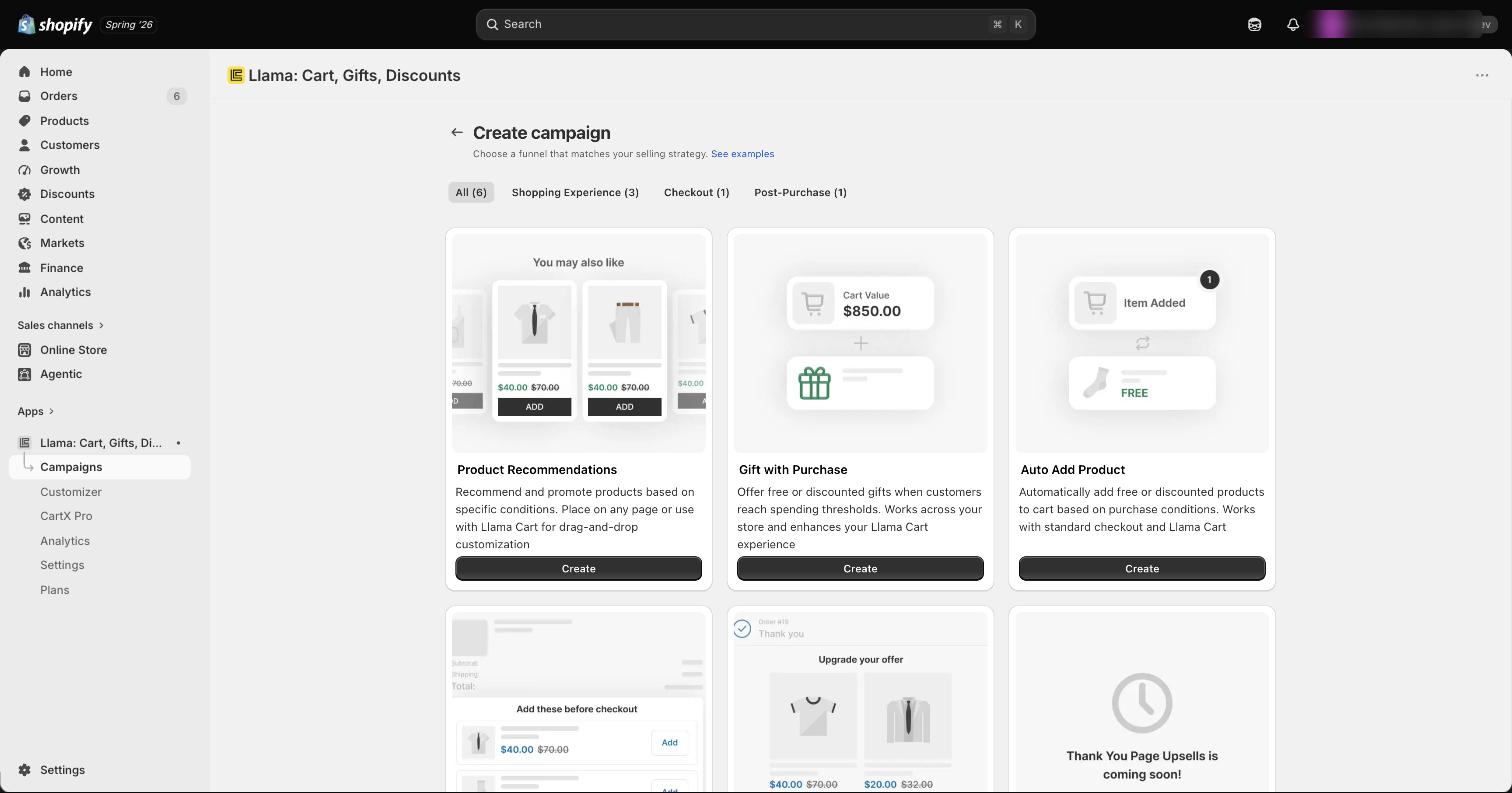
Step 1 — Offer: choose products to show
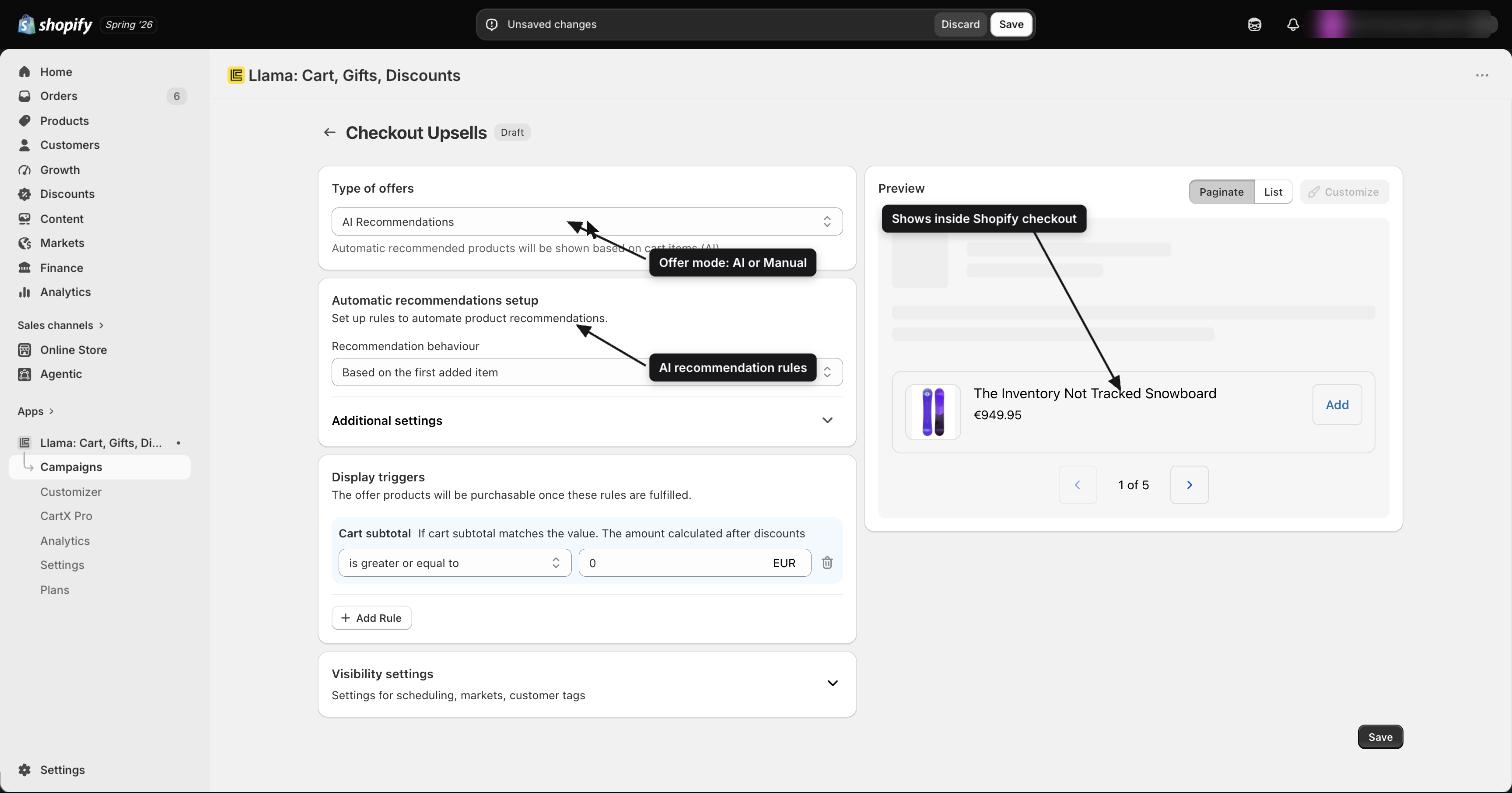
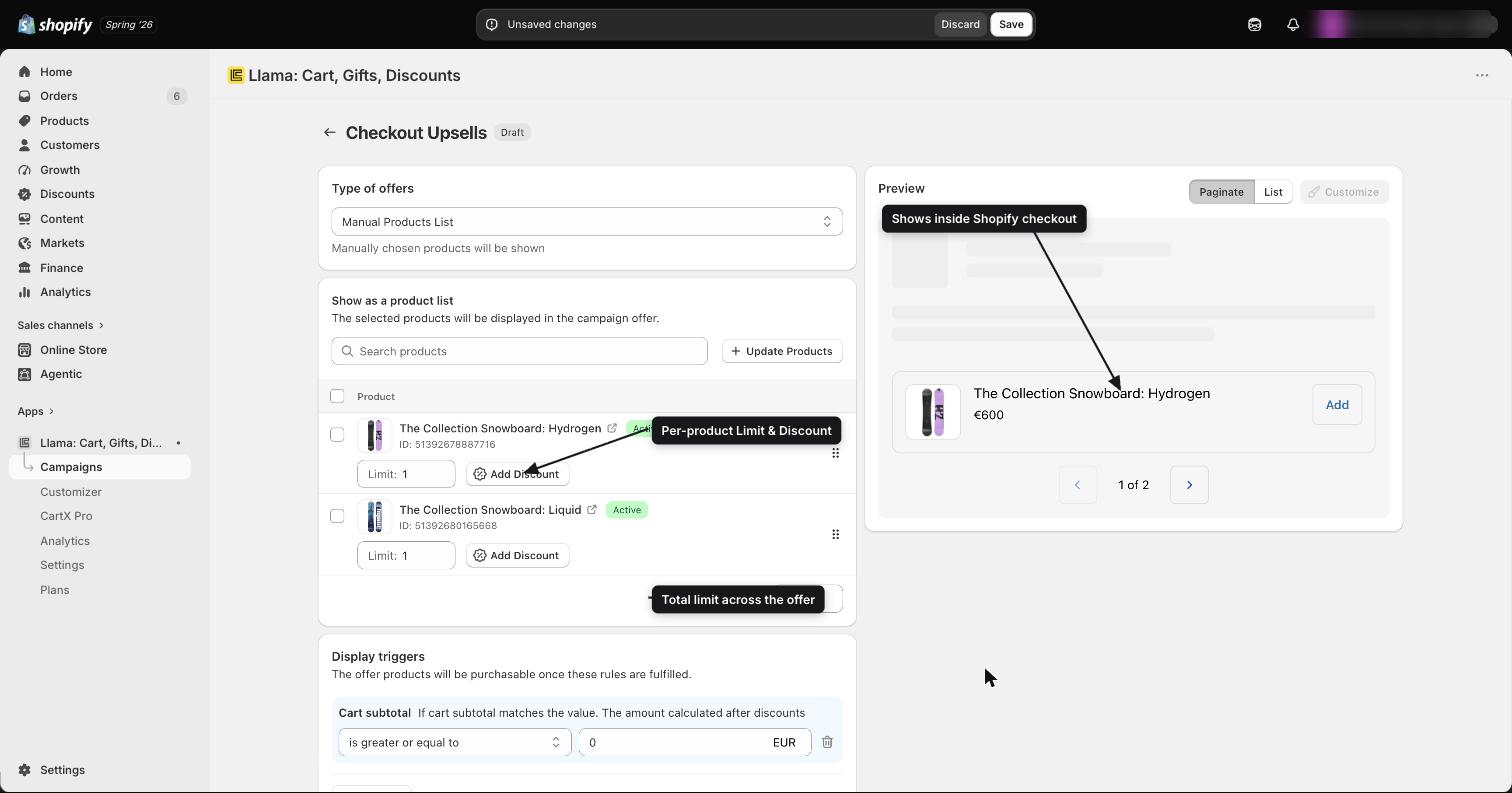
Pick one of two offer modes to decide which products appear in checkout. See Offer modes below for the full settings of each.
Step 2 — Display triggers: choose when to show
Set the conditions that decide when the upsell appears. All standard condition rules apply, plus the Specific Country rule that is exclusive to Checkout Upsells (see Display triggers).
Save your campaign
Save the campaign to apply your changes and make the offer live in checkout.
Offer modes
In Step 1 you choose between two ways to decide which products are offered.
Automatically shows related products based on what is in the cart. Despite the name, there's no separate AI/ML model — this mode calls Shopify's built-in product-recommendation engine, which returns products Shopify considers related to the cart item you base the recommendation on. You can configure:
- Recommendation behaviour — pick which cart item Shopify bases the related-product lookup on: the first added item, the last added item, the lowest value item (discounted), or the highest value item (discounted).
- Max quantity — how many products to show. The input accepts 0–10, and the default is 6.
- Hide by tags — exclude products that carry certain tags from the recommendations.
- Sort order — Price high-to-low, Price low-to-high, A–Z, Z–A, or Random.
Manually select exactly which products to offer. Each product row shows a Limit and an optional Discount.
Multiple offers: Checkout Upsells supports multiple offer sets through the Manage Offers bar — the same way Gift with Purchase does. You can add, rename, delete, and switch between offers.
The "Auto-add a product" option inside Checkout Upsells was discontinued on February 1, 2025. To add products to the cart automatically, use the Auto-Add campaign instead.
Display triggers
In Step 2 you choose when the upsell appears. All of the standard condition rules apply, plus one rule that is exclusive to Checkout Upsells:
- Specific Country — show the upsell only to customers in selected countries, or exclude specific countries.
Use cases
Checkout Upsells work well for offers that make sense at the very last moment before purchase:
- Last-minute add-ons — for example, "Add a matching accessory for $15."
- Extended warranty or protection plan — offer added peace of mind as customers check out.
- Country-specific promotions — surface offers only to shoppers in the countries you choose.
Related campaigns
Checkout Upsells in depth
Live widget behavior, display modes, variety limits, customization, Shop Pay, and edge cases.
Auto-Add campaign
Automatically add a product to the cart when it matches your rules.
Post-Purchase
Show one-click upsell offers right after the order is placed — no Shopify Plus required.
Post-Purchase eligibility & payment-method limits
Why a Post-Purchase offer is sometimes skipped or can't be accepted, and exactly which payment methods and order shapes are supported.
Checkout Upsells in depth
How the in-checkout widget behaves live, its display modes and customization, variety limits, the four checkout blocks, and edge cases.