
Free Gift with Purchase
Create a Gift with Purchase campaign that offers a free or discounted gift when a shopper's cart meets the rules you set.
A Gift with Purchase campaign offers one or more products as a free or discounted gift when a shopper's cart meets the conditions you choose. You decide what the gift is, how much of a discount to apply, and what has to be true about the cart before the offer appears. Unlike an Auto-add campaign, this one never adds the gift silently — the shopper chooses to add it.
What you can do with it
- Create one or several offers in a single campaign, each with its own discount.
- Apply a fixed or percentage discount to each gift — including 100% off for a truly free gift.
- Show dynamic messages that tell the shopper how much more they need to spend to unlock the gift.
- Hide the campaign until every rule is met, schedule it, and target specific markets or customer tags.
- Place the offer in the Llama Cart drawer, on your storefront, or both.
A Gift with Purchase campaign does not automatically add the gift to the cart. The shopper sees the offer and chooses to add it. If you want a product added silently when conditions are met, use an Auto-add campaign instead.
Create the campaign
Choose the campaign type
Go to the Create campaign page and choose Gift with Purchase from the list.
Add your gift products
Add one or more products to offer as a gift. You can build a single offer or several offers in the same campaign — see Multiple offers below.
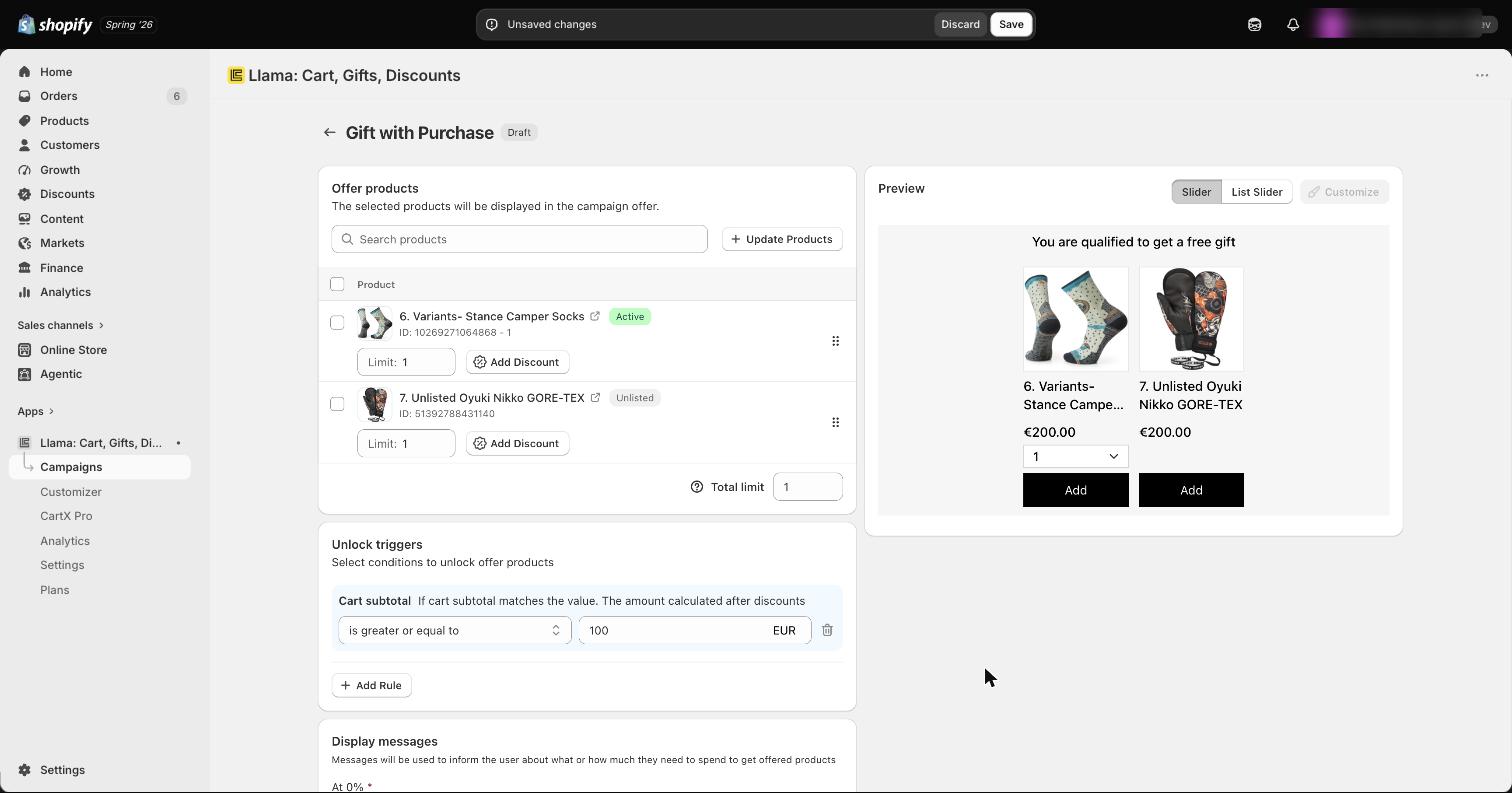
Set the conditions that trigger the offer
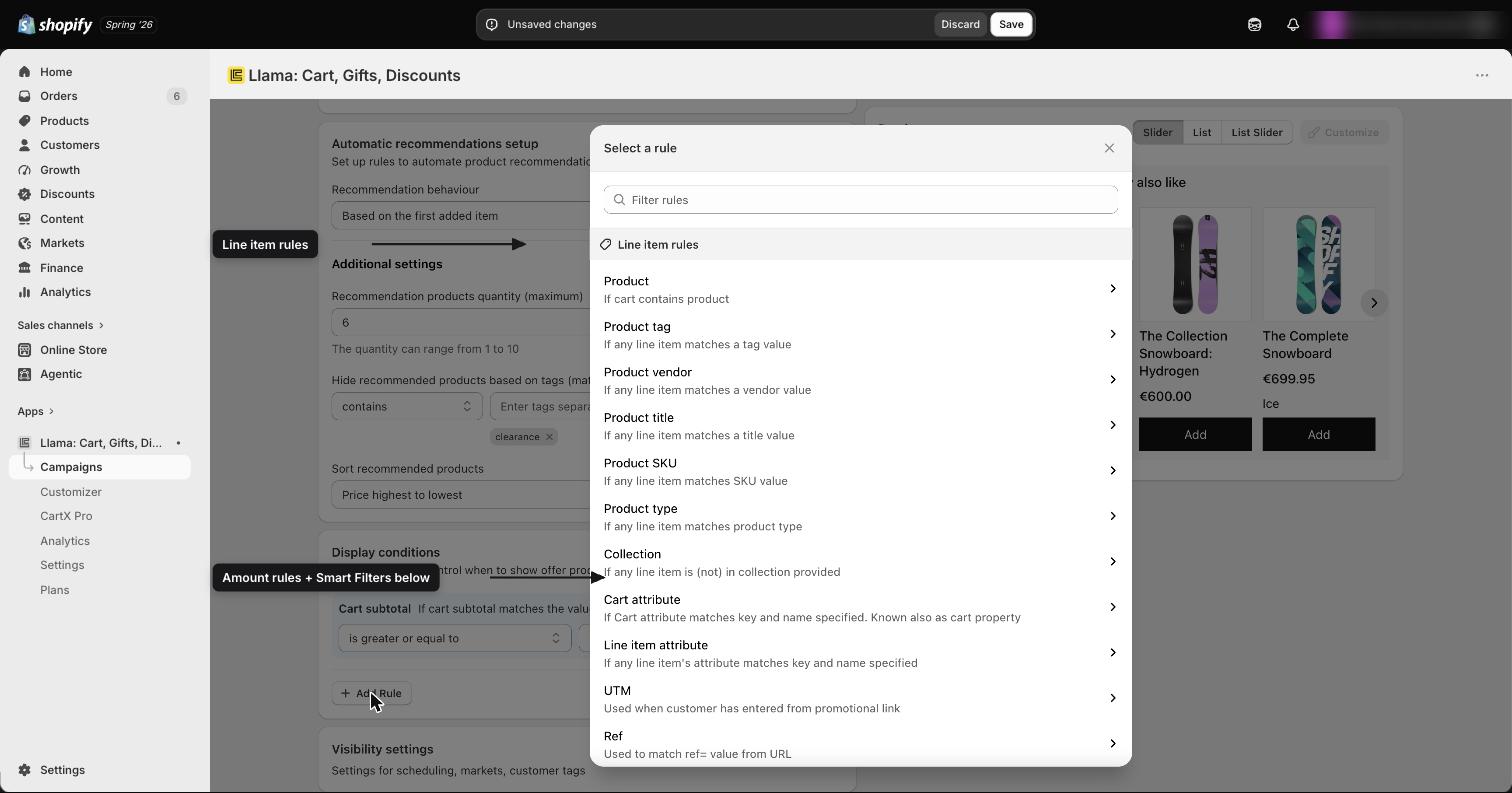
Add a condition so the offer only appears when the cart qualifies. You can combine several rule types:
- Line item rules — specific product, product tag, vendor, title, SKU, or type; product
collection; cart or line-item attribute; promo code; promotional link (UTM); or a
refvalue from the URL. - Amount rules — cart subtotal and cart total.
- Smart Filters — filtered subtotal/total and filtered quantity.
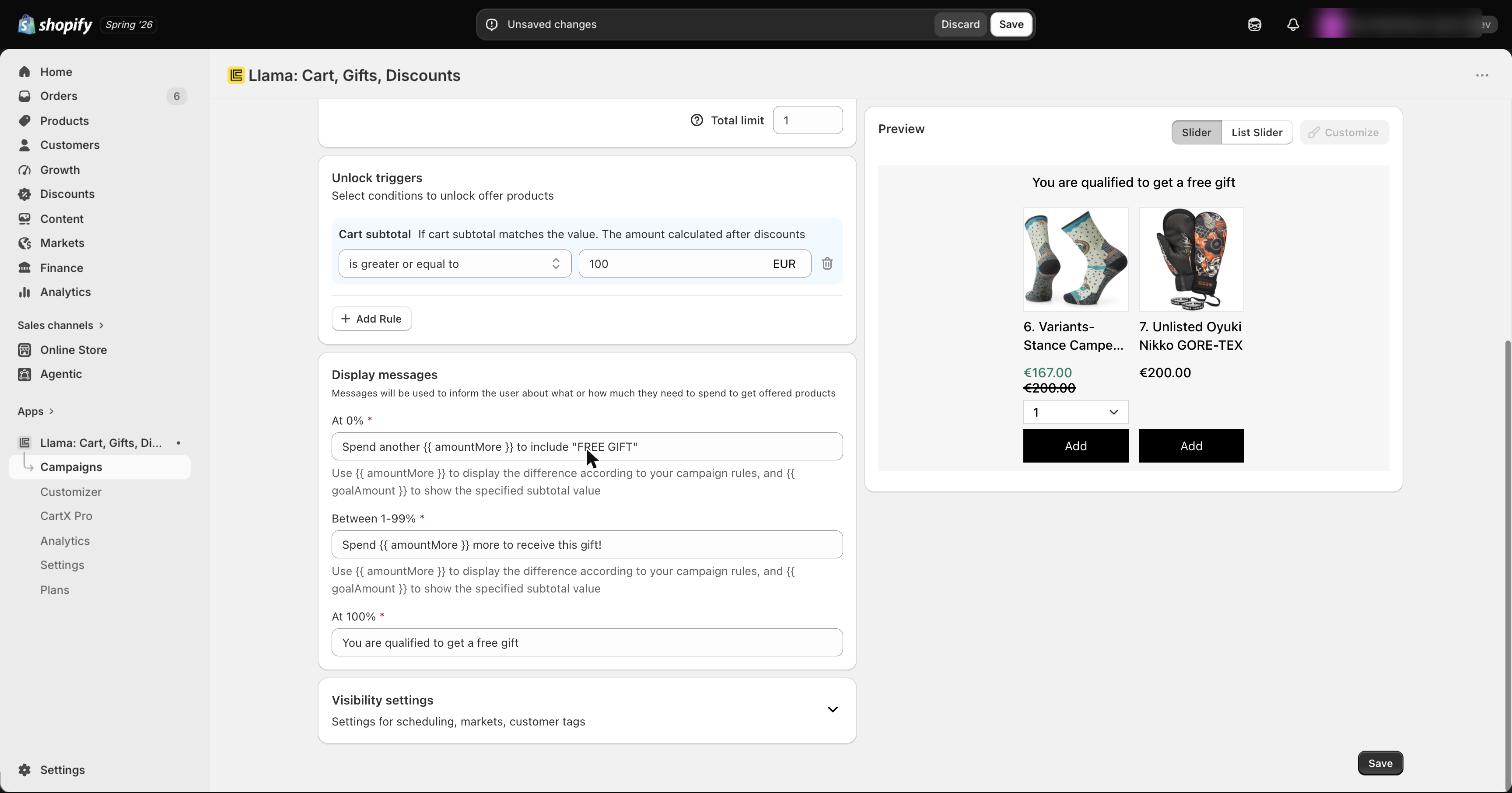
Configure the display messages
Configure the messages shown to the shopper, or leave them as the defaults. Dynamic messages tell the customer how much more they need to spend to unlock the gift, so the offer updates as they add items to the cart.
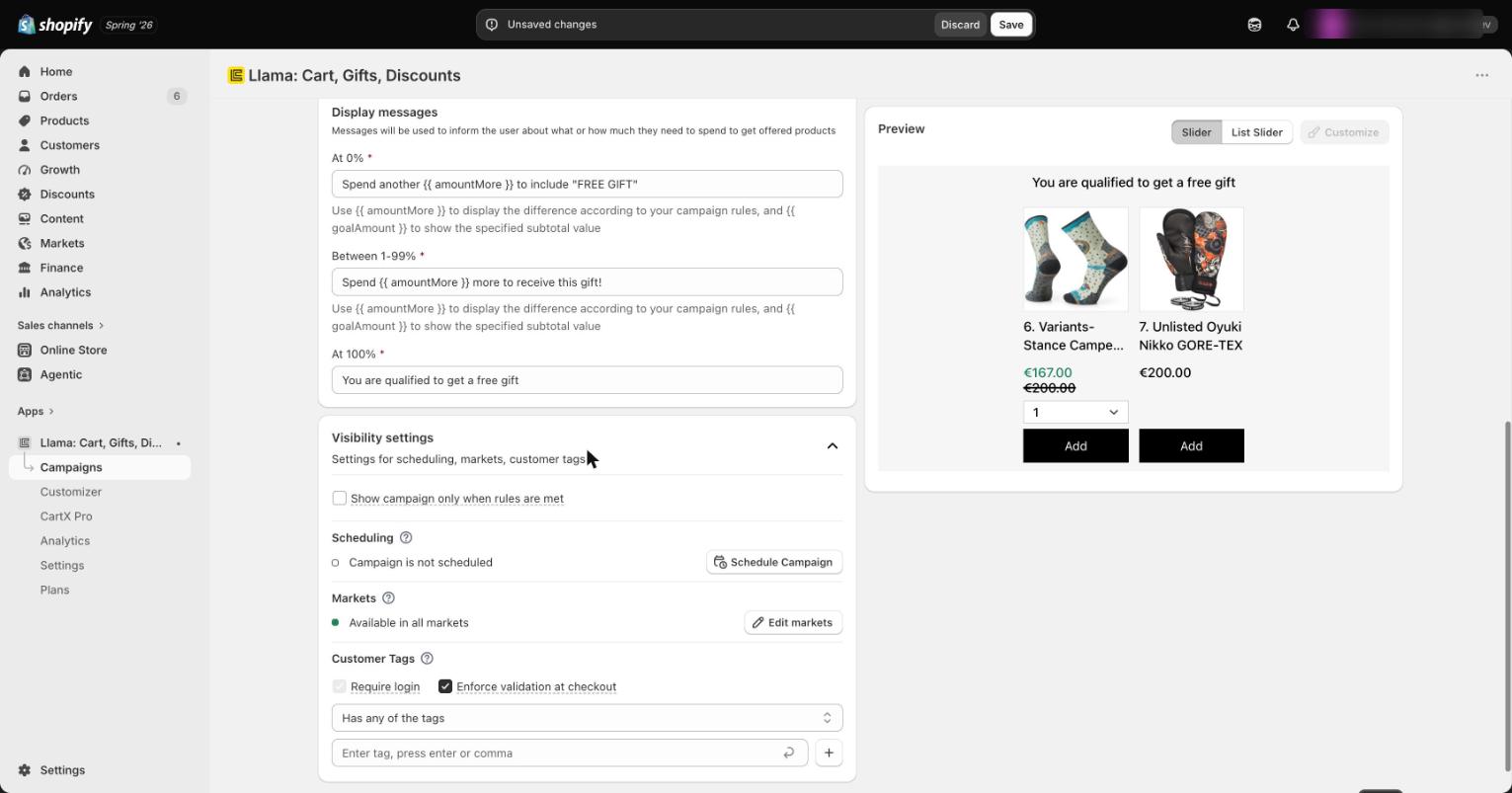
Set the visibility rules
Control who sees the campaign and when:
- Hide until all rules are met — keep the campaign hidden until the cart qualifies.
- Scheduling — set a start and end date for the offer.
- Market-based promotion — target a single market or several markets.
- Customer tags — offer exclusive deals to loyal customers using a tag filter.
Add the campaign to your store
Finally, connect the campaign so shoppers can see it. You can add it to the Llama Cart drawer, your Online Store, or both.
- Open the Setup Guide button at the top right of the page.
- Select Connect to Llama Cart.
- The campaign is added below the cart lines in the Llama Cart layout.
- Click Save to complete the setup.
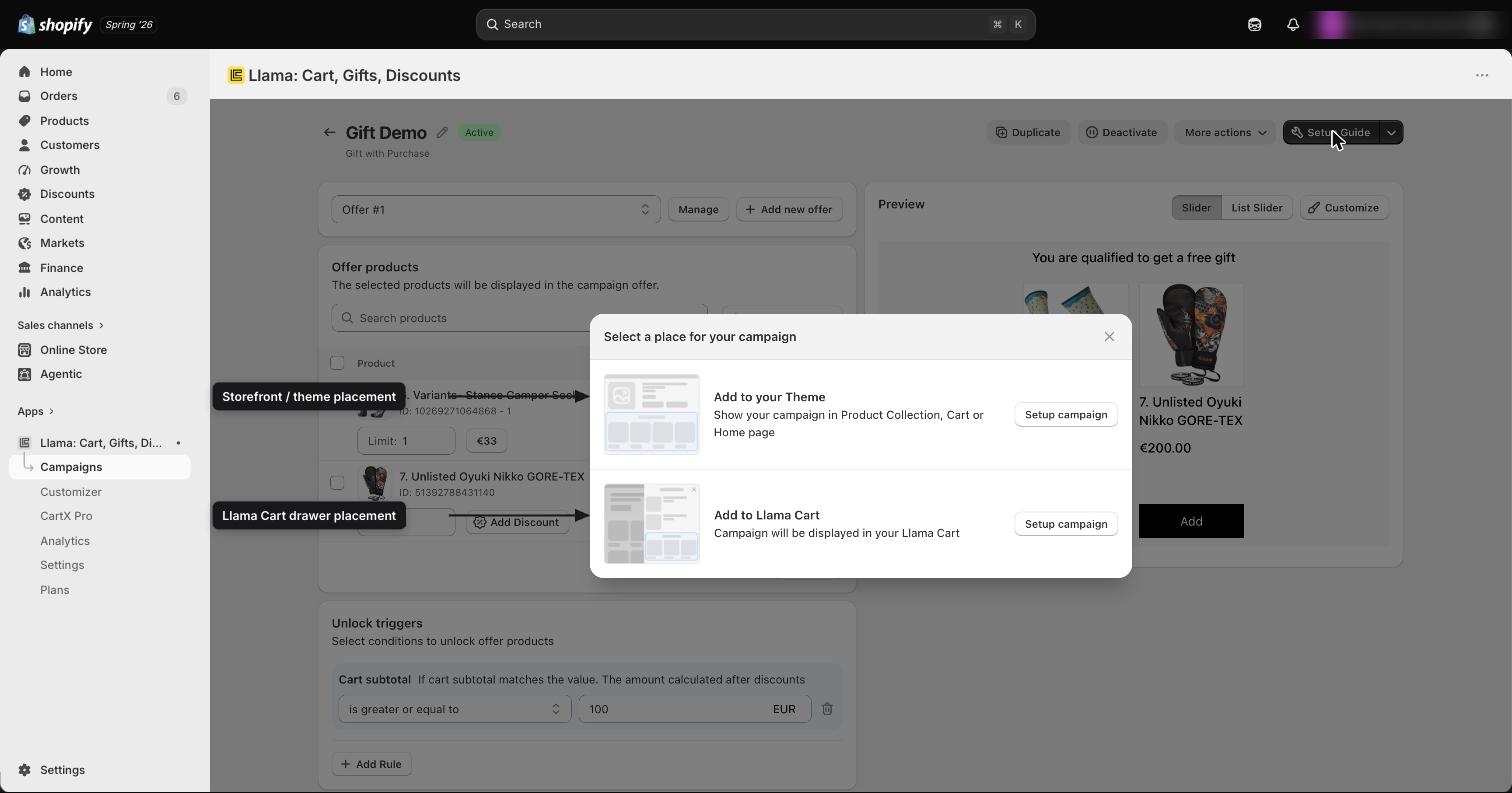
- Choose Connect to Online Store.
- Copy the Widget ID.
- Add a Widget block to your theme.
- Enter the Widget ID and click Save.
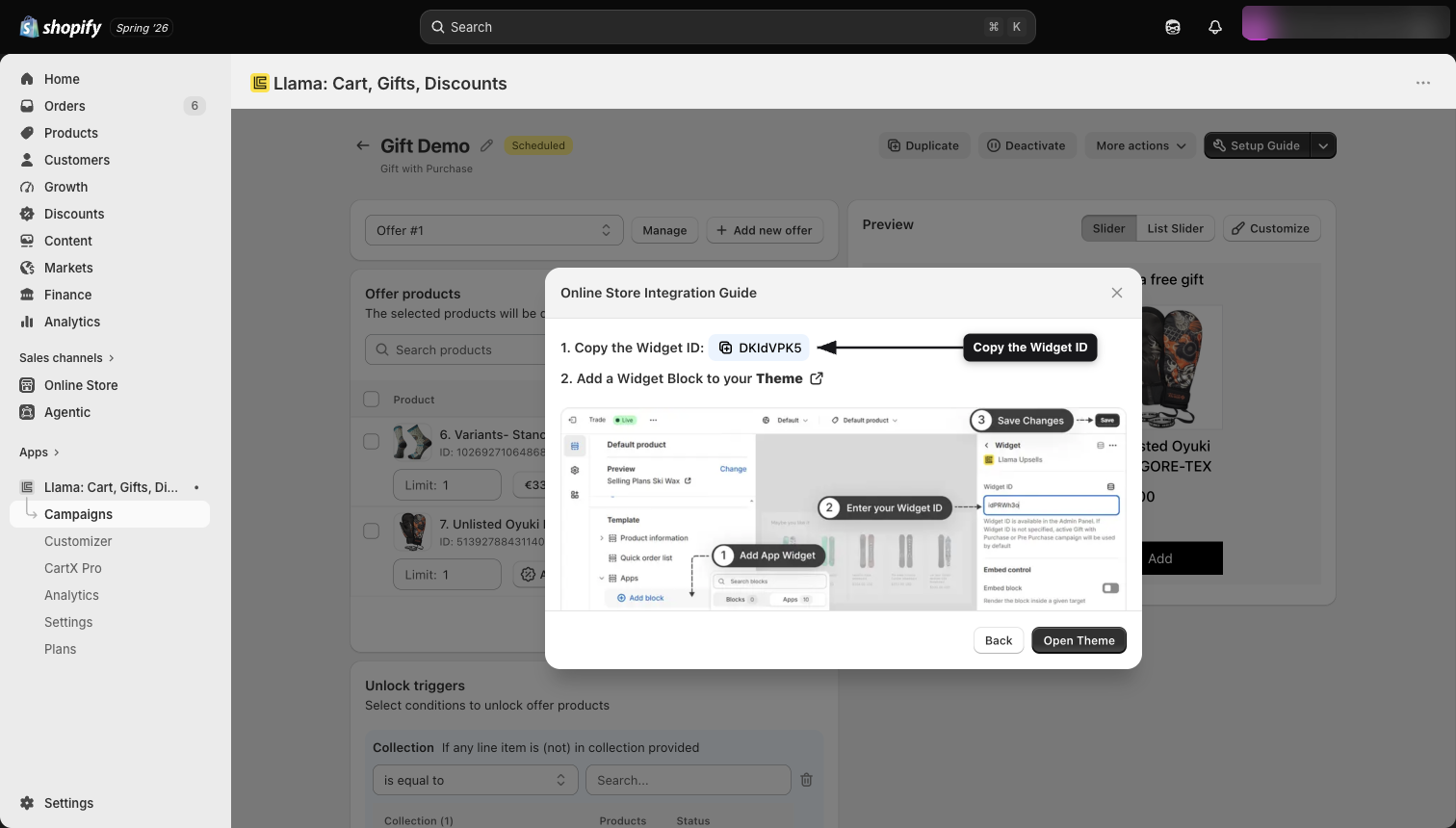
Your Gift with Purchase campaign is now live in the Llama Cart and on your Online Store.
Set discounts on the gift
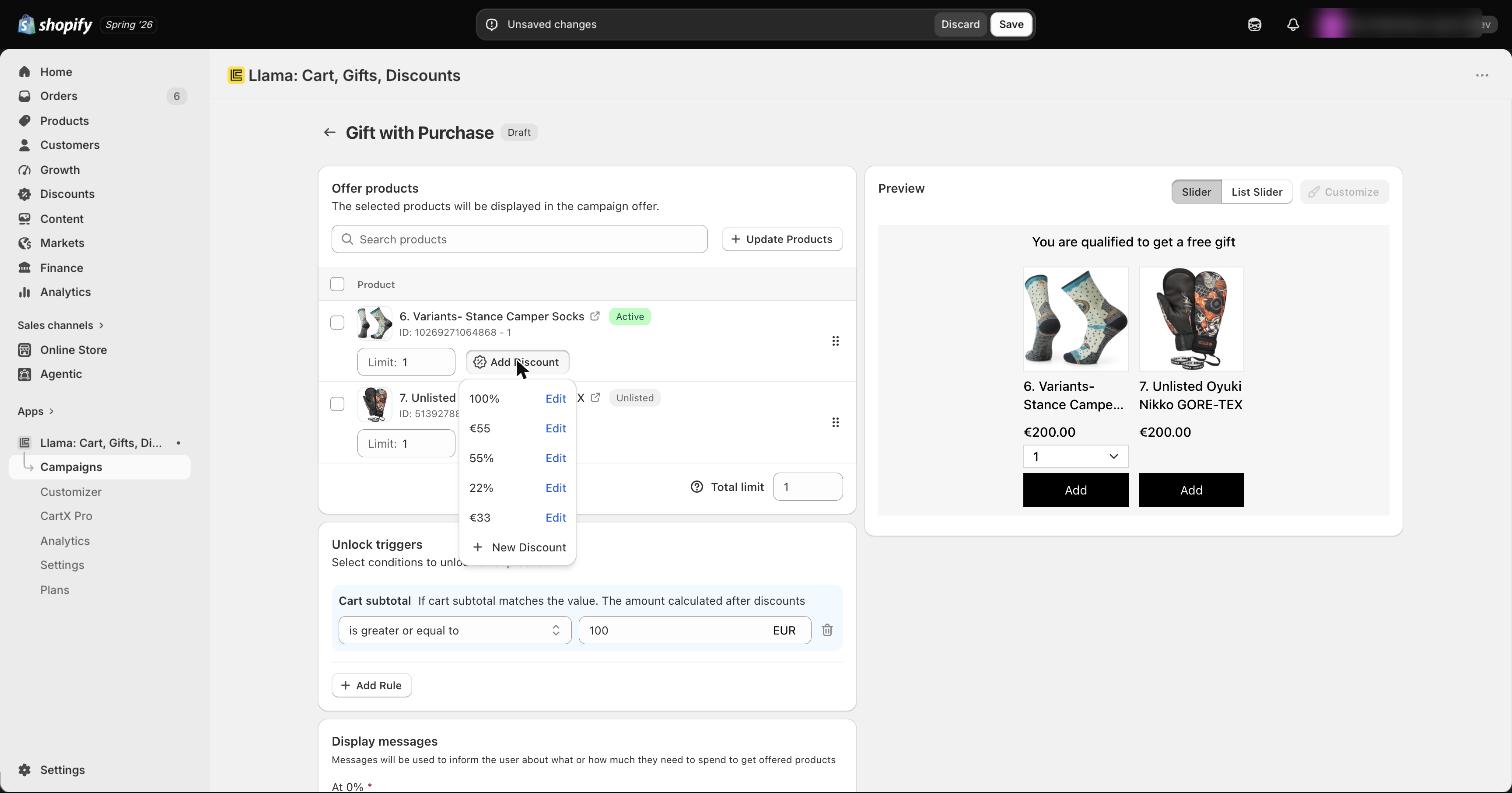
Each gift product can have its own discount, configured in the Offer Products section. Choose the type that fits the promotion:
- Fixed discount — take a set amount off the gift, for example $50 off.
- Percentage discount — take a percentage off, up to 100% for a completely free gift.
Limit how many gifts a shopper can claim
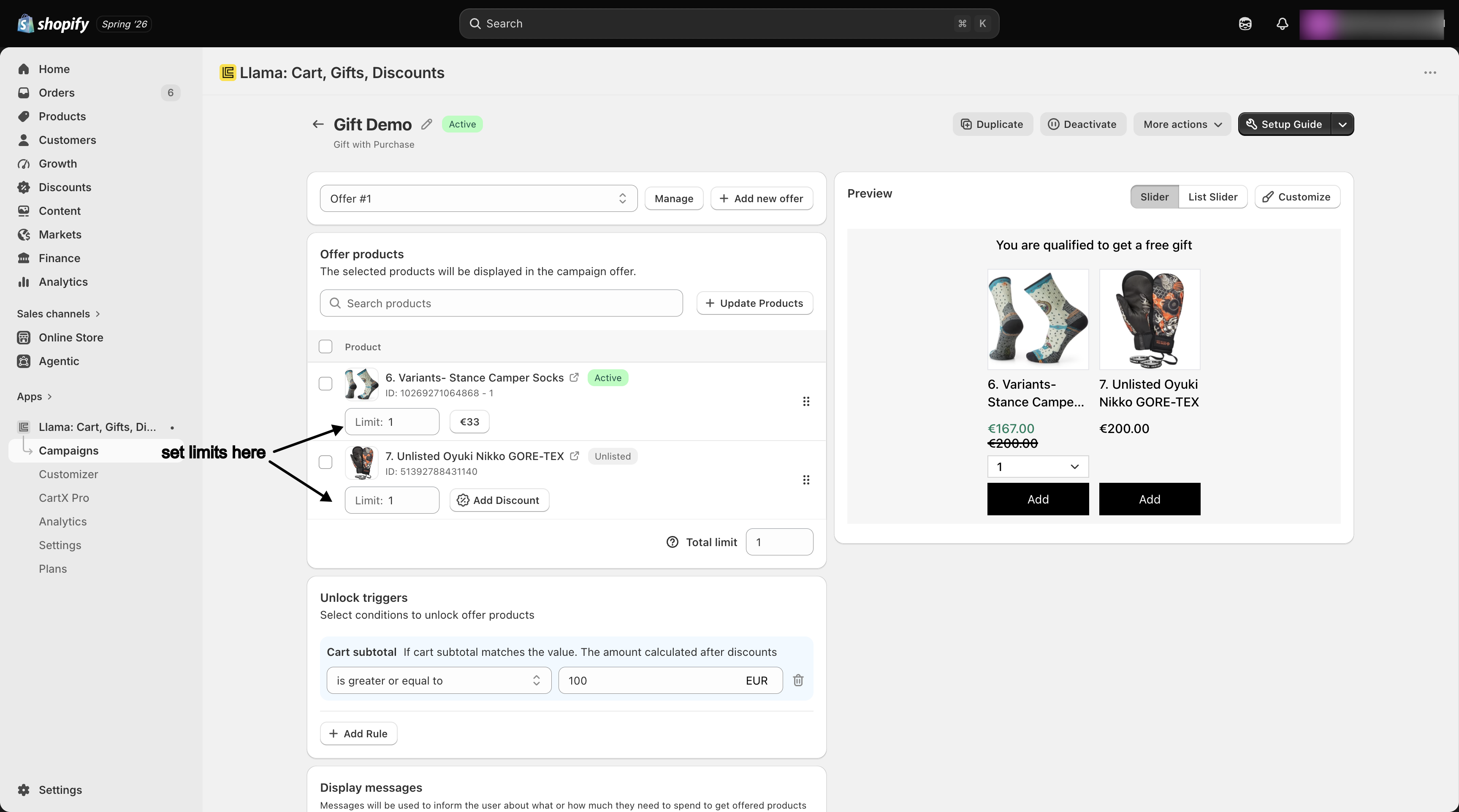
A Gift with Purchase campaign has two separate limits, and they do different things. Setting one does not affect the other, so it's worth understanding both before you publish.
| Limit | What it controls | Scope |
|---|---|---|
| Product Limit | The quantity of a single variant a shopper can add as a gift. | Per variant |
| Total Limit | How many different gift products a shopper can claim from the offer at once — a diversity limit, not a quantity limit. | Across the whole offer |
Product Limit is a per-variant quantity cap. If you set it to 2, a shopper can add up to two of
that variant as gifts, but no more. Each gift variant carries its own Product Limit.
Total Limit caps the variety of gifts, not the count. If you offer five gift products with a
Total Limit of 2, a shopper can mix and match — but only two distinct products can be claimed
as gifts at the same time. Once they've added their second different gift, the remaining offers stop
accepting new products until they remove one.
Out-of-stock products lower the effective Total Limit. The app only counts gift products that
have at least one available (in-stock) variant toward the diversity limit, and the limit it enforces
is the smaller of your configured Total Limit and the number of currently available gift
products. So if your Total Limit is 3 but only 2 of the offered products are in stock, shoppers
can claim at most 2 different gifts — not 3. Restocking a product raises the effective limit back
up automatically. See Out-of-stock & unavailable offers
for the full behavior.
For a deeper walkthrough of how per-variant quantities and the diversity limit interact — including worked examples and how added gifts are counted — see Variant offers & quantity limits.
Product status labels
Each gift product shows its current status so you can spot issues before they reach shoppers:
- Active — the product is available.
- Draft — the product is in draft.
- Unpublished — the product is not published to your Online Store.
- Archived — the product is archived.
These labels help you identify and fix gift products before the campaign goes live.
Customize the look
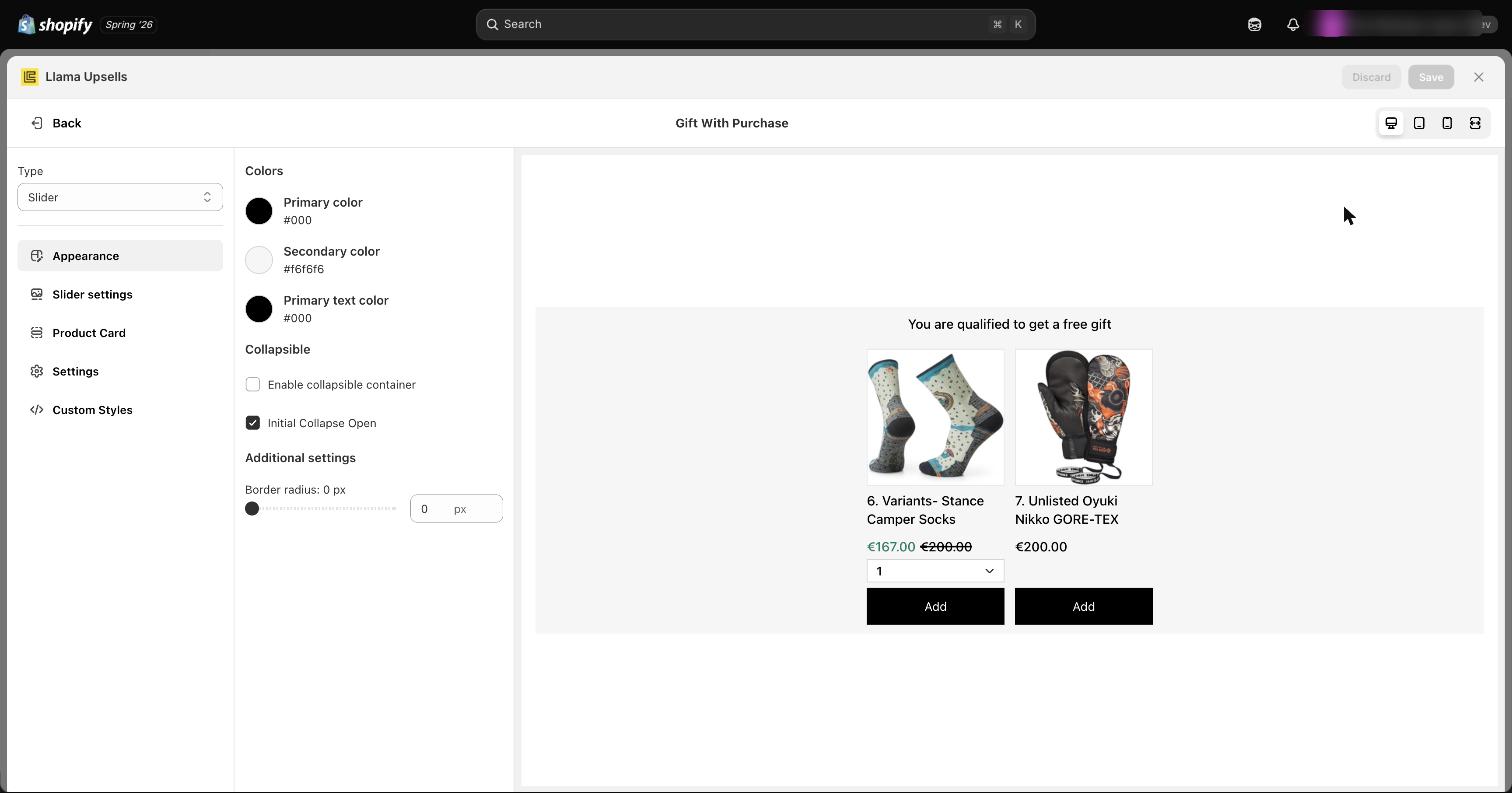
Open the Customize page to change how the campaign appears. You can adjust:
- Appearance — background, button, and text colors, a collapsible toggle, and border-radius control.
- Slider settings — products per view for laptop, tablet, and mobile, plus toggles for slider arrows and bullets.
- Product card — button text for the add-to-cart, added, and adding states, and a toggle for the "quick view" option.
- Additional settings — the Hide out of stock toggle (on by default) keeps sold-out gifts out of the widget, and Hide added offers (on by default) removes offers once a shopper has claimed up to the diversity limit. Both interact with the limits above — see Out-of-stock & unavailable offers and Variant offers & quantity limits for exactly what each toggle does and when to leave it on.
- Custom styling — add your own CSS for full control.
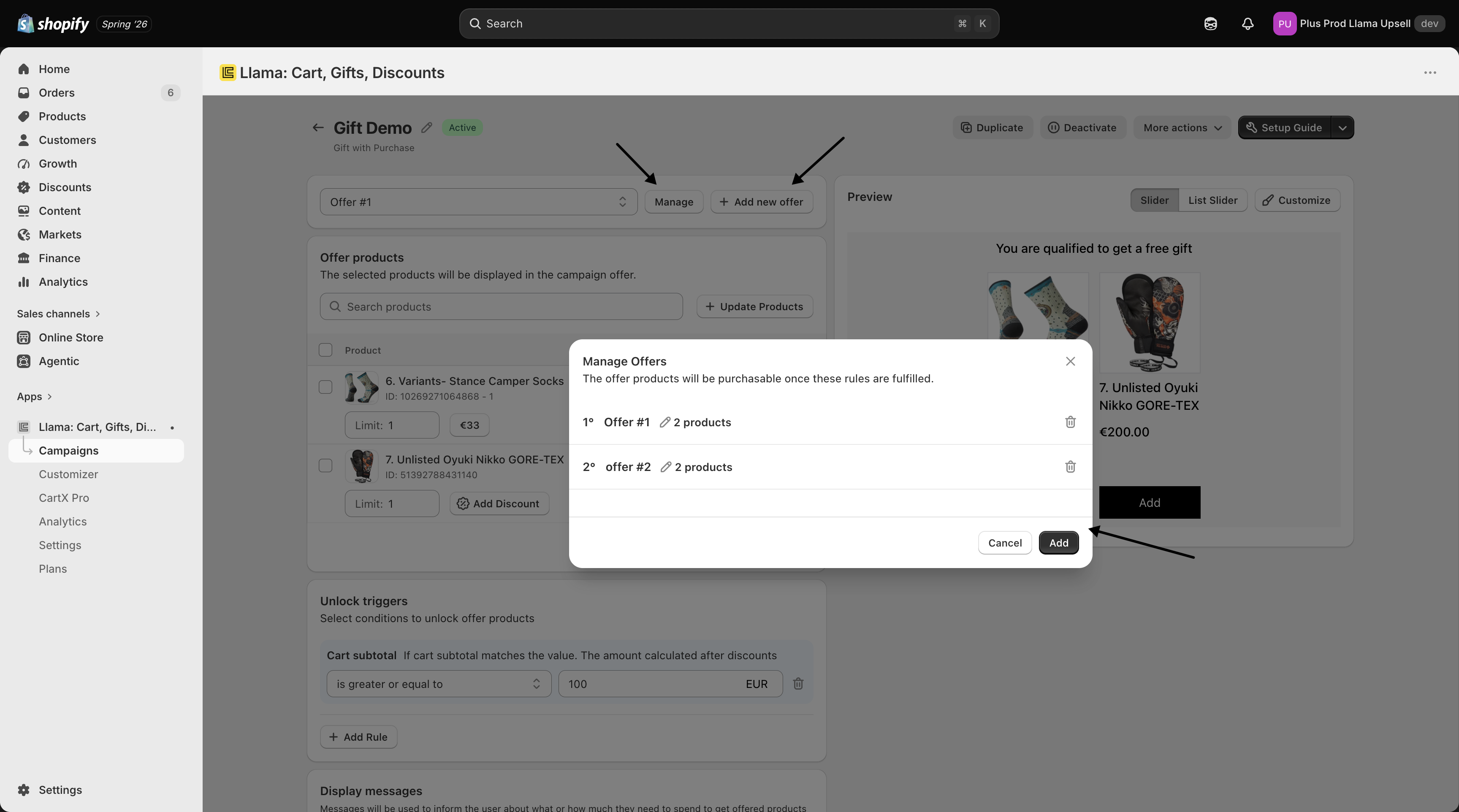
Multiple offers
A single Gift with Purchase campaign can hold several offers, each with its own rule conditions and discounts. This lets you reward shoppers in stages — for example, offering an additional gift once they add the first one — without creating a separate campaign for each tier. You manage every offer from one setup.
Show the gift on specific product pages only
By default a storefront widget appears on every product that uses the default template. To show a Gift with Purchase offer on only certain products, create a dedicated product template, add the widget to that template, and assign it to the products you choose. No code is required.
Open the theme editor
In your Shopify admin, go to Online Store → Themes and click Edit theme.
Create a new product template
In the page selector dropdown at the top, choose Products. You'll see the existing product templates. Click Create template, give it a name (for example, Promotion Template), and click Create template again.
Add the widget to the new template
With your new template selected, click Add block in the left sidebar, add the Widget app block, place it where you want it on the product page, and click Save. Because the widget lives only on this template, it won't appear on products using the default template.
Assign the template to your products
Go to Products, open a product, scroll to the Theme template section in the right sidebar, select your new template, and click Save. Repeat for each product where you want the gift offer to appear.
You need theme-editing access in Shopify, and the Gift with Purchase campaign should already be created, before you start this. For a deeper walkthrough, see Targeting & conditions.
Example campaigns
Where to go next
How Auto-Add adds & removes products
A deep dive into Auto-Add runtime behavior — the add/remove lifecycle, quantity caps, added-item memory, availability gating, and edge cases.
How gift product data loads & caching
Why your Gift-with-Purchase widget can take a few minutes to reflect product changes, and how to push updates through sooner.