
Llama Cart versions & customization
Set up the Llama Cart, run A/B/C version tests, style it per market, and customize it from the Customizer page.
The Llama Cart is a fully customizable cart drawer that replaces your theme's default cart. It can show upsell blocks, reward progress bars, gift-with-purchase offers, and more — right inside the cart. This guide covers how to turn it on, run A/B/C version tests, style it per market, and work through the Customizer.
You'll find the Llama Cart under Customizer in the sidebar. Llama Cart is included in every plan, including the Free plan.
For a deeper tour of individual cart features — styles, rewards, announcements, the discount bar, and express payments — see Llama Cart features.
Enable the Llama Cart
Before you can customize the cart, you need to enable it. This takes two steps.
Turn on the app embed
The app embed must be enabled in your Shopify theme editor. If it's off, you'll see a Llama Cart Activation Required banner on the Customizer page.
Toggle Llama Cart on
Once the embed is active, switch Llama Cart ON from the Customizer page. The toggle stays disabled until the embed is enabled, so make sure you complete the first step.
Run A/B/C version tests
Llama Cart lets you create up to three versions — A, B, and C — so you can A/B test different cart layouts and features. Each version is stored independently, and only one is published at a time.
To run two versions at once, pin each one to its own theme and split live traffic between those themes with Shopify Rollouts. See A/B test the Llama Cart with Rollouts.
Three things are called a "version" — don't mix them up. They're unrelated:
- A/B/C version slots (this page) — up to three full cart configurations you switch between and publish for A/B testing.
- Legacy vs New standard design — the underlying cart design. This is a per-version setting you flip on the Design tab, not a separate slot. See What's new in the new standard cart.
- Metafield schema version — an internal date-stamped tag on the saved data (for example
2024_10_15) that tracks the JSON shape Llama Upsells uses to store your cart. It updates itself automatically and is never shown in the admin, so you never need to touch it.
The Customizer page is organized into two areas:
- Published cart — the version currently live to shoppers. This section also shows which theme it's published to, such as Dawn or Horizon, along with the last modification date.
- Cart library — your draft versions, visible only to you. Use the preview (eye) icon to see any version before publishing it.
What you can do with versions
- Create a new version (up to three total)
- Give each version a custom name
- Publish any version to make it live
- Sync — copy one version's full configuration into another
- Delete a version (the last remaining version can't be deleted)
Sync between versions
Sync copies one version's entire configuration into another version. Use it when you've built version A exactly how you want it and want B or C to start from that same baseline — for example, to test a single change (a different reward threshold, a new color) without rebuilding every block by hand.
Sync overwrites the destination version completely. Everything in the version you sync into — its blocks, colors, rewards, announcement messages, custom HTML, the lot — is replaced by a copy of the source version. There is no merge and no per-setting picker. Always confirm which version is the source and which is the destination before you sync, and double-check you're not about to overwrite a version you still need.
After a sync, the two versions are independent copies again: editing one does not change the other. Sync is a one-time copy, not a live link.
Deleting versions
You can delete any version from the cart library, with one guardrail: the last remaining version can't be deleted. Llama Cart always keeps at least one version so there's something to publish. If you only have one version, the delete option is unavailable until you create a second one. Deleting a version is permanent — if you might want it back, Sync it into a spare slot first instead of deleting.
Blocks aren't shared across A/B/C — a common support gotcha. Custom HTML blocks, rich-text blocks, announcement messages, and reward progress bars all live inside each version's configuration (and inside each market's configuration within that version). They are not global. If you add a custom HTML block or set up a reward in version A, it will not appear in version B or C — you'll either rebuild it there or use Sync to copy version A's full configuration across. The same applies per market: a block you add to one market's layout does not show in another market until you clone or sync that configuration. If a merchant reports "my announcement disappeared after I published the other version," this is almost always why.
Version status labels
Status labels make it easy to tell each cart's state at a glance:
| Label | Meaning |
|---|---|
Live | The published cart |
Draft | A version that isn't published |
Inactive | A version that hasn't been activated |
Style the cart per market
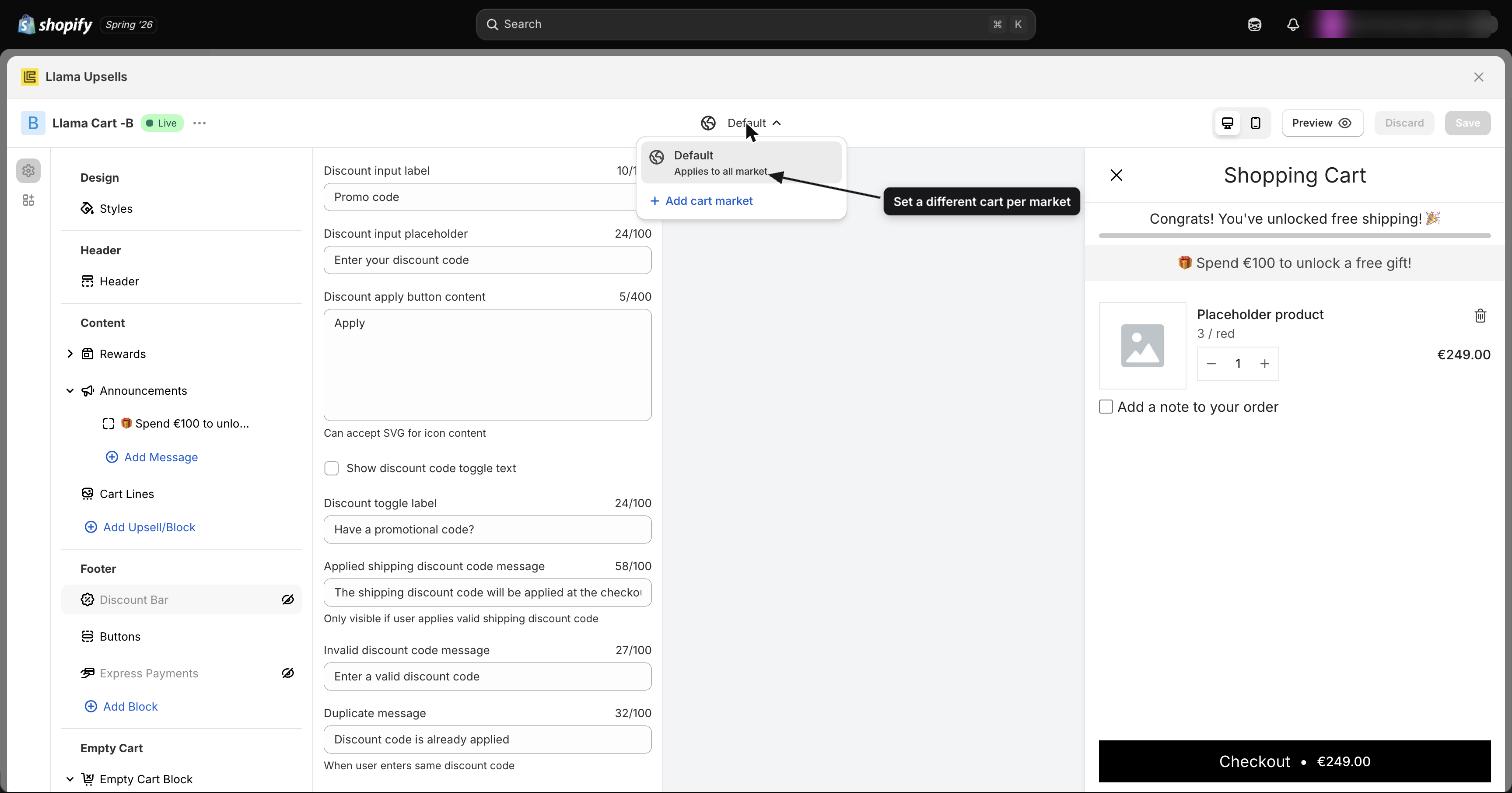
If you have Shopify Markets access, you can set a different Llama Cart configuration for each market — useful for tailoring the cart by country.
Click the globe icon on the Customizer page to add markets for custom styling. You can also clone a new market from an existing market's layout to reuse your work.
A warning banner appears if the Markets permission is missing. You'll need Shopify Markets access to set up market-specific cart styling.
Walk through the Customizer
The Customizer opens as a full-screen modal where you build the cart from a set of draggable blocks. Each block is a section of the cart you can reorder and style.
Block types
| Block type | Description |
|---|---|
| List | Horizontal list of recommended products with an add-to-cart button |
| Slider | Swipeable product carousel with configurable slides per view per device |
| Scrollable List | Horizontally scrollable product list |
| GWP List | Gift-with-purchase offer in a list layout |
| GWP Slider | Gift-with-purchase offer in a slider layout |
These are Customizer block types — not the theme app extension blocks you place in the Shopify theme editor. In the theme editor, Widget is the current app block; the older Slider, List, Unlock Offer, and GiftPurchase theme blocks are deprecated and hidden for new installs.
Customization options per block
Each block has its own set of controls, so you can fine-tune how it looks and behaves:
- Title text, background color, font color, and theme color
- Border radius
- Add-to-cart button text for each state (Add, Adding..., Added)
- Hide out-of-stock products toggle
- Quick view enable/disable
- Auto-play and loop settings (sliders)
- Arrows and bullets visibility (sliders)
- Slides per view for desktop, tablet, and mobile
- Space between slides
- Collapsible container toggle, with an initial open or collapsed state
- Custom CSS per block
- Product click action
How blocks connect to campaigns
Each block is linked to a campaign. When you save the Customizer, the app syncs that block's settings back to the campaign so the cart appearance stays in sync with the campaign — you don't need to update settings in two places.
Cart-wide design settings
Alongside per-block controls, the Design tab holds settings that apply to the whole cart drawer. Two of the most-asked-about are the drawer width and the font size, both adjusted with a slider:
| Setting | Range | Step | Default | What it does |
|---|---|---|---|---|
| Drawer width | 360–800 px | 5 px | 480 px | Sets how wide the cart drawer is on desktop. Narrower keeps the cart compact; wider gives product blocks more room. |
| Font size | 50–150% | 5% | 100% | Scales the cart's text up or down relative to the base size. 100% is the unmodified size. |
Both settings are exposed to the storefront as CSS custom properties — the drawer width via --lcu-drawer-width (on mobile the drawer is always full-width, regardless of this setting), and the font size as a scaling coefficient via --lcu--sc-font-size--coef, from which the cart's --lcu--font-size--* size tokens are derived — so custom CSS can build on the same values.
Like every other setting, drawer width and font size are saved per version (and per market). Changing them in version A doesn't change version B — use Sync if you want both to match.
Translate the cart
Llama Cart keeps an aggregated list of all translatable strings — button labels, the subtotal label, empty-cart messages, and more — across all three versions. This lets Shopify's translation system localize your cart text.
To translate cart content, use Shopify's built-in translation tools. See Translating content for details on how Llama Upsells strings are localized.
Related guides
A/B test the Llama Cart with Rollouts
Pin versions to themes and split live traffic to compare two cart designs at once.
What's new in the new standard cart
Compare the Legacy cart and the New standard cart, and learn what changes when you switch.
Custom HTML & rich text blocks
Inject your own content into the cart — placement, limits, styling, and recipes.
Llama Cart features
Styles, rewards, announcements, the discount bar, and express payments in detail.
Install and enable the app
Install Llama Upsells and enable the app embed in your theme.
Custom HTML & rich text blocks
Inject your own content into the Llama Cart with Custom HTML and Custom Text blocks — placement, limits, the built-in taxes note, styling, and recipes.
A/B test the Llama Cart with Rollouts
Run a real split test of two Llama Cart designs by pinning cart versions to different themes and splitting live traffic with Shopify Rollouts.