
Announcement messages
Add a rotating message bar to your Llama Cart drawer for promos, shipping cutoffs, and news, with per-shopper targeting.
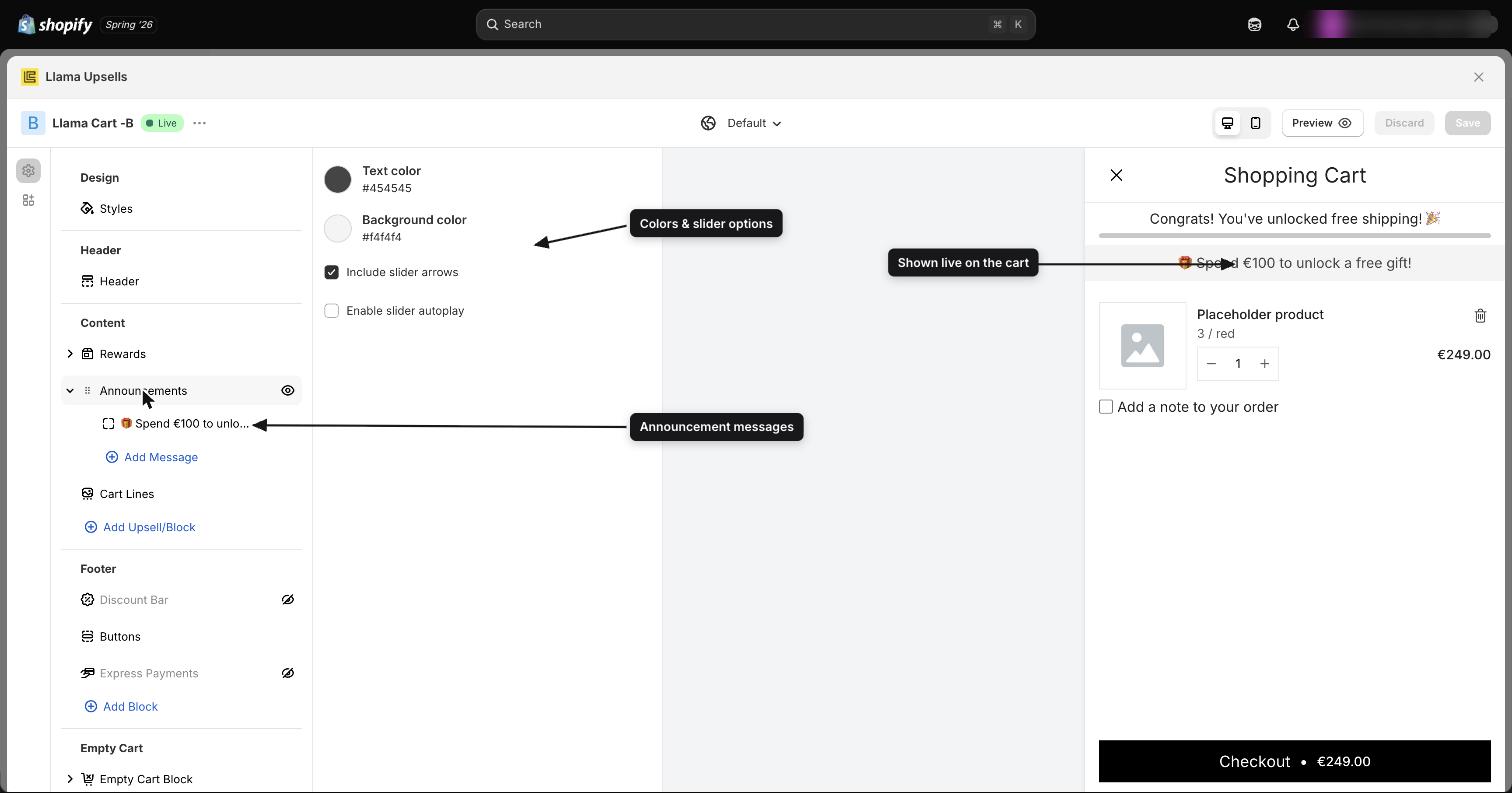
Announcement messages are a rotating message bar inside the Llama Cart drawer. Use them to surface promos, seasonal offers, shipping cutoffs, restock alerts, or store news right where shoppers are deciding to check out. You configure them from the Messages tab of the Llama Cart Customizer, where you can stack several messages into a carousel and control how (and to whom) they appear.
What it is
The Announcements block is a slim banner that sits at the top or bottom of the cart drawer and cycles through one or more short messages. It is shown by default: a new Llama Cart starts with the Announcements block visible and one starter message reading New stock is available. So even before you touch anything, shoppers who open the cart will see a single announcement bar.
Each message is a rich-text snippet (centered by default), and when you add more than one, they auto-rotate as a carousel. The block is purely informational — it does not link to a campaign or change the cart total — but it is one of the most visible places to communicate a time-sensitive offer.
Add and order messages
Open the Customizer and select the Messages tab to manage your announcements.
Open the Messages tab
In the Llama Cart Customizer, open the Messages tab. You'll see your existing messages as a list, plus an Add Message button.
Add a message
Click Add Message. A new message is created (with the default New stock is available text) and selected so you can edit it immediately.
Edit the text
Each message is a rich-text field. Type your copy and use the formatting controls to style it. You can also set the text color or leave it set to inherit the cart's color (see Colors).
Reorder by dragging
Messages are a draggable list. Grab a message by its drag handle and drop it to change the order. The order here is the order shoppers see them rotate in the carousel.
How many messages you can add
You can add up to 10 messages per cart version. Once you reach 10, the Add Message button disappears — delete a message to free up a slot and the button returns.
The 10-message limit applies per cart version (and per market-based config). If you need different sets of messages for different audiences, use per-message targeting rather than trying to cram everything into one list.
Carousel behavior
When you have more than one message, they rotate in a carousel. Three settings control how it behaves.
| Setting | What it does | Default |
|---|---|---|
| Auto-play | Automatically advances to the next message on a timer. Turn off to let shoppers move through messages only with the arrows. | On |
| Auto-play speed | How long each message stays on screen before advancing, in seconds. | 3 seconds |
| Show arrows | Displays Previous and Next navigation arrows on the carousel. | On |
A few behaviors worth knowing:
- The carousel shows one message per slide and loops — after the last message it returns to the first.
- Blank messages are filtered out. If a message has no text, it is skipped entirely rather than shown as an empty gap. A message you cleared but didn't delete simply won't appear.
- When Auto-play is off, the timer is disabled and shoppers advance manually with the arrows (so keeping Show arrows on makes sense in that case).
If you turn Auto-play off and Show arrows off while you have multiple messages, shoppers can only ever see the first message — there's no way for them to advance. Keep at least one of the two enabled when you have more than one message.
Placement
The Announcements block has two placement controls.
Position within the drawer
The Position setting places the block at the Top or Bottom of the cart drawer. The default is Top, which puts the announcement bar above your cart items where it's seen first.
Order relative to other blocks
The Llama Cart drawer interleaves blocks — announcements, rewards, cart lines, and upsells — using a shared order value. The block with the lowest order renders first. Announcements default to order 0, so out of the box they render before rewards (which default to 1) and the cart lines (which default to 2).
This means placement is a combination of two things: the Position field (top vs. bottom region of the drawer) and the order value relative to the other blocks in that region. If your announcement bar isn't where you expect, check both.
Think of Position as choosing the half of the drawer and order as choosing the precise spot among the blocks sharing that area. To put announcements directly above your rewards bar, keep Position on Top and give announcements a lower order than rewards.
Colors
The Announcements block has its own color pair, independent of the rest of the cart.
| Setting | What it controls | Default |
|---|---|---|
| Text color | The color of the announcement text. | #000000 (black) |
| Background color | The color of the announcement bar. | #BAE6FD (light blue) |
Each individual message also supports a per-message text color, or you can leave a message set to inherit so it follows the block's Text color. Leaving messages on inherit keeps your bar consistent if you later change the block's Text color in one place.
Per-message targeting
Each message can be shown to a specific audience. On a selected message you can set:
- Markets — show the message only to shoppers in the chosen Shopify markets.
- Customer tags — show the message only to logged-in customers who carry the listed tags.
Because targeting is set per message, different shoppers can see different announcements from the same cart version. For example, one list could hold a general promo (shown to everyone), a market-specific shipping notice, and a VIP-only message — all in a single Announcements block, each lighting up only for the right shopper.
Message targeting vs. version and market configs
It helps to know the difference between two layers:
- Message-level targeting (Markets / Customer tags on a single message) decides which messages within one cart configuration a shopper sees. The cart is the same; only the announcement that qualifies shows.
- Version and market-based cart configs decide which entire cart configuration a shopper loads in the first place — a whole different set of blocks, colors, and settings.
Use message-level targeting for small per-audience tweaks inside one cart. Reach for a separate market-based config when an audience needs a substantially different cart, not just a different banner.
Customer tag targeting only works for logged-in customers — a guest carries no tags, so a tag-gated message won't show to them. If you need a message visible to everyone, leave its tags empty.
Accessibility
The carousel is built to be usable with a screen reader:
- A hidden screen-reader description announces the carousel. The default text is Carousel with
{{totalSlides}}items. Use the Previous and Next buttons to navigate., where{{totalSlides}}is replaced with the live message count. This text is translatable, so it adapts to your store's languages. - The navigation arrows expose Previous slide and Next slide labels for assistive technology.
You don't need to configure anything for this to work — it applies automatically whenever the Announcements block is visible.
Edge cases
A few configurations behave differently than you might expect. Review these before publishing.
Example recipes
A 3-message rotating promo bar at 4 seconds.
- On the Messages tab, add three messages (e.g. "Free gift over $75", "Summer sale — up to 40% off", "New arrivals just dropped").
- Leave Auto-play on and set Auto-play speed to
4. - Keep Show arrows on so shoppers can also click through.
- Leave Markets and Customer tags empty on each message so everyone sees the rotation.
A free-shipping-cutoff banner shown only to one market.
- Add a message such as "Order by Dec 20 for delivery before the holidays".
- On that message, set Markets to the market it applies to.
- Leave your other messages untargeted so shoppers in other markets still see the general bar.
Only shoppers in the selected market will see the cutoff notice.
A VIP-only announcement by customer tag.
- Add a message like "VIP early access — shop the drop now".
- On that message, set Customer tags to your VIP tag (for example,
vip). - Keep a general untargeted message in the list so non-VIP and guest shoppers still see something.
Remember tags only apply to logged-in customers — guests won't see the VIP message.
A single static trust message with arrows off.
- Delete all but one message, or keep just one.
- Enter your trust copy (for example, "30-day free returns. Secure checkout.").
- Turn Show arrows off — with a single message there's nothing to navigate to.
- Auto-play has no effect with one message, so its value doesn't matter here.
The bar shows your message statically every time the cart opens.
Troubleshooting
Related guides
AI product recommendations
Set up an AI-powered Product Recommendation campaign that suggests related products inside your Llama Cart.
What's new in the new standard cart
A side-by-side look at what changed between the Legacy Llama Cart and the New standard cart — the refreshed layout, the pill-and-sheet footer, new color controls, and more.