
A/B test the Llama Cart with Rollouts
Run a real split test of two Llama Cart designs by pinning cart versions to different themes and splitting live traffic with Shopify Rollouts.
The Customizer lets you keep up to three Llama Cart designs side by side — versions A, B, and C. On its own, only one of them is live at a time, so comparing two designs means running them one after the other and hoping nothing else changed in between.
Pairing cart versions with Shopify Rollouts removes that guesswork. You pin each cart version to its own theme, then let Shopify split live traffic between those themes. Half your shoppers see cart A, half see cart B, at the same time, under the same conditions.
Llama Upsells does not split traffic itself. There is no percentage setting inside the app. The split is done entirely by Shopify Rollouts, which works at the theme level — so the job of this guide is to make "which theme" also mean "which cart".
How the pieces fit together
Three separate settings decide which cart a shopper sees. Understanding the order they resolve in is the whole trick:
| Layer | Where it lives | What it does |
|---|---|---|
| Cart version slots (A / B / C) | Customizer | Up to three full cart configurations. Exactly one is marked Published. |
| Cart Experience Variant | The app embed, inside each theme | Tells this theme which slot to render — either follow Published, or pin to a specific slot. |
| Rollout | Online Store → Themes | Splits live traffic between the current live theme and another theme. |
At render time the app resolves them top-down:
- Read this theme's Cart Experience Variant.
- If it's Published, serve whichever slot the Customizer has published.
- If it's Test Version - A / B / C, serve that slot instead — regardless of what's published.
- If it's Disable Llama Cart, render no Llama Cart on this theme at all.
Because step 1 is a per-theme setting and a rollout splits traffic between themes, two themes can serve two different carts to two halves of your traffic at the same time.
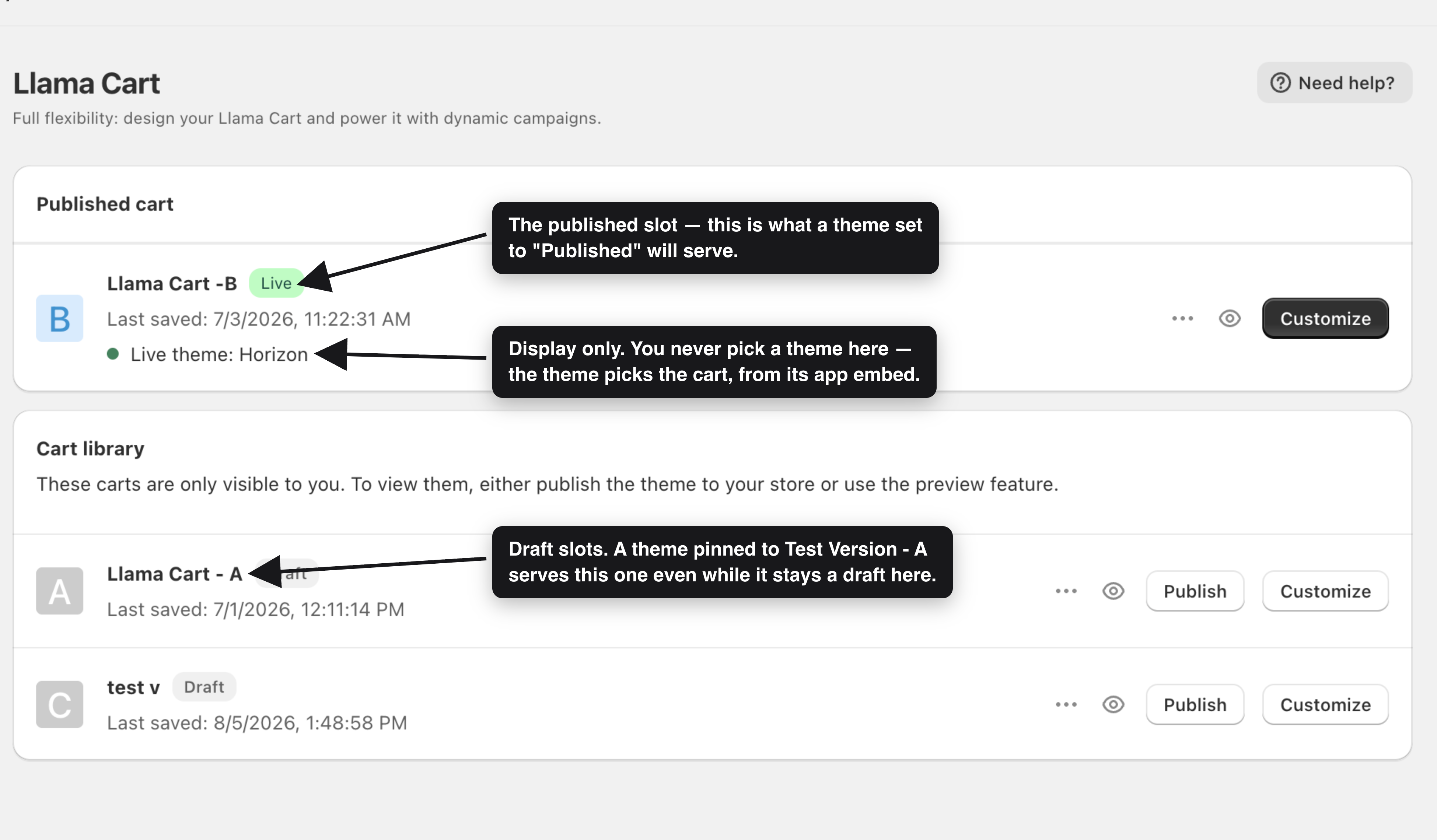
A draft in the Customizer is not necessarily invisible. A version sitting in the Cart library shows as Draft, but any theme pinned to that slot will still serve it to real shoppers. "Draft" describes the slot's status in the app, not whether shoppers can reach it.
Before you start
- Llama Cart is enabled and the LC Upsell app embed is on in the themes you'll use. See Install and enable the app.
- You have (or can create) a second cart version. Versions are created and managed on the Customizer page — see Llama Cart versions & customization.
- Your store has Rollouts. In Online Store → Themes, a draft theme's Publish button has a chevron beside it. If the chevron is there, you have Rollouts. If it isn't, this workflow isn't available on your store and you'll have to test sequentially instead.
- Enough traffic to learn something. A split test on a handful of daily sessions won't separate a real difference from noise.
Set up the test
Build the challenger version
In the Customizer, decide which slot is your control (usually the one currently published) and which will be the challenger.
Use Sync to copy the control's full configuration into the challenger slot, then change the one thing you want to test. Starting from a synced copy is what makes the result meaningful — if the two carts differ in five ways, a win tells you nothing about which of the five caused it.
Sync overwrites the destination completely. Everything already in the slot you sync into is replaced. Confirm the direction before you run it.
Duplicate your live theme
Go to Online Store → Themes, open the ⋯ menu on your live theme, and choose Duplicate. Shopify creates Copy of <theme name> in Draft themes.
Duplicating — rather than picking some other theme you happen to have lying around — keeps everything except the cart identical across both arms of the test.
Pin the duplicate to the challenger version
Open the duplicate with Edit theme, then go to App embeds (the plug icon in the left rail) and expand LC Upsell.
Set Cart Experience Variant to the slot you want this theme to serve — Test Version - B, for example — and Save.
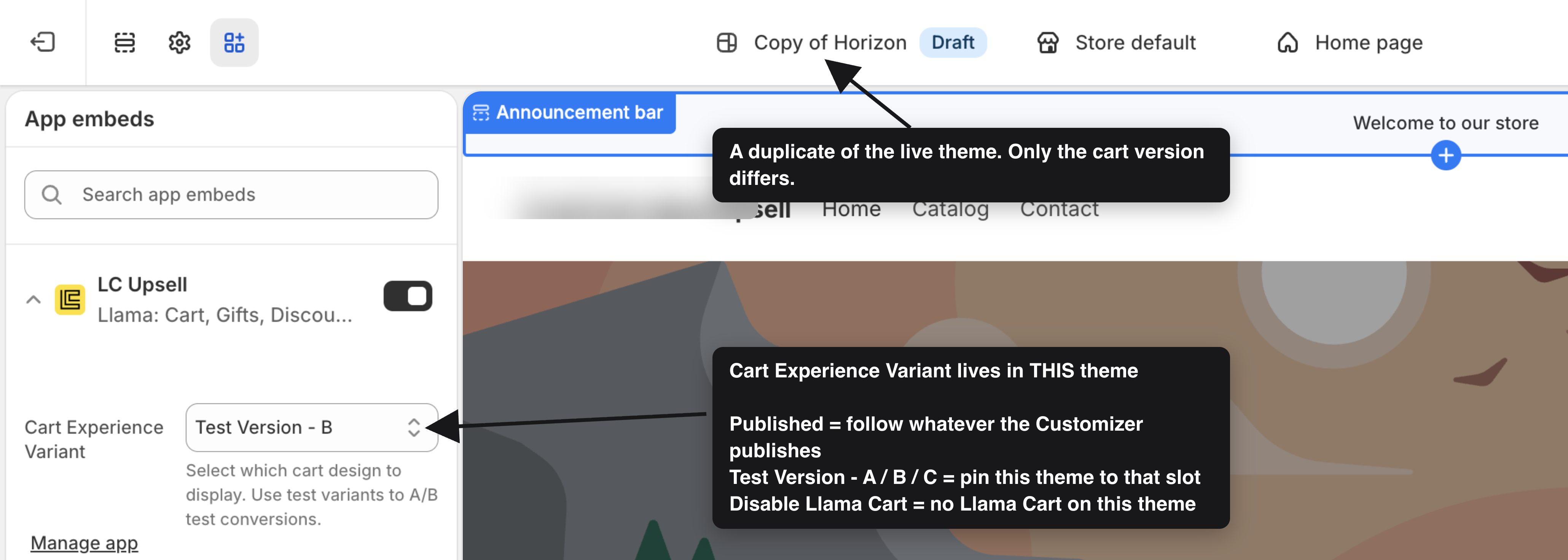
Leave your live theme's setting on Published. That way the control arm keeps serving whatever the Customizer publishes, and you only ever touch one side of the experiment.
Preview before you split any traffic
Still on the Themes page, open the duplicate's ⋯ menu and choose Preview. Add something to the cart and confirm the challenger design actually renders — the right colors, blocks, rewards, and offers.
Fixing a broken challenger now costs nothing. Fixing it after it has been served to half your shoppers costs real orders.
Create the rollout
Back on Online Store → Themes, click the chevron beside Publish on the duplicate theme. The menu shows any existing rollouts plus Create rollout.
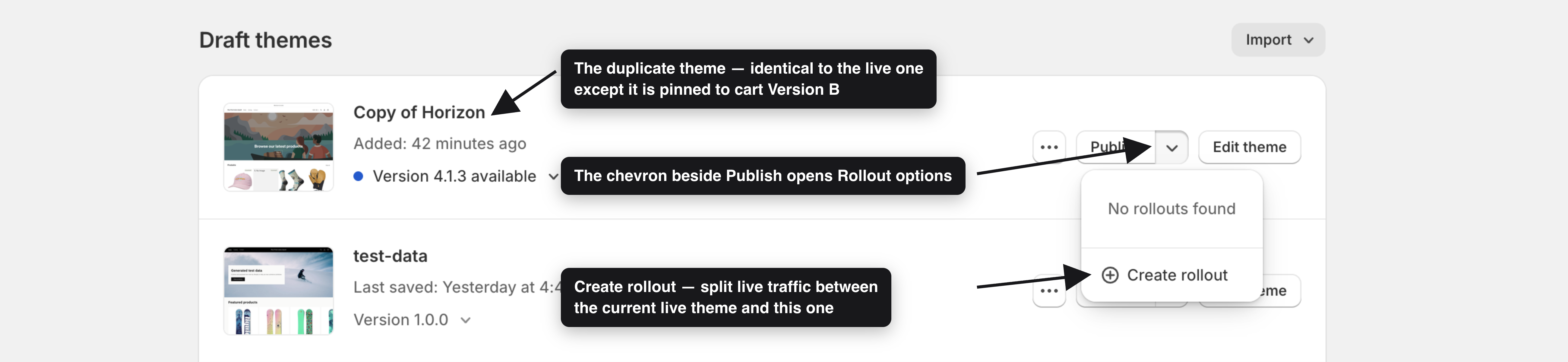
Give the rollout a name that says what's being tested, then set the traffic share below 100%. The moment you do, Shopify reframes the rollout as an experiment with two named arms:
- Control — your live theme, serving the published cart.
- Treatment — the duplicate theme, pinned to the challenger version.
Presets are 33% / 50% / 100%, with a slider for anything in between. 50/50 is the standard choice for a straight A/B test.
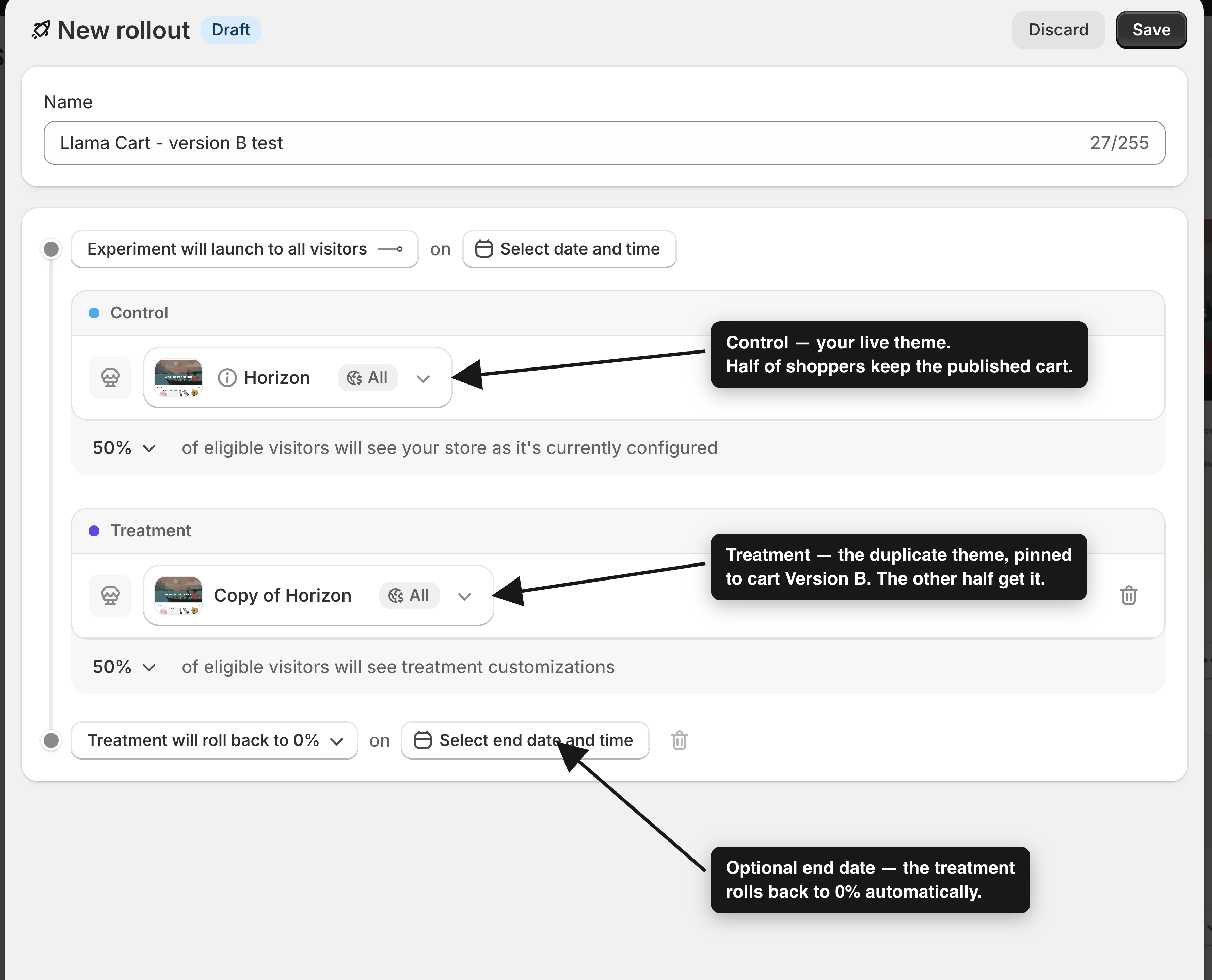
You can also set a start date and an end date — at the end date the treatment automatically rolls back to 0% and everyone returns to the control theme. Setting one up front is a good habit: the test stops on schedule even if you forget about it.
Click Save to create the rollout.
Ship the winner
When the test has run long enough to be conclusive:
- Challenger won — publish that version in the Customizer so it becomes the published cart, then set the duplicate theme's Cart Experience Variant back to Published and publish the theme (or fold your changes into the live theme). Then end the rollout from the theme's Rollout options menu.
- Control won — end the rollout. Traffic returns to the live theme, and the challenger slot stays in the Cart library for the next idea.
Either way, finish by putting every theme's Cart Experience Variant back to Published. Leaving themes pinned to specific slots is the single most confusing state to inherit later — the Customizer will say one version is live while a theme quietly serves another.
Where the numbers come from
Read the result in Shopify's rollout report, not in the app's cart-version metrics.
Llama Upsells stamps cart engagement events with the version the Customizer has published, resolved per shop — not with the version the shopper's theme actually rendered. During a rollout both arms are therefore recorded under the same version letter, and the app's per-version numbers cannot separate them.
Judge the test on Shopify's own results for the experiment, which it tracks per arm (Control vs Treatment). You'll find the rollout again under the same Rollout options menu you created it from.
This also means the app's per-version metrics stay useful for sequential comparisons — publish one version for a fortnight, publish the other for the next fortnight — where the published version genuinely matches what shoppers saw.
Keeping the test honest
Change one thing. Sync first, then make a single change. Two changes in one test give you a result you can't act on.
Don't edit mid-test. Editing the published version changes the control arm underneath a running experiment. If you must change something, stop the rollout, make the change, and start again.
Remember blocks aren't shared across versions. Custom HTML blocks, rich-text blocks, announcement messages, and reward bars live inside each version's configuration. Adding one to the challenger does not add it to the control — that's exactly what makes a clean single-variable test possible, and exactly what trips people up when they expect a change to appear everywhere.
Watch the markets dimension. A version's configuration is stored per market as well as per version. If you use market-specific cart styling, make sure the market you care about is configured in both slots before splitting traffic.
Give it a fair run. Let the test cover whole weeks rather than a few days, so weekday/weekend behaviour doesn't decide the outcome.
Troubleshooting
Related guides
Llama Cart versions & customization
Create, name, sync, publish, and delete the A/B/C cart version slots.
Install and enable the app
Turn on the LC Upsell app embed in every theme you use.
Llama Cart features
The cart features you might want to test — rewards, announcements, the discount bar, and more.
Analytics overview
What Llama Upsells measures, and how revenue is attributed.
Llama Cart versions & customization
Set up the Llama Cart, run A/B/C version tests, style it per market, and customize it from the Customizer page.
Theme cart type & compatibility
Set your theme cart type to Drawer or Pop-up, run the built-in 5-point compatibility check, and fix conflicts so Llama Cart opens reliably.