
AI product recommendations
Set up an AI-powered Product Recommendation campaign that suggests related products inside your Llama Cart.
AI product recommendations let Llama Upsells automatically suggest related products in your cart based on what shoppers have added. Instead of hand-picking offers, the app asks Shopify's built-in product-recommendation engine for the related products tied to the items in the cart and surfaces those — so a shopper who adds a plate might see a matching table set. "AI Recommendations" is the in-app label for this mode; there's no separate proprietary AI or machine-learning model behind it, just Shopify's native related-products data.
This guide walks you through creating your first AI Product Recommendation campaign and connecting it to the Llama Cart.
Before you start
You'll create a new Product Recommendation campaign, choose the AI recommendations type, set when it shows, and then connect it to your Llama Cart. Manual and collection-based recommendations are also available, but this guide focuses on AI.
Create the campaign
Start a new campaign
In the admin, start a new campaign and choose the Product Recommendation option.
Choose AI recommendations
Select AI recommendations as the recommendation type. (Manual and collection recommendations are also available, but here you'll use AI.)
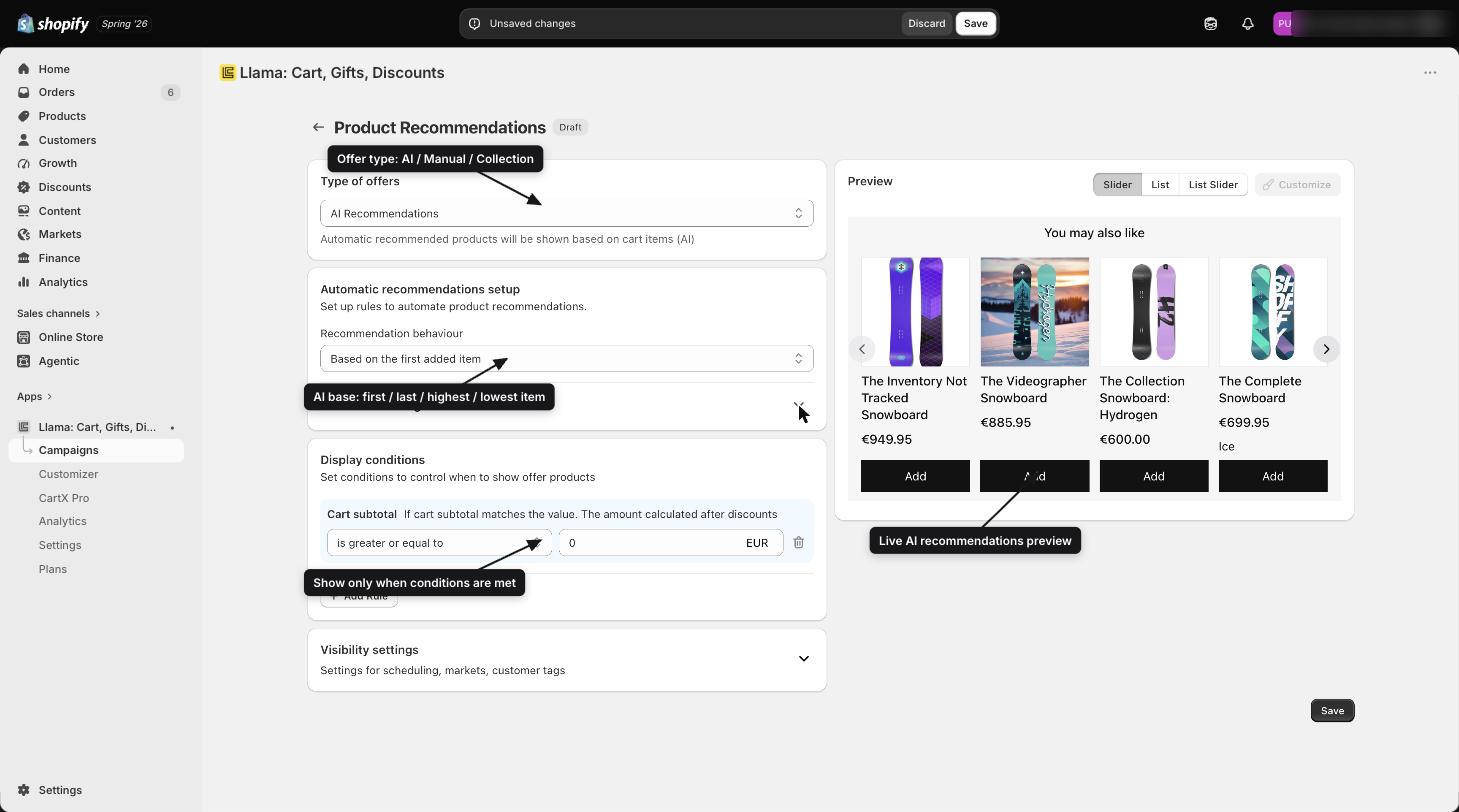
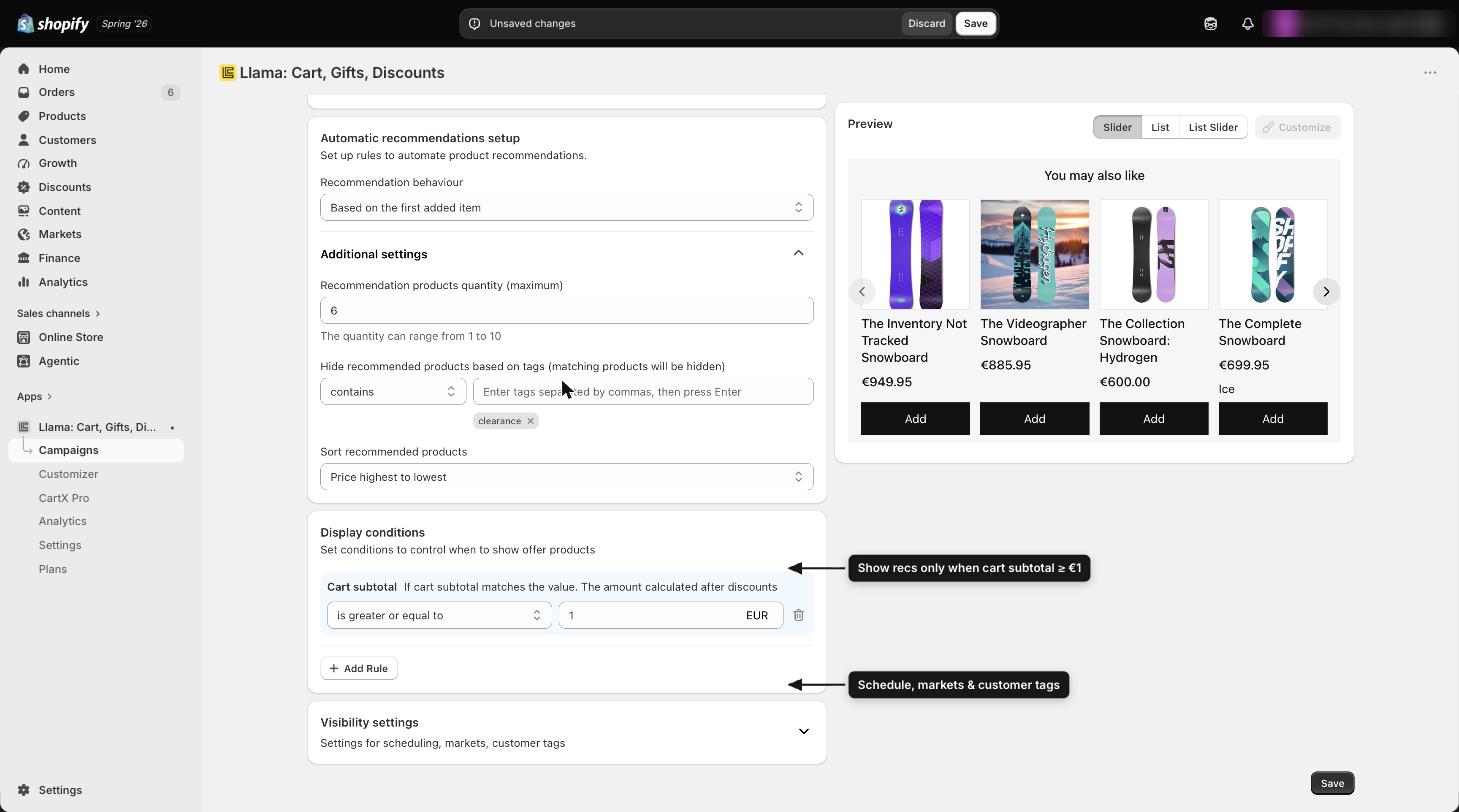
Base recommendations on the last item added
Configure the recommendation to be based on the last item added, and set a limit of six items.
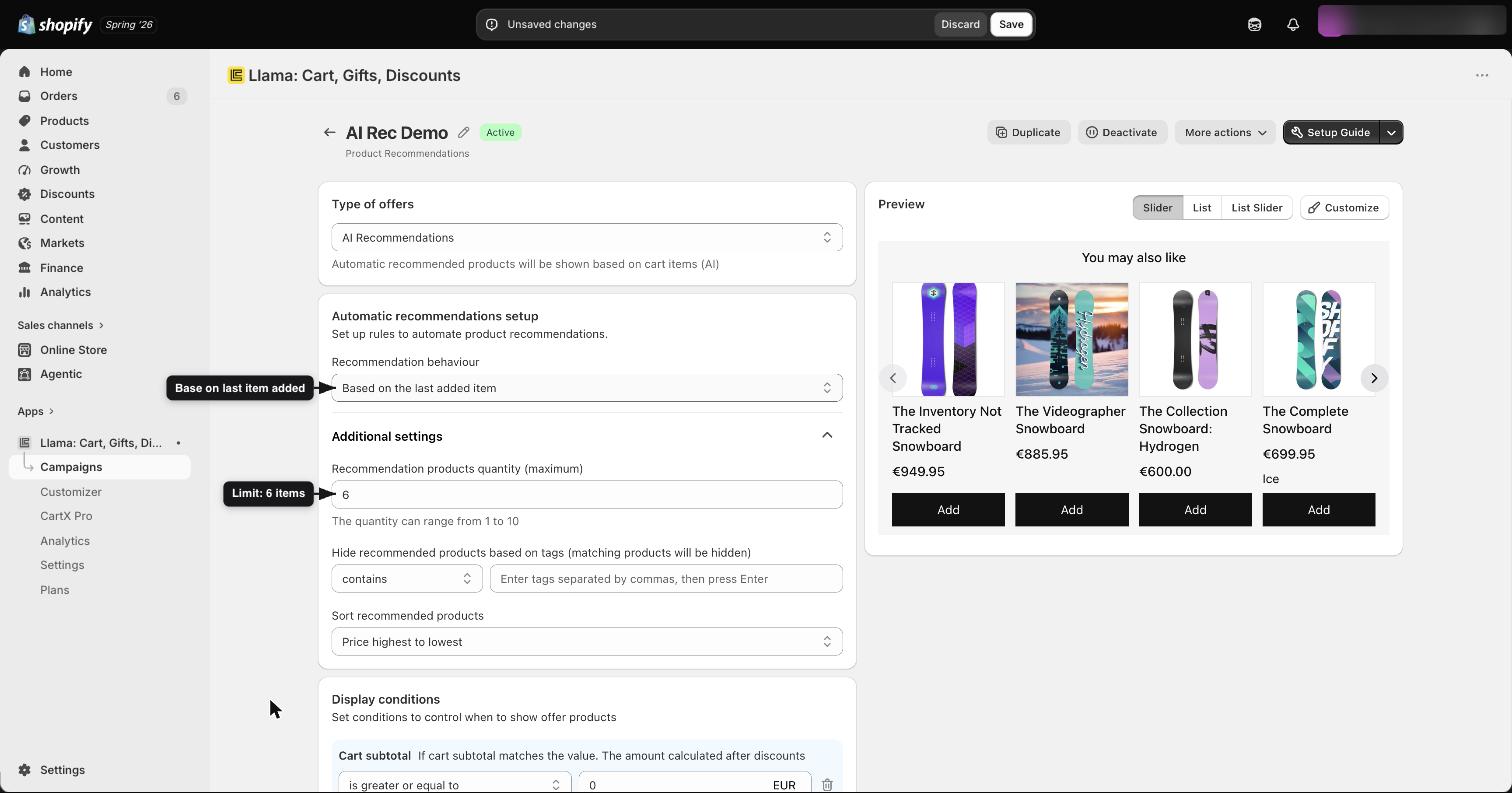
Hide products by tag (optional)
You can hide specific products from the recommendations using tags — for example, items you'd rather not surface, such as warranties. Add those tags here. You can skip this step if you don't need it.
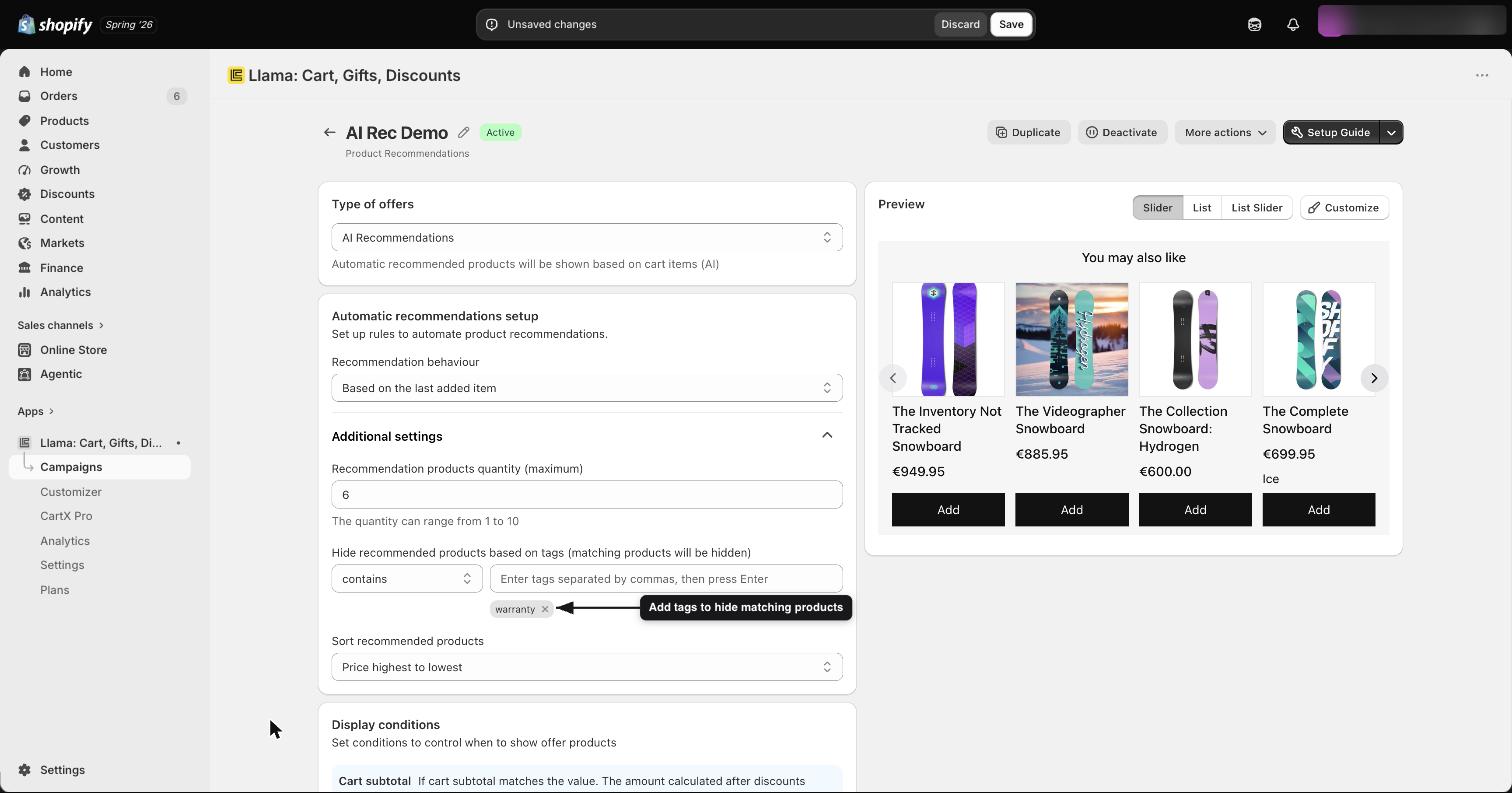
Set when recommendations appear
Decide when these recommendations should show by setting a display condition. For a simple setup, display them when the cart subtotal is equal to or greater than $1.00.
You can combine this rule with others later, but starting with one basic condition is the easiest way to get going.
Save the campaign
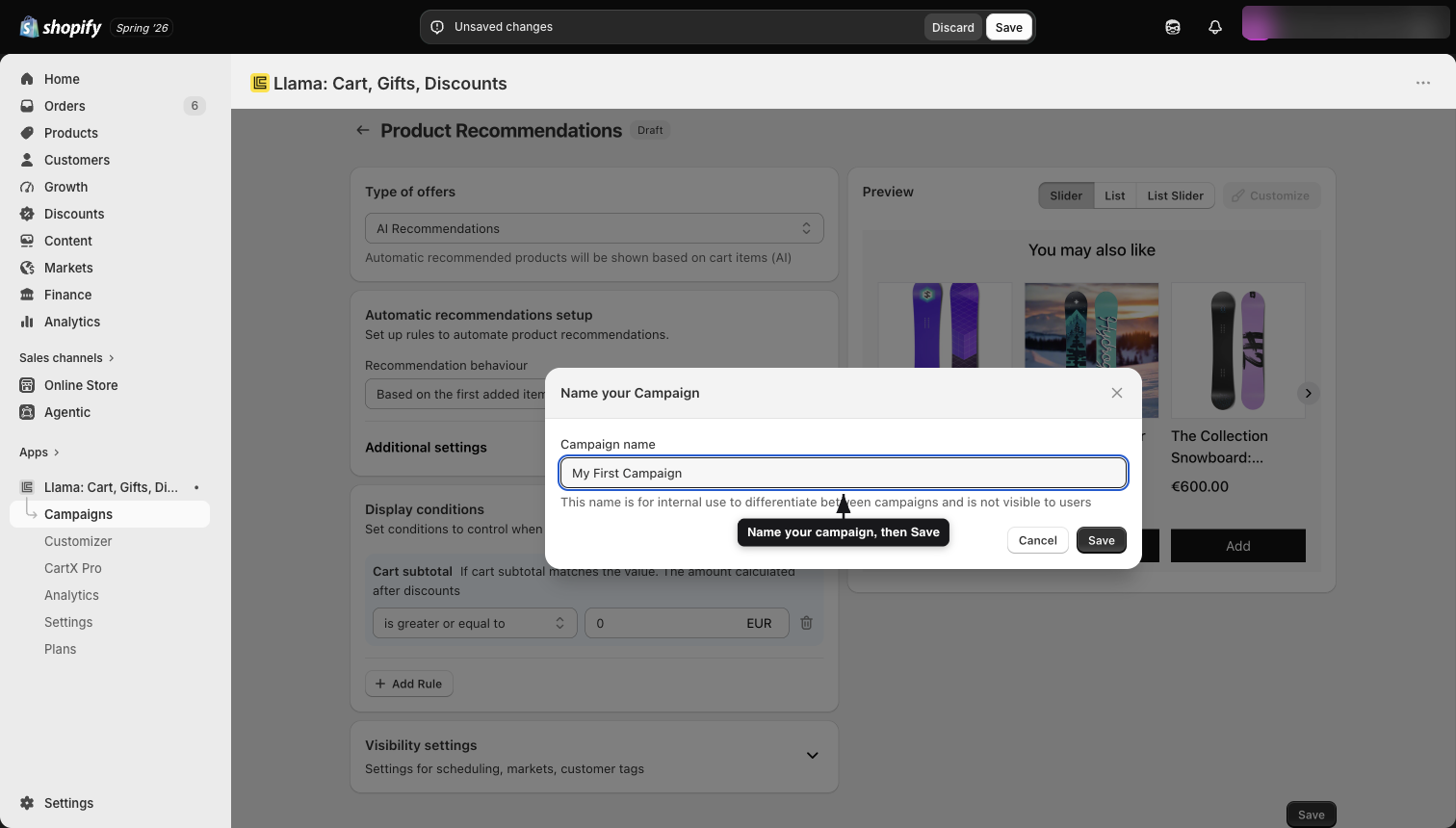
Click Save and give the campaign a name, such as My First Campaign.
Connect the campaign to the Llama Cart
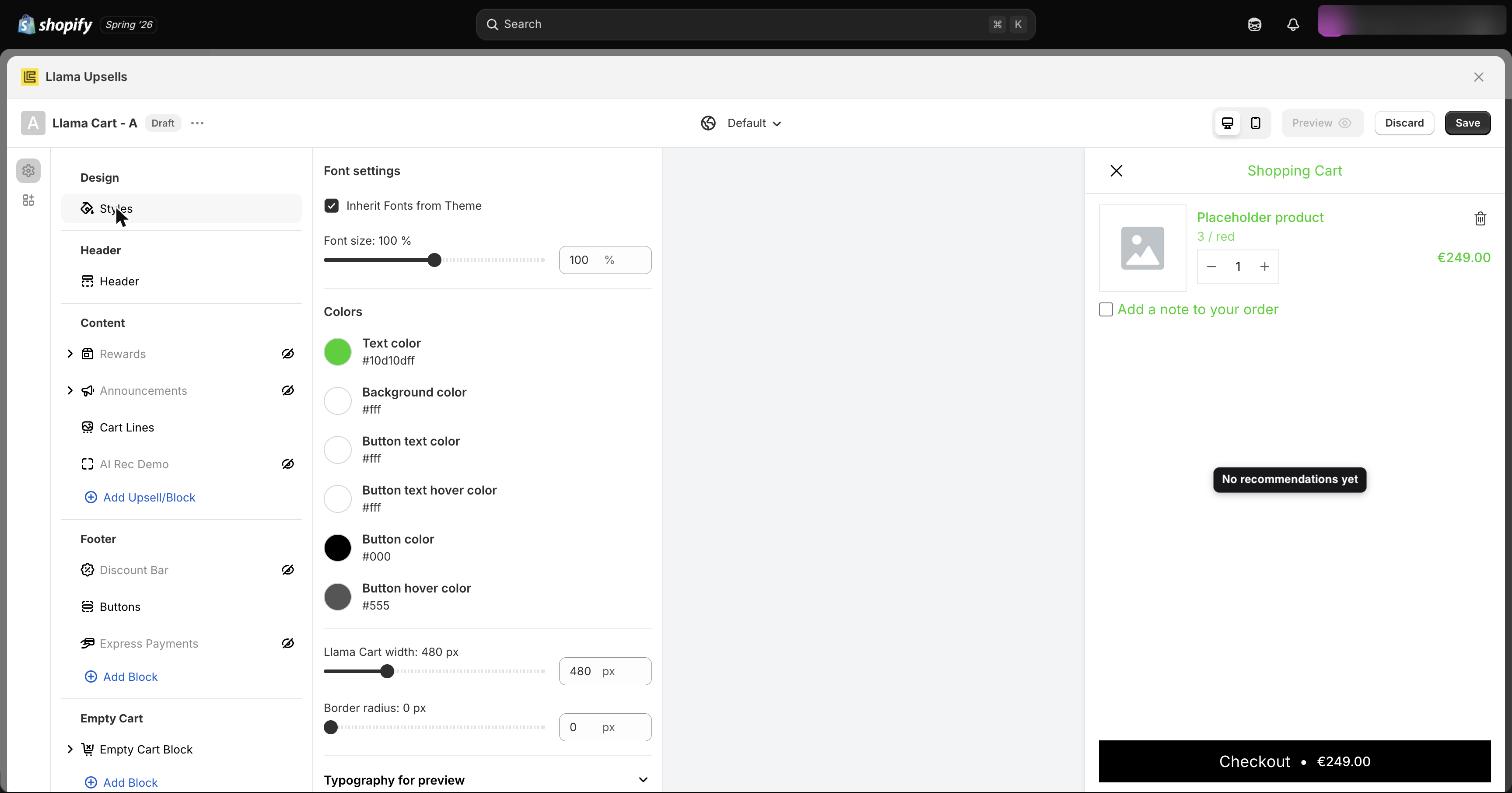
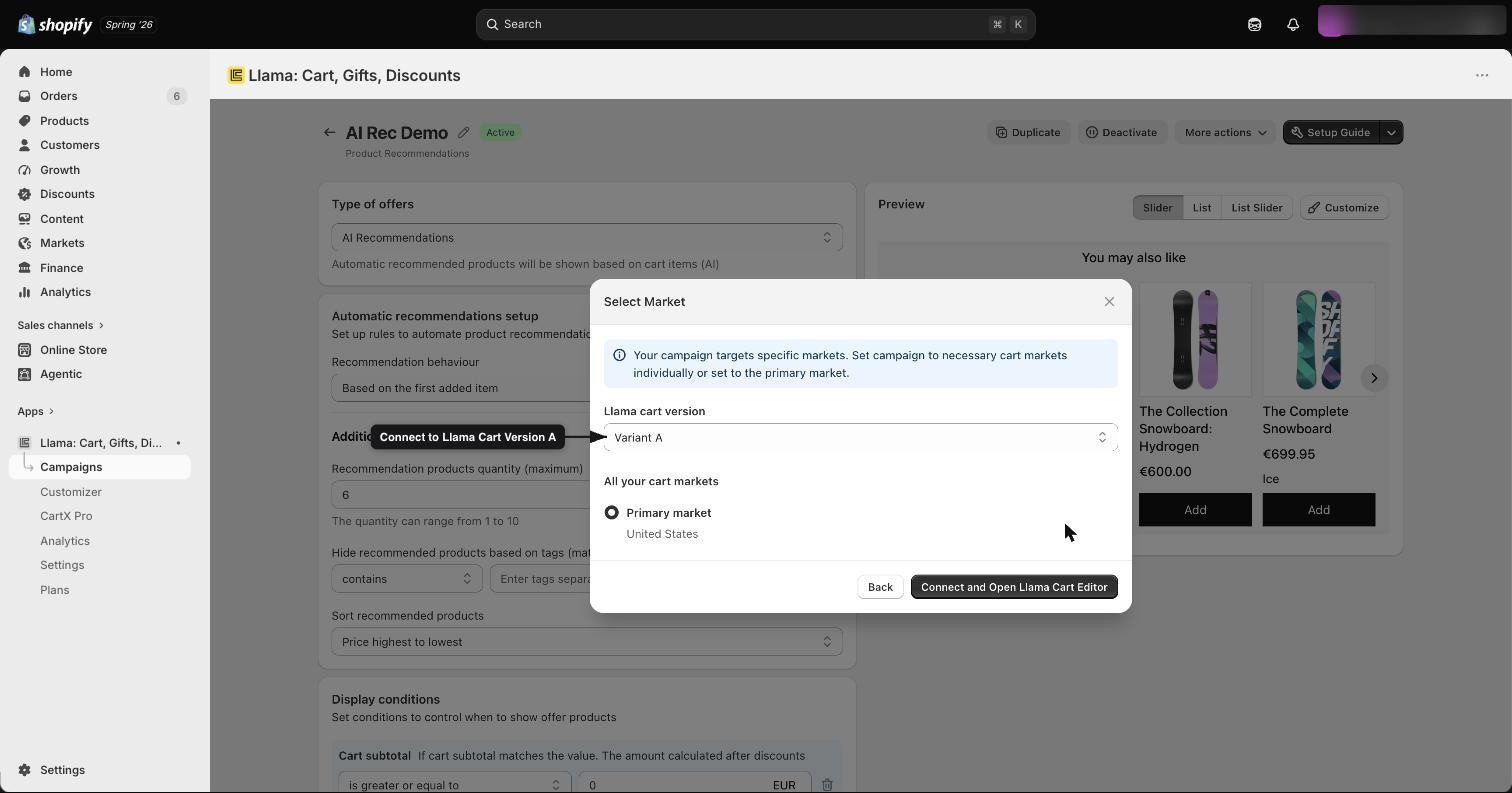
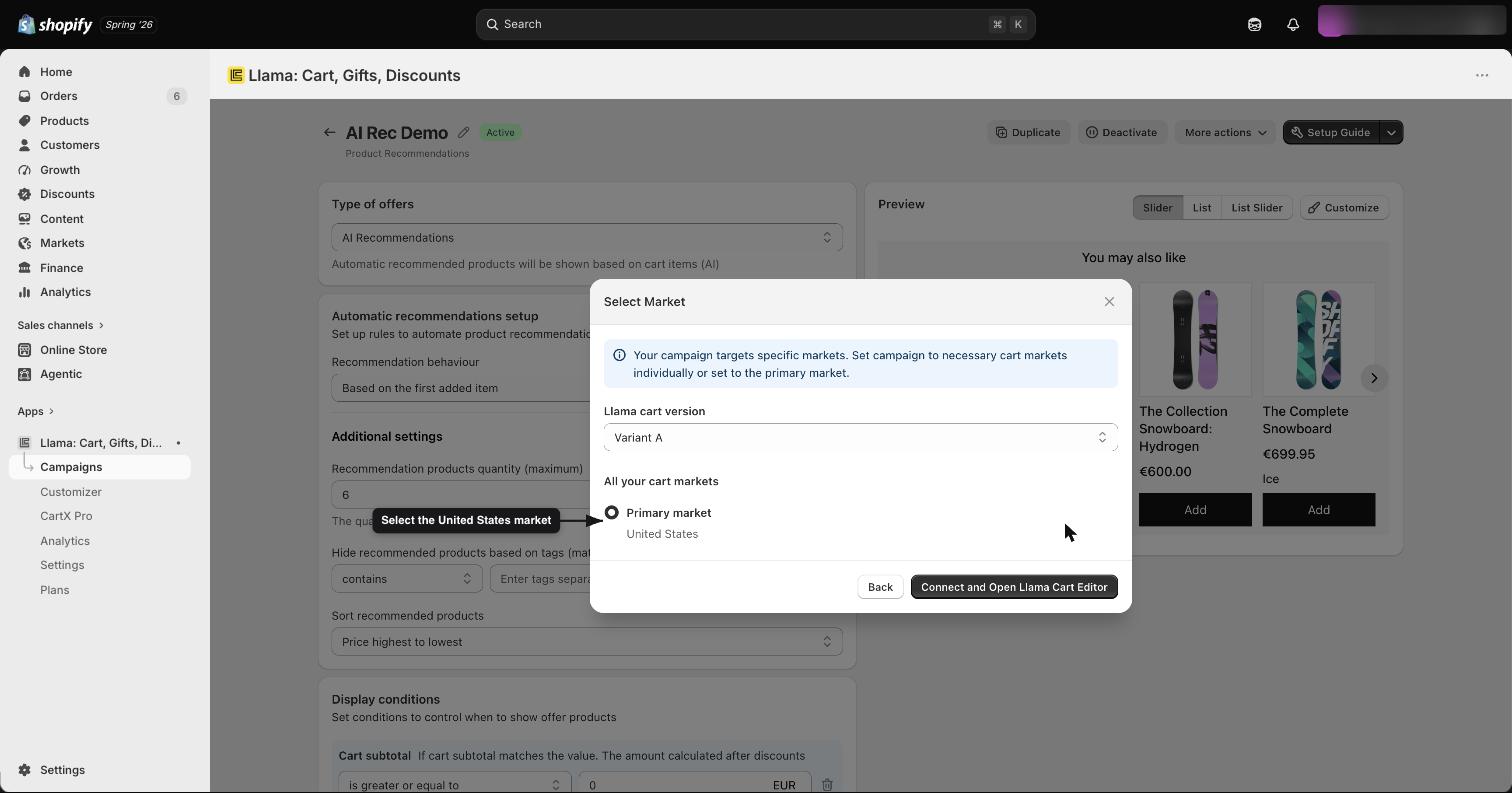
After saving, you can place the campaign anywhere on your store or apply it to the Llama Cart. To show it in the cart:
Position the campaign and save
Your campaign now appears in the Llama Cart. Drag and drop it to rearrange where it shows in the cart, then click Save.
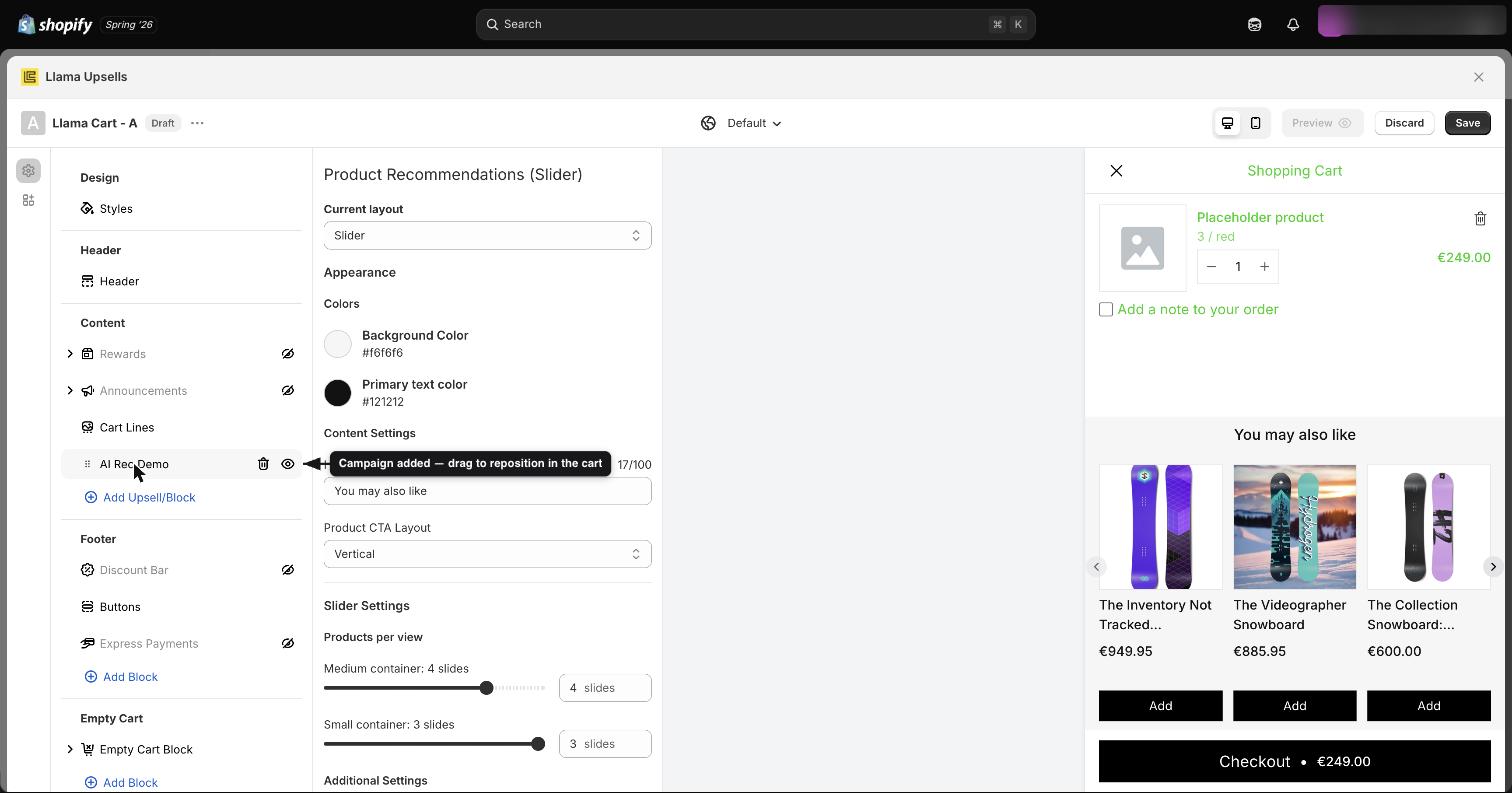
Versions B and C of the Llama Cart are covered separately. This guide uses Version A.
Test on your storefront
Open your storefront and refresh the page to see the recommendations in the cart. Clicking Add brings in a new recommendation based on the last item added.
To see it clearly, add a product that's unrelated to what's already in your cart. For example, add a plate — you should then see recommendations for a matching table set, drawn from Shopify's related-products data for that item. That's the AI Recommendations mode working automatically inside your cart.