
Migrating to the new standard cart
How to move your Llama Cart from the Legacy design to the New standard cart — what to back up first, how to switch, and what won't come back if you revert.
Moving your Llama Cart from the Legacy cart to the New standard cart takes a couple of minutes, but it's a change to plan for rather than a casual toggle. This guide covers what to back up first, how to make the switch, and — importantly — what does and doesn't come back if you ever switch away again.
Treat the move as permanent. You can switch back to the Legacy cart later (the Design tab keeps a Switch to Classic button), but it is not a clean undo: your Custom CSS and any footer / order-note layout changes are not restored, and there's no way to recover them. Back everything up and be sure before you save.
Names you'll see in the app. In the Customizer's Design tab, the Legacy cart is labeled Classic and the New standard cart is labeled Modern. The button you'll click says Switch to Modern.
What "reversible" really means here
Two different things happen when you switch, and only one of them is safe to rely on:
- The design version is reversible. Switching to the New standard cart and back to the Legacy cart is possible from the Design tab, and your saved settings persist on both.
- A few things are lost on the way back. The New standard cart renders different markup and re-stacks the footer, so:
- Custom CSS written for the Legacy cart may stop applying on the New standard cart, and any CSS you rewrite for the New standard cart won't be restored if you switch back.
- Once you rearrange the New standard cart's footer, switching back won't restore your exact original footer order.
Because those losses are permanent, the safe way to think about it is: switch forward when you're ready, and don't count on going back.
Before you switch: pre-flight checklist
Back up your Custom CSS
Open Customizer → Design, select your entire Custom CSS block, and paste it somewhere safe. The New standard cart uses different markup, so you may need to rework it — and CSS you write for the new cart won't come back if you ever switch to the Legacy cart. A backup is your only safety net.
Screenshot your footer and order-note layout
Take a quick screenshot of your current footer — the button arrangement, the order note, and the discount field. If you rearrange the new footer later, the exact original order can't be auto-restored, so a reference image makes rebuilding easy.
Note your in-cart slider settings
If you tuned how many products show per row in your cart's upsell sliders, jot those values down. The New standard cart shows one product at a time with a peek of the next, so it lays those blocks out its own way.
Note your order-note wording
If you customized or translated the order-note label, placeholder, or max length, note them. Switching seeds an order-note block in the new footer from your Legacy cart-note settings, but it's worth confirming they carried over afterwards.
Make the switch
The switch lives on the Design tab of the Customizer and only takes effect once you Save.
Open the Design tab
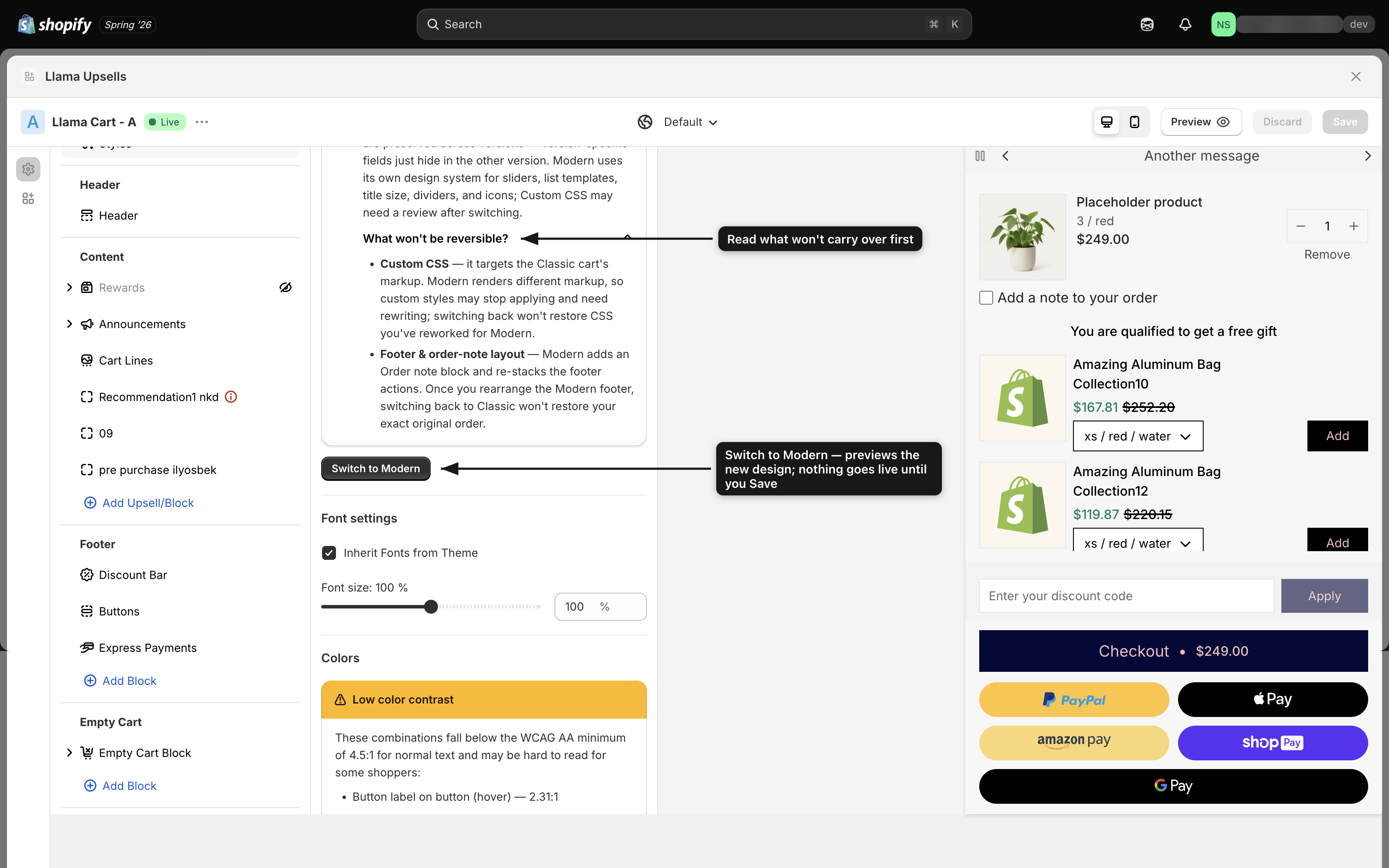
In the Customizer, open the Design tab. If your shop is eligible, a banner appears with a Switch to Modern button. (Brand-new shops are already on the New standard cart and won't see the button.)
Read "What won't be reversible?"
Expand the What won't be reversible? note in the banner. It calls out the two things a switch back won't restore — your Custom CSS and your footer & order-note layout. You backed both up in the pre-flight step.
Click Switch to Modern
The live preview flips to the New standard cart immediately so you can see it. A green Version switched banner confirms the change.
Save to publish
The switch is pending until you Save — nothing changes on your storefront until then. If you reload or discard before saving, the cart stays on the Legacy design.
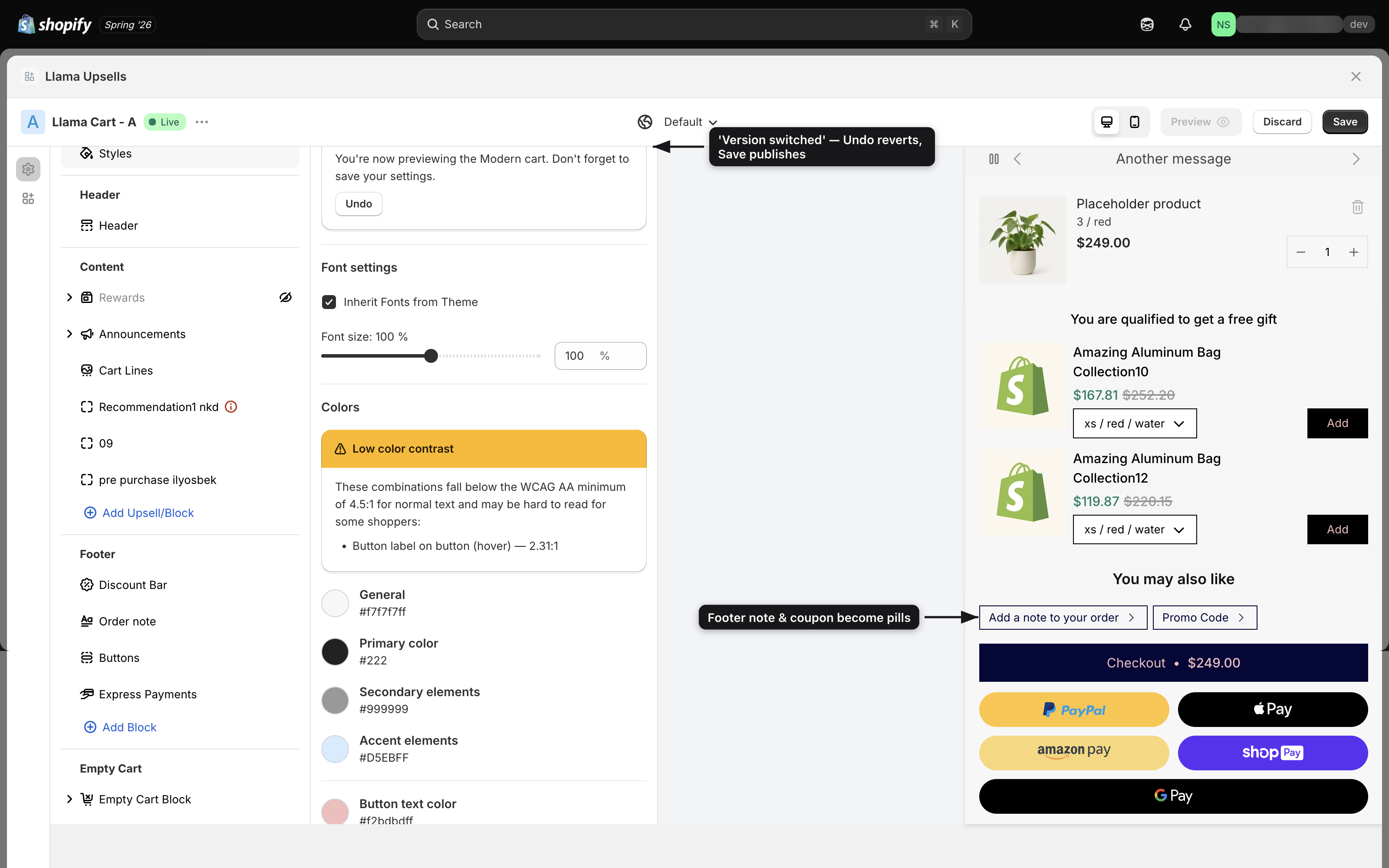
Previewing the New standard cart in the Customizer is not the same as publishing it. Only Save makes it live. Before you save, Undo reverts the pending switch and Discard reverts your whole unsaved session. After you save, the only way back is a fresh (and lossy) switch to Classic.
After you switch: verify on your storefront
Once you've saved, open your live store, add a product so the drawer opens, and walk this checklist — on both desktop and a phone, since the footer sheets are a touch interaction.
Open the cart on your storefront
Add an item and open the drawer on your live site (not just the Customizer preview). Confirm it opens and shows the New standard design.
Check line items and the order note
Confirm products, prices, and quantities are right. Tap the order-note pill and confirm your label, placeholder, and max length match what you had.
Test the discount field
Tap the discount pill, enter a code in the sheet, and confirm it applies.
Check rewards, announcements, and express payments
Confirm your rewards Progress bar renders, your announcements rotate, and any express-payment buttons appear.
Review your Custom CSS
Look closely at anything you styled — the drawer, line items, footer, buttons. The new markup differs, so rework any rules that stopped applying. See Custom CSS.
Clear contrast warnings and test mobile
On the Design tab, clear any Low color contrast warnings (including the new Text on footer background check). Then open the cart on a phone and tap through the order-note and discount sheets.
If you switch back to the Legacy cart
You can switch back from the Design tab (the button now reads Switch to Classic), and your saved settings reappear — but remember the two permanent losses:
- Custom CSS you wrote for the New standard cart is not restored.
- If you rearranged the new footer, the exact Legacy footer order won't be auto-restored — rebuild it from the screenshot you took.
Everything else returns to its saved value. Because of these losses, only switch back if you genuinely need to, and expect to redo your CSS and footer.
Troubleshooting
Related
What's new in the new standard cart
A side-by-side look at what changed between the Legacy Llama Cart and the New standard cart — the refreshed layout, the pill-and-sheet footer, new color controls, and more.
Empty cart state
Configure what the Llama Cart drawer shows when the cart is empty — a message, recommended collections, custom HTML, and per-shopper merchandising.