
Variant offers, per-variant discounts & quantity limits
Offer specific variants instead of whole products, set per-variant discounts, and control Product Limit and Total Limit quantities.
When you build an offer in a campaign, you don't have to offer a whole product. You can narrow it down to specific variants, give each variant its own discount, and cap how many of each a shopper can take. This page explains the Offer Products table in depth: choosing variants, the per-variant Discount, the per-variant Limit (Product Limit), and the Total Limit that controls how many different products a shopper can claim.
These controls live in the Offer Products section of a campaign's offer step. The exact set of controls you see depends on which funnel you're building — see Which funnels expose which controls below.
Whole product vs specific variants
When you add a product to the Offer Products table, you're choosing what the campaign offers. A product can be offered as a whole, or narrowed to one or more of its variants.
- Multi-variant products (a product with more than one variant — for example sizes or colors)
show a variant picker. You can add the product and then keep only the variants you want to
offer. Each variant you keep becomes its own row entry in the offer, identified by its variant
ID and the option value (such as
LargeorRed). - Single-variant products are added using their first (and only) variant automatically — there is no variant picker to narrow, because there's nothing to narrow.
In the table, each row shows the product image, title, status badge, and an ID you can click
to copy. For a single-variant product the copied value is the Product ID; for a multi-variant
product it's the Variant ID, shown alongside the option value (for example ID: 12345 - Large).
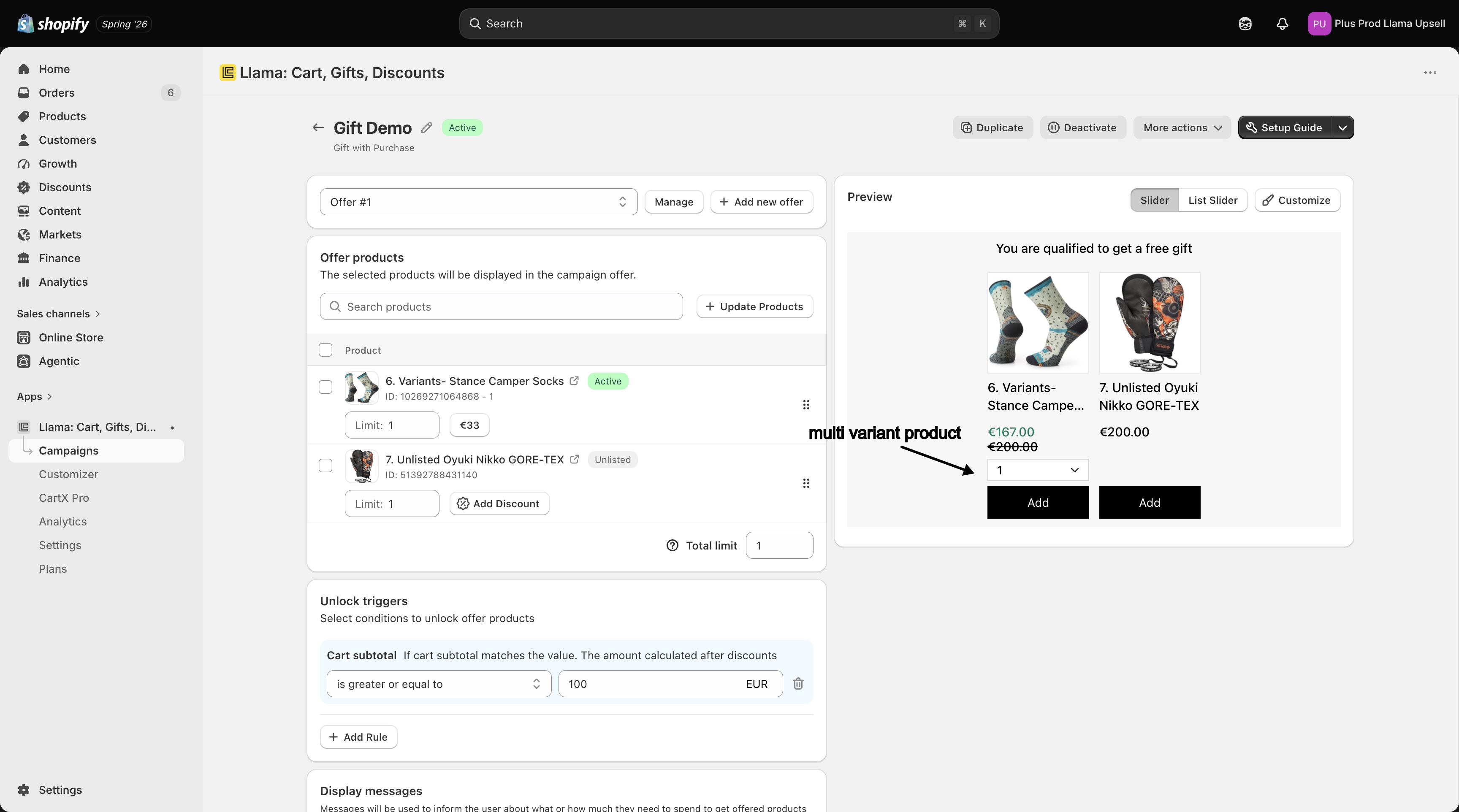
Offering a specific variant only controls what the campaign offers. On a multi-variant offer
card, the shopper still picks the variant on the storefront from the variants you kept — so if you
offered Small and Large but not Medium, the shopper can choose between Small and Large, and
Medium is never shown.
Recipe: offer only the "Large" variant as the free gift
Say you run a Gift with Purchase campaign and you only want to give away the Large size of a tote bag — never the Small.
Add the product
In the offer step, open Offer Products and add the tote bag product.
Narrow to the Large variant
Because the tote has multiple variants, use the variant picker to keep only Large and remove the other sizes. Only the kept variants stay in the offer.
Set it to 100% off
Add a Percentage discount of 100% to the Large variant so it's completely free. See Per-variant discounts below.
The shopper now sees only the Large tote as the free gift, and no other size can be claimed from this campaign.
Per-variant discounts
Each row in the Offer Products table can carry its own Discount, set from the discount popover on that row. Discounts are stored per variant, so two variants of the same product can be discounted differently.
| Discount type | What it does | Example |
|---|---|---|
| Fixed | Takes a set currency amount off the variant | $50 off |
| Percentage | Takes a percentage off the variant, up to 100% for a free item | 50% off, or 100% for a free gift |
A few rules to keep in mind:
- A variant with no discount is offered at full price. Discounts are opt-in per variant — leaving a variant's discount empty means the shopper pays the normal price for it.
- To make a variant completely free (for example a true gift), use a Percentage discount of 100%.
For the full discount picker — including how discounts apply automatically at checkout and the limit on how many distinct variants a single condition can discount — see Applying discounts to offer products and the Discounts overview.
Recipe: a different discount per variant
You're offering a hoodie in two sizes and want to clear out Small stock harder than Large:
- Add the hoodie and keep both the Small and Large variants.
- On the Small row, set a Percentage discount of 50% off.
- On the Large row, set a Percentage discount of 30% off.
Each variant now carries its own discount, and the shopper sees the correct price for whichever size they choose.
Setting a discount on one variant does not discount the others. If you add three variants but only set a discount on one, the other two are offered at full price. Set a discount on every variant you intend to discount.
Per-variant quantity (Product Limit)
The Limit field on each offer row is the Product Limit — the maximum quantity a shopper can take of that specific variant. It's stored per variant, with a default of 1.
- The minimum you can enter is 1.
- Each variant you add starts at a Product Limit of 1 until you change it.
What the Product Limit controls depends on the funnel:
- On Auto-add offers, the Product Limit becomes the maximum quantity enforced on the line the app adds to the cart automatically — the app won't add more of that variant than the limit.
- On Gift with Purchase and Checkout Upsells offers, the Product Limit is the add-to-cart cap for that variant — the shopper can't add more of it than the limit allows.
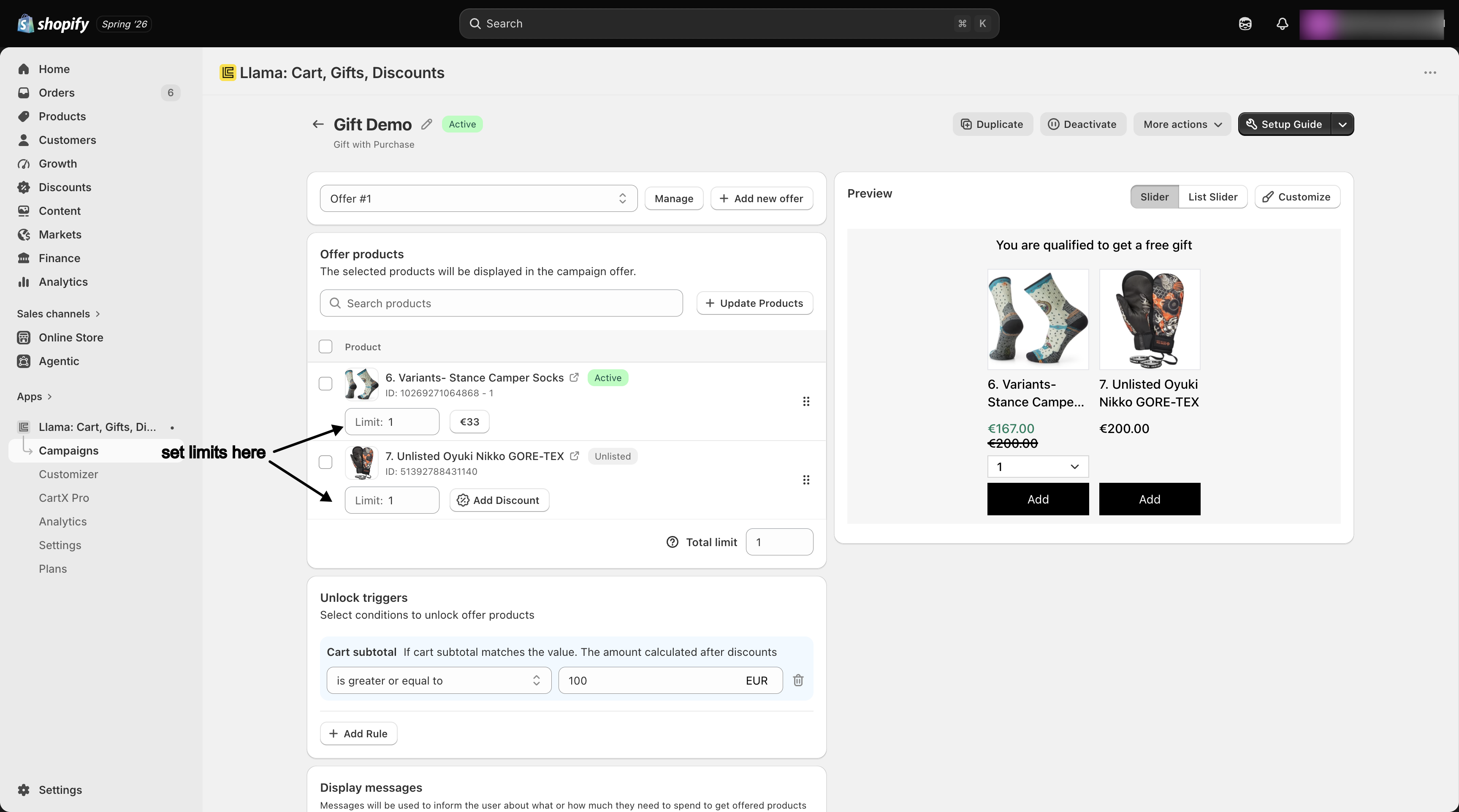
A Product Limit must be greater than 0 for every variant. A limit of 0 (or blank) is invalid and the campaign will flag a product-quantity error. Keep every variant's limit at 1 or higher.
Total Limit (the diversity limit)
While the Product Limit caps each variant individually, the Total Limit caps how many different products a shopper can claim from the offer overall. It's the "diversity" limit: the number of distinct products allowed, not the total number of items.
You don't always set the Total Limit by hand. On Auto-add campaigns the editor auto-computes it by summing the per-variant Product Limits — add up every variant's limit and that sum becomes the Total Limit. Adding a product, removing a product, or changing a Product Limit re-computes it.
On the storefront, the effective limit is the smaller of the Total Limit you set and the number of products that are actually available (in stock and offerable). So if your Total Limit is 5 but only 3 of the offered products are currently available, shoppers can claim at most 3 — the limit shrinks to match real availability.
The Total Limit can't be 0 when the offer contains products. Saving with a Total Limit of 0 triggers the validation error "Invalid diversity limit" — the campaign won't save until you set it to 1 or higher (or, on Auto-add, until the per-variant limits sum to a positive number).
How the two limits work together
Which funnels expose which controls
Not every funnel shows every control. The table below summarizes where each control appears.
| Control | Funnels that expose it |
|---|---|
| Product Limit (per-variant Limit field) | Gift with Purchase, Checkout Upsells |
| Total Limit (diversity limit) | Gift with Purchase, Checkout Upsells |
| Discount (per-variant) | Gift with Purchase, Auto-add, Unlock, Checkout Upsells, Post Purchase |
Notes on the edges:
- On Checkout Upsells, the Limit field shows for manually selected (non-auto-add) offers. When a Checkout Upsells offer is set to add automatically, the per-row Limit field isn't shown.
- Product Recommendations offers are full-price recommendations and don't expose a Discount or a Limit on the offer rows.
For funnel-specific walkthroughs, see Gift with Purchase and Checkout Upsells.
Edge cases & cleanup behavior
Troubleshooting
- "Invalid diversity limit" on save — your Total Limit is 0 while the offer still contains products. Set it to 1 or higher. On Auto-add, raise at least one per-variant Product Limit so the limits sum to a positive number.
- Shoppers can claim fewer products than my Total Limit — the effective limit is capped by how many offered products are actually available. Check whether any offered products are out of stock or unavailable.
- A variant is offered at full price by mistake — that variant has no discount set. Open its discount popover and add a Fixed or Percentage discount.
- A size never appears as a gift — it was removed from the variant picker. Re-add the variant in the Offer Products table.
Related
Applying discounts to offer products
Fixed, percentage, and per-unit discounts, and how many distinct variants one condition can discount.
Gift with Purchase
Offer free or discounted gifts, with Product Limit and Total Limit on the gift.
Checkout Upsells
Inline offers in the Shopify checkout, with per-row Limit and Discount controls.
Discounts overview
The discount types in Llama Upsells and where to set each one up.
Multiple offers — ordering, diversity limits & fallbacks
How several offers inside one campaign are evaluated, ordered, capped by the diversity limit, and how out-of-stock fallbacks behave.
Gift limits: per-product & total caps
Cap how many gifts a shopper can claim with Product Limit and Total Limit, the controls that protect margin and inventory on free gifts.