
Managing multiple offers
Add, rename, switch between, and delete several offers inside a single campaign to build tiered promotions without extra campaigns.
Some campaign types let you build several offers inside one campaign. Each offer can hold its own products and its own conditions, so you can run tiered promotions — for example, spend $50 to unlock one gift, or spend $100 to unlock a better one — all from a single setup.
What multiple offers are for
Instead of creating a separate campaign for every tier or variation, you keep everything together. Each offer in the campaign is independent: it has its own products, discounts, and trigger conditions. This makes it easy to reward shoppers in stages and to manage the whole promotion from one place.
A common use is a tiered gift campaign, where the gift gets better as the cart subtotal grows.
Which campaigns support multiple offers
Not every campaign type supports more than one offer.
Gift with Purchase
Create multiple gift tiers, each with its own unlock threshold.
Checkout Upsells
Create multiple offer sets shown to shoppers at checkout.
Product Recommendations, Auto-Add, Post-Purchase, and Unlock campaigns support a single offer only. If you need separate conditions for different products in those campaign types, create a separate campaign for each.
The Manage Offers bar
When you create a campaign that supports multiple offers, a bar appears above the Offer section. It shows:
- The name of the offer you're currently editing.
- A Manage button, which opens the offer settings where you can rename and delete offers.
- An Add new offer (+) button, which creates a new offer set.
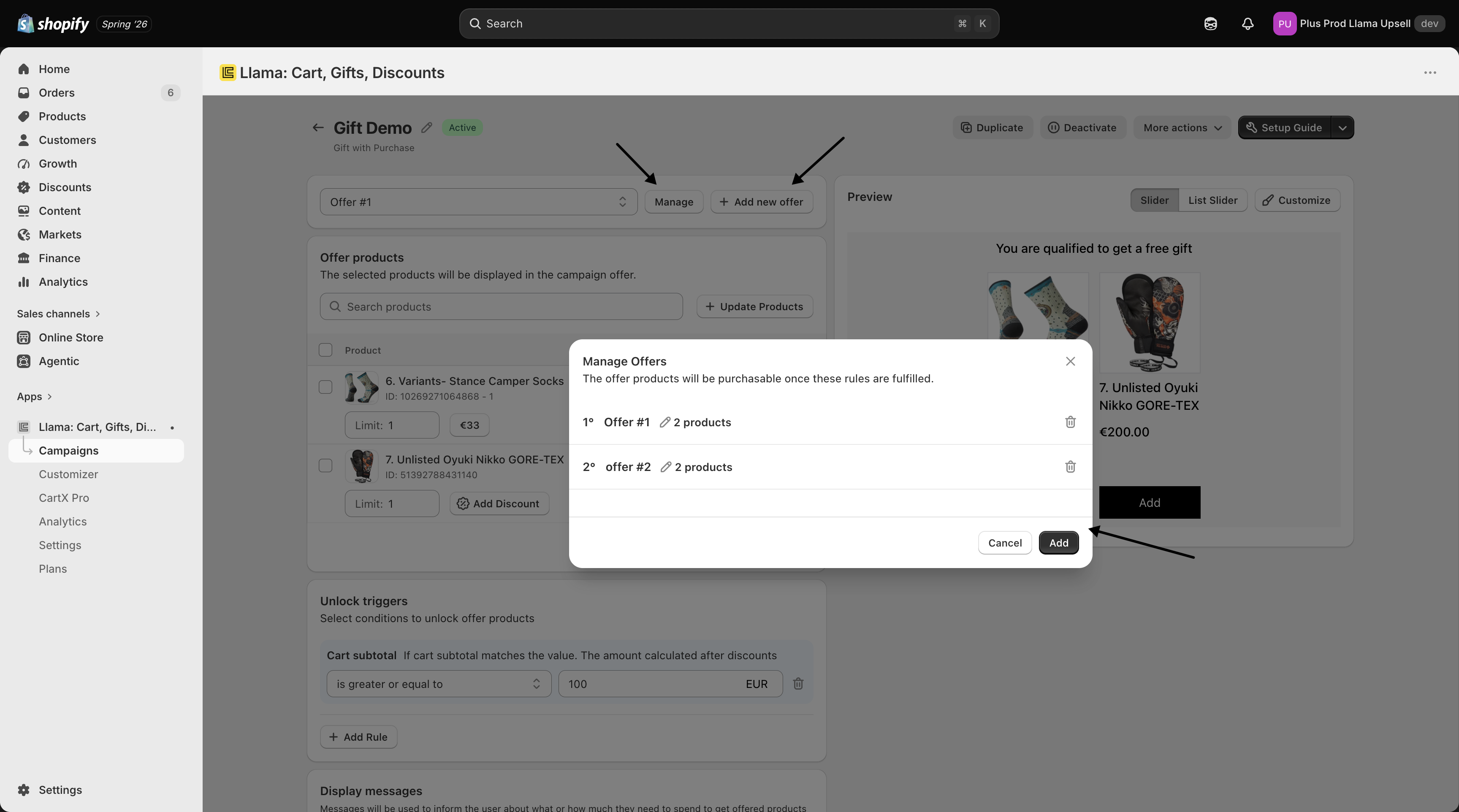
Work with your offers
Add a new offer
Click the + button next to Add new offer. A new offer is created with default settings. Configure its products and conditions separately from your other offers — each offer is independent.
Switch between offers
Once you have more than one offer, a dropdown selector appears. Use it to switch between offers and view or edit each one's products and conditions on its own.
Rename an offer
Click Manage to open the offer settings, then edit the offer title (up to 30 characters).
The name is for your own reference only — it helps you tell your offers apart inside the app and is not shown to shoppers.
Delete an offer
Click Manage to open the offer settings, then choose the delete action on the offer you want to remove.
The last remaining offer in a campaign cannot be deleted. A campaign always keeps at least one offer.
Example: a tiered gift campaign
Build a Gift with Purchase campaign with three offers, each unlocking at a higher cart subtotal:
- Bronze Gift — a free keychain when the cart subtotal is over $25.
- Silver Gift — a free tote bag when the cart subtotal is over $75.
- Gold Gift — a free premium item when the cart subtotal is over $150.
Each offer keeps its own products, discounts, and unlock conditions, so a shopper sees the gift that matches how much they've spent — without you running three separate campaigns.
Because every offer is configured independently, you can mix discount types and conditions freely. One offer might be 100% off above a threshold while another is a percentage off a specific product.
How matching offers are shown
Once your offers are set up, it helps to know how they reach the shopper. The behavior here is different from Post-Purchase campaigns, so it's worth understanding before you launch.
In a Gift with Purchase or Checkout Upsells campaign, the app evaluates every offer's conditions against the cart — not just the first match. All qualifying offers can show at the same time. If a shopper's cart satisfies the rules for three different offers, the shopper sees all three.
This is the opposite of Post-Purchase priority. Post-Purchase is first-wins: only the highest-priority matching offer is shown and the rest are skipped. Gift with Purchase and Checkout Upsells show every matching offer together, so plan your conditions knowing shoppers may qualify for several offers at once.
Order follows the editor
Offers appear to the shopper in the same order you arranged them in the offer list. Reordering offers in the editor reorders what the shopper sees, so put your most important or highest-value offer first to lead the widget.
The Total Limit caps how much a shopper can claim
Showing several offers doesn't mean a shopper can take everything. The Total Limit (also called the diversity limit) caps how many distinct products a shopper may claim across the offers — counted by product, not by variant or line item.
- A Total Limit of
1means "claim any one product" across what's offered. - A Total Limit of
2means "claim up to two different products," and so on. - If the number of in-stock offered products is lower than your Total Limit, the available stock is the real cap — a shopper can never claim more distinct products than are actually available.
The Total Limit counts distinct products, not quantity. A separate Product Limit controls how many of a single variant a shopper can add. Don't confuse the two: Total Limit is about variety (how many different products), while Product Limit is about quantity (how many of one item).
There's also a Hide added offers option: once an offer's products have been claimed up to its limit, you can have that offer disappear from the widget so the remaining offers stay front and center. With every offer claimed up to its limit, the widget hides itself. The full rules for ordering, the Total Limit, the Hide added offers toggle, and out-of-stock fallbacks live on the deep-dive page below.
This page is the setup primer — it covers building and managing offers. For exactly how several offers are evaluated, ordered, capped, and how out-of-stock fallbacks behave, read the companion page.
Where to go next
Checkout Upsells in depth
How the in-checkout widget behaves live, its display modes and customization, variety limits, the four checkout blocks, and edge cases.
Multiple offers — ordering, diversity limits & fallbacks
How several offers inside one campaign are evaluated, ordered, capped by the diversity limit, and how out-of-stock fallbacks behave.