
Gift limits: per-product & total caps
Cap how many gifts a shopper can claim with Product Limit and Total Limit, the controls that protect margin and inventory on free gifts.
A free gift is only "free" to you up to a point. Without caps, nothing stops a shopper from adding ten of your 100%-off samples to a single order. The limit system in a Gift with Purchase offer gives you two independent controls — a Product Limit per gift and a Total Limit across the offer — so a qualifying cart can claim the gifts you intended and no more. This page documents exactly what each limit does, how they interact, what happens at the edges, and the recipes for the most common caps.
Why limits matter
Every gift you discount comes out of your margin, and every gift you give away comes out of your inventory. The risk is highest on 100%-off gifts, where each extra unit a shopper claims is pure cost to you. Limits are the guardrail:
- Margin protection — a 100%-off gift with no cap lets a single order claim unlimited free units. A limit ties the giveaway to the quantity you budgeted for.
- Inventory protection — gifts come from real stock. Limits stop one order from draining the gift product before the rest of your campaign audience can claim it.
- Abuse prevention — limits are the primary defense for tiered and unlisted-gift setups, where a savvy shopper might otherwise stack multiple free items by mixing products or manually editing cart quantities.
The two controls work at different levels. Product Limit caps a single gift product; Total Limit caps the whole offer. You almost always want both.
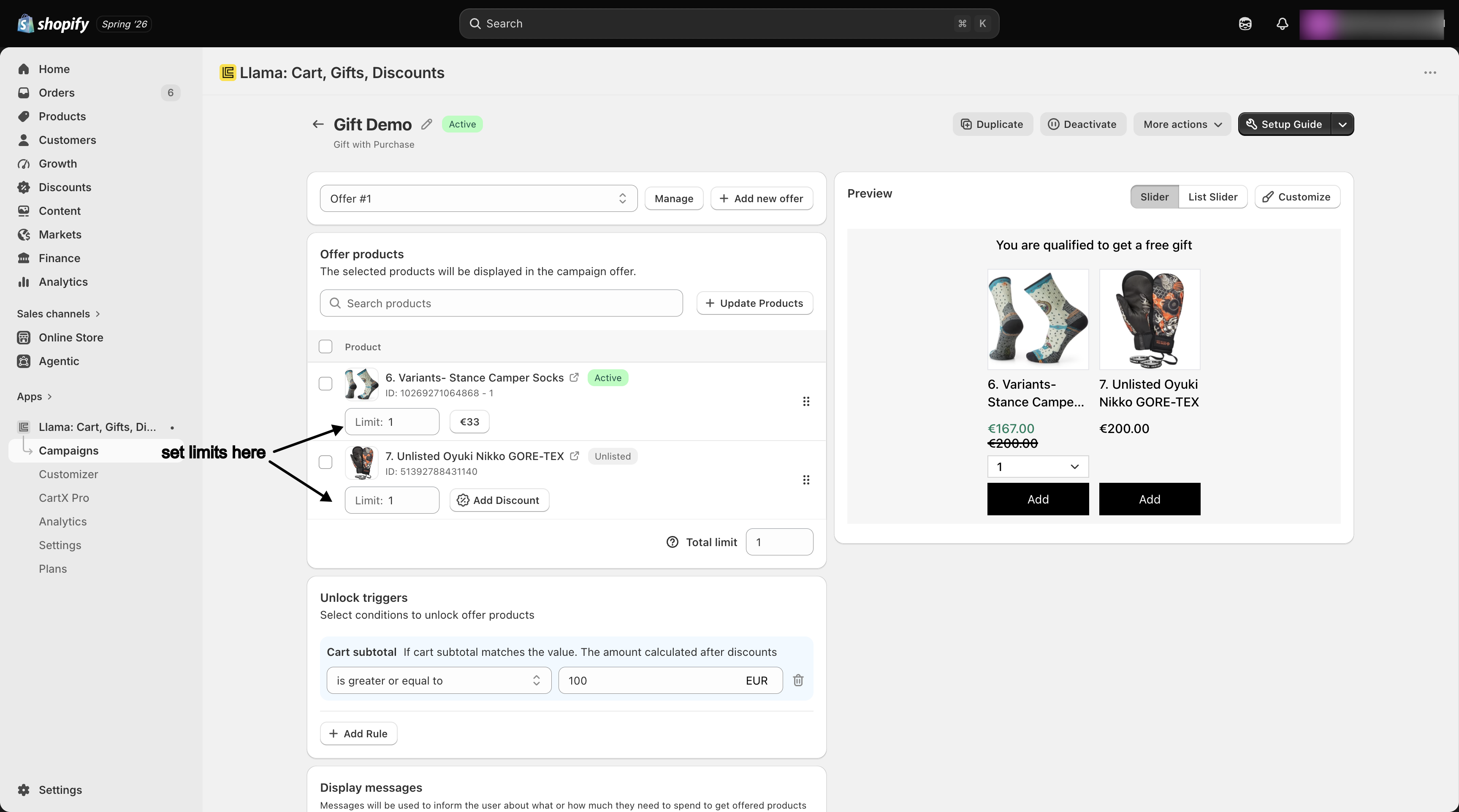
Both limits live in the Offer Products section of a Gift with Purchase offer, alongside each gift's discount. Total Limit is also called the diversity limit in some validation messages — they're the same setting.
Product Limit
The Product Limit is the Limit field on each row of the Offer Products table. It sets the maximum quantity of that one gift product a shopper can add to the cart from this offer.
| Property | Value |
|---|---|
| Where it's set | The Limit field on each product row in Offer Products |
| What it caps | Quantity of that single gift product (or variant) |
| Scope | Per product/variant row |
| Default | 1 |
| Minimum | 1 |
A few specifics that matter:
- It's stored per row. If a gift has multiple variants you've offered (for example Small and Large), each variant carries its own Product Limit.
- A new row starts at 1 until you change it, so by default each gift is "one per order."
- The value must be 1 or higher. A blank or
0limit is invalid and blocks saving (see Edge cases).
Behavior when the limit is reached
On the storefront the Product Limit is the add-to-cart quantity for that gift: when a shopper claims the gift from the offer, it's added at the limit you set, and the widget won't add more of that gift than the limit allows. The limit is the ceiling the offer hands out — a shopper can't use the offer button to pile up extra units beyond it.
Total Limit
The Total Limit caps the offer as a whole. It is a diversity limit: it controls how many different gift products a shopper can claim from the offer, no matter how the Product Limits add up. Think of it as "pick any N gifts." The in-app tooltip describes it as "Limit the number of different products you can add to a shopping cart."
| Property | Value |
|---|---|
| Where it's set | The Total Limit control in Offer Products (shown once the offer has products) |
| What it caps | The number of distinct gift products claimed from the offer |
| Scope | The whole offer |
| Minimum | 1 when the offer contains products |
| Funnels that expose it | Gift with Purchase, Checkout Upsells |
The Total Limit and Product Limit answer different questions:
- Product Limit = "how many of this gift?"
- Total Limit = "how many different gifts in total?"
Worked example: Product Limit vs Total Limit
Suppose a Gift with Purchase offer holds three gift products — a candle, a tote, and a mug — and you set:
- Product Limit = 2 on each of the three.
- Total Limit = 2 for the offer.
Then a qualifying shopper can:
- Take up to 2 candles, or 2 totes, or 2 mugs (Product Limit), but
- Only ever claim 2 of the three distinct products (Total Limit). Once they've added two different gifts — say a candle and a tote — the offer stops them adding the mug, even though the mug is still part of the offer.
So the most they can leave with is 2 candles + 2 totes (4 items, 2 products) — never a unit of all three. Drop the Total Limit to 1 and it becomes "pick exactly one kind of gift, up to 2 of it."
How limits interact with tiers and multiple offers
Limits are configured and enforced per offer, not per campaign. A Gift with Purchase campaign can hold several offers — typically one per tier — and each offer carries its own Product Limits and its own Total Limit.
This matters when a shopper qualifies for more than one tier at once. Because each offer's limits are evaluated independently, a shopper who has unlocked a $25 tier and a $75 tier can claim the gifts from both offers — each capped by that offer's own Total Limit. The campaign does not impose a single combined cap across tiers.
Qualifying for multiple tiers means multiple gift allowances. If a shopper's cart satisfies a Bronze offer (Total Limit 1) and a Silver offer (Total Limit 1), they can claim one gift from each — two gifts total — because the limits don't pool across offers. If you want only the highest tier's gift to be claimable, gate the lower tiers so they un-qualify once the higher tier is met. See how qualification flips as the cart changes in Tiered gifts: qualify, re-qualify & gift removal.
For the mechanics of building tiers and how each one qualifies and un-qualifies as the cart changes, see Tiered gifts. For setting up the offers themselves, see Managing multiple offers.
Limits and discounts: what happens past the cap
A natural question for a discounted gift: can a shopper claim an extra discounted unit past the limit? The answer is no for both limits, but the two stop the shopper in different ways.
- At the Product Limit — the offer hands out the gift only up to the limited quantity. The widget won't add more than the Product Limit of that gift, so there's no over-limit unit to discount in the first place.
- At the Total Limit — once the shopper has claimed the maximum number of distinct gifts, the add buttons for the remaining gifts are blocked. They can't add another different gift to pick up an extra discount.
The net effect is that the gift discount only ever applies within the limits you set: a shopper can never use the offer to claim more discounted gifts — or a wider variety of them — than you intended. For how the gift discount itself attaches, see Applying discounts to offer products.
Edge cases
Shopper has already claimed the maximum. Once a shopper has reached the Total Limit (the maximum number of distinct gifts they're allowed), the offer's add buttons for the remaining gifts are disabled — they can't add another different gift even though it's still part of the offer. The same applies per gift: the widget won't let the offer hand out more than the Product Limit of any single gift. Limits are enforced at the point the shopper claims the gift, so they can't use the offer to stack extra free units.
Total Limit set lower than a tier expects. The Total Limit is the hard ceiling on distinct gifts for that offer. If you build a "pick any 3" tier in your messaging but leave the Total Limit at 1, the shopper can only claim one gift — the configured limit always wins over the intent. Match the Total Limit to what the tier promises.
Limit vs available inventory — whichever is lower wins. The effective Total Limit on the storefront is the smaller of the number you set and the number of offered gift products that have at least one available (in-stock, offerable) variant. If your Total Limit is 5 but only 3 of the offered gifts are in stock, shoppers can claim at most 3. A gift selling out shrinks the effective limit automatically. See Gift variants, inventory & out-of-stock handling for how availability is determined, and Variant offers & quantity limits for per-variant limits.
Changing a limit while carts are live. The storefront caches your offer data in the shopper's browser, so a limit change you save in the app isn't instant for a shopper who already has an open session — allow up to roughly 2–3 minutes for the new limit to propagate (the offer data is served with a 2-minute fresh window plus a short stale-while-revalidate grace period). Live carts may briefly enforce the old value. For a clean test, wait a couple of minutes or start a fresh session after editing a limit before checking behavior.
Validation errors when saving
Two save-time errors come straight from the limit fields:
| Error message | Cause | Fix |
|---|---|---|
Diversity limit cannot be lower than 1 | The Total Limit is 0 while the offer still contains products | Set the Total Limit to 1 or higher |
Product quantity cannot be lower than 1 | A row's Product Limit is 0 or blank | Set every row's Limit to 1 or higher |
Recipes
Troubleshooting
- Shoppers can claim fewer gifts than my Total Limit allows — the effective limit is capped by how many offered gifts are actually in stock. Check whether any gift products are out of stock or unavailable; the limit shrinks to match real availability.
- A shopper can't add another gift from the offer — that's the cap working. The offer blocks adds once a gift hits its Product Limit or the cart hits the Total Limit (the maximum number of distinct gifts). Raise the relevant limit if you want to allow more.
- My limit change isn't taking effect — the offer data is cached in the shopper's browser for up to about 2–3 minutes. Wait a couple of minutes or start a fresh session, then re-test.
- The campaign won't save with a "diversity limit" or "product quantity" error — a limit is set to
0or blank. Set every Product Limit and the Total Limit to 1 or higher.
Related
Free Gift with Purchase
Build the gift offer where Product Limit and Total Limit live.
Tiered gifts: qualify, re-qualify & gift removal
How tiers qualify and how limits apply per offer when a shopper hits several tiers.
Variant offers & quantity limits
Offer specific variants, set per-variant limits, and see how availability caps the Total Limit.
Applying discounts to offer products
Attach fixed, percentage, and 100%-off gift discounts that apply within your limits.
Variant offers, per-variant discounts & quantity limits
Offer specific variants instead of whole products, set per-variant discounts, and control Product Limit and Total Limit quantities.
Tiered gifts: qualify, re-qualify & gift removal
How Gift with Purchase tiers qualify, un-qualify, and remove gifts live as a shopper's cart changes.