
Tiered gifts: qualify, re-qualify & gift removal
How Gift with Purchase tiers qualify, un-qualify, and remove gifts live as a shopper's cart changes.
A Gift with Purchase campaign can hold several offers, and each offer behaves like its own gift "tier" with its own products, discount, and unlock rules. This page explains the runtime, shopper-facing side of that setup: how each tier qualifies against the live cart, how it re-qualifies when items change, and what happens to a gift the shopper already added once the cart stops qualifying. For the admin mechanics of creating, naming, and deleting offers, see Managing multiple offers.
What a "tier" is
In a Gift with Purchase campaign, a tier is just an offer. Each offer inside the campaign carries its own:
- Gift product(s) — one or several products the shopper can claim.
- Discount — a fixed or percentage discount, up to 100% off for a truly free gift. See Discount value types.
- Unlock condition(s) — the rules that must be true about the cart before the gift appears, for example a Cart Subtotal threshold.
Because each offer is fully independent, you can build two very different shapes of promotion from the same campaign:
| Shape | What it looks like | Example |
|---|---|---|
| Tiered ladder | Offers share the same condition type (usually spend) at rising thresholds. The gift gets better as the shopper spends more. | Spend $25 → keychain, spend $75 → tote, spend $150 → premium item |
| Parallel independent offers | Offers use unrelated conditions. They qualify on their own terms, not as a sequence. | A free sample when a specific product is in the cart, plus a free pouch when a promo code is applied |
A tier's name (set with the Manage button, up to 30 characters) is for your reference only. Shoppers never see the offer name — they only see the gift products and the unlock messaging. See Managing multiple offers.
How an offer qualifies
Every offer evaluates its own conditions independently against the live cart. There is no shared ladder logic — the app does not "know" that your $25 offer is below your $75 offer. It simply checks each offer's rules against the current cart and shows the gift for every offer whose rules are met.
When an offer's conditions are satisfied, that offer's gift becomes available in the widget and the shopper can add it. When they are not, the offer is either hidden or shown in a locked state, depending on your visibility setting.
Conditions you can use as an unlock
You can combine several rule types on a single offer (see Set the conditions that trigger the offer):
- Amount rules — Cart Subtotal and Cart Total. These are the usual basis for a spend ladder.
- Line item rules — specific product, product tag, vendor, title, SKU or type, collection, cart/line-item attribute, promo code, promotional link (UTM), or a
refURL value. - Smart Filters — filtered subtotal/total and filtered quantity, so a threshold counts only the items you choose.
For combining groups of rules and the precise way AND/OR logic resolves, see Complex conditions & recipes.
Dynamic "spend $X more" messaging
When you configure the display messages, you can use the dynamic message that tells the shopper how much more they need to spend to unlock the gift. This message recalculates every time the cart changes, so as the shopper adds items the remaining amount counts down and reaches zero exactly when the offer qualifies.
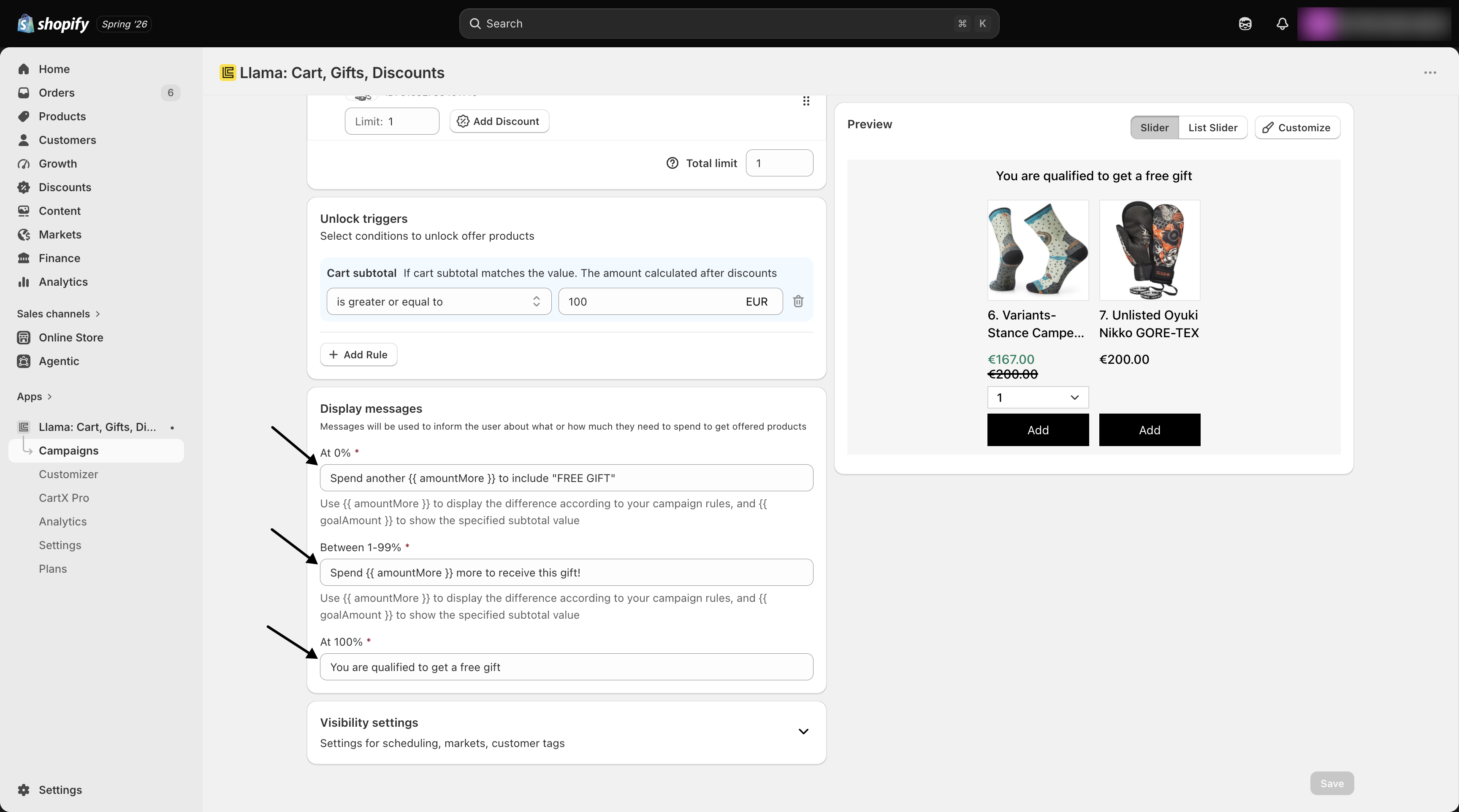
Hidden until met vs. always visible but locked
The Hide until all rules are met visibility setting decides what a shopper sees before a tier qualifies:
| Setting | Before the tier qualifies | After the tier qualifies |
|---|---|---|
| Hide until all rules are met — ON | The offer is completely hidden. The shopper sees nothing for that tier. | The gift appears and can be added. |
| Hide until all rules are met — OFF | The offer is visible but locked, typically alongside the dynamic "spend $X more" message so the shopper knows what they're working toward. | The gift unlocks and can be added. |
Leaving Hide until all rules are met OFF is what makes a spend ladder feel motivating — the shopper can see the tote bag they'll get at $75 while their cart is still at $40. Turning it ON keeps the widget clean until a gift is genuinely available.
Re-qualification as the cart changes
Tiers are re-evaluated live whenever the cart changes. Adding an item can make a higher tier qualify; removing an item can drop the cart below a threshold and un-qualify a tier again. Nothing is "locked in" by reaching a threshold once — qualification always reflects the current cart.
Walk through a three-tier ladder (Bronze at $25, Silver at $75, Gold at $150):
Cart at $40 — only Bronze qualifies
The Cart Subtotal is over $25 but under $75. The Bronze gift is available. Silver and Gold are either hidden or shown locked with a "spend more to unlock" message, depending on your visibility setting.
Shopper adds a $40 item → cart crosses $75
The subtotal is now $80. The Silver tier's condition is met, so the Silver gift appears in the widget and can be added. Bronze remains qualified too (the cart is still over $25).
Shopper removes that item → cart drops to $40
The subtotal falls back under $75, so the Silver tier no longer qualifies. The Silver gift disappears from (or re-locks in) the widget. Only Bronze remains available.
Re-evaluation reads the cart as it is right now. A tier that qualified a moment ago can un-qualify the instant the cart drops below its threshold, even within the same session. Tiers are never "earned" permanently — design your messaging so a shopper isn't surprised when a gift they saw a second ago is gone after they removed an item.
Gift removal and de-qualification (the important edge case)
The trickiest scenario is when a shopper has already added a gift to the cart and then changes the cart so that the tier no longer qualifies — for example, by removing the product that unlocked the offer, or by lowering the subtotal below the threshold.
When a tier de-qualifies, the gift's discount is tied to that tier's conditions. The intended behavior is that a gift the shopper already added should lose its free/discounted status when the cart no longer qualifies — the gift should be pulled from the cart, or its discount removed, so the shopper cannot keep a free item they no longer meet the rules for. The gift's discount only applies while the unlocking conditions hold true.
Always test this end to end on your own store before launching. Add the gift, then remove the qualifying product (or lower the cart below the threshold) and confirm what happens to the line in the cart and at checkout — that the gift is removed or loses its discount as you expect. Because the gift discount is conditional, a shopper should not be able to remove the qualifying items and still check out with the free gift. Verify the cart total reflects the change before money is collected.
How "Hide added offers" interacts
On the Customize page, the Additional settings section includes a Hide added offers toggle. This controls the offer list, not the cart:
- When the shopper adds a gift, that offer is removed from the widget's offer list so they aren't prompted to add it again.
- The gift itself remains a line in the cart. Hiding the offer does not remove the product from the cart.
This matters during de-qualification. If a shopper adds the gift, the offer disappears from the list, and then they change the cart so the tier de-qualifies, the gift line is still in the cart and is the thing that must be re-priced or removed. Don't rely on the offer vanishing from the list as proof the gift is gone — the offer list and the cart line are two separate things.
The Hide out of stock toggle sits next to Hide added offers in the same Additional settings section. See Customize the look.
Multiple tiers qualifying at once
Because each offer qualifies on its own, a shopper can qualify for more than one tier at the same time. In a cumulative ladder, a cart at $80 satisfies both the $25 tier and the $75 tier, so both gifts can be available together. Whether the shopper can actually claim all of them is governed by your gift limits, not by the tier logic.
Two limit settings, configured per offer, cap how much a shopper can take across tiers:
| Limit | What it caps |
|---|---|
| Product Limit | How many of an individual gift product the shopper can claim. |
| Total Limit | How many gift items the shopper can claim across several product combinations. |
A key point for tiers: the Total Limit counts distinct products, not quantity, and it applies across the whole campaign — so it is the single most useful lever for capping a multi-tier ladder. A Total Limit of 1 means "claim any one gift" no matter how many tiers qualify; a Total Limit of 2 means "claim up to two different gifts," and so on. The Product Limit is about quantity instead — how many of one gift variant a shopper can add. Don't confuse the two: Total Limit caps variety across tiers, Product Limit caps quantity of a single item.
If you want the ladder to hand out one gift per tier but never more, set these limits so a shopper can't add the same gift repeatedly or exceed the total you intend. For the full behavior of per-product and total caps — including how available stock can become the real cap when it's lower than your limit — see the dedicated gift limits page.
If you intend a shopper to receive only one gift even when several tiers qualify, gift limits are how you enforce it — qualification alone will happily show every met tier. Decide up front whether your ladder is "collect them all" or "one best gift" and set limits to match.
Overlapping and conflicting tier conditions
Because tiers are evaluated independently, overlapping conditions are normal and usually intentional — that's exactly how a cumulative ladder works. The risk is surprising shoppers, not a system error. Two design choices help:
- Cumulative bands (overlapping on purpose): each tier uses a "subtotal is over $X" rule. Every higher cart also satisfies every lower tier, so all qualified gifts stack. This is the friendliest ladder for shoppers.
- Exclusive bands (non-overlapping): each tier uses a range so only one tier qualifies at a time, for example "$25–$74.99", "$75–$149.99", "$150+". A cart at $80 qualifies for exactly one tier. This approximates a "single best gift" feel without relying on limits, but you must build the ranges carefully so there are no gaps or overlaps at the boundaries.
A concrete three-tier reference:
| Tier | Gift | Cumulative condition | Exclusive (band) condition |
|---|---|---|---|
| Bronze | Keychain | Cart Subtotal is over $25 | Cart Subtotal is $25 to $74.99 |
| Silver | Tote bag | Cart Subtotal is over $75 | Cart Subtotal is $75 to $149.99 |
| Gold | Premium item | Cart Subtotal is over $150 | Cart Subtotal is $150 or more |
Watch the boundary values. With "over $X" rules, confirm whether your threshold is inclusive or exclusive of the exact amount, and avoid leaving a gap (for example "$25 to $74.99" then "$75+") that could strand a cart sitting exactly on a boundary. Test a cart at each exact threshold value before launch.
For grouped rules and multi-currency thresholds across tiers, see Complex conditions & recipes. For the closely related concept of a single discount that grows with spend, see Tier (volume) discounts.
Worked recipes
Edge cases
Troubleshooting
| Symptom | Likely cause | Fix |
|---|---|---|
| A higher tier never appears when the cart should qualify | Threshold uses Cart Total vs. Cart Subtotal, or a Smart Filter is excluding items | Recheck the amount rule type and any filters on that offer; test a cart at the exact threshold |
| Two gifts show when you expected one | Cumulative (overlapping) conditions with no limits | Switch to exclusive bands, or set Total Limit to cap claims across tiers |
| A qualifying tier shows no product | The gift is out of stock or unlisted and a hide toggle filtered it | Add an in-stock, visible gift, or review Hide out-of-stock / Hide unlisted in Additional settings |
| The offer vanished but the gift is still in the cart | Hide added offers hides the list entry, not the cart line | Expected — the cart line is separate from the offer list; verify de-qualification re-prices or removes it |
| A shopper kept a free gift after dropping below the threshold | De-qualification wasn't verified on your store | Test add-then-remove and confirm the gift loses its discount or is pulled before checkout |
| A tier still shows a gift you just set to draft/unlisted in Shopify | Product data is briefly cached on the storefront | Gift product data refreshes within about 5 minutes; wait and reload before assuming a tier is misconfigured |
Where to go next
Managing multiple offers
Add, rename, switch between, and delete the offers that make up your tiers.
Free Gift with Purchase
Set up gifts, discounts, unlock conditions, limits, and visibility.
Gift limits: per-product & total caps
Cap how many gifts a shopper claims across tiers with Product Limit and Total Limit.
Complex conditions & recipes
Combine rule groups and handle boundary and multi-currency cases.
Tier (volume) discounts
Reward bigger carts with a growing discount instead of a gift.
How features interact
What overrides what when gifts overlap other discounts and campaigns.
Gift limits: per-product & total caps
Cap how many gifts a shopper can claim with Product Limit and Total Limit, the controls that protect margin and inventory on free gifts.
Gift variants, inventory & out-of-stock handling
How shoppers pick a gift variant, and how the widget hides, shows, and decrements inventory for Gift with Purchase gifts.