
Gift variants, inventory & out-of-stock handling
How shoppers pick a gift variant, and how the widget hides, shows, and decrements inventory for Gift with Purchase gifts.
When you offer a Gift with Purchase, what the shopper sees depends on how many variants the gift has and whether those variants are in stock. This page explains the variant selector across all three gift layouts, the rules the widget uses to decide what is "available", and the inventory toggles you control — including the edge cases that trip merchants up, like a gift that sells out mid-session or a freebie you accidentally oversell.
Single-variant vs multi-variant gifts
How a gift adds to the cart depends entirely on its variant count.
| Gift type | What the shopper sees | What happens on click |
|---|---|---|
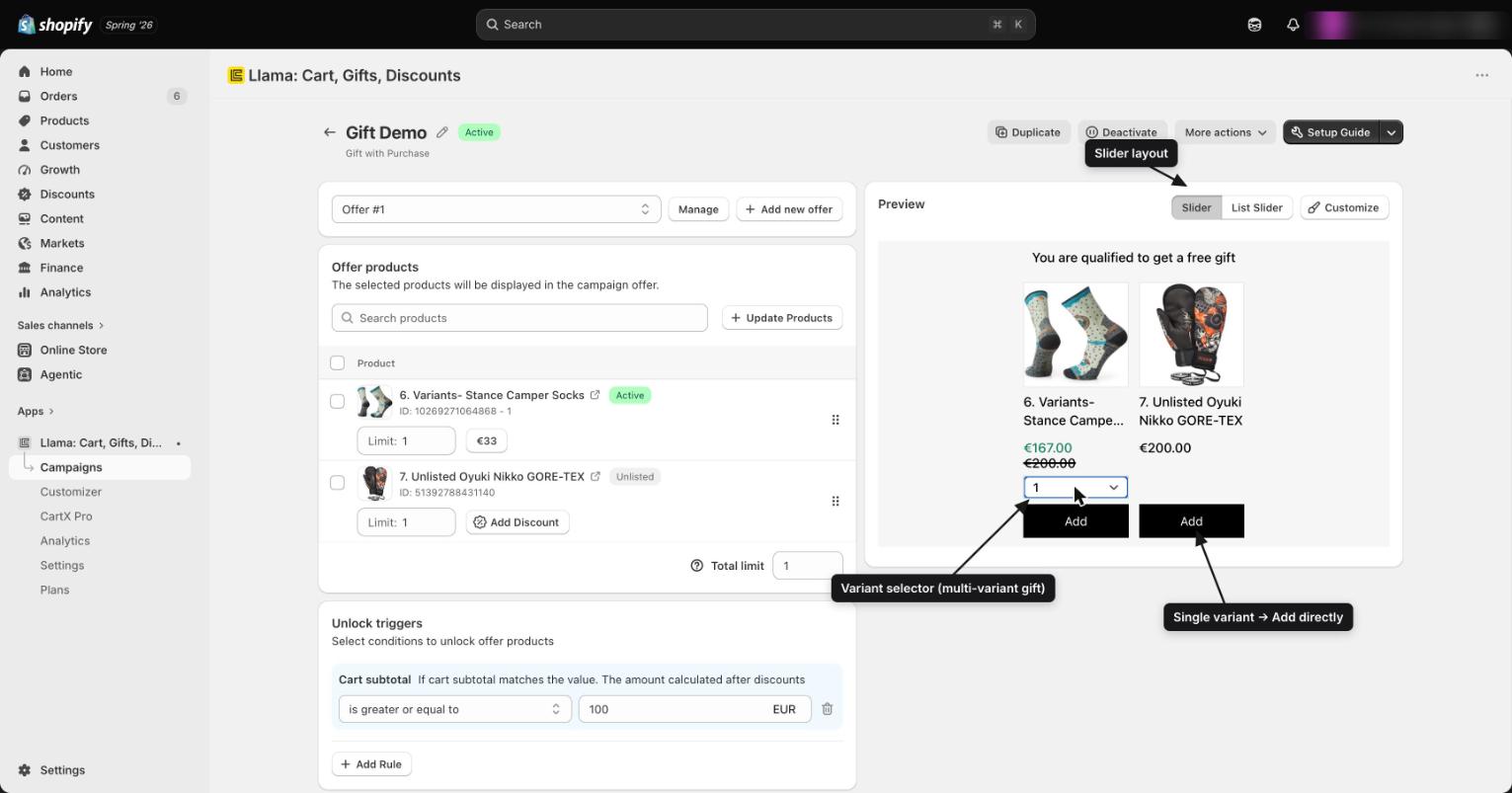
| Single variant (one size/color, or no options) | The gift card with an Add button | Clicking Add puts that one variant straight into the cart |
| Multi-variant (size, color, etc.) | The gift card with a variant selector | The shopper picks a variant first, then the Add button adds the chosen one |
A single-variant gift has nothing to choose, so it adds directly. A multi-variant gift can't — the widget needs to know which variant to add — so it shows a selector in the card before add-to-cart.
The selector across the three layouts
Gift with Purchase widgets come in three layouts, and the variant selector appears in all of them. You pick the layout in the customizer (see Customizing widget appearance).
The horizontal carousel. Each gift is a card you swipe or arrow through; a multi-variant gift shows its selector inside the card, above the Add button. Set products-per-view and slide spacing in the Slider settings.
A vertical list of gift rows. Each multi-variant row carries its own selector inline with the Add button, so the shopper chooses and adds without leaving the list.
The updated list format. It behaves like List for variant selection — a per-row selector for any multi-variant gift — with refreshed styling.
Quick view for multi-variant gifts
If a shopper wants to inspect a gift before choosing a variant, turn on Show Quick View Button in the customizer (Customize → Product card → Quick View Button). It is off by default. When enabled, an eye icon appears next to the add button; clicking it opens a modal where the shopper can preview the gift's details and pick a variant without leaving the page.
You can also set the Product Click Action (under Additional settings) to Quick View so clicking anywhere on the card opens the same modal. The other options are Redirect to Product Page and No Action (the default).
Quick view is the friendliest way to present a multi-variant gift with several options — shoppers see the photo and full option list before committing, which cuts down on "wrong size" gift swaps.
Choosing which variants are eligible
You decide how much choice the shopper gets when you build the offer in the Offer Products table:
- Add the whole product — every variant of that product becomes selectable. The shopper sees the full size/color selector and picks any in-stock variant.
- Add specific variants — only the variants you pick are offered. The selector shows only those variants; everything else is off the table, even if it exists on the product.
So the selector a shopper sees is the intersection of what you made eligible and what is currently available. For the full mechanics of choosing variants and setting per-variant discounts and limits, see Variant offers, per-variant discounts & quantity limits.
Inventory & availability rules
The widget decides whether to show a gift using each variant's availability — Shopify's
availableForSale signal, surfaced in the app simply as whether the variant is available to buy.
A variant counts as unavailable when it has zero sellable inventory and is not set to keep
selling past zero.
The "Hide out of stock" toggle
Find it under Customize → Gift with Purchase block → Additional settings → Hide out of stock.
| Setting | Default | Effect |
|---|---|---|
| Hide out of stock | On | Hides any gift variant (and any gift whose variants are all unavailable) that has 0 available inventory and is not continuing to sell when out of stock |
Because it defaults to On, a brand-new gift campaign already hides sold-out gifts — you don't have to do anything to avoid showing a gift no one can claim.
How it interacts with "Continue selling when out of stock"
This is the part merchants miss. "Hide out of stock" does not hide every 0-inventory variant. It respects Shopify's per-variant inventory policy:
- If a variant has 0 inventory and "Continue selling when out of stock" is OFF, it is treated as out of stock and gets hidden.
- If a variant has 0 inventory but "Continue selling when out of stock" is ON, Shopify still reports it as purchasable, so the widget treats it as available and keeps showing it — even with the toggle on.
A 0-inventory variant set to Continue selling is still purchasable and is not hidden, even when "Hide out of stock" is on. If a gift you expected to disappear is still showing, check the variant's inventory policy in Shopify before assuming the toggle is broken.
A second nuance: a gift product that isn't tracking inventory at all is never considered out of stock, so it always shows regardless of the toggle.
Variant-level edge cases
Availability is evaluated per variant, then rolled up to the whole gift. That produces a few behaviors worth knowing.
Some variants in stock, others out
Suppose a tote gift has Red (in stock), Blue (in stock), and Green (sold out, not continuing to sell).
| "Hide out of stock" | What the selector shows |
|---|---|
| On (default) | Only Red and Blue. Green is removed from the selector. |
| Off | Red, Blue, and Green all appear (Green may add but then fail at checkout if truly unbuyable) |
The whole gift is hidden only when no variant is available. As long as at least one variant can be bought, the gift card stays — it just shows fewer choices in the selector. Don't expect a partially-stocked gift to disappear.
The default/selected variant is out of stock
If the variant that would be pre-selected is sold out but others are in stock, the gift still appears (because at least one variant is available). With "Hide out of stock" on, the sold-out variant is filtered out of the selector, so the shopper simply lands on an available one. With the toggle off, the shopper could land on the sold-out variant and need to switch before adding.
Inventory hits 0 while the gift sits in the cart
The widget filters what it displays at fetch time; it doesn't pull a gift back out of the cart if that variant sells out a moment later. If the last unit is bought by someone else while a shopper has the gift in their cart, the line stays visible in the cart but the purchase can fail at checkout. Keeping "Continue selling when out of stock" on for gifts you never want to block (see Recipes) avoids this.
Interaction with "Hide unlisted products"
Right beside "Hide out of stock" sits Hide unlisted products (default Off), which hides Shopify unlisted gifts — products published to your sales channel but hidden from search. The two filters are independent and stack: a gift must pass both to appear. A gift is shown only if it is in stock (or exempt via Continue selling) and not filtered out as unlisted.
With three gift products — one Active, one Unlisted, one Out of stock — the combinations are:
| Hide unlisted | Hide out of stock | Visible gifts |
|---|---|---|
| Off | Off | Active, Unlisted, Out of stock — all three |
| On | Off | Active + Out of stock |
| Off | On | Active + Unlisted |
| On | On | Active only |
For everything about unlisted gifts and why they need special handling, see Gift with Purchase: unlisted products.
And one more filter: "Hide added offers"
A third toggle sits in the same Additional settings group: Hide added offers (default On). It hides any gift the shopper has already added to the cart, so the widget doesn't keep offering a gift that's already claimed. It stacks with the other two — a gift shows only if it is in stock (or exempt via Continue selling), not filtered as unlisted, and not already in the cart.
This matters for free gifts: with the default settings, once a shopper claims a 100%-off gift it disappears from the widget on the next fetch, which is usually what you want. If you'd rather let a shopper add the same gift more than once, turn Hide added offers off (and check your gift limits so they can't over-claim).
Free gift mechanics with inventory
A free gift is just a gift with a 100% discount — it is still a real Shopify product that draws down real stock.
A 100%-off gift decrements inventory when claimed, exactly like a paid sale. Plan stock for your freebies the same way you would for products you sell, or you can oversell a gift you intended to give away to everyone.
What happens at the last unit depends on your settings:
- "Hide out of stock" on (default): when the final unit is claimed, the gift drops to 0 available and is hidden from the widget on the next fetch — the offer quietly retires itself.
- "Continue selling when out of stock" on for the gift: the gift never hits "unavailable", so it keeps showing and keeps being claimable past 0, and your reported inventory goes negative. Use this only when you genuinely want an unlimited freebie.
To cap how many gift units a single shopper can take in one order, use Product Limit and Total Limit — see Gift limits: per-product & total caps. Those caps are per-order; they protect a single order from over-claiming but don't replace planning your total stock. A 10-unit freebie with a Product Limit of 1 still sells out after 10 shoppers claim it.
Caching note
Inventory and availability are read through a client-side, in-memory cache with a roughly 5-minute time-to-live, held in the shopper's browser and keyed by the exact data query the widget runs. When you change stock, a variant's inventory policy, or a product's status in Shopify, the storefront may keep showing the previous state until that cache expires. The same window applies to titles, images, and prices — for the full picture of what's cached and how to push updates through sooner, see How gift product data loads & caching.
After changing inventory or a "Continue selling" setting, wait about 5 minutes (and reload the storefront) before judging whether a gift correctly appeared or disappeared. An immediate reload can show stale data. If a gift still seems wrong after the cache window, see A gift product isn't showing.
Recipes
Troubleshooting
Where to go next
Free Gift with Purchase
Build the gift campaign, set discounts, and connect it to your store.
Variant offers & quantity limits
Offer specific variants and set per-variant discounts.
Gift limits: per-product & total caps
Cap how many gifts a shopper can claim with Product Limit and Total Limit.
Unlisted gift products
Show or hide Shopify unlisted products as gifts.
How gift product data loads & caching
Why the widget takes a few minutes to reflect product and inventory changes.
A gift product isn't showing
Diagnose a gift that won't appear in the widget.
Tiered gifts: qualify, re-qualify & gift removal
How Gift with Purchase tiers qualify, un-qualify, and remove gifts live as a shopper's cart changes.
Out-of-stock and unavailable offers
How the app filters offer products that are sold out, unpublished, or otherwise not purchasable — and when a campaign shows a health warning for them.